Overview
Security baselines define the minimum configuration standard every endpoint must meet before it touches your corporate network. Without a baseline, device configurations drift, vulnerabilities accumulate, and you lose visibility into your attack surface.
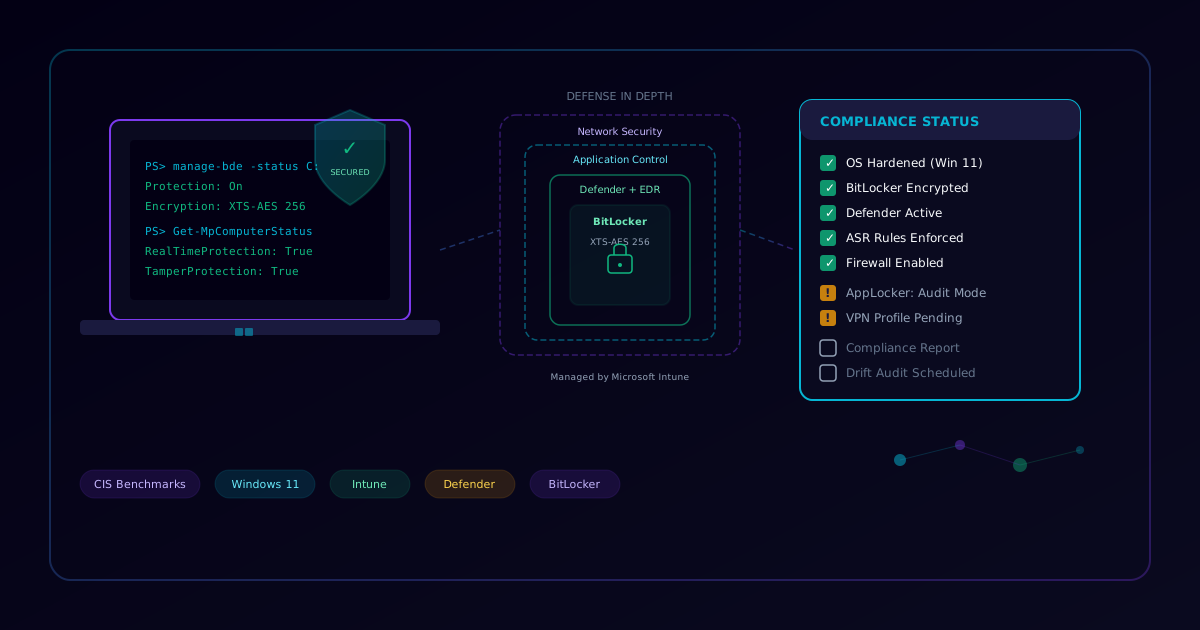
This template targets Windows 11 Enterprise devices managed via Microsoft Intune. It aligns with the CIS Microsoft Windows 11 Enterprise Benchmark and Microsoft's own security baseline recommendations. Each section maps to a defense layer — from OS hardening through to monitoring and compliance reporting.
Use this checklist for every new device deployment, baseline drift audit, or compliance review cycle. Assign owners per section and track completion in your ITSM tool.
1. OS Hardening
Lock down the operating system by disabling legacy protocols, enforcing secure defaults, and reducing the attack surface at the OS layer.
-
Disable SMBv1 — Remove the legacy SMBv1 protocol to prevent EternalBlue-class exploits
Set-SmbServerConfiguration -EnableSMB1Protocol $false -Force Disable-WindowsOptionalFeature -Online -FeatureName SMB1Protocol -
Enforce TLS 1.2+ only — Disable TLS 1.0 and TLS 1.1 across the system to prevent downgrade attacks
# Disable TLS 1.0 New-Item "HKLM:\SYSTEM\CurrentControlSet\Control\SecurityProviders\SCHANNEL\Protocols\TLS 1.0\Client" -Force Set-ItemProperty -Path "HKLM:\SYSTEM\CurrentControlSet\Control\SecurityProviders\SCHANNEL\Protocols\TLS 1.0\Client" -Name "Enabled" -Value 0 # Disable TLS 1.1 New-Item "HKLM:\SYSTEM\CurrentControlSet\Control\SecurityProviders\SCHANNEL\Protocols\TLS 1.1\Client" -Force Set-ItemProperty -Path "HKLM:\SYSTEM\CurrentControlSet\Control\SecurityProviders\SCHANNEL\Protocols\TLS 1.1\Client" -Name "Enabled" -Value 0 -
Disable legacy protocols (LLMNR, NetBIOS over TCP/IP, WPAD) — Prevent name resolution poisoning and relay attacks
# Disable LLMNR via registry New-Item "HKLM:\SOFTWARE\Policies\Microsoft\Windows NT\DNSClient" -Force Set-ItemProperty -Path "HKLM:\SOFTWARE\Policies\Microsoft\Windows NT\DNSClient" -Name "EnableMulticast" -Value 0 -
Configure Windows Firewall — Enable all three profiles (Domain, Private, Public) with default deny inbound
Set-NetFirewallProfile -Profile Domain,Public,Private -Enabled True -DefaultInboundAction Block -DefaultOutboundAction Allow -
Disable unnecessary services — Stop and disable Print Spooler (if not needed) and Remote Registry
Stop-Service -Name Spooler -Force; Set-Service -Name Spooler -StartupType Disabled Stop-Service -Name RemoteRegistry -Force; Set-Service -Name RemoteRegistry -StartupType Disabled -
Set screen lock timeout to 5 minutes — Enforce auto-lock after inactivity to prevent unauthorized physical access
-
Disable autorun and autoplay — Block automatic execution of media and removable drives
Set-ItemProperty -Path "HKLM:\SOFTWARE\Microsoft\Windows\CurrentVersion\Policies\Explorer" -Name "NoDriveTypeAutoRun" -Value 255 -
Configure audit policies — Enable auditing for logon events, privilege use, and object access
auditpol /set /subcategory:"Logon" /success:enable /failure:enable
auditpol /set /subcategory:"Special Logon" /success:enable /failure:enable
auditpol /set /subcategory:"Sensitive Privilege Use" /success:enable /failure:enable
auditpol /set /subcategory:"File System" /success:enable /failure:enable
2. Intune Compliance Policies
Define compliance policies in Microsoft Intune that gate access to corporate resources. Non-compliant devices should be blocked via Conditional Access.
-
Set minimum OS version requirement — Require Windows 11 24H2 (build 26100) or later. Windows 11 23H2 (22631) reached end-of-updates for Home/Pro/Pro for Workstations on 2025-11-11; only Enterprise/Education/IoT Enterprise editions still receive updates through 2026-11-10. New deployments should target 25H2 (build 26200) where supported.
{ "osMinimumVersion": "10.0.26100", "osMinimumBuildNumber": "26100" }Verify the current GA target against the Windows 11 release information page before each compliance review — Microsoft's annual feature cadence (24H2 → 25H2 → 26H1) shifts the supported floor every fall.
-
Require BitLocker encryption — Device must have full-disk encryption enabled to be marked compliant
-
Require antivirus (Microsoft Defender) — Defender Antivirus must be active and reporting healthy
-
Require firewall enabled — Windows Firewall must be active across all profiles
-
Set maximum inactivity before screen lock — Configure to 5 minutes maximum in compliance policy
-
Require real-time protection — Defender real-time scanning must be enabled and not tampered with
-
Configure non-compliance remediation actions — Define escalation: notify user immediately, restrict access after 24 hours, retire device after 30 days
# Check compliance status via Microsoft Graph
Connect-MgGraph -Scopes "DeviceManagementManagedDevices.Read.All"
Get-MgDeviceManagementManagedDevice | Where-Object { $_.ComplianceState -eq "noncompliant" } | Select-Object DeviceName, UserPrincipalName, ComplianceState
3. BitLocker Encryption
Full-disk encryption is non-negotiable. BitLocker protects data at rest in case of device theft or loss.
-
Enable BitLocker with TPM — Use Trusted Platform Module as the primary key protector
Enable-BitLocker -MountPoint "C:" -EncryptionMethod XtsAes256 -TpmProtector -
Set XTS-AES 256-bit encryption for OS drive — Use the strongest available encryption algorithm
-
Backup recovery keys to Entra ID — Ensure recovery keys are escrowed in Microsoft Entra ID for IT recovery
manage-bde -on C: -RecoveryPassword -SkipHardwareTest BackupToAAD-BitLockerKeyProtector -MountPoint "C:" -KeyProtectorId (Get-BitLockerVolume -MountPoint "C:").KeyProtector[1].KeyProtectorId -
Encrypt fixed data drives — Apply BitLocker to all non-OS fixed drives (D:, E:, etc.)
Get-BitLockerVolume | Where-Object { $_.VolumeType -eq "Data" -and $_.ProtectionStatus -eq "Off" } | Enable-BitLocker -EncryptionMethod XtsAes256 -RecoveryPasswordProtector -
Configure pre-boot authentication for high-security devices — Require TPM + PIN for devices handling sensitive data
# Enable TPM + PIN via Group Policy or Intune Add-BitLockerKeyProtector -MountPoint "C:" -TpmAndPinProtector -Pin (ConvertTo-SecureString "123456" -AsPlainText -Force) -
Verify encryption status — Confirm all drives show full encryption and protection is on
manage-bde -status
Get-BitLockerVolume | Format-Table MountPoint, VolumeStatus, EncryptionMethod, ProtectionStatus
4. Microsoft Defender for Endpoint
Configure Defender as the primary EDR and AV platform with attack surface reduction rules and advanced threat protection.
-
Enable real-time protection — Ensure Defender scans files and processes in real time
Set-MpPreference -DisableRealtimeMonitoring $false -
Enable cloud-delivered protection (MAPS) — Connect to Microsoft cloud for rapid threat intelligence updates
Set-MpPreference -MAPSReporting Advanced Set-MpPreference -SubmitSamplesConsent SendAllSamples -
Configure attack surface reduction (ASR) rules — Block common exploit vectors from email, Office apps, and scripts
# Block executable content from email client and webmail Add-MpPreference -AttackSurfaceReductionRules_Ids BE9BA2D9-53EA-4CDC-84E5-9B1EEEE46550 -AttackSurfaceReductionRules_Actions Enabled # Block all Office applications from creating child processes Add-MpPreference -AttackSurfaceReductionRules_Ids D4F940AB-401B-4EFC-AADC-AD5F3C50688A -AttackSurfaceReductionRules_Actions Enabled # Block JavaScript or VBScript from launching downloaded executable content Add-MpPreference -AttackSurfaceReductionRules_Ids D3E037E1-3EB8-44C8-A917-57927947596D -AttackSurfaceReductionRules_Actions Enabled -
Enable controlled folder access — Protect key folders from unauthorized modification by ransomware
Set-MpPreference -EnableControlledFolderAccess Enabled -
Enable network protection — Block outbound connections to known malicious domains and IP addresses
Set-MpPreference -EnableNetworkProtection Enabled -
Configure Potentially Unwanted Application (PUA) blocking — Detect and block adware, bundleware, and other PUAs
Set-MpPreference -PUAProtection Enabled -
Enable tamper protection — Prevent malware or attackers from disabling Defender components
# Tamper protection is managed via Microsoft 365 Defender portal # Verify status locally: Get-MpComputerStatus | Select-Object IsTamperProtected -
Set scan schedules — Configure quick scan daily at noon and full scan weekly on Sundays
Set-MpPreference -ScanScheduleQuickScanTime 12:00:00
Set-MpPreference -ScanParameters 2
Set-MpPreference -ScanScheduleDay 1
Set-MpPreference -ScanScheduleTime 02:00:00
5. Application Control
Restrict which applications can run on endpoints. Application control is one of the most effective defenses against malware and unauthorized software.
-
Deploy AppLocker or WDAC policies — Choose Windows Defender Application Control (WDAC) for new deployments or AppLocker for environments needing user/group-based rules
# Export current AppLocker policy for review Get-AppLockerPolicy -Effective -Xml | Out-File "C:\Temp\AppLockerPolicy.xml" -
Block execution from user-writable paths — Deny execution from %AppData%, %Temp%, %LocalAppData%, and Downloads folder
# Example AppLocker deny rule for %TEMP% # Deploy via Group Policy: Computer Config > Windows Settings > Security Settings > Application Control Policies > AppLocker -
Allow only signed applications from trusted publishers — Require code signing from approved publishers for .exe and .dll files
-
Block script execution from common malware staging directories — Deny PowerShell, VBScript, and batch files from user-writable directories
-
Phase deployment: Audit mode first, then Enforce — Run AppLocker/WDAC in audit mode for 2-4 weeks to identify false positives before switching to enforcement
# Check AppLocker audit events
Get-WinEvent -LogName "Microsoft-Windows-AppLocker/EXE and DLL" -MaxEvents 50 | Format-Table TimeCreated, Message -Wrap
6. Network Security
Secure network communications and limit exposure to network-based attacks.
-
Enable DNS-over-HTTPS (DoH) — Encrypt DNS queries to prevent DNS spoofing and surveillance
# Configure DoH via registry Set-ItemProperty -Path "HKLM:\SYSTEM\CurrentControlSet\Services\Dnscache\Parameters" -Name "EnableAutoDoh" -Value 2 # Or configure via Intune Settings Catalog: Networking > DNS Client > DNS over HTTPS -
Configure Windows Firewall inbound/outbound rules — Create specific allow rules for business applications and block everything else
# Example: Block all inbound RDP except from management subnet New-NetFirewallRule -DisplayName "Block RDP" -Direction Inbound -LocalPort 3389 -Protocol TCP -Action Block New-NetFirewallRule -DisplayName "Allow RDP from Mgmt" -Direction Inbound -LocalPort 3389 -Protocol TCP -RemoteAddress 10.0.100.0/24 -Action Allow -
Deploy Always-On VPN profile — Configure device tunnel or user tunnel for seamless, always-on encrypted connectivity
# Verify VPN profile deployment Get-VpnConnection | Format-Table Name, ServerAddress, TunnelType, ConnectionStatus -
Disable IPv6 if not required — Reduce the attack surface if your network does not use IPv6
# Disable IPv6 on all adapters Get-NetAdapterBinding -ComponentId ms_tcpip6 | Disable-NetAdapterBinding -ComponentId ms_tcpip6 -
Block SMB outbound to internet — Prevent credential leaks via SMB connections to external hosts
New-NetFirewallRule -DisplayName "Block SMB Outbound" -Direction Outbound -LocalPort 445 -Protocol TCP -RemoteAddress Internet -Action Block -
Enable Network Level Authentication for RDP — Require authentication before establishing an RDP session
Set-ItemProperty -Path "HKLM:\SYSTEM\CurrentControlSet\Control\Terminal Server\WinStations\RDP-Tcp" -Name "UserAuthentication" -Value 1
7. Monitoring & Compliance
Continuously monitor device compliance and schedule regular audits to catch configuration drift.
-
Verify Intune device compliance status — Query Microsoft Graph for non-compliant devices and investigate
# Check compliance via Microsoft Graph PowerShell Connect-MgGraph -Scopes "DeviceManagementManagedDevices.Read.All" Get-MgDeviceManagementManagedDevice -Filter "complianceState eq 'noncompliant'" | Select-Object DeviceName, UserPrincipalName, LastSyncDateTime -
Configure compliance notification emails — Set up alerts to device owners and IT admins when compliance state changes
-
Set non-compliance grace periods — Allow 24-hour grace for minor items (e.g., pending updates) and immediate block for critical items (e.g., no encryption)
-
Schedule regular baseline drift audits — Run monthly reviews comparing current device configuration against the baseline using Intune reports or custom scripts
# Export Defender status across all managed devices Get-MgDeviceManagementManagedDevice -All | Select-Object DeviceName, ComplianceState, OperatingSystem, LastSyncDateTime | Export-Csv "C:\Reports\ComplianceReport.csv" -NoTypeInformation -
Export compliance reports — Generate and distribute weekly/monthly compliance dashboards to security leadership
Quick Reference
| Section | Items | Priority | Owner |
|---|---|---|---|
| OS Hardening | 8 | Critical | Security Ops |
| Intune Compliance | 7 | Critical | Endpoint Team |
| BitLocker Encryption | 6 | Critical | Endpoint Team |
| Defender for Endpoint | 8 | Critical | Security Ops |
| Application Control | 5 | High | Security Ops |
| Network Security | 6 | High | Network Team |
| Monitoring & Compliance | 5 | Medium | Security Ops |
Reference Standards
This checklist aligns with the CIS Microsoft Windows 11 Enterprise Benchmark (verify the current published version at the CIS Benchmarks website — CIS revises Benchmarks roughly annually, and the version your organization is audited against may be ahead of what is documented here). Complementary references:
- Microsoft Security Baselines — Windows 11 baseline shipped via the Microsoft Security Compliance Toolkit
- CIS Critical Security Controls v8.1 (2024) — IG1 / IG2 / IG3 implementation groups
- NIST SP 800-53 Rev 5 — controls AC, AU, IA, CM, SC apply to endpoint hardening
- NIST CSF 2.0 (Feb 2024) — Protect (PR.AA, PR.PS, PR.IR) and Detect (DE.CM) functions
- CISA Cybersecurity Performance Goals (CPG) — IG, ID, PR baselines for resource-constrained orgs
- ASD Essential Eight — patch applications, patch OS, application control, restrict admin (Maturity Level 2 minimum for most enterprises)
Review and update this baseline quarterly or whenever Microsoft releases a new Windows 11 feature update.