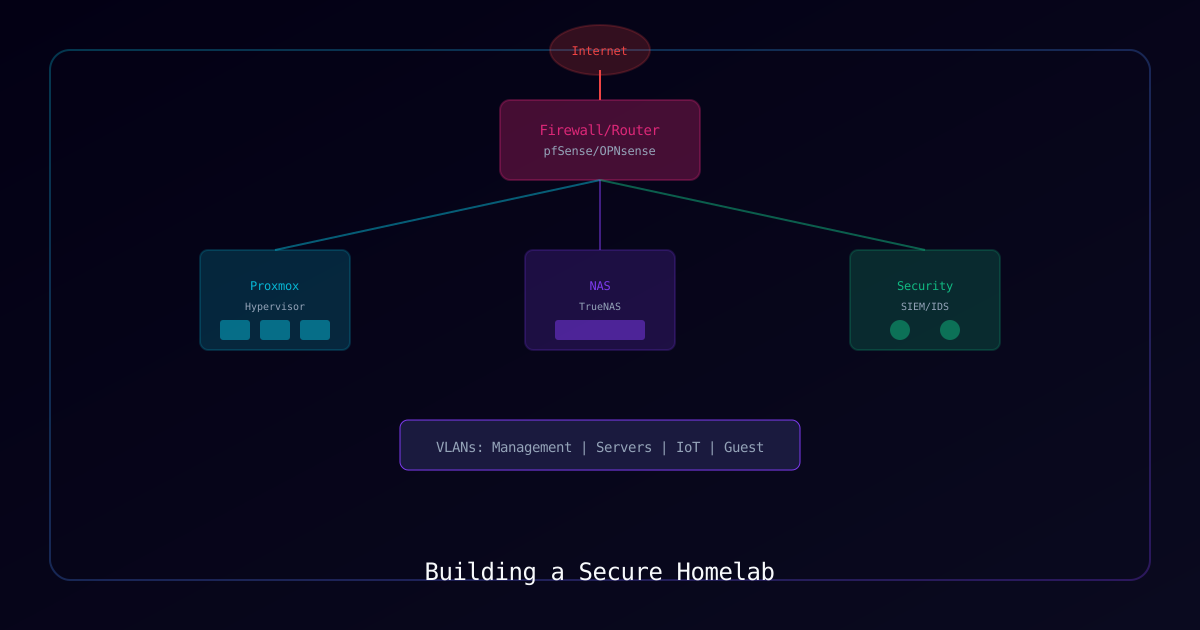
Overview
Building a homelab is one of the best investments you can make as an IT professional or security enthusiast. It provides a safe environment to experiment, learn new technologies, and develop hands-on skills that are invaluable in real-world scenarios.
Who Should Use This Guide
- IT professionals wanting hands-on practice
- Security enthusiasts building test environments
- Self-hosters taking control of their data
- Career developers building enterprise-applicable skills
Why Build a Homelab
| Benefit | Description |
|---|---|
| Hands-on Learning | Practical experience beats theoretical knowledge |
| Safe Testing | Break things without production consequences |
| Career Development | Skills directly applicable to enterprise environments |
| Data Control | Self-host services and maintain privacy |
Requirements
Hardware Requirements
| Component | Recommended | Budget Option |
|---|---|---|
| Server | Dell PowerEdge R720 or equivalent | Used Dell Optiplex |
| RAM | 64GB+ ECC | 32GB DDR4 |
| Storage | SSD + HDD Array | 1TB NVMe |
| Firewall | Protectli Vault or similar | Mini PC with 2+ NICs |
| Switch | 24-port PoE managed switch | TP-Link managed switch |
Software Components
| Component | Purpose |
|---|---|
| Proxmox VE | Type 1 hypervisor |
| pfSense/OPNsense | Firewall and router |
| Docker | Container runtime |
| Grafana + InfluxDB | Monitoring stack |
Process
Step 1: Plan Network Architecture
Design your network segmentation before purchasing hardware.
Recommended VLAN Structure:
VLAN 10 - Management     (10.0.10.0/24)  # Hypervisor, switches, APs
VLAN 20 - Servers        (10.0.20.0/24)  # Production services
VLAN 30 - IoT/Untrusted  (10.0.30.0/24)  # Smart home devices
VLAN 40 - Security       (10.0.40.0/24)  # SIEM, IDS/IPS
VLAN 50 - Guest (10.0.50.0/24) # Guest WiFiFirewall Rules Strategy:
| Source | Destination | Action | Purpose |
|---|---|---|---|
| VLAN 20 | VLAN 40 | ALLOW | Servers send logs to SIEM |
| VLAN 20 | WAN | ALLOW | Outbound with restrictions |
| VLAN 20 | VLAN 10 | BLOCK | Protect management network |
| VLAN 30 | VLAN 20 | BLOCK | Isolate IoT from servers |
Step 2: Install Proxmox VE
Proxmox Virtual Environment is a free, enterprise-ready Type 1 hypervisor.
Installation:
- Download Proxmox VE ISO from official website
- Create bootable USB using Rufus or Etcher
- Boot server and follow installation wizard
- Complete post-installation configuration
Post-Install Configuration:
# Update package sources (remove enterprise repo)
sed -i 's/^deb/#deb/' /etc/apt/sources.list.d/pve-enterprise.list

# Add no-subscription repo
echo "deb http://download.proxmox.com/debian/pve bookworm pve-no-subscription" > /etc/apt/sources.list.d/pve-no-subscription.list

# Update system
apt update && apt full-upgrade -yVerification:
# Access web interface
# Navigate to: https://<server-ip>:8006Expected Result: Proxmox web interface loads with login prompt.
Step 3: Configure Storage
Set up storage pools for optimal performance.
Create ZFS Pool:
# Create mirrored ZFS pool for VMs
zpool create -f vmpool mirror /dev/sdb /dev/sdc

# Create datasets
zfs create vmpool/images
zfs create vmpool/backupsVerification:
zpool status vmpoolExpected Output: Pool shows ONLINE status with both disks healthy.
Step 4: Deploy Firewall VM
Configure pfSense or OPNsense as your network firewall.
VM Configuration:
| Setting | Value |
|---|---|
| CPU | 2 cores |
| RAM | 4GB |
| Storage | 32GB |
| Network 1 | WAN (bridged to physical NIC) |
| Network 2 | LAN (VLAN trunk) |
Essential Packages:
| Package | Purpose |
|---|---|
| pfBlockerNG-devel | DNS and IP blocking |
| Suricata | IDS/IPS |
| ntopng | Network monitoring |
| Tailscale | Modern VPN |
Step 5: Configure VLANs
Create network segmentation on your managed switch and firewall.
Switch Configuration:
- Create VLANs 10, 20, 30, 40, 50
- Configure trunk port to firewall (all VLANs tagged)
- Assign access ports to appropriate VLANs
- Configure PVID for each access port
Firewall VLAN Interfaces:
- Create VLAN interfaces under Interfaces > Assignments
- Configure IP addressing for each VLAN gateway
- Enable DHCP server per VLAN as needed
Verification:
# From firewall CLI
ifconfig -a | grep vlanExpected Result: VLAN interfaces listed with assigned IPs.
Step 6: Set Up Monitoring Stack
Deploy comprehensive monitoring using the TIG stack.
docker-compose.yml:
version: '3.8'

services:
  influxdb:
    image: influxdb:2.7
    volumes:
      - influxdb-data:/var/lib/influxdb2
    environment:
      - DOCKER_INFLUXDB_INIT_MODE=setup
      - DOCKER_INFLUXDB_INIT_USERNAME=admin
      - DOCKER_INFLUXDB_INIT_PASSWORD=<secure-password>
      - DOCKER_INFLUXDB_INIT_ORG=homelab
      - DOCKER_INFLUXDB_INIT_BUCKET=metrics

  grafana:
    image: grafana/grafana:latest
    ports:
      - "3000:3000"
    volumes:
      - grafana-data:/var/lib/grafana
    depends_on:
      - influxdb

volumes:
  influxdb-data:
grafana-data:Deployment:
docker-compose up -dVerification:
docker ps
curl http://localhost:3000/api/healthExpected Result: Both containers running; Grafana health check returns OK.
Step 7: Harden the Environment
Apply security hardening across all components.
Proxmox Hardening:
# Disable root SSH (after creating admin user)
# Edit /etc/ssh/sshd_config
PermitRootLogin no

# Enable firewall
pve-firewall enableFirewall Hardening:
- Change default admin password
- Disable web interface on WAN
- Enable automatic rule backup
- Configure syslog to security VLAN
Troubleshooting
| Symptom | Possible Cause | Solution |
|---|---|---|
| VLANs not communicating | Trunk port misconfigured | Verify all VLANs tagged on trunk |
| No internet from VMs | NAT rule missing | Add outbound NAT rule on firewall |
| Proxmox web unreachable | Firewall blocking | Check pve-firewall rules |
| Slow VM performance | Storage bottleneck | Review ZFS ARC size, add SSD cache |
| DHCP not working | Wrong interface selected | Verify DHCP server on correct VLAN interface |
Verification Checklist
Infrastructure
- Proxmox installed and updated
- Storage pools configured
- Firewall VM deployed
Network
- VLANs created and tested
- Firewall rules implemented
- Inter-VLAN routing verified
- Internet access working
Security
- All default passwords changed
- SSH key-based authentication only
- Firewall rules documented
- IDS/IPS active
Monitoring
- Grafana dashboards configured
- Metrics collection working
- Alerting configured
- Log aggregation enabled
Next Steps
With your homelab foundation complete, consider these projects:
| Project | Description |
|---|---|
| SIEM Deployment | Centralized security monitoring |
| Honeypot Setup | Learn attacker techniques safely |
| Zero Trust Architecture | Modern security implementation |
| Infrastructure as Code | Automate with Ansible/Terraform |
References
Last Updated: February 2026