SCENARIO
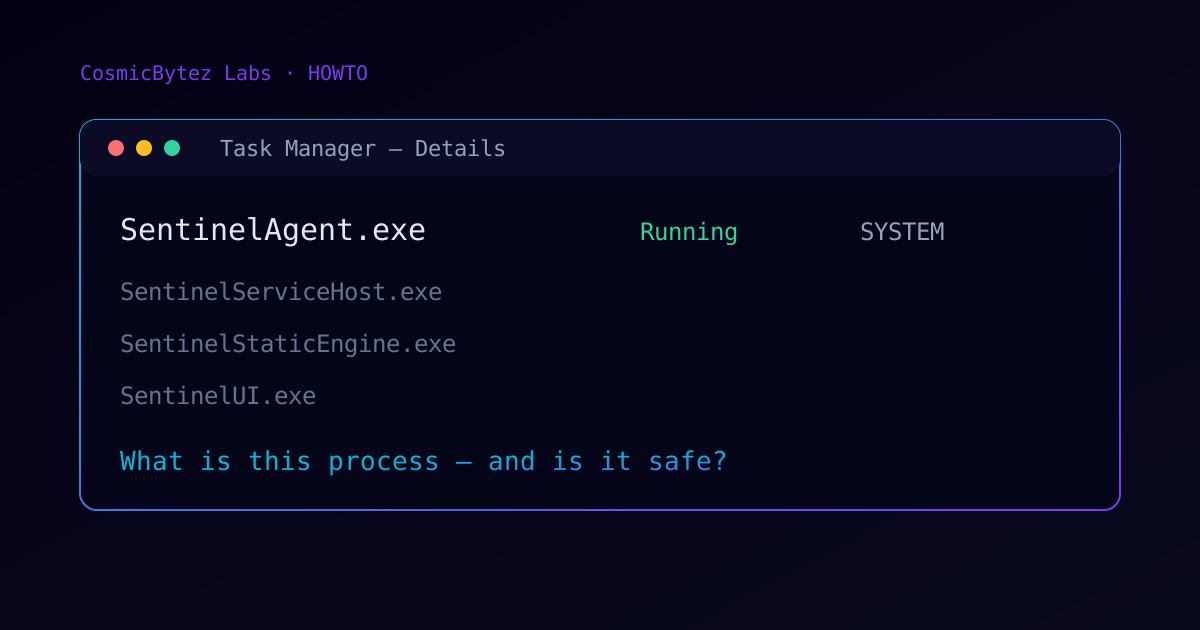
You open Task Manager on a Windows endpoint and find SentinelAgent.exe running as SYSTEM, alongside several other Sentinel-prefixed processes you did not start. You want to confirm the process is legitimate, understand why it is always running (and occasionally busy), and know what you can — and cannot — safely do with it.
Short answer: SentinelAgent.exe is the main service process of the SentinelOne endpoint agent, the EDR sensor that provides real-time behavioral detection, threat response, and telemetry on the machine. It is supposed to run continuously. This guide shows how to verify it is the genuine agent and how to interpret and manage its behavior.
REQUIREMENTS & ASSUMPTIONS
- Windows endpoint with the SentinelOne agent installed (any recent GA version)
- Local administrator rights for the verification and
sentinelctlsteps - For anti-tamper operations: the site/group passphrase from the SentinelOne management console
- No console access is required for the read-only checks
PROCESS
Step 1: Verify the process is the genuine agent
Check the executable path and signature before anything else. The real agent lives under Program Files with a versioned directory:
Get-Process SentinelAgent | Select-Object -ExpandProperty Path
# Expected: C:\Program Files\SentinelOne\Sentinel Agent <version>\SentinelAgent.exe

Get-AuthenticodeSignature (Get-Process SentinelAgent).Path |
  Select-Object Status, @{n='Signer';e={$_.SignerCertificate.Subject}}
# Expected: Status Valid, signer Sentinel Labs, Inc. / SentinelOne, Inc.A binary named SentinelAgent.exe running from C:\Users\..., C:\Temp, or an unsigned copy anywhere is not the agent — treat that as a masquerading attempt and investigate.
Step 2: Know the process family
The agent is not a single process. On a healthy endpoint you will typically see:
| Process | Role |
|---|---|
SentinelAgent.exe | Core agent service — detection logic, policy enforcement, console communication |
SentinelServiceHost.exe | Helper service host for agent subtasks |
SentinelStaticEngine.exe | Static (pre-execution) file analysis engine |
SentinelUI.exe | Per-user tray icon and notifications — the only piece in the user session |
SentinelRemediation.exe | Spawned during remediation/rollback actions, exits when done |
Seeing several of these at once is normal and expected.
Step 3: Interpret resource usage
Baseline behavior is quiet: low single-digit CPU and a modest working set. Sustained activity usually maps to a real cause:
- Full disk scan — after install or when triggered from the console; CPU-heavy until complete
- Static engine updates — short bursts when new detection content arrives
- High file-churn workloads — build servers, database hosts, and backup jobs generate more events to inspect
- AV interoperability — another active antivirus scanning the same I/O multiplies the cost; ensure Microsoft Defender is in passive mode when SentinelOne is the primary engine
If CPU stays pegged with none of the above in play, check the agent version against the console's supported-versions list and open a support case with logs rather than killing the process.
Step 4: Check agent status with sentinelctl
The agent ships a local CLI in its install directory:
cd "C:\Program Files\SentinelOne\Sentinel Agent <version>"
sentinelctl status
sentinelctl versionstatus reports whether protection is enabled, the management console it reports to, and pending reboots. This is the fastest local health check during troubleshooting.
Step 5: Understand why you cannot just kill it
Anti-tamper protection is on by default: ending the process from Task Manager, stopping the SentinelAgent service, or uninstalling without authorization will fail by design — malware would otherwise do exactly that. Legitimate maintenance goes through the passphrase-gated CLI:
sentinelctl unprotect -k "<site passphrase>"
:: ...perform the maintenance...
sentinelctl protectGet the passphrase from the management console (Sentinels → the endpoint → Actions → Show passphrase). Re-enable protection immediately after maintenance.
Step 6: Reduce noise the right way
If a specific workload genuinely conflicts with monitoring, fix it with scoped console policy — not by disabling the agent:
- Add interoperability exclusions for known-noisy paths (build output directories, database files) from the console's Exclusions catalog
- Prefer narrow path or hash exclusions over broad folder exclusions — every exclusion is a blind spot
- Keep the agent current: performance fixes land in agent releases regularly
VERIFICATION
Get-AuthenticodeSignaturereturns Valid with a SentinelOne/Sentinel Labs signersentinelctl statusshows protection enabled and the expected console address- The endpoint shows Online and healthy in the management console
If all three hold, SentinelAgent.exe is doing exactly what it should: sitting resident, watching everything, and staying out of the way.