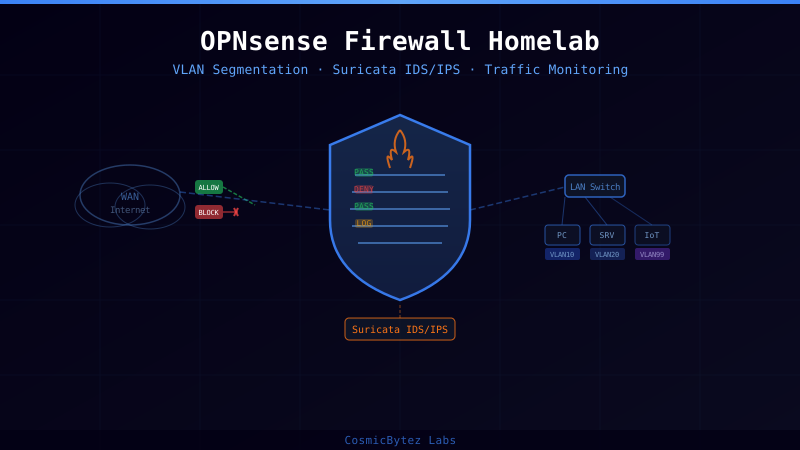
Overview
Most homelab setups start with a consumer router — NAT, one flat network, and a checkbox marked "firewall enabled." It works until you're running a dozen services and realize your NAS, smart TV, and homelab servers share the same broadcast domain. A compromised IoT device has a clear path to your Proxmox cluster. That's the gap OPNsense fills.
OPNsense is a FreeBSD-based open source firewall and routing platform forked from pfSense in 2015. It ships with a polished web UI, weekly security updates, a plugin ecosystem, and support for Suricata IDS/IPS, Unbound DNS, WireGuard VPN, and traffic shaping — all manageable from a browser. For homelab use it runs comfortably on a mini PC with two NICs, a VM on Proxmox, or dedicated hardware like a Protectli vault.
By the end of this project you will have:
- OPNsense installed and managing your WAN/LAN boundary
- VLAN segmentation isolating trusted, IoT, servers, and management traffic
- Suricata IDS/IPS inspecting traffic against Emerging Threats rulesets
- DNS-over-TLS via Unbound with ad/tracker blocking
- Firewall rules enforcing a default-deny posture between VLANs
- A WireGuard road-warrior VPN for remote access into the trusted VLAN
Architecture
                        ┌──────────────────────────────────────┐
   ISP Modem/ONT        │            OPNsense                  │
   ┌─────────┐          │                                      │
   │  WAN    │──────────│  vtnet0 (WAN)      vtnet1 (LAN trunk)│
   │ (DHCP)  │          │                                      │
   └─────────┘          │  Suricata IDS/IPS                    │
                        │  Unbound DNS-over-TLS                │
                        │  WireGuard (wg0 :51820)              │
                        │  pf firewall + NAT                   │
                        └────────────┬─────────────────────────┘
                                     │ 802.1Q trunk
                          ┌──────────┴──────────┐
                          │   Managed Switch      │
                          └──────────────────────┘
                     ┌─────┬──────┬──────┬──────┐
                  VLAN10 VLAN20 VLAN30 VLAN99
                Trusted  Servers  IoT   Mgmt
                192.168.10.0/24   .30   .99
                         .20.0/24
VLAN design:
| VLAN | Name | Subnet | Purpose |
|---|---|---|---|
| 10 | Trusted | 192.168.10.0/24 | Workstations, laptops |
| 20 | Servers | 192.168.20.0/24 | Homelab VMs, NAS |
| 30 | IoT | 192.168.30.0/24 | Smart home, cameras |
| 99 | Mgmt | 192.168.99.0/24 | OPNsense, switch OOB |
Inter-VLAN traffic is default deny — only explicitly permitted flows are allowed. IoT devices can reach the internet but cannot initiate connections to Trusted or Servers.
Prerequisites
Hardware options (pick one):
- Proxmox VM — two virtio NICs (one bridged to WAN, one to LAN trunk). Minimum 2 vCPUs, 2 GB RAM, 16 GB disk. Ideal for testing.
- Mini PC — Intel N100 or J6412 with two Intel NICs (Topton/Protectli). ~$100–$200 USD.
- Dedicated appliance — Protectli VP2410 or similar (four NICs, fanless).
Software/network requirements:
- OPNsense 24.7 ISO (downloaded from opnsense.org)
- A managed switch that supports 802.1Q VLANs (or a cheap TP-Link TL-SG108E)
- A separate DHCP/DNS environment is not needed — OPNsense replaces it
Step 1: Install OPNsense
Option A: Proxmox VM
Create a new VM in Proxmox with these settings:
OS:       Other (BSD)
BIOS:     SeaBIOS
CPU:      2 cores, type: host
RAM:      2048 MB
Disk:     16 GB virtio-scsi
NIC 1:    vmbr0 (WAN bridge — uplink to modem)
NIC 2:    vmbr1 (LAN bridge — uplink to managed switch)
Attach the OPNsense ISO as a CD-ROM and boot.
Option B: Bare Metal
Flash the installer ISO to a USB drive:
# Linux
dd if=OPNsense-24.7-dvd-amd64.iso of=/dev/sdX bs=4M status=progress

# macOS
diskutil unmountDisk /dev/diskN
sudo dd if=OPNsense-24.7-dvd-amd64.iso of=/dev/rdiskN bs=4mBoot from USB. At the OPNsense boot menu, choose the default option.
Installation
Log in with installer / opnsense when prompted. Walk through the installer:
- Select ZFS or UFS (UFS is simpler for single-disk installs)
- Select your target disk
- Set root password
- Reboot and remove the USB/ISO
On first boot, assign interfaces at the console:
Do you want to configure VLANs now? [y/n]: n
Enter the WAN interface name: vtnet0   (or em0 on bare metal)
Enter the LAN interface name: vtnet1
OPNsense will set a default LAN IP of 192.168.1.1. Connect a laptop to the LAN port and browse to https://192.168.1.1 — default login is root / opnsense.
Step 2: Initial Web UI Configuration
Navigate to System → Wizard and complete the setup wizard:
- Hostname:
opnsenseor your choice - Domain:
lan.home(internal domain, not.local— avoid mDNS conflicts) - DNS: Leave blank for now; Unbound will handle this
- Time zone: Set appropriately
- WAN: DHCP (or PPPoE if your ISP requires it)
- LAN:
192.168.99.1/24— we're making LAN the management VLAN - Change the root password
After the wizard, go to System → Firmware → Updates and install all pending updates before continuing.
Step 3: VLAN Configuration
Create VLANs
Navigate to Interfaces → Other Types → VLAN. Add four VLANs on the LAN parent interface (vtnet1):
| VLAN Tag | Description |
|---|---|
| 10 | Trusted |
| 20 | Servers |
| 30 | IoT |
| 99 | Mgmt (already your LAN) |
For each VLAN, click Add and set the parent interface and tag.
Assign VLAN Interfaces
Go to Interfaces → Assignments and add each new VLAN as an interface. OPNsense will label them OPT1, OPT2, OPT3 — rename them under each interface's settings:
OPT1 → VLAN10_TRUSTED   IP: 192.168.10.1/24   Enable: checked
OPT2 → VLAN20_SERVERS   IP: 192.168.20.1/24   Enable: checked
OPT3 → VLAN30_IOT       IP: 192.168.30.1/24   Enable: checked
Configure DHCP Servers
Navigate to Services → DHCPv4 and enable a DHCP server on each VLAN interface:
VLAN10_TRUSTED:  Range 192.168.10.100–192.168.10.199
VLAN20_SERVERS:  Range 192.168.20.100–192.168.20.199  (mostly static leases)
VLAN30_IOT:      Range 192.168.30.100–192.168.30.199
MGMT (LAN):      Range 192.168.99.100–192.168.99.199
Set DNS to the OPNsense interface IP for each subnet so Unbound answers queries.
Step 4: Firewall Rules
OPNsense uses a first-match wins rule ordering similar to pf. The default LAN rule allows all traffic — you'll replace this with a tiered policy.
Default Deny Between VLANs
On each VLAN interface, remove the auto-generated "allow all" rule and add explicit rules. Navigate to Firewall → Rules → VLAN10_TRUSTED:
# Allow Trusted → Servers (specific services only)
Action:   Pass
Protocol: TCP
Source:   VLAN10_TRUSTED net
Dest:     VLAN20_SERVERS net
Dest Port: 443, 22, 8006 (HTTPS, SSH, Proxmox UI)
Description: Trusted to Servers - web/SSH/Proxmox

# Allow Trusted → Internet
Action:   Pass
Protocol: TCP/UDP
Source:   VLAN10_TRUSTED net
Dest:     any
Description: Trusted internet access

# Block Trusted → IoT
Action:   Block
Source:   VLAN10_TRUSTED net
Dest:     VLAN30_IOT net
Description: No trusted→IoT initiated (IoT may reply)

# Default deny (implicit, but add explicit for logging)
Action:   Block
Source:   VLAN10_TRUSTED net
Dest:     any
Log:      checked
Description: Default deny - log
For VLAN30_IOT (most restrictive):
# IoT → Internet only (no LAN access)
Action:   Pass
Protocol: TCP/UDP
Source:   VLAN30_IOT net
Dest:     !RFC1918   (negate RFC1918 alias = internet only)
Description: IoT internet access

# Block IoT → any private network
Action:   Block
Source:   VLAN30_IOT net
Dest:     RFC1918
Log:      checked
Description: Block IoT lateral movement
Create the RFC1918 alias under Firewall → Aliases:
Name: RFC1918
Type: Network
Networks:
  10.0.0.0/8
  172.16.0.0/12
  192.168.0.0/16
Step 5: Unbound DNS with DNS-over-TLS and Blocking
Enable Unbound
Go to Services → Unbound DNS → General:
- Enable: checked
- Listen Port: 53
- Enable DNSSEC: checked
- Register DHCP Leases: checked (gives you
.lan.homehostnames)
Under Services → Unbound DNS → DNS over TLS, add upstream resolvers:
Server IP:   1.1.1.1        Port: 853   Hostname: cloudflare-dns.com
Server IP:   9.9.9.9        Port: 853   Hostname: dns.quad9.net
Add Blocklists
Go to Services → Unbound DNS → Blocklists. Enable DNSBL and add the following lists:
Steven Black Hosts (ads + malware):
  https://raw.githubusercontent.com/StevenBlack/hosts/master/hosts

Hagezi Pro:
  https://raw.githubusercontent.com/hagezi/dns-blocklists/main/adblock/pro.txt
Set the blocklist action to Return NXDOMAIN and apply. Unbound will now block ads and known malicious domains for every VLAN that uses OPNsense as its DNS server.
Step 6: Suricata IDS/IPS
Suricata provides deep packet inspection against community threat intelligence rulesets. On OPNsense it can run in IDS mode (alert only) or IPS mode (inline, drops matching packets).
Install the Plugin
Go to System → Firmware → Plugins and search for os-suricata. Install it, then navigate to Services → Intrusion Detection.
Configure Suricata
Under Services → Intrusion Detection → Settings:
Enabled:           checked
IPS Mode:          checked (inline blocking — uncheck to start in IDS-only)
Interfaces:        WAN, VLAN30_IOT    (inspect external + untrusted traffic)
Home Networks:     192.168.0.0/16
Pattern Matcher:   Hyperscan (if available) or AC-BS
Syslog:            checked
Enable Rulesets
Under the Download tab, enable these free rulesets:
ET Open — Attack Response        (command-and-control callbacks)
ET Open — Current Events         (recent campaigns)
ET Open — DNS                    (DNS tunneling, DGA)
ET Open — Exploit                (known exploit signatures)
ET Open — Malware                (malware C2 traffic)
ET Open — Phishing               (phishing infrastructure)
Click Download & Update Rules, then Apply.
Under the Rules tab you can suppress noisy signatures. Common false-positive candidates in homelabs:
# Suppress signature globally (add to custom.rules)
suppress gen_id 1, sig_id 2210050 # Noisy ET rule for home trafficNavigate to Services → Intrusion Detection → Alerts to watch hits in real time. Start in IDS mode for a week to understand your baseline before enabling inline IPS dropping.
Step 7: WireGuard Road-Warrior VPN
Allow remote access to your Trusted VLAN without exposing services directly.
Install WireGuard
Go to System → Firmware → Plugins, install os-wireguard, then navigate to VPN → WireGuard.
Create the Server Instance
Under Local, add a new server:
Name:          wg-home
Listen Port:   51820
Tunnel Address: 10.10.10.1/24
DNS Server:    192.168.99.1    (OPNsense Unbound)
Click Generate to create the server key pair. Note the public key.
Add a Peer (Client)
Under Peers, add a client:
Name:          laptop-dylan
Public Key:    <paste client's wg pubkey>
Allowed IPs:   10.10.10.2/32
WireGuard Client Config
Generate this config on your laptop (wg genkey | tee private.key | wg pubkey):
[Interface]
PrivateKey = <laptop private key>
Address    = 10.10.10.2/24
DNS        = 10.10.10.1

[Peer]
PublicKey  = <OPNsense WireGuard public key>
Endpoint   = your.public.ip.or.ddns:51820
AllowedIPs = 192.168.10.0/24, 192.168.20.0/24, 10.10.10.0/24
PersistentKeepalive = 25Firewall Rules for WireGuard
Assign the WireGuard interface in Interfaces → Assignments and add rules:
# Allow VPN clients → Trusted + Servers
Interface: WireGuard
Source:     wg net (10.10.10.0/24)
Dest:       VLAN10_TRUSTED net, VLAN20_SERVERS net
Action:     Pass

# Allow WireGuard handshake inbound on WAN
Interface: WAN
Protocol:  UDP
Dest Port: 51820
Action:    Pass
Step 8: Monitoring and Alerting
Traffic Overview
Navigate to Interfaces → Overview for a live packet counter per interface. For bandwidth graphs, go to Reporting → Traffic Graph — select your WAN interface to see utilization over time.
Suricata Alerts Dashboard
Services → Intrusion Detection → Alerts shows the last 100 events with source/destination IPs, severity, and matched signature. Filter by severity:1 to see critical hits only.
System Logs
All firewall block events are visible at Firewall → Log Files → Live View. Enable logging on your default-deny rules to capture everything that gets dropped.
Ntopng (Optional)
Install the os-ntopng plugin for per-flow traffic analysis with application recognition. It integrates with the OPNsense dashboard and shows top talkers, protocols, and application breakdown in real time.
Testing Your Setup
Validate VLAN Isolation
From an IoT VLAN device, attempt to reach a Trusted VLAN host:
# From IoT device (192.168.30.x)
ping 192.168.10.1          # Should fail (OPNsense will pass, but no return route)
curl http://192.168.10.50 # Should be blocked by firewall rulesCheck Firewall → Log Files — you should see a block entry for that source/destination pair.
Validate DNS Blocking
# Should return NXDOMAIN (blocked ad domain)
nslookup doubleclick.net 192.168.10.1

# Should resolve normally
nslookup github.com 192.168.10.1Validate Suricata
Trigger a test alert using the EICAR test string over HTTP (not HTTPS — Suricata cannot decrypt TLS without additional configuration):
curl http://testmyids.comCheck Services → Intrusion Detection → Alerts for a matching ET signature within 30 seconds.
Validate WireGuard
Connect your client with wg-quick up wg0 and verify tunnel traffic:
ping 10.10.10.1           # OPNsense tunnel endpoint
ping 192.168.10.1         # Trusted VLAN gateway
curl https://ifconfig.me # Should show your home IPDeployment Checklist
Before going live as your primary router:
- Change default root password
- Disable the web UI anti-lockout rule after confirming mgmt VLAN access
- Enable SSH key authentication, disable password auth (
System → Settings → Administration) - Schedule automatic config backup: System → Configuration → Backups → enable local + download weekly
- Set up DDNS if your WAN IP changes: Services → Dynamic DNS
- Configure UPS monitoring if running on hardware (
os-nutplugin) - Set NTP server for accurate log timestamps (
Services → Network Time)
Export Config Backup
System → Configuration → Backups → Download configuration
Store this encrypted XML backup off-site. It contains your entire firewall config including certificates and WireGuard keys.
Extensions and Next Steps
High Availability (CARP)
If hardware allows, deploy a second OPNsense node and use CARP (Common Address Redundancy Protocol) for failover. Configure under Interfaces → Virtual IPs. The pair shares a virtual IP and the secondary takes over within seconds if the primary fails.
Zenarmor (Next-Gen Firewall)
The free tier of Zenarmor (os-zenarmor) adds layer-7 application control on top of Suricata — you can block specific apps (TikTok, torrent clients) by category without managing per-port rules.
Centralized Syslog
Ship OPNsense logs to your Graylog or Loki stack via syslog:
System → Settings → Logging / Targets
Transport: UDP
Host:      192.168.20.50   (your log server)
Port:      514
This gives you long-term retention and correlation with logs from other homelab systems.
Traffic Shaping (HFSC)
Prioritize video conferencing and gaming over bulk transfers using the HFSC traffic shaper (Firewall → Shaper). Create queues for DSCP EF (expedited forwarding) traffic and limit background transfers to a guaranteed minimum bandwidth.
NetFlow / IPFIX Export
Enable os-softflowd to export NetFlow v9 records to a collector like Ntopng or Elastic Stack. This gives you per-flow visibility that Suricata alerts alone cannot provide — useful for detecting data exfiltration patterns.
OPNsense is genuinely enterprise-grade software that happens to be free. The VLAN segmentation alone eliminates most lateral movement risk in a homelab, and Suricata in IPS mode catches commodity malware before it phones home. The weekly update cadence means you're rarely more than a few days behind on CVEs — something many commercial SMB firewalls can't claim.