Overview
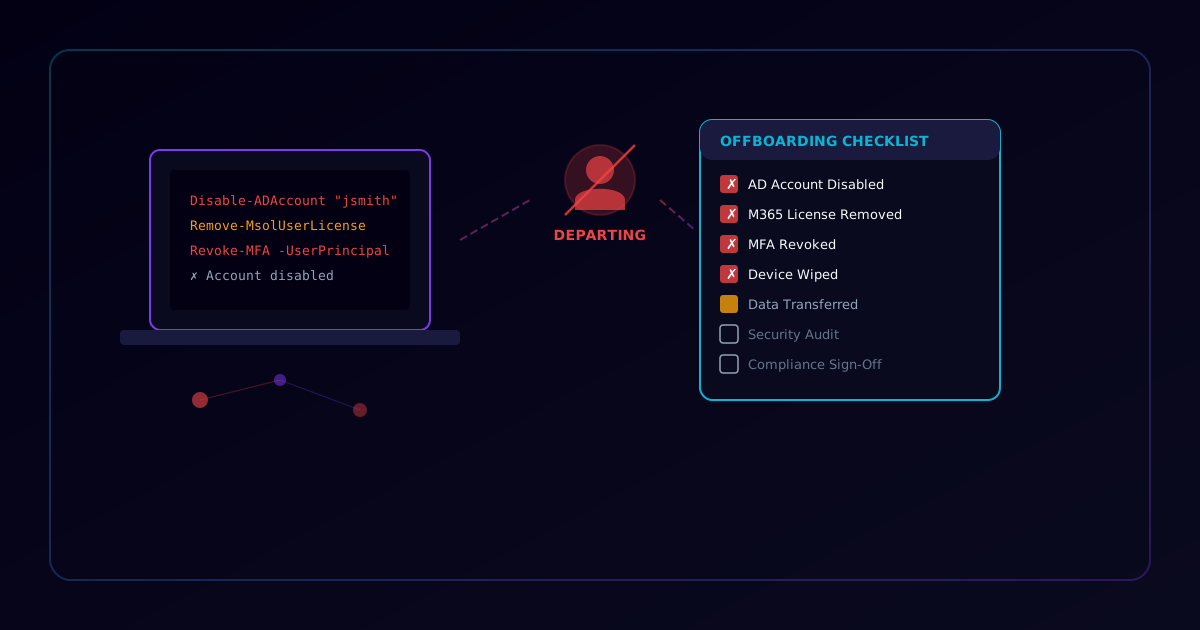
A structured IT offboarding process is one of the most overlooked security controls. When an employee departs without a complete offboarding workflow, you risk orphaned accounts, lingering access, unrecovered licenses, and compliance violations.
Every departure — voluntary or involuntary — must follow this checklist. Assign an IT lead, track each step, and get sign-off before closing the offboarding ticket. The cost of a missed step is real: unused licenses waste budget, stale accounts invite credential-stuffing attacks, and unrecovered data can violate retention policies.
1. Pre-Departure Preparation
Complete these items as soon as the departure is confirmed. Ideally 5-10 business days before the last working day.
-
Confirm last working day with HR — Verify the exact departure date, whether the employee will work through it or be placed on garden leave
-
Schedule knowledge transfer sessions — Arrange handover meetings for projects, passwords, and process documentation
-
Identify data and file ownership transfer targets — Determine who inherits OneDrive files, shared mailbox access, and project ownership
-
Create offboarding ticket in IT service desk — Log a formal ticket with all tasks, assigned owners, and due dates
-
Notify relevant teams — Alert finance (license reclaim), facilities (badge/key return), and security (access review)
-
Inventory all accounts and access — Document every system, SaaS app, and shared resource the employee currently accesses
# List all group memberships for the departing user Get-ADPrincipalGroupMembership -Identity "jsmith" | Select-Object Name -
Determine legal hold requirements — Check with legal/compliance whether any data must be preserved for litigation or regulatory holds
2. Account Deactivation
Disable accounts on the employee's last working day. Never delete accounts immediately — retain them for audit trails and legal holds.
-
Disable AD/Entra ID account — Disable the account immediately; do NOT delete — retain for legal hold and audit trails
Disable-ADAccount -Identity "jsmith" -
Convert mailbox to shared mailbox — Convert before removing the license so the mailbox data is preserved
Set-Mailbox -Identity "jsmith@contoso.com" -Type Shared -
Remove Microsoft 365 license — Reclaim the E3/E5/Business license after converting the mailbox
# Remove license via Microsoft Graph PowerShell Set-MgUserLicense -UserId "jsmith@contoso.com" -RemoveLicenses @("ENTERPRISEPACK") -AddLicenses @{} -
Disable SaaS application accounts — Deactivate access in CRM, ERP, ticketing system, and any role-specific platforms
-
Revoke OAuth/API tokens and app registrations — Remove any registered applications or API keys tied to the user
# Revoke all refresh tokens for the user Revoke-MgUserSignInSession -UserId "jsmith@contoso.com" -
Remove from distribution lists and shared mailboxes — Clean up all group memberships in Exchange Online
# Remove from all distribution groups
Get-DistributionGroup | Where-Object { (Get-DistributionGroupMember $_.Identity | Where-Object {$_.PrimarySmtpAddress -eq "jsmith@contoso.com"}) } | ForEach-Object { Remove-DistributionGroupMember -Identity $_.Identity -Member "jsmith@contoso.com" -Confirm:$false }
3. Access Revocation
Systematically remove all access. This is the highest-priority security step — any missed access point is a potential breach vector.
-
Remove from all security groups — Strip every AD/Entra security group membership to revoke resource access
Get-ADPrincipalGroupMembership -Identity "jsmith" | Where-Object { $_.Name -ne "Domain Users" } | ForEach-Object { Remove-ADGroupMember -Identity $_ -Members "jsmith" -Confirm:$false } -
Revoke VPN access certificates — Remove or revoke the VPN client certificate and delete the VPN profile assignment
-
Reset/remove MFA registration — Clear all MFA methods (Authenticator app, phone, FIDO2 keys) from the account
# Remove all authentication methods Get-MgUserAuthenticationMethod -UserId "jsmith@contoso.com" | ForEach-Object { Remove-MgUserAuthenticationMethod -UserId "jsmith@contoso.com" -AuthenticationMethodId $_.Id } -
Disable Conditional Access exclusions — Remove the user from any CA policy exclusion lists they may have been added to
-
Revoke remote desktop and SSH access — Remove from Remote Desktop Users groups and revoke any SSH key access
-
Remove from privileged access groups — Remove from admin, helpdesk, and any elevated-privilege groups (check PIM assignments too)
# Check for active PIM role assignments Get-MgRoleManagementDirectoryRoleAssignment -Filter "principalId eq '$userId'" -
Rotate shared credentials the employee had access to — Change any shared passwords, service account credentials, or Wi-Fi PSKs the employee knew
4. Device Recovery & Wipe
Recover all company hardware and ensure no company data remains on personal devices.
-
Collect laptop and peripherals — Schedule hardware return for the last day; use a signed equipment return form
-
Remote wipe mobile devices via Intune — Wipe any enrolled personal or corporate mobile devices
# Intune remote wipe via Microsoft Graph Invoke-MgDeviceManagementManagedDeviceWipe -ManagedDeviceId $deviceId -
Verify BitLocker recovery keys are escrowed — Confirm encryption keys are stored in AD/Entra before wiping the device
# Check BitLocker recovery keys in AD Get-ADObject -Filter {objectClass -eq "msFVE-RecoveryInformation"} -SearchBase "CN=jsmith,OU=Users,DC=contoso,DC=com" -Properties msFVE-RecoveryPassword -
Remove device from Intune/MDM enrollment — Delete the device record from Intune after confirming the wipe completed
# Remove device from Intune Remove-MgDeviceManagementManagedDevice -ManagedDeviceId $deviceId -
Update asset management records — Mark the asset as returned, unassigned, and available for redeployment
-
Reclaim all physical items — Dock, monitors, headset, access badge, keys, parking pass, and any other company property
-
Remove device from corporate Wi-Fi certificate store — Revoke the 802.1X machine certificate if applicable
5. Data Management
Transfer, archive, or delete data according to retention policies. Do not skip this — data loss or improper handling can have legal consequences.
-
Export/archive mailbox to PST — If required for legal hold, export the mailbox before any conversions
# Create mailbox export request New-MailboxExportRequest -Mailbox "jsmith@contoso.com" -FilePath "\\fileserver\archives\jsmith.pst" -
Transfer OneDrive files to manager — Grant the manager access to the departing employee's OneDrive for Business
# Transfer OneDrive ownership via SharePoint admin Set-SPOUser -Site "https://contoso-my.sharepoint.com/personal/jsmith_contoso_com" -LoginName "manager@contoso.com" -IsSiteCollectionAdmin $true -
Set email auto-reply and redirect — Configure an out-of-office reply informing senders, then forward to the manager
# Set auto-reply on the shared mailbox Set-MailboxAutoReplyConfiguration -Identity "jsmith@contoso.com" -AutoReplyState Enabled -ExternalMessage "This employee is no longer with the company. Please contact manager@contoso.com." -InternalMessage "This employee has departed. Please contact manager@contoso.com." -
Transfer shared drive and folder ownership — Reassign ownership of Teams channels, SharePoint sites, and shared folders
-
Remove personal files from company devices — Verify personal data is cleared before reimaging the device
-
Archive Teams chats and channel data — Export relevant Teams data if needed for compliance or project continuity
-
Verify cloud storage cleanup — Check for files in third-party cloud services (Dropbox, Google Drive, Box) if permitted by policy
6. Security Verification
Run post-deactivation audits to confirm zero residual access. Perform these checks within 24 hours of the last working day.
-
Run final sign-in audit — Check for any authentication attempts after the account was disabled
# Check Entra ID sign-in logs for activity after disable date Get-MgAuditLogSignIn -Filter "userPrincipalName eq 'jsmith@contoso.com'" -Top 10 | Select-Object CreatedDateTime, Status, AppDisplayName -
Verify no active sessions remain — Force-terminate any lingering browser sessions, app tokens, or cached credentials
-
Check for forwarding rules on mailbox — Look for hidden inbox rules that could be exfiltrating email
# Check for suspicious inbox rules Get-InboxRule -Mailbox "jsmith@contoso.com" | Where-Object { $_.ForwardTo -or $_.RedirectTo -or $_.ForwardAsAttachmentTo } -
Audit data downloads in last 30 days — Review DLP alerts, SharePoint access logs, and cloud app activity for unusual downloads
-
Verify EDR agent marked device as offline — Confirm the endpoint detection agent shows the device is no longer active on the network
7. Compliance & Sign-Off
Final administrative steps to formally close the offboarding process.
-
Confirm NDA and non-compete acknowledgment — Verify the departing employee has signed or been reminded of post-employment obligations
-
Complete exit interview IT section — Document any IT-related feedback, concerns, or unresolved issues
-
Get manager sign-off on offboarding checklist — Manager reviews and confirms all access has been revoked and hardware returned
-
Document any exceptions or deferred items — Log anything that could not be completed immediately (e.g., pending legal hold, delayed hardware return)
-
Schedule 30-day post-departure review — Set a calendar reminder to re-audit the account, verify no reactivation, and confirm license reclamation
# Verify account is still disabled after 30 days
Get-ADUser -Identity "jsmith" -Properties Enabled, LastLogonDate | Select-Object Name, Enabled, LastLogonDate
Quick Reference
| Phase | Items | Timeline | Owner |
|---|---|---|---|
| Pre-Departure | 7 | T-5 to T-10 days | IT Ops |
| Account Deactivation | 6 | Last day (D0) | Identity Team |
| Access Revocation | 7 | Last day (D0) | Security Ops |
| Device Recovery | 7 | Last day (D0) | Desktop Support |
| Data Management | 7 | D0 to D+3 | IT Ops + Legal |
| Security Verification | 5 | D+1 to D+7 | Security Ops |
| Compliance & Sign-Off | 5 | D+1 to D+30 | IT Ops + HR |
Onboarding Counterpart
This checklist is the reverse of the employee onboarding process. When a new hire joins, use the IT Employee Onboarding Checklist to provision accounts, deploy hardware, configure security, and verify access — ensuring a consistent, secure start from day one.