Overview
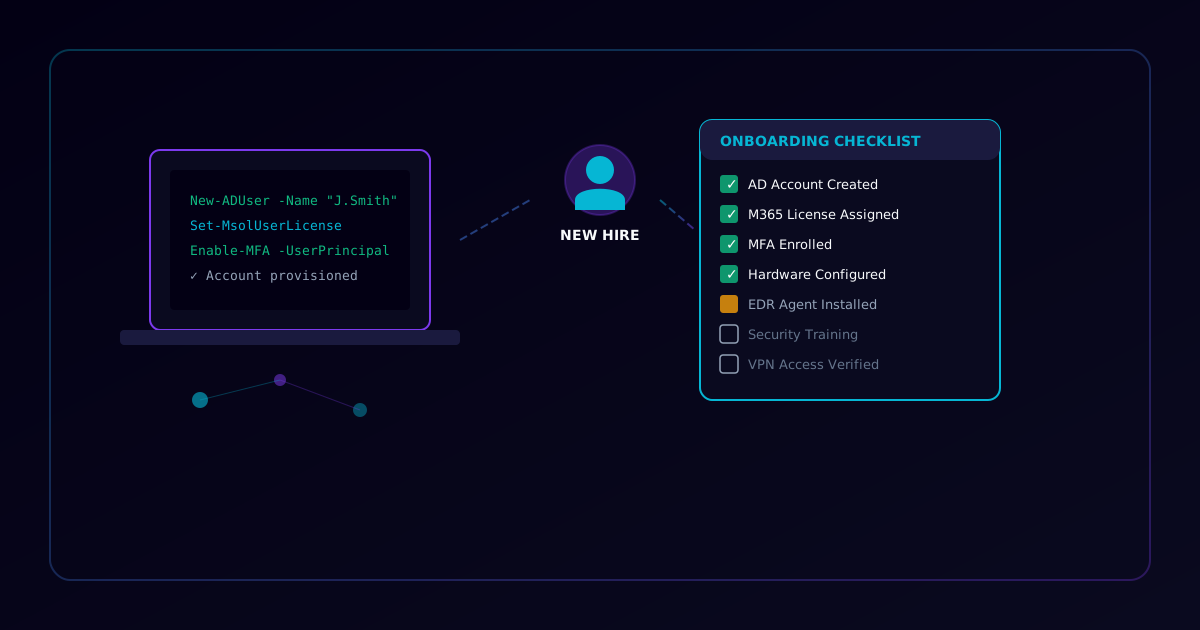
A structured IT onboarding checklist ensures every new hire gets consistent, secure access from day one. Missed steps lead to shadow IT, security gaps, and a poor employee experience.
Use this checklist for every new employee. Assign an IT buddy, track progress, and get sign-off before closing the ticket.
1. Pre-Arrival Preparation
Complete these items before the employee's first day. Ideally 3-5 business days in advance.
-
Create AD/Entra ID account — Set up the user account in Active Directory or Microsoft Entra ID with correct OU/group placement
New-ADUser -Name "Jane Smith" -SamAccountName "jsmith" -UserPrincipalName "jsmith@contoso.com" -Path "OU=Users,DC=contoso,DC=com" -Enabled $true -
Assign Microsoft 365 license — Provision the appropriate E3/E5/Business license based on role
-
Send welcome email to hiring manager — Confirm start date, desk location, and first-day schedule
-
Order hardware — Laptop, monitor, dock, peripherals based on the role-specific hardware matrix
-
Prepare welcome packet — Print or stage Wi-Fi credentials, support contacts, and quick-start guide
-
Create accounts in line-of-business apps — CRM, ERP, ticketing system, or any role-specific platforms
-
Reserve desk/workspace — Confirm physical setup including power, network drop, and phone (if applicable)
2. Hardware Setup
Configure the device before handing it to the employee.
-
Image the device with standard OS build — Deploy the approved Windows 11 / macOS image via MDT, Autopilot, or ABM
-
Apply all Windows/macOS updates — Ensure fully patched before deployment
# Check update status Get-WindowsUpdate -Install -AcceptAll -AutoReboot -
Enroll in MDM (Intune / Jamf) — Device must be managed before it leaves IT
# Verify Intune enrollment dsregcmd /status | findstr "AzureAdJoined" -
Enable disk encryption (BitLocker / FileVault) — Full-disk encryption is mandatory
manage-bde -status C: -
Apply asset tag and record serial number — Log in asset management system with assigned user
-
Connect and test peripherals — Dock, monitors, keyboard, mouse, headset all functional
-
Verify device boots to login and connects to Wi-Fi — Confirm basic functionality before handoff
3. Account & Identity
Set up secure access across all identity systems.
-
Enroll in MFA — Register Microsoft Authenticator or FIDO2 key during first-day setup
-
Add to security groups — Assign department and role-based groups for proper access scoping
Add-ADGroupMember -Identity "SG-Marketing-Users" -Members "jsmith" -
Configure VPN access — Set up Always-On VPN or per-app VPN profile for remote access
-
Verify SSO works for all assigned apps — Test login to each provisioned SaaS application
-
Add to shared mailboxes and distribution lists — Department inbox, team DLs, all-company announcements
-
Set email signature — Deploy the standard company email signature template
-
Configure Conditional Access policies — Ensure the user's device meets compliance policies before granting access
4. Security Configuration
Every device must meet baseline security requirements before connecting to the corporate network.
-
Verify EDR agent is installed and reporting — SentinelOne, CrowdStrike, or Defender for Endpoint must be active
# Check SentinelOne status & "C:\Program Files\SentinelOne\Sentinel Agent\SentinelCtl.exe" status -
Confirm Windows Firewall / macOS firewall is enabled — Host firewall must be active with corporate profile
-
Deploy password manager — Install and configure Bitwarden, 1Password, or company-approved manager
-
Run initial vulnerability scan — Verify no critical vulnerabilities on the fresh build
-
Enable Windows Defender Credential Guard — Protect credentials from Pass-the-Hash attacks (Windows Enterprise)
-
Verify USB device policy — Confirm removable storage is blocked or restricted per policy
-
Confirm screen lock timeout — Auto-lock after 5 minutes of inactivity
# Check via Group Policy
gpresult /r | findstr "screen"
5. Software Installation
Install only approved software from the company catalog.
-
Install productivity suite — Microsoft 365 Apps (Word, Excel, PowerPoint, Outlook, OneNote)
-
Install communication tools — Microsoft Teams, Zoom, or Slack (as per company standard)
-
Install role-specific software — Design tools, IDEs, accounting packages, etc. per the software matrix
-
Install RMM agent — NinjaOne, Datto, or ConnectWise agent for remote support and monitoring
-
Install approved browser — Microsoft Edge or Google Chrome with managed policies pushed via Intune/GPO
-
Verify all installed software is licensed — Check license activation status for each commercial application
6. Network & Access
Connect the user to all required network resources.
-
Connect to corporate Wi-Fi (802.1X) — Deploy the Wi-Fi profile with certificate-based authentication
-
Verify correct VLAN assignment — Confirm the device is on the appropriate network segment
-
Map network drives / SharePoint libraries — Connect to department file shares and document libraries
-
Install and test network printers — Add printers via print server or universal print
-
Verify internet filtering profile — Confirm web content filtering policy is applied (DNS filtering or proxy)
-
Test internal application access — Verify connectivity to intranet, ticketing system, and knowledge base
7. Training & Compliance
Security awareness and policy acceptance are mandatory before granting full access.
-
Complete security awareness training — New-hire module covering phishing, social engineering, and data handling
-
Enroll in phishing simulation — Add to the next scheduled phishing campaign for baseline testing
-
Sign Acceptable Use Policy (AUP) — Digital or physical signature on the IT acceptable use agreement
-
Provide IT support contacts — Helpdesk number, email, ticketing portal, and escalation path
-
Review data classification policy — Ensure the employee understands confidential vs. internal vs. public data
-
Complete compliance training — HIPAA, PCI-DSS, or industry-specific training if applicable
8. Verification & Handoff
Final checks before closing the onboarding ticket.
-
Test email send/receive — Send a test email and confirm it arrives in both directions
-
Test VPN connectivity — Connect via VPN from outside the office network and access internal resources
-
Verify MFA is working — Confirm the user can authenticate with MFA across all enrolled applications
-
Test all provisioned applications — Open each application and verify functional access
-
Complete IT onboarding sign-off form — Manager and employee sign the checklist confirming all items complete
-
Schedule 30-day follow-up — Calendar reminder to check in, review access, and remove any unused licenses
Quick Reference
| Phase | Items | Timeline | Owner |
|---|---|---|---|
| Pre-Arrival | 7 | T-5 days | IT Ops |
| Hardware Setup | 7 | T-2 days | Desktop Support |
| Account & Identity | 7 | T-1 day | Identity Team |
| Security Config | 7 | Day 1 | Security Ops |
| Software Install | 6 | Day 1 | Desktop Support |
| Network & Access | 6 | Day 1 | Network Team |
| Training | 6 | Week 1-4 | IT + HR |
| Verification | 6 | Day 1 + Day 30 | IT Ops |
Offboarding Counterpart
When the employee leaves, reverse this checklist: disable accounts, revoke MFA, wipe the device, reclaim hardware, and remove from all groups and licenses. A separate offboarding checklist ensures nothing is missed.