Overview
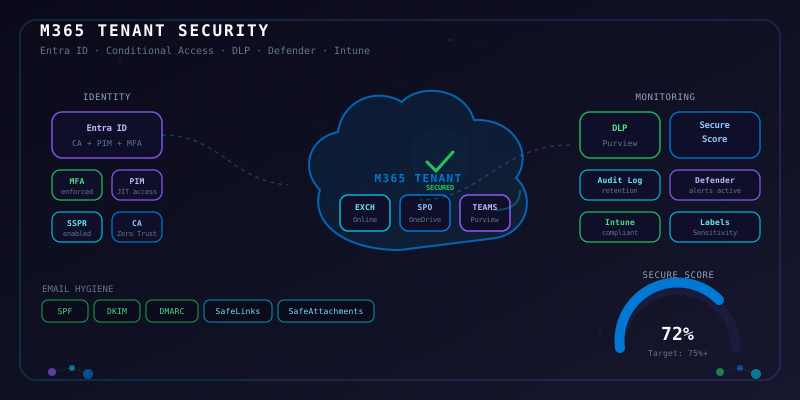
This checklist covers the essential security controls for hardening a Microsoft 365 and Entra ID tenant from initial deployment through ongoing operations. Use it when provisioning a new tenant, conducting a quarterly security review, or responding to a Secure Score recommendation. Each item maps to a specific admin portal path, Microsoft Graph PowerShell command, or Azure CLI equivalent so you can verify the state without guessing.
1. Identity & Authentication
Establish a strong identity foundation by enforcing MFA across all users, eliminating legacy authentication pathways, and configuring self-service password reset with security defaults or Custom Authentication Strengths.
-
Enable Security Defaults or Require MFA for All Users — If not using Conditional Access, enable Security Defaults; otherwise disable them and enforce MFA via CA policy. Portal: Entra ID > Properties > Manage Security Defaults
Connect-MgGraph -Scopes "Policy.ReadWrite.SecurityDefaults" $policy = Get-MgPolicyIdentitySecurityDefaultEnforcementPolicy $policy | Select-Object IsEnabled -
Block Legacy Authentication protocols — Create an Entra ID CA policy that blocks all legacy authentication clients (Exchange ActiveSync, IMAP, SMTP AUTH, POP3). Portal: Entra ID > Security > Conditional Access > New Policy > Client Apps: Exchange ActiveSync + Other clients
# Verify no sign-ins using legacy auth in the last 30 days Connect-MgGraph -Scopes "AuditLog.Read.All" Get-MgAuditLogSignIn -Filter "clientAppUsed eq 'Exchange ActiveSync'" -Top 20 | Select-Object UserPrincipalName, ClientAppUsed, CreatedDateTime -
Enforce phishing-resistant MFA (FIDO2 or Certificate-Based Auth) for admins — Require hardware keys or CBA for all Global and Privileged Role Administrators. Portal: Entra ID > Security > Authentication Methods
-
Configure Self-Service Password Reset (SSPR) — Enable SSPR for all users with at least two authentication methods required. Portal: Entra ID > Password Reset > Properties: All users
Connect-MgGraph -Scopes "Policy.Read.All" Get-MgPolicySelfServiceSignUpPolicy | Select-Object IsEnabled -
Disable password expiration for accounts using MFA — Password expiration is unnecessary when MFA is enforced and creates friction without security benefit. Portal: Microsoft 365 Admin Center > Settings > Org Settings > Security & Privacy > Password Expiration
Connect-MgGraph -Scopes "Domain.ReadWrite.All" Get-MgDomain | Select-Object Id, PasswordValidityPeriodInDays, PasswordNotificationWindowInDays -
Enable Entra ID Password Protection — Deploy the banned password list and set lockout threshold. Portal: Entra ID > Security > Authentication Methods > Password Protection
-
Enable Combined Security Information Registration — Allow users to register MFA and SSPR in one step. Portal: Entra ID > User Settings > Manage User Feature Settings
2. Conditional Access
Implement a layered set of Conditional Access policies following the principle of Zero Trust — verify explicitly, use least privilege, and assume breach.
-
Require MFA for all users on all apps — Baseline CA policy that requires MFA for every sign-in. Exclude emergency access accounts. Portal: Entra ID > Security > Conditional Access
Connect-MgGraph -Scopes "Policy.Read.All" Get-MgIdentityConditionalAccessPolicy | Where-Object { $_.State -eq "enabled" } | Select-Object DisplayName, State -
Require compliant or Hybrid Azure AD joined devices for corporate resources — Gate access to Exchange, SharePoint, and Teams behind device compliance. Portal: CA Policy > Grant > Require device to be marked as compliant
-
Block access from high-risk sign-in locations — Use Named Locations to block or require step-up auth from known high-risk countries. Portal: Entra ID > Security > Conditional Access > Named Locations
-
Require MFA for Azure management — Create a dedicated CA policy targeting the Azure Service Management API. Portal: CA Policy > Cloud apps > Azure Service Management API
-
Enable sign-in risk policy (Entra ID P2) — Require MFA re-authentication when sign-in risk is Medium or higher. Portal: Entra ID > Security > Identity Protection > Sign-in Risk Policy
Connect-MgGraph -Scopes "IdentityRiskyUser.Read.All" Get-MgRiskyUser -Filter "riskLevel eq 'high'" | Select-Object UserPrincipalName, RiskLevel, RiskLastUpdatedDateTime -
Enable user risk policy (Entra ID P2) — Force password change when user risk is High. Portal: Entra ID > Security > Identity Protection > User Risk Policy
-
Configure persistent browser session controls for sensitive apps — Disable persistent sessions for admins and sensitive workloads. Portal: CA Policy > Session > Persistent browser session: Never persistent
-
Apply App-Enforced Restrictions for Exchange and SharePoint — Use session controls to block download/print/sync from unmanaged devices. Portal: CA Policy > Session > Use app enforced restrictions
3. Privileged Access
Reduce standing privilege exposure using PIM, enforce break-glass account hygiene, and audit all privileged role assignments.
-
Enable Privileged Identity Management (PIM) for all Entra ID roles — Convert all permanent role assignments to eligible. No standing Global Admin except emergency accounts. Portal: Entra ID > Identity Governance > Privileged Identity Management
Connect-MgGraph -Scopes "RoleManagement.Read.Directory" # List all active (permanent) Global Admin assignments Get-MgDirectoryRoleMember -DirectoryRoleId (Get-MgDirectoryRole -Filter "displayName eq 'Global Administrator'").Id | Select-Object Id, DisplayName -
Configure PIM approval workflows for Global Admin activation — Require manager or peer approval for Global Administrator activation. Portal: PIM > Entra Roles > Global Administrator > Settings > Require approval
-
Create at least two emergency access (break-glass) accounts — Cloud-only accounts excluded from all CA policies, with FIDO2 keys stored offline. Document access procedure in your runbook. Portal: Entra ID > Users > New User
-
Monitor emergency access account sign-ins — Create an alert policy or Log Analytics rule that fires immediately on break-glass sign-in. Portal: Purview Compliance Portal > Audit > Alert Policies
-
Enforce MFA for PIM activation — Require MFA as an activation requirement for all privileged roles. Portal: PIM > Entra Roles > [Role] > Settings > Require MFA on activation
-
Review role assignments quarterly — Use PIM Access Reviews to certify all eligible and active privileged assignments. Portal: Identity Governance > Access Reviews > New Review
Connect-MgGraph -Scopes "AccessReview.Read.All" Get-MgIdentityGovernanceAccessReviewDefinition | Select-Object DisplayName, Status, LastModifiedDateTime -
Separate admin accounts from daily-use accounts — Admins must use a dedicated cloud-only admin UPN (e.g.,
admin-dylan@tenant.onmicrosoft.com) for all privileged tasks. No Exchange mailbox on admin accounts.
4. Email Security
Lock down the Exchange Online mail flow to block phishing, spoofing, and malware delivery using Defender for Office 365 policies and proper email authentication records.
-
Configure anti-phishing policies (Defender for Office 365) — Enable impersonation protection for key domains and executive users, enable mailbox intelligence, and set action to quarantine. Portal: Defender Portal > Email & Collaboration > Policies & Rules > Threat Policies > Anti-Phishing
Connect-ExchangeOnline Get-AntiPhishPolicy | Select-Object Name, Enabled, EnableMailboxIntelligence, EnableOrganizationDomainsProtection -
Enable Safe Links for email and Office apps — Configure Safe Links to scan URLs at click-time and block known malicious links. Portal: Defender Portal > Threat Policies > Safe Links
Get-SafeLinksPolicy | Select-Object Name, IsEnabled, EnableForInternalSenders, ScanUrls -
Enable Safe Attachments with Dynamic Delivery — Use Dynamic Delivery to scan attachments without delaying delivery. Enable auto-forward blocking. Portal: Defender Portal > Threat Policies > Safe Attachments
Get-SafeAttachmentPolicy | Select-Object Name, Enable, Action -
Publish SPF record — Add an SPF TXT record to your DNS that lists all authorized sending IP ranges. Verify with
nslookup -type=TXT yourdomain.com.# Verify SPF record nslookup -type=TXT yourdomain.com | grep "v=spf1" -
Configure DKIM signing — Enable DKIM for your domain in Exchange Online and publish the two CNAME records. Portal: Defender Portal > Email Authentication Settings > DKIM
Get-DkimSigningConfig | Select-Object Domain, Enabled, Status -
Enforce DMARC policy (p=quarantine or p=reject) — Publish a DMARC TXT record with at minimum
p=quarantine; rua=mailto:dmarc-reports@yourdomain.com.# Verify DMARC record nslookup -type=TXT _dmarc.yourdomain.com -
Block external email auto-forwarding — Create an outbound spam policy or transport rule to disable auto-forwarding to external recipients. Portal: Exchange Admin Center > Mail Flow > Rules or Defender Portal > Threat Policies > Anti-Spam > Outbound
Get-HostedOutboundSpamFilterPolicy | Select-Object Name, AutoForwardingMode # Should be: AutoForwardingMode = Off -
Enable Tenant Allow/Block List hygiene — Review and prune stale allow-list entries monthly. Portal: Defender Portal > Policies & Rules > Threat Policies > Tenant Allow/Block Lists
5. Data Protection
Classify, label, and govern sensitive data across Microsoft 365 to prevent accidental or malicious data exfiltration.
-
Create and publish Sensitivity Labels — Define at minimum: Public, Internal, Confidential, Highly Confidential. Apply encryption and marking to Confidential and above. Portal: Purview Compliance Portal > Information Protection > Labels
Connect-IPPSSession Get-Label | Select-Object DisplayName, Priority, ContentType, EncryptionEnabled -
Enable auto-labeling for sensitive information types — Configure auto-labeling policies to detect credit card numbers, SINs, and other PII at rest and in transit. Portal: Purview > Information Protection > Auto-Labeling Policies
-
Configure DLP policies for Exchange, SharePoint, and Teams — Create policies for at minimum: credit card data, social insurance/security numbers, and password/credential patterns. Set action to notify + restrict external sharing. Portal: Purview > Data Loss Prevention > Policies
Get-DlpCompliancePolicy | Select-Object Name, Mode, Workload, Enabled # Mode should be: Enforce (not TestWithNotifications) -
Restrict external sharing in SharePoint and OneDrive — Set tenant-level sharing to "Existing guests only" or "Only people in your organization" unless business-justified. Portal: SharePoint Admin Center > Policies > Sharing
Connect-SPOService -Url https://yourtenantadmin.sharepoint.com Get-SPOTenant | Select-Object SharingCapability, DefaultSharingLinkType, RequireAcceptingAccountMatchInvitedAccount -
Enable Microsoft Purview Communication Compliance — Monitor communications for policy violations in regulated industries. Portal: Purview > Communication Compliance
-
Configure Insider Risk Management policies — Enable data leak and departing employee policies to detect anomalous data movement. Portal: Purview > Insider Risk Management > Policies
6. Audit & Monitoring
Ensure full visibility into user and admin activity across the tenant with a centralized audit log, actionable alert policies, and integration with your SIEM.
-
Verify Unified Audit Log is enabled — The audit log must be enabled to record Exchange, SharePoint, Entra ID, Teams, and admin activities. Portal: Purview Compliance Portal > Audit > Start Recording
Connect-ExchangeOnline Get-AdminAuditLogConfig | Select-Object UnifiedAuditLogIngestionEnabled # Must be: True -
Set audit log retention to 1 year (or 10 years for E5) — Default retention is 90 days. Extend to 180 days minimum for compliance. Portal: Purview > Audit > Audit Retention Policies
Get-UnifiedAuditLogRetentionPolicy | Select-Object Name, RetentionDuration, Workloads -
Create alert policies for high-risk admin activities — Alert on: new Global Admin assigned, bulk email deletion, mail forwarding rule creation, anonymous SharePoint sharing. Portal: Purview > Alert Policies
-
Enable Entra ID Sign-In Logs and export to Log Analytics — Configure Diagnostic Settings to stream Entra ID sign-in and audit logs to a Log Analytics Workspace. Portal: Entra ID > Monitoring > Diagnostic Settings
Connect-MgGraph -Scopes "AuditLog.Read.All" # Check for failed sign-ins in last 24h Get-MgAuditLogSignIn -Filter "status/errorCode ne 0" -Top 50 | Select-Object UserPrincipalName, Status, CreatedDateTime, IpAddress -
Configure Microsoft Defender XDR alerts — Enable all Defender for Office 365 alert policies with email notification to the security team. Portal: Defender Portal > Incidents & Alerts > Alert Policies
-
Review Entra ID risky users and risky sign-ins weekly — Triage and remediate all High risk users. Portal: Entra ID > Security > Identity Protection > Risky Users
Connect-MgGraph -Scopes "IdentityRiskyUser.ReadWrite.All"
Get-MgRiskyUser -Filter "riskLevel eq 'high'" | Select-Object UserPrincipalName, RiskState, RiskLastUpdatedDateTime
7. Device Management
Ensure all endpoints accessing Microsoft 365 are enrolled in Intune, meet compliance policy requirements, and have app protection policies enforcing data containment.
-
Enforce Intune MDM enrollment for all corporate devices — Configure auto-enrollment via Entra ID MDM settings and deploy enrollment profiles. Portal: Intune > Devices > Enrollment
Connect-MgGraph -Scopes "DeviceManagementManagedDevices.Read.All" Get-MgDeviceManagementManagedDevice -Filter "managementAgent eq 'mdm'" | Measure-Object | Select-Object Count -
Create Windows 11 compliance policy — Require: BitLocker on, Defender active, minimum OS build 22631, no jailbreak. Portal: Intune > Devices > Compliance Policies > New Policy (Windows 10/11)
-
Create iOS and Android compliance policies — Require: device encryption, minimum OS version, no rooted/jailbroken devices, screen lock PIN. Portal: Intune > Devices > Compliance Policies
-
Deploy App Protection Policies (MAM) for managed apps — Require PIN, block copy/paste to unmanaged apps, and remote wipe corporate data from Outlook, Teams, and OneDrive. Portal: Intune > Apps > App Protection Policies
-
Require BitLocker with Entra ID key escrow — Push a BitLocker profile via Intune that enables XTS-AES 256 and backs recovery keys to Entra ID. Portal: Intune > Devices > Configuration > Endpoint Protection > Windows Encryption
# Verify recovery key escrow for a device Connect-MgGraph -Scopes "BitlockerKey.Read.All" Get-MgInformationProtectionBitlockerRecoveryKey -Filter "deviceId eq 'YOUR-DEVICE-ID'" | Select-Object Id, CreatedDateTime -
Deploy Windows Update for Business rings — Configure three rings: Pilot (0-day deferral), Early Adopter (7-day), and Production (21-day) for feature and quality updates. Portal: Intune > Devices > Windows Update Rings
-
Enable Microsoft Tunnel VPN gateway — Deploy Microsoft Tunnel for per-app VPN on iOS/Android devices accessing on-premises resources. Portal: Intune > Tenant Administration > Microsoft Tunnel
8. Secure Score & Review
Track your tenant's security posture with Microsoft Secure Score, set a target baseline, and build a quarterly cadence for reviewing and improving controls.
-
Baseline your Microsoft Secure Score — Record current score and identify the top 10 highest-impact recommended actions. Portal: Defender Portal > Secure Score > Overview
Connect-MgGraph -Scopes "SecurityEvents.Read.All" # Use the Defender portal API or Graph to export score history Invoke-MgGraphRequest -Method GET -Uri "https://graph.microsoft.com/v1.0/security/secureScores?`$top=30" | Select-Object -ExpandProperty value | Select-Object CreatedDateTime, CurrentScore, MaxScore -
Set a target Secure Score of 75% or higher — Use the comparison feature to benchmark against similar-sized organizations. Portal: Secure Score > Comparison tab
-
Complete all "Require MFA" recommended actions — These are consistently the highest-scoring and lowest-effort improvements. Portal: Secure Score > Recommended Actions > Filter: Identity
-
Review license assignments quarterly — Remove unused E3/E5 licenses and disable accounts that have not signed in within 90 days. Portal: Microsoft 365 Admin Center > Users > Active Users > Filter: Unlicensed
Connect-MgGraph -Scopes "User.Read.All" Get-MgUser -Filter "signInActivity/lastSignInDateTime le 2025-12-11T00:00:00Z" -Property DisplayName,UserPrincipalName,SignInActivity | Select-Object DisplayName, UserPrincipalName -
Conduct a quarterly Entra ID Access Review — Review all Guest users, external collaborators, and app registrations for necessity. Portal: Identity Governance > Access Reviews
-
Review and update app registrations and service principals — Audit OAuth app consents, revoke over-privileged apps, and remove unused registrations. Portal: Entra ID > App Registrations > All Applications
Connect-MgGraph -Scopes "Application.Read.All" # List apps with high-privilege Graph permissions Get-MgServicePrincipal -All | Where-Object { $_.AppRoles.Count -gt 5 } | Select-Object DisplayName, AppId, CreatedDateTime -
Review external collaboration settings — Confirm Guest invite settings and B2B cross-tenant access policies align with business requirements. Portal: Entra ID > External Identities > External Collaboration Settings
Quick Reference
| Section | Items | Priority | Owner |
|---|---|---|---|
| Identity & Authentication | 7 | Critical | Identity Team |
| Conditional Access | 8 | Critical | Identity Team |
| Privileged Access | 7 | Critical | Security Ops |
| Email Security | 8 | Critical | Messaging Team |
| Data Protection | 6 | High | Compliance Team |
| Audit & Monitoring | 6 | High | Security Ops |
| Device Management | 7 | High | Endpoint Team |
| Secure Score & Review | 7 | Medium | All Teams |
Reference Standards
This checklist aligns with the Microsoft 365 Security Benchmark, CIS Microsoft 365 Foundations Benchmark v3.1, and NIST SP 800-53 (AC, AU, IA, SC controls). Review and update this checklist every quarter, after major Microsoft 365 feature releases, or following any security incident.