Overview
Standing privileged access — accounts that hold Global Admin, User Admin, or other high-value roles 24/7 — is one of the most exploited attack surfaces in Microsoft 365 and Azure environments. Every minute those permissions exist permanently, they represent risk: credential theft, insider abuse, token replay, and compliance gaps.
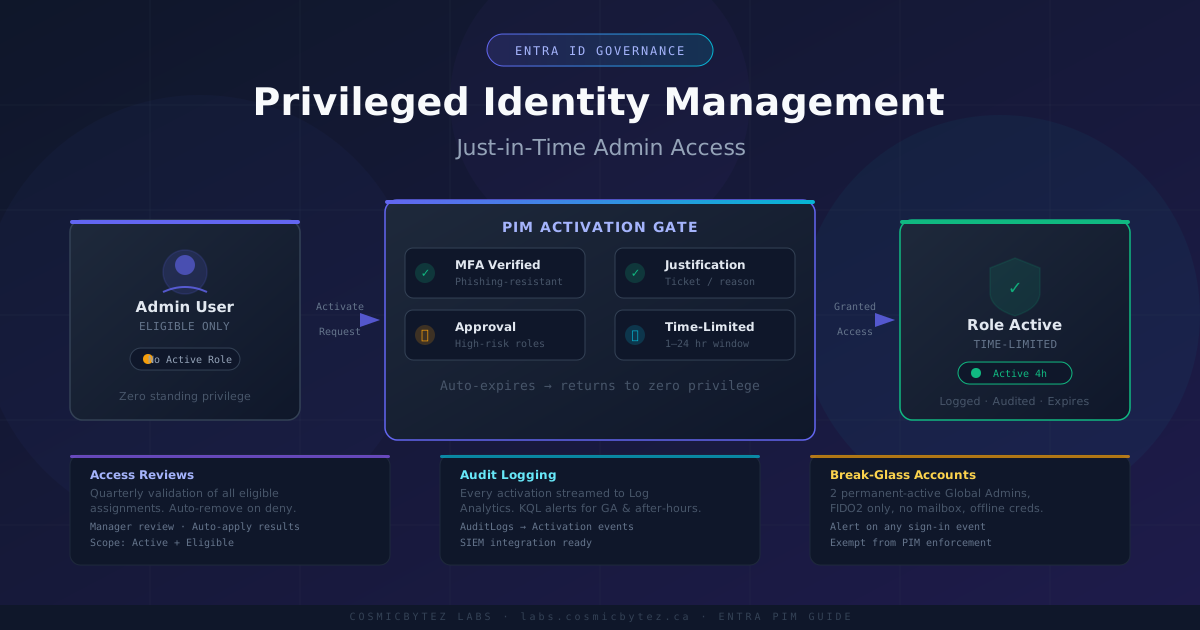
Microsoft Entra Privileged Identity Management (PIM) solves this with just-in-time (JIT) access: users are eligible for a role but only activate it when needed, for a limited window, with MFA enforcement and optional approval. The rest of the time, the account holds zero privilege.
Who Should Use This Guide:
- Microsoft 365 / Entra ID administrators hardening their tenant
- Security engineers implementing Zero Trust identity controls
- Compliance teams targeting CIS Controls, NIST 800-53, or ISO 27001
- MSPs onboarding clients to PIM for the first time
What You Will Learn:
- Enabling and navigating PIM in the Entra admin center
- Converting permanent role assignments to eligible (JIT) assignments
- Configuring role settings: activation duration, MFA, justification, approval
- Setting up approval workflows with delegated approvers
- Configuring PIM for Azure resource roles
- Running access reviews to detect and remediate role sprawl
- Monitoring PIM audit logs and alerting on suspicious activations
Architecture: Eligible vs. Active Assignments
PIM introduces two assignment types that replace the classic all-or-nothing permanent assignment:
| Assignment Type | Behavior | Risk |
|---|---|---|
| Permanent Active | Always has the role. No action required. | High — credentials compromised = full privilege |
| Eligible | Has no privilege until self-activating. Time-limited, MFA-gated. | Low — credentials compromised = no privilege |
| Time-Bound Active | Active for a fixed window, then auto-expires. | Medium — use for break-glass or onboarding |
Target state: Move all privileged users to Eligible assignments. Reserve Permanent Active only for break-glass emergency accounts and certain service principals that cannot interactively authenticate.
Step 1 — Enable and Access PIM
PIM is included with Microsoft Entra ID P2 and Microsoft Entra ID Governance licenses. It is not available on P1 or free tiers.
1.1 — Navigate to PIM
Entra Admin Center → Identity Governance → Privileged Identity Management
Or go directly to: https://entra.microsoft.com/#view/Microsoft_Azure_PIMCommon/CommonMenuBlade/~/quickStart
1.2 — Consent to MFA verification
PIM will prompt you to verify your own identity with MFA before proceeding. Complete this prompt — it confirms you are not locked out before you change any assignments.
1.3 — Understand the PIM overview dashboard
The PIM home shows:
- My roles — roles you are eligible or active for
- Pending requests — activation requests awaiting your approval
- Approve requests — queue for delegated approvers
- Access reviews — scheduled review campaigns
Step 2 — Audit Existing Permanent Assignments
Before migrating anything, get a baseline of who holds what permanently.
2.1 — Review Entra ID roles with permanent active assignments
PIM → Manage → Microsoft Entra roles → Assignments → Active assignments
Export the list. Pay attention to:
- Global Administrator — should have the fewest members (2–4 max, ideally break-glass only)
- Privileged Role Administrator — controls PIM itself; treat as Tier 0
- Exchange Administrator, SharePoint Administrator — commonly over-assigned
- User Administrator — frequently held by helpdesk staff who don't need it 24/7
2.2 — PowerShell: Export all active Entra role assignments
# Install module if needed
Install-Module Microsoft.Graph -Scope CurrentUser

Connect-MgGraph -Scopes "RoleManagement.Read.Directory"

$assignments = Get-MgRoleManagementDirectoryRoleAssignment -All -ExpandProperty "principal,roleDefinition"

$assignments | Select-Object `
    @{N="User";E={$_.Principal.AdditionalProperties.userPrincipalName}},
    @{N="Role";E={$_.RoleDefinition.DisplayName}},
    @{N="AssignmentType";E={"Active-Permanent"}} |
    Export-Csv -Path "EntraRoleAudit.csv" -NoTypeInformation

Write-Host "Exported $($assignments.Count) assignments to EntraRoleAudit.csv"Step 3 — Configure Role Settings
Before migrating users, configure how each role behaves when activated. This is the most important step — settings apply globally to all eligible assignments for that role.
3.1 — Navigate to role settings
PIM → Microsoft Entra roles → Manage → Roles → [Select role] → Settings → Edit
3.2 — Recommended settings for high-privilege roles (e.g., Global Admin)
| Setting | Recommended Value | Rationale |
|---|---|---|
| Activation maximum duration | 4 hours | Minimize window; most tasks complete in under an hour |
| Require MFA on activation | Yes | Mandatory — every activation must re-verify |
| Require justification | Yes | Creates audit trail; forces users to articulate need |
| Require ticket information | Yes (if ITSM integrated) | Links activations to change/incident tickets |
| Require approval | Yes (for Global Admin) | Adds human oversight for highest-risk roles |
| Notification on activation | Yes | Alerts security team in real time |
3.3 — Recommended settings for medium-privilege roles (e.g., User Admin)
| Setting | Recommended Value |
|---|---|
| Activation duration | 8 hours |
| Require MFA | Yes |
| Require justification | Yes |
| Require approval | No (reduce friction for daily-use roles) |
| Notification | Yes |
3.4 — Configure approval settings
When Require approval is enabled:
- Under Approvers, click Select approvers
- Add at least 2 approvers (individuals or groups)
- Avoid making groups the sole approver — members can change over time
- Approvers have 24 hours to respond before the request expires
- If no approvers are configured, active Privileged Role Administrators become default approvers
Note: The 24-hour approval window is not configurable. If your operations require faster turnaround, configure approval only for break-glass-level roles and use justification-only for operational roles.
Step 4 — Migrate Users from Permanent to Eligible
With settings configured, convert existing permanent assignments.
4.1 — Remove permanent assignment
PIM → Microsoft Entra roles → Assignments → Active assignments
→ Find user → [...] → Remove
Confirm the user has an Eligible assignment in place BEFORE removing the Active one. Never leave a gap for critical roles.
4.2 — Add eligible assignment
PIM → Microsoft Entra roles → Assignments → Add assignments
→ Select role → Select member → Assignment type: Eligible
→ Set duration: Permanent eligible (or time-bound if preferred)
→ Assign
4.3 — PowerShell: Create eligible assignment via Graph API
Connect-MgGraph -Scopes "RoleManagement.ReadWrite.Directory"

# Get role definition ID
$role = Get-MgRoleManagementDirectoryRoleDefinition -Filter "displayName eq 'Global Administrator'"

# Get user object ID
$user = Get-MgUser -Filter "userPrincipalName eq 'admin@contoso.com'"

# Create eligible assignment (permanent eligibility)
$params = @{
    action            = "adminAssign"
    justification     = "Converting permanent assignment to JIT eligible"
    roleDefinitionId  = $role.Id
    directoryScopeId  = "/"
    principalId       = $user.Id
    scheduleInfo      = @{
        startDateTime = (Get-Date).ToUniversalTime().ToString("o")
        expiration    = @{
            type = "noExpiration"
        }
    }
}

New-MgRoleManagementDirectoryRoleEligibilityScheduleRequest -BodyParameter $params
Write-Host "Eligible assignment created for $($user.UserPrincipalName)"Step 5 — End-User Activation Workflow
Once migrated to eligible, users activate roles as needed.
5.1 — Self-activation via portal
https://entra.microsoft.com → My roles → Eligible assignments
→ [Role] → Activate
→ Enter duration (up to configured max)
→ Enter justification text
→ Complete MFA prompt
→ Submit (or wait for approval if required)
5.2 — Activation via My Access portal
End users may find this URL simpler:
https://myaccess.microsoft.com/#/pim
5.3 — Activation via PowerShell (for automation scenarios)
Connect-MgGraph -Scopes "RoleAssignmentSchedule.ReadWrite.Directory"

$role = Get-MgRoleManagementDirectoryRoleDefinition -Filter "displayName eq 'User Administrator'"
$me   = (Get-MgContext).Account
$user = Get-MgUser -Filter "userPrincipalName eq '$me'"

$params = @{
    action           = "selfActivate"
    justification    = "Updating user accounts per ticket INC-4892"
    roleDefinitionId = $role.Id
    directoryScopeId = "/"
    principalId      = $user.Id
    scheduleInfo     = @{
        startDateTime = (Get-Date).ToUniversalTime().ToString("o")
        expiration    = @{
            type     = "afterDuration"
            duration = "PT4H"
        }
    }
}

New-MgRoleManagementDirectoryRoleAssignmentScheduleRequest -BodyParameter $params
Write-Host "Role activation submitted. Check approval status in PIM."Step 6 — PIM for Azure Resource Roles
PIM also covers Azure RBAC roles (Owner, Contributor, Key Vault Administrator, etc.) at subscription, resource group, and individual resource scope.
6.1 — Discover Azure resources under PIM management
PIM → Azure resources → Discover resources
→ Select subscriptions or management groups to bring under PIM governance
→ Manage resource
6.2 — Configure Azure role settings
PIM → Azure resources → [Subscription] → Settings → [Role] → Edit
Apply the same baseline settings as Entra roles:
- Activation duration: 4–8 hours
- Require MFA
- Require justification
- Notifications enabled
6.3 — Assign eligible Azure roles via PowerShell
# Requires Az module
Connect-AzAccount

$scope    = "/subscriptions/<subscription-id>"
$roleDefId = (Get-AzRoleDefinition -Name "Contributor").Id
$userId   = (Get-AzADUser -UserPrincipalName "engineer@contoso.com").Id

# Create eligible assignment
New-AzRoleEligibilityScheduleRequest `
    -Name (New-Guid).ToString() `
    -Scope $scope `
    -RoleDefinitionId $roleDefId `
    -PrincipalId $userId `
    -RequestType "AdminAssign" `
    -ScheduleInfoStartDateTime (Get-Date).ToUniversalTime() `
    -ExpirationDurationType "NoExpiration" `
-Justification "Converting Contributor to JIT eligible"Step 7 — Configure Access Reviews
Access reviews periodically validate that eligible assignments are still necessary. Run them quarterly for high-privilege roles.
7.1 — Create an access review for a PIM role
PIM → Microsoft Entra roles → Access reviews → New
| Setting | Recommended Value |
|---|---|
| Review name | Global Admin Quarterly Review - Q2 2026 |
| Frequency | Quarterly |
| Role | Global Administrator (repeat per high-risk role) |
| Reviewers | Manager of each user (auto-populated) |
| Action on non-response | Remove access |
| Scope | All active and eligible assignments |
7.2 — Auto-apply results
Enable Auto apply results so that if a reviewer marks an assignment as "Deny" or does not respond within the review period, PIM removes the assignment automatically without manual follow-up.
Step 8 — Monitor and Alert on PIM Activity
8.1 — PIM audit log
PIM → Activity → Audit log
Key events to review:
Add eligible member to role— new JIT assignmentsActivate role— activations, including who, when, justificationRole setting updated— changes to role configurations (high sensitivity)Remove member from role— potential lockout risk
8.2 — Export audit logs to Log Analytics
Entra Admin Center → Monitoring → Diagnostic settings → Add diagnostic setting
→ Check: AuditLogs, SignInLogs
→ Destination: Send to Log Analytics workspace
8.3 — KQL alert: PIM role activated outside business hours
AuditLogs
| where OperationName == "Add member to role completed (PIM activation)"
| extend UPN = tostring(InitiatedBy.user.userPrincipalName)
| extend RoleName = tostring(TargetResources[0].displayName)
| extend ActivationTime = TimeGenerated
| where hourofday(ActivationTime) < 7 or hourofday(ActivationTime) > 19
| project ActivationTime, UPN, RoleName, Result, CorrelationId
| order by ActivationTime desc8.4 — KQL alert: Global Admin activation
AuditLogs
| where OperationName == "Add member to role completed (PIM activation)"
| extend RoleName = tostring(TargetResources[0].displayName)
| where RoleName == "Global Administrator"
| extend UPN = tostring(InitiatedBy.user.userPrincipalName)
| project TimeGenerated, UPN, RoleName, ResultWire these queries to Log Analytics Alert Rules with action groups that page your SOC.
Step 9 — Break-Glass Accounts
PIM should not apply to break-glass (emergency access) accounts. These accounts exist to recover from PIM or MFA system failures.
Break-glass account requirements:
- Minimum 2 accounts per tenant
- Permanently active Global Administrator (exempt from PIM)
- No MFA device dependency (use a FIDO2 hardware key stored in a safe)
- No mailbox — prevents phishing and password reset flows
- Monitored by a Log Analytics alert that fires on any sign-in
- Credentials stored offline, split knowledge between 2+ trusted individuals
// Alert: Break-glass account sign-in detected
SignInLogs
| where UserPrincipalName in ("breakglass1@contoso.com", "breakglass2@contoso.com")
| project TimeGenerated, UserPrincipalName, AppDisplayName, IPAddress, ResultTypeValidation Checklist
Run through this checklist after deployment:
[ ] No permanent active assignments for privileged roles (except break-glass)
[ ] All Entra admin roles have eligible assignments only
[ ] Role settings enforce MFA on activation
[ ] Justification required for all roles
[ ] Approval configured for Global Admin and Privileged Role Administrator
[ ] At least 2 active approvers configured per approval-required role
[ ] Azure resource roles brought under PIM governance
[ ] Access reviews scheduled quarterly for high-privilege roles
[ ] PIM audit logs streaming to Log Analytics
[ ] Alert rules created for after-hours activations and GA activations
[ ] Break-glass accounts verified exempt and monitored
[ ] End users have completed a test activation end-to-end
Common Issues and Fixes
| Issue | Cause | Fix |
|---|---|---|
| User cannot activate role | No eligible assignment exists | Check PIM → Eligible assignments for that user |
| Activation fails with MFA error | Legacy MFA method, not phishing-resistant | Enforce FIDO2 or Microsoft Authenticator in Entra Authentication Methods |
| No approvers receiving email | Approver mailbox is blocked or spam-filtered | Whitelist msonlineservicesteam@microsoftonline.com; verify approver identity |
| Role activation does not appear active | Propagation delay (up to 5 minutes) | Wait and refresh; check PIM → Active assignments |
| Access review not removing access | Auto-apply not enabled | Edit review → Enable "Auto apply results to resource" |
| PowerShell assignment errors | Insufficient Graph scopes | Re-connect with RoleManagement.ReadWrite.Directory scope |
Security Hardening Notes
- Protect Privileged Role Administrator like Global Admin — it controls PIM itself. Anyone with this role can remove PIM protections.
- Never add distribution groups as approvers — use mail-enabled security groups or individuals.
- Audit PIM settings changes monthly — a changed activation duration or removed approval requirement is a high-fidelity indicator of insider threat or compromise.
- Combine PIM with Conditional Access — create a CA policy that requires a compliant device and phishing-resistant MFA for any PIM role activation context.
- License check — if a user does not have a P2 or Governance license assigned, PIM will silently fail to enforce JIT for them.