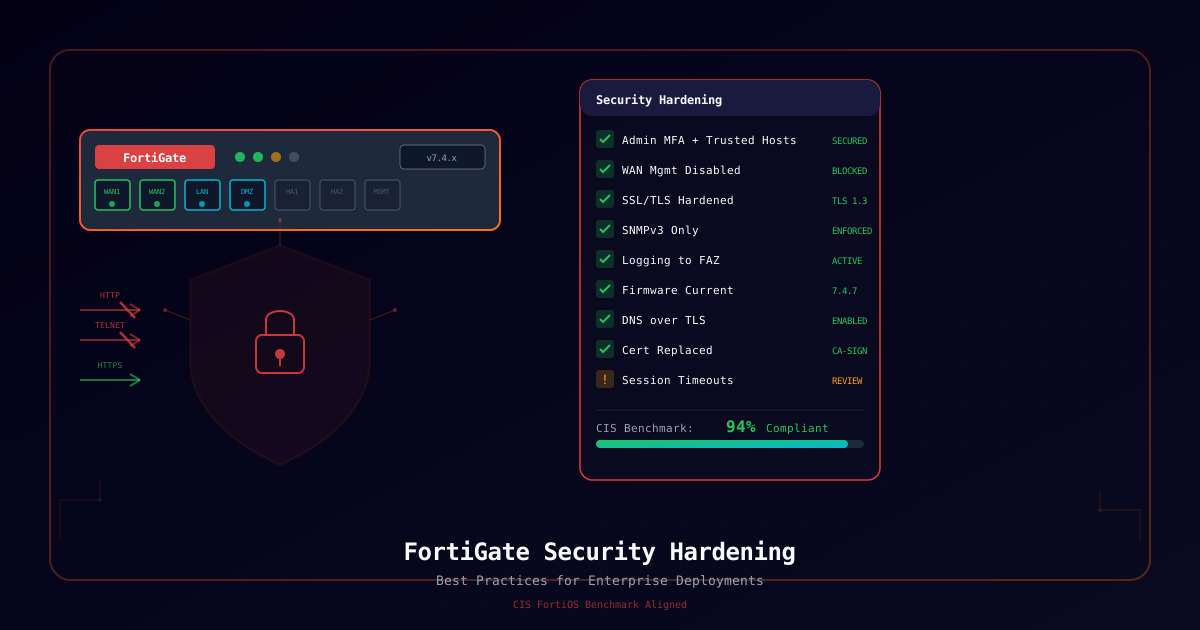
Understanding of FortiGate architecture and VDOM concepts
Overview
FortiGate firewalls are the backbone of network security for hundreds of thousands of organizations worldwide. A default FortiGate deployment, however, is not a hardened deployment. Out-of-the-box settings prioritize ease of setup over security -- default admin credentials, management services exposed on all interfaces, weak session policies, and self-signed certificates create an attack surface that threat actors actively exploit.
The threat is not theoretical. In February 2025, Fortinet disclosed that over 14,000 FortiGate devices were compromised via CVE-2024-55591 and CVE-2025-24472, where attackers exploited exposed management interfaces and weak credentials to gain super-admin access. By early 2026, AI-powered attack tools have automated FortiGate reconnaissance at scale -- the February 2026 campaign compromised 600+ devices in under 48 hours using credential stuffing against exposed management planes combined with known CVE chains. These attacks succeed because organizations skip fundamental hardening steps.
DNS over TLS, NTP authentication, time zone hardening
Sessions
Timeout policies, TLS version control, DoS protection
Backup
Automated backup, encryption, disaster recovery
CIS FortiOS Benchmark Alignment: This guide maps controls to the CIS Fortinet FortiOS Benchmark v2.0 where applicable. CIS reference numbers are noted inline (e.g., CIS 1.1, CIS 2.3). Not every recommendation has a direct CIS mapping -- some controls come from Fortinet best practices, NIST 800-41 (Firewall Policy Guidelines), or field experience from incident response engagements.
Warning: Hardening changes can lock you out of management access or break production traffic. Always test in a lab environment first. Keep console access available as a fallback. Deploy changes during a maintenance window and verify each step before proceeding to the next.
Scenario
This guide applies to four common situations:
1. New FortiGate Deployment -- You have unboxed a new FortiGate (physical or VM) and want to harden it before placing it in production. This is the ideal scenario -- apply hardening from day one.
2. Hardening Existing Devices -- Your FortiGates have been running with default or minimal security settings. You need to systematically raise the security posture without disrupting production traffic flows.
3. Post-Incident Remediation -- An incident has occurred. Attackers gained admin access, modified policies, or exfiltrated configuration data. You need to rebuild trust in the device and close the gaps that were exploited.
4. Compliance Requirements -- An audit or regulatory requirement (PCI DSS, HIPAA, SOC 2, NIST CSF) requires demonstrable firewall hardening aligned to a recognized benchmark like CIS.
Regardless of scenario, follow the same methodology: assess current state, document changes, implement incrementally, verify each step, and maintain rollback capability throughout.
Pre-Hardening Assessment
Before changing anything, capture a complete snapshot of your current FortiGate configuration. This baseline helps you understand what exists, identify gaps, and roll back if something breaks.
Capture Current Configuration State
# Full configuration backup (save output for reference)show full-configuration# Quick system status -- firmware version, serial, uptimeget system status# Current admin accounts and their settingsshow system admin# Interface configuration summaryshow system interface# What services are allowed on each interfaceget system interface physical# SNMP configurationshow system snmp sysinfoshow system snmp community# NTP configurationshow system ntp# DNS configurationshow system dns# Current logging configurationshow log settingshow log fortianalyzer settingshow log syslogd setting# Check for local-in policies (management traffic control)show firewall local-in-policy# HA configuration (if applicable)show system ha# Certificate inventoryget vpn certificate localget vpn certificate ca# Admin login history (last 20 events)execute log filter category eventexecute log filter field subtype adminexecute log display
Export Baseline for Documentation
# Generate a configuration backup fileexecute backup config management-station [comment "Pre-hardening baseline"]# If using FortiManager, trigger a config retrieveexecute backup config ftp <server-ip> <filename> <username> <password># Record the firmware version for upgrade planningget system status | grep Version
Tip: Save the pre-hardening config backup in a secure, offline location. You will need it if hardening changes cause unexpected issues and you need to restore the previous state.
Step 1: Admin Access Hardening
Admin access is the most critical attack surface. The February 2026 mass compromise campaign started with exposed management interfaces and weak admin credentials. Lock this down first.
Change the Default Admin Password
The admin account ships with no password. This must be changed immediately.
Never use the default admin account for day-to-day management. Create named accounts with appropriate profiles so every action is attributable.
# Create a read-write admin with restricted profileconfig system admin edit "dylan.h" set accprofile "super_admin" set vdom "root" set password <STRONG-PASSWORD> set trusthost1 10.0.1.0 255.255.255.0 set trusthost2 172.16.100.0 255.255.255.0 set two-factor fortitoken set fortitoken <serial-number> set email-to "admin@yourdomain.com" nextend
Configure Trusted Hosts for All Admin Accounts
Trusted hosts restrict which source IPs can authenticate as a given admin. If an attacker obtains credentials but is not coming from a trusted subnet, authentication is denied at the network layer.
CIS Reference: CIS 1.2 -- Ensure trusted hosts are configured for all admin accounts
# Set trusted hosts for every admin accountconfig system admin edit "admin" set trusthost1 10.0.1.10 255.255.255.255 set trusthost2 172.16.100.0 255.255.255.0 # Use 0.0.0.0/0 for the remaining slots to block everything else # (FortiOS denies access from any IP not in a trusthost entry) nextend
Verification:
# Verify trusted hosts are set (should NOT see 0.0.0.0/0 as a broad allow)show system admin | grep trusthost
Important: If you set trusted hosts and your current source IP is not included, you will be locked out. Always verify your current session IP is within the trusted range before saving. Keep console access available as a fallback.
# Option 1: FortiToken (hardware or mobile)config system admin edit "dylan.h" set two-factor fortitoken set fortitoken <SERIAL-NUMBER> nextend# Option 2: Email-based OTP (less secure, but better than nothing)config system admin edit "dylan.h" set two-factor email set email-to "admin@yourdomain.com" nextend# Option 3: FortiToken Cloudconfig system admin edit "dylan.h" set two-factor fortitoken-cloud nextend
GUI Path: System > Administrators > Edit > Two-factor Authentication
Restrict Admin Access Protocols
Disable insecure management protocols (HTTP, Telnet) globally. Only allow HTTPS and SSH.
CIS Reference: CIS 1.4 -- Ensure HTTP admin access is disabled, CIS 1.5 -- Ensure Telnet admin access is disabled
# Disable HTTP redirect (force HTTPS only)config system global set admin-https-redirect enable set admin-http-redirect-to-https enableend# Set HTTPS as the only admin access protocol on management interfacesconfig system interface edit "mgmt" set allowaccess https ssh # Remove: http telnet ping snmp fgfm nextend
Configure Admin Lockout Policy
Brute-force protection is critical. Configure lockout after failed attempts.
CIS Reference: CIS 1.6 -- Ensure admin lockout threshold and duration are configured
config system global # Lock out after 3 failed attempts set admin-lockout-threshold 3 # Lock out for 300 seconds (5 minutes) set admin-lockout-duration 300 # Prevent concurrent admin sessions from the same account set admin-concurrent enableend
Verification:
get system global | grep admin-lockout# Expected output:# admin-lockout-threshold : 3# admin-lockout-duration : 300
Set Admin Session Idle Timeout
Prevent unattended admin sessions from remaining active.
CIS Reference: CIS 1.7 -- Ensure idle timeout is configured
config system global # Set idle timeout to 5 minutes (300 seconds) set admintimeout 5end# For GUI sessions specificallyconfig system global set admin-console-timeout 300end
Disable Maintenance Mode Password Reset
Prevent the physical password reset button/process from being used on the device if your security policy requires it.
config system global set admin-maintainer disableend
Warning: Disabling the maintainer account means there is no recovery path if you lose all admin credentials. Only do this if you have confidence in your credential management and backup procedures.
Rollback: Admin Access
If you lock yourself out:
Connect via console cable (serial) -- console access is not affected by trusted hosts or protocol restrictions
Log in with the admin account (or maintainer if still enabled)
Restore the pre-hardening config: execute restore config flash <revision-number>
Or selectively undo trusted hosts: config system admin > edit admin > unset trusthost1
Step 2: Firmware and Patch Management
Running outdated firmware is one of the most common reasons FortiGates get compromised. CVE-2024-55591, CVE-2024-21762, and CVE-2023-27997 were all exploited in the wild against unpatched devices.
Check Current Firmware Version
get system status# Look for: Version: FortiGate-XXX v7.4.x, build XXXX# Check available firmwareexecute update-now# View firmware upgrade historydiagnose sys flash list
Recommended Upgrade Path
Fortinet publishes an upgrade path tool at docs.fortinet.com/upgrade-tool. Never skip intermediate versions -- jumping from 7.0.x directly to 7.4.x can cause configuration corruption.
Example upgrade path (7.0.14 to 7.4.7):
7.0.14 -> 7.2.4 -> 7.2.8 -> 7.4.4 -> 7.4.7
Backup Before Firmware Upgrade
Always backup before upgrading firmware.
# Backup to FortiManager/management stationexecute backup config management-station [comment "Pre-upgrade backup v7.2.8"]# Backup to USB (if available)execute backup config usb <filename># Backup to TFTPexecute backup config tftp <filename> <server-ip># Verify the backup was savedexecute restore config list
Perform Firmware Upgrade
# Upload firmware from TFTPexecute restore image tftp <firmware-filename> <tftp-server-ip># Upload firmware from USBexecute restore image usb <firmware-filename># The device will reboot automatically after firmware load
GUI Path: System > Firmware > Browse > Upload
Configure Auto-Update for Security Signatures
Keep IPS, AV, Application Control, and Web Filter signatures current without manual intervention.
CIS Reference: CIS 2.1 -- Ensure firmware is up-to-date, CIS 2.2 -- Ensure antivirus definition push updates are configured
config system autoupdate push-update set status enable set override enable set address "update.fortiguard.net"endconfig system autoupdate schedule set status enable set frequency daily set time "02:00"end# Verify signature versionsget system fortiguard-service statusdiagnose autoupdate versions
# List available firmware partitionsdiagnose sys flash list# Boot from the secondary/backup partitionexecute set-next-reboot secondaryexecute reboot# Or restore configuration from backupexecute restore config tftp <backup-filename> <server-ip>
Step 3: Interface Hardening
Every FortiGate interface is a potential entry point. Default configurations often allow management protocols on interfaces that should only carry transit traffic.
Audit Current Interface Access Settings
# Show which services are allowed on each interfaceshow system interface | grep -A5 "set allowaccess"# Detailed physical interface statusget system interface physicalget hardware nic
Restrict Management Access Per Interface
The WAN interface should never have management access enabled. This is the number one hardening failure observed in compromised devices.
CIS Reference: CIS 3.1 -- Ensure management access is restricted to trusted interfaces
# WAN interfaces -- NO management accessconfig system interface edit "wan1" set allowaccess ping # Remove: https ssh http telnet snmp fgfm # Only allow ping if needed for monitoring; remove it too if not required next edit "wan2" set allowaccess ping nextend# LAN/Internal -- HTTPS and SSH only from trusted subnetsconfig system interface edit "internal" set allowaccess https ssh nextend# Dedicated management interface (if available)config system interface edit "mgmt" set allowaccess https ssh set ip 10.0.1.1 255.255.255.0 nextend# DMZ -- no management accessconfig system interface edit "dmz" unset allowaccess nextend
Disable Unused Interfaces
Interfaces that are not in use should be administratively shut down.
CIS Reference: CIS 3.2 -- Ensure unused interfaces are disabled
config system interface edit "port5" set status down next edit "port6" set status down next edit "port7" set status down nextend
Verification:
# Confirm only expected interfaces are active with expected accessget system interface physicalshow system interface | grep "set allowaccess"
Local-in policies control traffic destined to the FortiGate itself (management, routing protocols, VPN). This is more granular than interface allowaccess settings.
# Allow HTTPS management only from admin subnetconfig firewall local-in-policy edit 1 set intf "internal" set srcaddr "Admin-Subnet" set dstaddr "all" set service "HTTPS" "SSH" set action accept set schedule "always" next edit 2 # Deny everything else to the management plane set intf "any" set srcaddr "all" set dstaddr "all" set service "ALL" set action deny set schedule "always" nextend
config firewall address edit "Admin-Subnet" set type ipmask set subnet 10.0.1.0 255.255.255.0 nextend
Rollback: Interface Hardening
If you lose management access after interface changes:
Connect via console cable
Re-enable access on the appropriate interface:
config system interface edit "internal" set allowaccess https ssh ping nextend
Step 4: Management Plane Security
The management plane includes SNMP, NTP, DNS, and other services the FortiGate uses to communicate with infrastructure systems. Each needs to be secured.
Restrict SNMP to v3 Only
SNMPv1 and v2c send community strings in plaintext. Use only SNMPv3 with authentication and encryption.
CIS Reference: CIS 4.1 -- Ensure SNMP community strings are not default, CIS 4.2 -- Ensure SNMPv3 is used
# Remove any existing SNMPv1/v2c communitiesconfig system snmp community delete 1end# Configure SNMPv3 user with auth and encryptionconfig system snmp user edit "snmpv3-monitor" set status enable set trap-status enable set security-level auth-priv set auth-proto sha256 set auth-pwd <AUTH-PASSWORD> set priv-proto aes256 set priv-pwd <PRIV-PASSWORD> set queries enable set query-port 161 set notify-hosts 10.0.1.50 nextend# Configure SNMP system infoconfig system snmp sysinfo set status enable set contact-info "noc@yourdomain.com" set location "DC1-Rack4" set description "FortiGate-600F Primary"end
Verification:
# Confirm no v1/v2c communities existshow system snmp community# Should return empty or error "No entries found"# Confirm v3 user existsshow system snmp user
Configure NTP with Authentication
Accurate time is essential for logging, certificate validation, and correlation of events.
CIS Reference: CIS 4.3 -- Ensure NTP is configured with authentication
config system ntp set ntpsync enable set type custom set syncinterval 60 config ntpserver edit 1 set server "ntp1.internal.yourcompany.com" set ntpv3 enable set authentication enable set key-id 1 set key "NTP-AUTH-KEY-HERE" next edit 2 set server "ntp2.internal.yourcompany.com" set ntpv3 enable set authentication enable set key-id 1 set key "NTP-AUTH-KEY-HERE" next endend
If NTP authentication is not available in your environment, at minimum use trusted internal NTP servers rather than public pools.
# Simpler NTP config without authentication (minimum baseline)config system ntp set ntpsync enable set type custom config ntpserver edit 1 set server "10.0.1.25" next edit 2 set server "10.0.1.26" next endend
Verification:
diagnose sys ntp status# Confirm synchronization and stratum levelexecute date# Verify time is correct
Secure DNS Settings
CIS Reference: CIS 4.4 -- Ensure DNS servers are configured
config system dns set primary 10.0.1.25 set secondary 10.0.1.26 set protocol dot set ssl-certificate "Fortinet_Factory" set domain "yourcompany.com" set cache-notfound-responses disableend
Disable Unused Management Features
config system global # Disable LLDP reception if not needed set lldp-reception disable set lldp-transmission disable # Disable GUI device detection widgets if not needed set gui-device-latitude "" set gui-device-longitude "" # Disable wireless controller if not using FortiAP set wireless-controller disable # Disable switch controller if not using FortiSwitch set switch-controller disableend
HA Management Interface Security (If Applicable)
If running in HA (High Availability), secure the HA management interface and heartbeat.
config system ha set group-name "FG-HA-CLUSTER" set password <HA-PASSWORD> set hbdev "port9" 50 set session-pickup enable set encryption enable set authentication enableend# Restrict HA heartbeat interfaceconfig system interface edit "port9" set allowaccess ping set description "HA Heartbeat - Restricted" # No management protocols on HA interface nextend
Step 5: Certificate Management
Default self-signed certificates expose the FortiGate to MitM attacks during management sessions and weaken SSL deep inspection.
Replace the Default Self-Signed Certificate
CIS Reference: CIS 5.1 -- Ensure a trusted certificate is used for admin access
# Option 1: Upload a CA-signed certificate# First, generate a CSR on the FortiGateexecute vpn certificate local generate rsa 2048 "FortiGate-Mgmt" "fortigate.yourcompany.com"# View the CSR to submit to your CAexecute vpn certificate local export csr "FortiGate-Mgmt"# After receiving the signed cert, import itconfig vpn certificate local edit "FortiGate-Mgmt-Signed" set certificate <paste-PEM-cert> set private-key <paste-PEM-key> nextend# Set the admin HTTPS server to use the new certconfig system global set admin-server-cert "FortiGate-Mgmt-Signed"end
GUI Path: System > Certificates > Import > Local Certificate
Configure ACME/Let's Encrypt Integration
FortiOS 7.2+ supports ACME for automated certificate management.
config certificate local edit "acme-mgmt" set enroll-protocol acme2 set acme-domain "fortigate.yourcompany.com" set acme-email "certs@yourdomain.com" set acme-ca "https://acme-v02.api.letsencrypt.org/directory" set acme-renew-window 30 nextend# Apply the ACME cert to admin HTTPSconfig system global set admin-server-cert "acme-mgmt"end
Configure SSL Inspection Certificate
If using deep SSL inspection, deploy a subordinate CA certificate that clients trust.
# Import your internal CA certificate for SSL inspectionconfig vpn certificate ca edit "Internal-SubCA" set ca <paste-CA-PEM-cert> nextend# Set the SSL inspection certificate in the SSL/SSH inspection profileconfig firewall ssl-ssh-profile edit "deep-inspection-custom" config https set ports 443 set status deep-inspection end set caname "Internal-SubCA" set server-cert-mode re-sign nextend
Verification:
# Verify admin certificateget system global | grep admin-server-cert# List all local certificatesget vpn certificate local# Verify ACME statusdiagnose vpn certificate acme status
Step 6: Security Fabric Hardening
The Security Fabric connects FortiGate to FortiAnalyzer, FortiManager, FortiSwitch, FortiAP, and other Fortinet devices. Each connection needs security controls.
FortiAnalyzer Connectivity Encryption
CIS Reference: CIS 6.1 -- Ensure FortiAnalyzer logging is encrypted
config log fortianalyzer setting set status enable set server "10.0.1.30" set enc-algorithm high set ssl-min-proto-ver tls1-2 set conn-timeout 10 set monitor-keepalive-period 5 set monitor-failure-retry-period 5 set certificate-verification enableend# Test connectivityexecute log fortianalyzer test-connectivity
Security Fabric Trust Settings
config system csf set status enable set group-password <FABRIC-PASSWORD> set management-ip 10.0.1.1 set authorization-request-type serial # Only allow specific serial numbers to join the Fabric config trusted-list edit 1 set serial "FG600FXXXXXXXXXX" set action accept next endend
Disable Unused Fabric Connectors
# Disable Fabric connectors you do not useconfig system sdn-connector # List existing connectorsend# If you do not use cloud connectorsconfig system global set gui-sdn-connector disableend
API Key Management
If using the FortiOS REST API, use API keys (admin tokens) rather than username/password, and scope them tightly.
# Create an API admin with restricted profileconfig system api-user edit "api-monitoring" set accprofile "read_only" set vdom "root" config trusthost edit 1 set ipv4-trusthost 10.0.1.50/32 next end set cors-allow-origin "https://monitoring.yourcompany.com" nextend# Generate the API keyexecute api-user generate-key "api-monitoring"# Save the returned key securely -- it cannot be retrieved again
Important: API keys provide the same access as the assigned admin profile. Treat them as credentials -- store them in a vault, rotate them periodically, and audit their usage via FortiAnalyzer logs.
Step 7: Logging and Monitoring
Comprehensive logging is essential for threat detection, incident response, and compliance. Default logging settings are insufficient for most enterprise requirements.
Configure Comprehensive Logging
CIS Reference: CIS 7.1 -- Ensure logging to FortiAnalyzer or syslog is configured, CIS 7.2 -- Ensure log severity is set to information or lower
# Global log settingsconfig log setting set fwpolicy-implicit-log enable set fwpolicy6-implicit-log enable set log-invalid-packet enable set local-in-allow enable set local-in-deny-unicast enable set local-in-deny-broadcast enable set local-out enable set daemon-log enable set neighbor-event enable set brief-traffic-format disable set resolve-ip enable set resolve-port enable set log-user-in-upper enable set custom-log-fields enableend
Set Appropriate Log Severity Levels
# Disk logging (local)config log disk setting set status enable set severity information set max-log-file-size 100 set log-quota 2000 set diskfull overwrite set roll-schedule daily set roll-day sun mon tue wed thu fri sat set roll-time "00:00"end# Memory loggingconfig log memory setting set status enable set severity notificationend
Configure FortiAnalyzer Log Forwarding
config log fortianalyzer setting set status enable set server "10.0.1.30" set upload-option realtime set reliable enable set enc-algorithm high set ssl-min-proto-ver tls1-2 # Filter what gets sent set severity information set forward-traffic enable set local-traffic enable set multicast-traffic enable set sniffer-traffic enable set anomaly enable set voip enable set dns enable set ssh enable set ssl enableend
Configure Syslog Forwarding (Secondary)
Always have a secondary log destination. If FortiAnalyzer goes down, syslog provides a fallback.
config log syslogd setting set status enable set server "10.0.1.35" set port 514 set facility local7 set source-ip 10.0.1.1 set format default set priority default set certificate "Fortinet_Factory" set enc-algorithm high set ssl-min-proto-ver tls1-2 set severity informationend# Configure a second syslog server for redundancyconfig log syslogd2 setting set status enable set server "10.0.2.35" set port 514 set facility local7 set severity informationend
Enable CLI Audit Logging
Track every CLI command executed by administrators.
DNS and NTP are often overlooked in hardening but are critical for both operational integrity and security. DNS poisoning can redirect traffic; NTP manipulation can defeat time-based authentication and create log correlation gaps.
Configure DNS over TLS (DoT)
CIS Reference: CIS 8.1 -- Ensure DNS settings are configured securely
config system dns set primary 10.0.1.25 set secondary 10.0.1.26 # Enable DNS over TLS set protocol dot set ssl-certificate "Fortinet_Factory" # Set the DNS domain set domain "yourcompany.com" # DNS cache settings set dns-cache-limit 5000 set dns-cache-ttl 1800 set cache-notfound-responses disable # Disable DNS resolution from the FortiGate for non-essential lookups set source-ip 10.0.1.1end
Restrict DNS Resolution
Prevent the FortiGate from acting as an open DNS resolver.
# Create a DNS filter profile that only allows necessary resolutionconfig dnsfilter profile edit "restrictive-dns" config ftgd-dns config filters edit 1 set category 1 set action block next end end set block-botnet enable set safe-search enable nextend
NTP Authentication Configuration
config system ntp set ntpsync enable set type custom set source-ip 10.0.1.1 # Configure authenticated NTP servers config ntpserver edit 1 set server "ntp1.internal.yourcompany.com" set ntpv3 enable set authentication enable set key-id 1 set key "NTP-SHARED-SECRET" next edit 2 set server "ntp2.internal.yourcompany.com" set ntpv3 enable set authentication enable set key-id 1 set key "NTP-SHARED-SECRET" next endend
Time Zone Configuration
config system global set timezone 12 # Timezone 12 = US/Eastern (see FortiOS timezone table) # Set to your local timezoneend
Verification:
# Verify DNS settingsget system dns# Test DNS resolutionexecute ping resolver1.opendns.com# Verify NTP synchronizationdiagnose sys ntp statusexecute date
Step 9: Session and Protocol Hardening
Session and protocol-level settings control how the FortiGate handles traffic at the network and transport layers. Weak settings can be exploited for denial-of-service, session hijacking, or downgrade attacks.
Disable Weak SSL/TLS Versions
CIS Reference: CIS 9.1 -- Ensure only TLS 1.2 and above are permitted for admin access
# Admin HTTPS minimum TLS versionconfig system global set admin-https-ssl-versions tlsv1-2 tlsv1-3 set admin-https-ssl-ciphersuites TLS-AES-256-GCM-SHA384 TLS-AES-128-GCM-SHA256 TLS-CHACHA20-POLY1305-SHA256 set strong-crypto enableend# SSL VPN minimum TLS versionconfig vpn ssl settings set ssl-min-proto-ver tls1-2 set algorithm high set banned-cipher SHA1 SHA256 SHA384end
Configure Session Timeout Policies
config system session-ttl set default 3600 config port edit 1 set protocol 6 set start-port 22 set end-port 22 set timeout 600 next edit 2 set protocol 6 set start-port 443 set end-port 443 set timeout 1800 next endendconfig system global # TCP session timeout for idle connections set tcp-halfclose-timer 120 set tcp-halfopen-timer 10 set tcp-timewait-timer 1 set udp-idle-timer 60end
Configure DoS Protection Policy
config firewall DoS-policy edit 1 set name "wan-dos-protection" set interface "wan1" set srcaddr "all" set dstaddr "all" set service "ALL" config anomaly edit "tcp_syn_flood" set status enable set log enable set action block set threshold 2000 next edit "tcp_port_scan" set status enable set log enable set action block set threshold 1000 next edit "tcp_src_session" set status enable set log enable set action block set threshold 5000 next edit "tcp_dst_session" set status enable set log enable set action block set threshold 5000 next edit "udp_flood" set status enable set log enable set action block set threshold 2000 next edit "udp_scan" set status enable set log enable set action block set threshold 2000 next edit "icmp_flood" set status enable set log enable set action block set threshold 250 next edit "icmp_sweep" set status enable set log enable set action block set threshold 100 next end nextend
Anti-Replay and TCP Controls
config system global # Enable anti-replay protection set anti-replay strict # Enable strict TCP state checking set tcp-option enableendconfig system settings # Block packets with invalid TCP flags set ses-denied-traffic enable set block-land-attack enable # Asymmetric routing control set asymroute disable # Strict protocol checking set firewall-session-dirty check-allend
Disable Unused SSL VPN
If you are not using SSL VPN, disable it entirely. Exposed SSL VPN portals are a major attack vector.
# Check if SSL VPN is in useshow vpn ssl settings# If not in use, disable the web portalconfig vpn ssl settings set status disableend# Remove SSL VPN from interface allowaccessconfig system interface edit "wan1" # Remove 'fgfm' and any VPN-related access set allowaccess ping nextend
Verification:
# Verify TLS settingsget system global | grep sslget system global | grep strong-crypto# Verify DoS policiesshow firewall DoS-policy# Verify session timeoutsget system session-ttl
Step 10: Backup and Recovery
Hardened configurations are worthless if you cannot recover them after a failure. Automated, encrypted backups are essential.
Automated Configuration Backup
# Backup to FTP on a schedule (use FortiManager for enterprise environments)config system auto-script edit "daily-config-backup" set interval 86400 set repeat 0 set start auto set script "execute backup config ftp fortigate-backup-$(date +%Y%m%d).conf 10.0.1.40 backup backup-password" nextend
For enterprise environments, use FortiManager for centralized configuration backup and revision tracking.
Encrypted Configuration Backup
Always encrypt backup files -- they contain all secrets, certificates, and credentials.
# Enable encrypted backups with a passwordexecute backup config management-station <password># For FTP/SFTP backups, add encryptionexecute backup config ftp <filename> <server> <username> <password> <encryption-password># USB encrypted backupexecute backup config usb <filename> <encryption-password>
Configuration Revision History
FortiOS maintains local configuration revisions that can be restored.
# List available config revisionsexecute revision list config# Compare current config with a revisionexecute revision diff config <revision-id># Restore a specific revisionexecute restore config flash <revision-id>
Disaster Recovery Planning
Document your recovery procedure and test it regularly:
# 1. Check firmware version before restoreget system status# 2. Restore configuration from backupexecute restore config tftp <filename> <server-ip> <encryption-password># 3. After restore, verify critical settingsget system interface physicalget router info routing-table allshow firewall policyexecute ping <gateway-ip>execute ping 8.8.8.8
Create a recovery checklist:
Step
Command
Expected Result
1. Console login
Local console
Admin prompt
2. Check firmware
get system status
Correct version
3. Restore config
execute restore config ...
Restore success
4. Verify interfaces
get system interface physical
All interfaces up
5. Verify routing
get router info routing-table all
Routes present
6. Verify policies
show firewall policy
Policies loaded
7. Test connectivity
execute ping <gateway>
Reply received
8. Verify HA
diagnose sys ha status
HA sync OK
9. Verify logging
execute log fortianalyzer test-connectivity
Connection OK
Verification
After completing all hardening steps, run a comprehensive verification to confirm every control is in place.
Comprehensive Verification Script
Run these commands in sequence from the CLI and document the output:
# === ADMIN ACCESS ===echo "=== Admin Account Review ==="show system admin | grep -E "edit|trusthost|two-factor|accprofile"echo "=== Admin Lockout Settings ==="get system global | grep admin-lockoutecho "=== Admin Timeout ==="get system global | grep admintimeoutecho "=== Admin Server Certificate ==="get system global | grep admin-server-cert# === FIRMWARE ===echo "=== Firmware Version ==="get system status | grep Versionecho "=== Signature Versions ==="diagnose autoupdate versions# === INTERFACES ===echo "=== Interface Access Settings ==="show system interface | grep -E "edit|set allowaccess|set status"echo "=== Physical Interface Status ==="get system interface physical# === MANAGEMENT PLANE ===echo "=== SNMP Configuration ==="show system snmp communityshow system snmp userecho "=== NTP Status ==="diagnose sys ntp statusecho "=== DNS Configuration ==="get system dns# === LOGGING ===echo "=== Log Settings ==="get log settingget log disk settingget log fortianalyzer settingget log syslogd settingecho "=== CLI Audit Logging ==="get system global | grep cli-audit-log# === SECURITY ===echo "=== TLS Settings ==="get system global | grep -E "ssl|strong-crypto"echo "=== Session TTL ==="get system session-ttlecho "=== DoS Policies ==="show firewall DoS-policyecho "=== Anti-Replay ==="get system global | grep anti-replayecho "=== Local-In Policies ==="show firewall local-in-policy# === BACKUP ===echo "=== Config Revisions ==="execute revision list config# === HA (if applicable) ===echo "=== HA Status ==="get system ha statusdiagnose sys ha status
CIS Benchmark Compliance Summary
After verification, map your results to the CIS FortiOS Benchmark:
CIS Control
Description
Status
Command to Verify
1.1
Default admin password changed
Check
show system admin
1.2
Trusted hosts configured
Check
show system admin | grep trusthost
1.3
Two-factor authentication
Check
show system admin | grep two-factor
1.4
HTTP admin access disabled
Check
show system interface | grep allowaccess
1.5
Telnet admin access disabled
Check
show system interface | grep allowaccess
1.6
Admin lockout configured
Check
get system global | grep admin-lockout
1.7
Idle timeout configured
Check
get system global | grep admintimeout
2.1
Firmware up to date
Check
get system status
2.2
Signature push updates enabled
Check
diagnose autoupdate status
3.1
Management restricted to trusted interfaces
Check
show system interface | grep allowaccess
3.2
Unused interfaces disabled
Check
get system interface physical
4.1
SNMP default community removed
Check
show system snmp community
4.2
SNMPv3 configured
Check
show system snmp user
4.3
NTP authenticated
Check
show system ntp
4.4
DNS securely configured
Check
get system dns
5.1
Trusted admin certificate
Check
get system global | grep admin-server-cert
7.1
Log forwarding configured
Check
get log fortianalyzer setting
7.2
Log severity set to information
Check
get log disk setting
9.1
TLS 1.2+ enforced for admin
Check
get system global | grep ssl
Troubleshooting
Management Access Lost
Symptom: Cannot reach the FortiGate GUI/SSH after hardening changes.
Root Cause: Trusted hosts, interface access, or local-in policies are blocking your management traffic.
Resolution:
Connect via console cable (RS-232 or USB console -- always unaffected by network-level restrictions)
Check your current interface access settings:
show system interface <interface-name> | grep allowaccess
Check trusted hosts on your admin account:
show system admin <your-username> | grep trusthost
Temporarily restore access:
config system interface edit "internal" set allowaccess https ssh ping nextend
Investigate what is blocking and fix the specific issue rather than disabling all hardening
VPN Breaks After Hardening
Symptom: SSL VPN or IPsec VPN stops working after TLS/protocol hardening.
Root Cause: Older VPN clients may not support TLS 1.2+ or the required cipher suites.
Resolution:
# Check VPN client negotiation logsexecute log filter category eventexecute log filter field subtype vpnexecute log display# Temporarily relax TLS for VPN while updating clientsconfig vpn ssl settings set ssl-min-proto-ver tls1-1 # Plan to upgrade clients and re-enforce TLS 1.2+end
Performance Impact After DoS Policy
Symptom: Legitimate traffic is being dropped by DoS policies.
Root Cause: Thresholds are too aggressive for your traffic volume.
Resolution:
# Check DoS policy hit countersdiagnose ips anomaly status# Increase thresholds if legitimate traffic is being blockedconfig firewall DoS-policy edit 1 config anomaly edit "tcp_syn_flood" set threshold 5000 next end nextend
FortiAnalyzer Logging Stops After Hardening
Symptom: Logs are no longer reaching FortiAnalyzer.
Root Cause: Encryption or certificate verification settings mismatch.
Resolution:
# Test connectivityexecute log fortianalyzer test-connectivity# Check connection statusdiagnose log fortianalyzer connection-status# If certificate verification is failing, temporarily disable to confirmconfig log fortianalyzer setting set certificate-verification disableend# Fix the certificate issue, then re-enable verification
SNMP Monitoring Breaks
Symptom: Network monitoring system can no longer poll the FortiGate after removing SNMPv1/v2c communities.
Root Cause: Monitoring system was using SNMPv2c community strings that were removed.
Resolution:
Update your monitoring system (PRTG, Zabbix, LibreNMS, etc.) to use the new SNMPv3 credentials
Verify the notify-hosts setting includes the monitoring server IP
Confirm the monitoring system supports SHA-256 auth and AES-256 encryption
Test with:
# From the monitoring serversnmpwalk -v3 -u snmpv3-monitor -l authPriv -a SHA-256 -A <auth-pass> -x AES256 -X <priv-pass> <fortigate-ip> sysDescr
NTP Synchronization Fails
Symptom: Time drifts after configuring NTP authentication.
Root Cause: NTP authentication key mismatch between FortiGate and NTP server.
Resolution:
# Check NTP statusdiagnose sys ntp status# If authentication is failing, temporarily disable itconfig system ntp config ntpserver edit 1 set authentication disable next endend# Verify time syncs without auth, then fix the auth keydiagnose sys ntp status
Final Note: FortiGate hardening is not a one-time activity. Schedule quarterly reviews of admin accounts, firmware versions, and logging configurations. Subscribe to Fortinet PSIRT advisories at fortiguard.com/psirt and patch critical vulnerabilities within 72 hours of disclosure. The organizations that were compromised in 2025 and 2026 almost universally had one thing in common: they treated firewall deployment as "set and forget." Do not be that organization.