Overview
FortiGate firewalls rely on a multi-processor architecture that separates traffic processing across specialized hardware. When properly tuned, a FortiGate can deliver wire-speed throughput with full security inspection. When misconfigured, the same device can bottleneck at a fraction of its rated capacity -- dropping packets, triggering conserve mode, and degrading the user experience.
The performance gap is real. A FortiGate 600F is rated at 78 Gbps firewall throughput and 9.5 Gbps with full NGFW (IPS + application control + malware protection). That is an 8x difference between hardware-offloaded and CPU-processed traffic. Every session that cannot be offloaded to the NP (Network Processor) falls back to the CPU, consuming resources that compound under load. In high-throughput environments running 10+ Gbps with UTM enabled, the difference between an optimized and unoptimized FortiGate is the difference between stable operation and conserve mode at 2 AM.
FortiGate ASIC Architecture
FortiGate devices use a purpose-built Security Processing Unit (SPU) architecture with three key components:
| Processor | Full Name | Function | Examples |
|---|---|---|---|
| NP | Network Processor | Hardware-accelerated packet forwarding, NAT, IPsec, VXLAN encap/decap | NP6, NP6XLite, NP7 |
| CP | Content Processor | SSL/TLS offload, IPS pattern matching, encryption/decryption | CP9 |
| SP/CPU | Security Processor / Main CPU | Flow-based and proxy-based UTM inspection, management plane, logging | ARM/x86 cores |
The optimization goal is straightforward: maximize the percentage of traffic processed by NP and CP hardware, and minimize what falls to the CPU.
Traffic Flow Through FortiGate
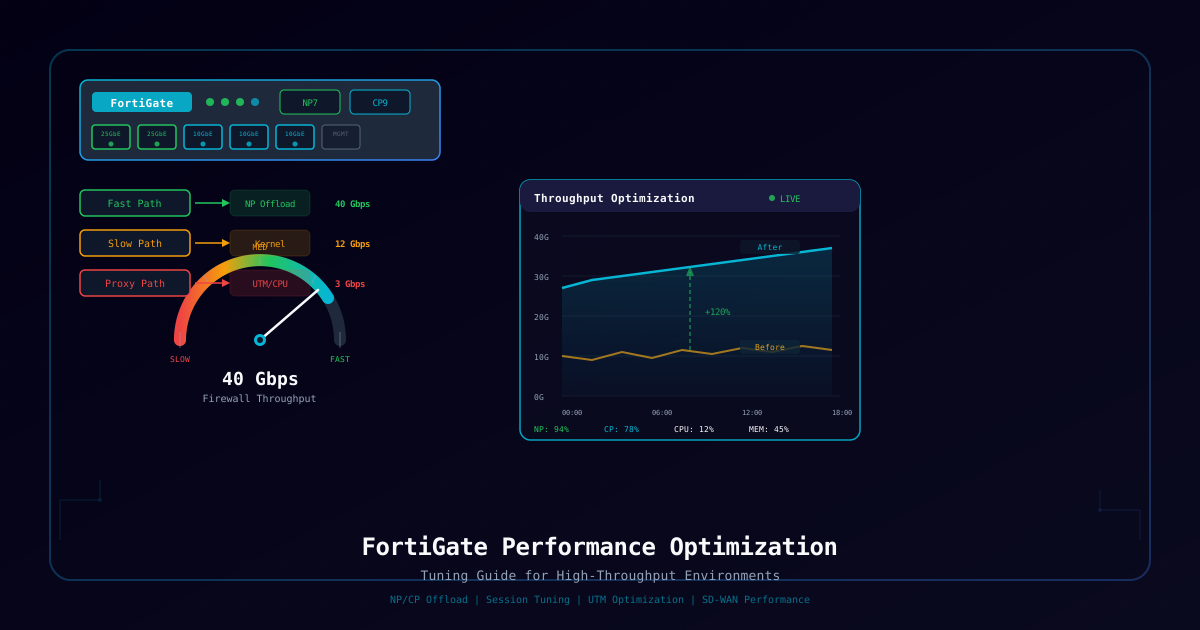
Traffic follows one of three paths:
-
Fast Path (NP Offload) -- After the first few packets of a session are inspected by the CPU and a policy match is found, the session is offloaded to the NP for hardware-accelerated forwarding. This is the highest-performance path. No CPU involvement after offload.
-
Kernel Path (Software Fast Path) -- Sessions that cannot be NP-offloaded but do not require proxy-mode inspection. The kernel handles forwarding in software. Performance is good but not wire-speed.
-
Proxy Path (CPU) -- Sessions requiring deep content inspection (proxy-mode antivirus, explicit web proxy, SSL deep inspection without CP offload). Every packet passes through the CPU. This is the slowest path and the primary bottleneck under load.
What This Guide Covers:
| Area | Optimization Target |
|---|---|
| NP Offload | Maximize hardware-accelerated session count |
| CP Offload | Offload SSL and IPS to content processors |
| Session Table | Right-size table, tune TTLs, reduce waste |
| UTM Profiles | Balance security depth with throughput |
| Firewall Policies | Reduce lookup time, optimize ordering |
| SD-WAN | Tune probes, thresholds, load balancing |
| Memory | Prevent conserve mode, tune thresholds |
| Interfaces | MTU, LACP, ECMP, flow control |
| Logging | Reduce logging overhead without losing visibility |
Warning: Performance tuning changes can affect security inspection depth and traffic flow behavior. Always benchmark before and after each change. Test in a lab or maintenance window first. Document every change for audit and rollback purposes.
Scenario
This guide addresses four common performance challenges:
1. High-Throughput Data Center / Campus Edge -- You are running a FortiGate at a data center edge or campus aggregation point handling 10+ Gbps sustained throughput. You need every session offloaded to hardware where possible, and UTM profiles tuned for flow-mode performance without sacrificing meaningful security coverage.
2. UTM Performance Degradation -- You have enabled IPS, antivirus, web filtering, application control, and SSL deep inspection on the same policy. CPU utilization climbs above 80% during business hours. Throughput degrades. Users report slow page loads and timeouts. You need to identify which UTM features are consuming the most CPU and optimize or restructure them.
3. Conserve Mode Incidents -- Your FortiGate has entered conserve mode one or more times, dropping new sessions and degrading existing ones. You need to understand why memory was exhausted, tune thresholds, and prevent recurrence.
4. SD-WAN Performance Optimization -- You are running SD-WAN with multiple WAN links and need to optimize path selection, minimize probe overhead, tune load balancing algorithms, and ensure SLA-based failover happens quickly without causing flaps.
Regardless of scenario, the methodology is the same: baseline current performance, identify bottlenecks, apply targeted optimizations, verify improvements, and document changes.
Pre-Optimization Assessment
Before making any changes, capture comprehensive baseline metrics. You need to know where you are to measure improvement.
System-Level Metrics
# Overall system status -- CPU, memory, firmware, uptime
get system status

# Real-time CPU usage per core
get system performance status

# Detailed CPU usage breakdown (user, system, idle, interrupt)
diagnose sys top 1 20

# Memory usage summary
diagnose hardware sysinfo memory

# Current session count vs maximum
diagnose sys session stat

# Full session table statistics
diagnose sys session full-statNP (Network Processor) Counters
# NP6/NP7 session offload statistics
diagnose npu np6 session-stats
# For NP7-based platforms:
diagnose npu np7 session-stats

# NP hardware session count
diagnose npu np6 sse-stats

# NP packet counters (drops, errors, throughput)
diagnose npu np6 port-list

# Check NP fast-path utilization
diagnose npu np6 dce

# Identify sessions NOT offloaded (and why)
diagnose npu np6 sse-stats | grep offloadInterface Throughput
# Real-time interface throughput (run for 10+ seconds to get stable readings)
diagnose netlink interface list

# Detailed interface counters -- packets, bytes, errors, drops
fnsysctl ifconfig <interface-name>

# Per-VDOM interface stats (if VDOMs enabled)
diagnose netlink interface list | grep -A5 <interface>Content Processor Metrics
# CP utilization percentage
diagnose sys cps stats

# SSL offload statistics
diagnose vpn ssl stats

# IPS engine status and packet counts
diagnose ips session statusRecord Your Baseline
Create a baseline document with these values:
| Metric | Command | Your Baseline Value |
|---|---|---|
| CPU Usage (average) | get system performance status | ___% |
| Memory Usage | get system performance status | ___% |
| Active Sessions | diagnose sys session stat | ___ |
| Max Sessions | diagnose sys session stat | ___ |
| NP Offloaded Sessions | diagnose npu np6 session-stats | ___% |
| NP Drops | diagnose npu np6 sse-stats | ___ |
| Interface Throughput (peak) | diagnose netlink interface list | ___ Gbps |
| CP Utilization | diagnose sys cps stats | ___% |
Tip: Run baseline collection during peak traffic hours, not at 3 AM. Performance tuning is meaningless if you baseline during idle periods. Collect data for at least 30 minutes to capture representative load patterns.
Step 1: Understanding the Traffic Flow
Before optimizing, you must understand which path your traffic is actually taking. Every session on a FortiGate follows a decision tree that determines whether it gets hardware-offloaded or falls to the CPU.
The Session Lifecycle
When a new session arrives:
- First packet hits the ingress interface and is processed by the CPU (always -- even NP-capable sessions start here).
- Policy lookup occurs -- the CPU matches the packet against firewall policies in order.
- Security profile evaluation -- if the matched policy has UTM profiles, the CPU determines what inspection is needed.
- Offload decision -- if the session is eligible for NP offload, the CPU programs the NP with the session entry and all subsequent packets are forwarded in hardware.
- Ongoing inspection -- if the session cannot be offloaded, it remains on the kernel path or proxy path for the session lifetime.
What Qualifies for NP Offload
Sessions are eligible for NP hardware offload when:
- The policy uses flow-based inspection (not proxy)
- The ingress and egress interfaces are connected to the same NP chip
- The session does not require content inspection that forces CPU processing
- NAT is simple (source NAT, destination NAT -- not complex NAT64 with ALG)
- The protocol is TCP, UDP, ICMP, or IPsec ESP/AH
What Disqualifies NP Offload
Sessions stay on the CPU when any of these apply:
| Disqualifier | Reason |
|---|---|
| Proxy-mode inspection | Full content buffering requires CPU |
| Traffic shaping (per-IP bandwidth) | Per-session policing requires CPU tracking |
| Policy with captive portal | Redirect requires CPU |
| Ingress/egress on different NP chips | NP cannot forward between chips |
| Session with ALG (SIP, FTP active) | Application layer gateway requires CPU parsing |
| Multicast traffic (some platforms) | Not all NP versions support multicast offload |
| Traffic logging with per-packet detail | Packet-level logging prevents offload |
| Explicit web proxy sessions | Proxy daemon processes all packets |
| ZTNA proxy mode | ZTNA proxy terminates sessions on CPU |
| VoIP/SCCP with ALG enabled | ALG modifies payload, preventing offload |
Verify Current Offload Status
# See how many sessions are currently offloaded vs not
diagnose sys session stat

# Look for the "npu offloaded" line in output
# Example output:
#   misc info:    session_count=125000 setup_rate=850
#   npu offloaded: 98000
#   non-offloaded: 27000

# Check a specific session's offload status
diagnose sys session list | grep "npu_flag"
# npu_flag=set means offloaded, npu_flag=clear means CPU-processed

# Get the offload ratio
diagnose npu np6 session-statsTarget: Aim for 70-90%+ of sessions being NP-offloaded in a well-optimized environment. If you are below 50%, there are significant gains available.
Step 2: NP (Network Processor) Optimization
The Network Processor is your primary performance lever. Every session offloaded to the NP runs at hardware speed with zero CPU cost.
Verify NP Offloading is Enabled Globally
# Check global NP acceleration status
config system np6
    show
end

# Ensure NP offload is not disabled at the system level
config system settings
    show full | grep "np-offload"
endIf NP offload has been disabled (sometimes done during troubleshooting and never re-enabled), turn it back on:
config system np6
    set fastpath enable
endEnable NP Offload on Specific Policies
By default, policies allow NP offload. But it can be explicitly disabled per policy. Verify and enable:
# Check a specific policy for auto-asic-offload
config firewall policy
    edit <policy-id>
        show full | grep auto-asic-offload
    next
end

# Ensure auto-asic-offload is enabled (default is enable)
config firewall policy
    edit <policy-id>
        set auto-asic-offload enable
    next
endWarning: Do not blindly enable
auto-asic-offloadon policies where you need per-packet logging or traffic shaping with per-IP granularity. Those features require CPU processing and will silently lose functionality if forced to NP.
Identify Non-Offloaded Sessions and Root Cause
# List sessions that are NOT offloaded
diagnose sys session list | grep "npu_flag=clear"

# For each non-offloaded session, check why
# Look for: proxy mode, traffic shaping, ALG, interface mismatch
diagnose sys session list | grep -B5 -A5 "npu_flag=clear" | head -100

# Check which interfaces map to which NP chip
diagnose npu np6 port-list
# Output shows each interface's NP assignment
# Interfaces on different NPs cannot offload sessions between themNP6 vs NP7 Specific Tuning
NP6 Platforms (FortiGate 200F, 400F, etc.):
# NP6-specific session statistics
diagnose npu np6 session-stats

# NP6 VXLAN offload (if using VXLAN)
config system np6
    set vxlan-offload enable
end

# NP6 IPsec offload verification
diagnose vpn ike gateway list | grep npuNP7 Platforms (FortiGate 600F, 1000F, 2600F, 3000F, etc.):
# NP7 enhanced session statistics
diagnose npu np7 session-stats

# NP7 supports higher session counts and more offload features
# Verify NP7 capabilities
diagnose npu np7 dce

# NP7 hyperscale mode (for platforms that support it)
# Check if hyperscale is available and enabled
config system np7
    show
endNP Interface Mapping Optimization
For maximum offload, ensure high-traffic flows traverse interfaces on the same NP chip:
# View NP-to-interface mapping
diagnose npu np6 port-list

# Example output:
#   np6_0: port1 port2 port3 port4
#   np6_1: port5 port6 port7 port8
#   np6_2: port9 port10 npu0_vlink0 npu0_vlink1

# If your primary WAN is on np6_0 and primary LAN is on np6_1,
# traffic between them CANNOT be NP-offloaded between chips
# Solution: Re-cable so WAN and LAN are on the same NP chipProduction Impact: Re-cabling interfaces requires a maintenance window and firewall policy updates. Plan carefully. Verify interface-to-NP mapping BEFORE purchasing and deploying -- it determines your offload ceiling.
Verify NP Optimization Improvements
# After changes, re-check offload ratio
diagnose npu np6 session-stats
# Compare "offloaded" count to your baseline

# Monitor in real-time (run for 30+ seconds during peak)
diagnose sys session stat
# Look for npu offloaded count increasing relative to total sessionsExpected Impact: Properly enabling NP offload on eligible sessions can improve throughput by 50-300% for affected traffic flows, while simultaneously reducing CPU utilization by 20-60%.
Step 3: CP (Content Processor) Optimization
The Content Processor handles SSL/TLS termination, IPS signature pattern matching, and encryption/decryption. Offloading these operations to the CP frees the CPU for tasks only the CPU can handle.
Verify CP Status and Utilization
# Check CP utilization
diagnose sys cps stats

# CP hardware status
diagnose hardware deviceinfo nic

# SSL offload statistics
diagnose vpn ssl statsCP Offload for SSL Deep Inspection
SSL deep inspection is one of the most CPU-intensive operations. The CP can handle the bulk of the cryptographic work:
# Verify SSL inspection is using CP offload
config firewall ssl-ssh-profile
    edit "deep-inspection"
        show full | grep "ssl-offload"
    next
end

# Enable CP offload for SSL inspection (if not already set)
config system global
    set ssl-hw-acceleration enable
endIPS CP Offload
IPS signature matching can be partially offloaded to the CP for pattern matching acceleration:
# Check IPS engine configuration
config ips global
    show
end

# Enable CP-accelerated IPS (default on supported platforms)
config ips global
    set cp-accel-mode advanced
endNote: Not all IPS signatures can be CP-offloaded. Complex regex patterns and protocol decoder-dependent signatures still require CPU. The CP handles the bulk pattern pre-filtering, reducing CPU load by filtering out non-matching packets before they reach the IPS engine.
CP Load Balancing
On platforms with multiple CP chips, ensure load is distributed:
# Check CP load distribution
diagnose sys cps stats

# If one CP is overloaded while others are idle, check SSL profile
# distribution and ensure traffic is not pinned to a single CPMonitor CP After Changes
# Re-check CP utilization
diagnose sys cps stats

# Compare to baseline -- CP utilization should increase
# (more work moved to CP = higher CP use but lower CPU use)
# CPU utilization should decrease correspondingly
get system performance statusExpected Impact: Enabling CP offload for SSL inspection can reduce CPU utilization by 15-40% on environments with heavy HTTPS traffic, while maintaining the same inspection depth.
Step 4: Session Table Optimization
The session table is the core state-tracking structure. Every active connection consumes a session table entry. When the table fills up, new connections are dropped -- even if CPU and memory are available.
Check Current Session Table Configuration
# Current session count and maximum
diagnose sys session stat

# Example output:
#   misc info:    session_count=145000 setup_rate=1200
#   ...
#   session table size: 500000

# Check configured session table size
config system session-ttl
    show
endTune Session Table Size
# Increase session table size based on your platform's memory
# FortiGate 200F: default 2M, max depends on RAM
# FortiGate 600F: default 8M, max depends on RAM
# FortiGate 3000F: default 24M+

# Check maximum supported sessions for your platform
get hardware status

# Set session table size (requires reboot on some platforms)
config system session-ttl
    set default 3600
endSession TTL Tuning Per Protocol
Default session TTLs are conservative. Reducing them frees table entries faster:
# View current TTL settings
config system session-ttl
    show
end

# Optimize TTLs for common protocols
config system session-ttl
    set default 3600
    config port
        # DNS -- queries are fast, reduce from default
        edit 1
            set protocol 17
            set start-port 53
            set end-port 53
            set timeout 30
        next
        # HTTP -- most pages load within seconds
        edit 2
            set protocol 6
            set start-port 80
            set end-port 80
            set timeout 600
        next
        # HTTPS -- slightly longer for complex web apps
        edit 3
            set protocol 6
            set start-port 443
            set end-port 443
            set timeout 1800
        next
        # ICMP -- ping should not hold sessions for minutes
        edit 4
            set protocol 1
            set start-port 0
            set end-port 65535
            set timeout 15
        next
        # NTP -- one-shot, reduce aggressively
        edit 5
            set protocol 17
            set start-port 123
            set end-port 123
            set timeout 15
        next
    end
endWarning: Reducing TTLs too aggressively can cause issues with long-lived connections (database connections, SSH tunnels, video conferencing). Test with your specific application mix. Monitor for unexpected session teardowns after changing TTLs.
Session Helper Management
Session helpers (ALGs) create additional sessions for protocols like SIP, FTP, and TFTP. These consume session table entries and prevent NP offload:
# List active session helpers
config system session-helper
    show
end

# Disable session helpers for protocols you don't use
# Example: Disable SIP ALG if not using SIP through the FortiGate
config system session-helper
    delete <helper-id-for-sip>
end

# Or disable specific helpers
config system settings
    set sip-helper disable
    set sip-nat-trace disable
endSession Pickup for HA Environments
In High Availability (HA) configurations, session pickup keeps sessions alive during failover but consumes memory:
# Check session pickup status
config system ha
    show full | grep "session-pickup"
end

# Enable session pickup for critical protocols only
config system ha
    set session-pickup enable
    set session-pickup-connectionless enable
    set session-pickup-delay enable
endAsymmetric Routing Handling
Asymmetric routing (traffic entering on one interface and returning on another) can cause session mismatches and performance issues:
# Enable asymmetric routing tolerance if needed
config system settings
    set asymroute enable
end

# For specific interfaces with known asymmetric paths
config system interface
    edit "wan1"
        set fail-detect enable
    next
endWarning: Enabling
asymrouteglobally reduces security because the FortiGate cannot properly track bidirectional session state. Only enable it when asymmetric routing is unavoidable and cannot be fixed at the routing layer.
Verify Session Table Improvements
# After TTL changes, monitor session count over time
diagnose sys session stat
# Session count should be lower for the same traffic load
# (faster TTL expiry = fewer stale sessions consuming entries)

# Check session setup rate (should remain stable)
# If setup rate drops, TTLs may be too aggressive
diagnose sys session stat | grep setup_rateExpected Impact: Optimized session TTLs can reduce active session count by 20-40%, freeing table capacity and reducing memory usage proportionally.
Step 5: UTM Profile Optimization
UTM (Unified Threat Management) profiles are the largest source of CPU consumption. Each inspection feature adds processing overhead. The goal is not to disable security -- it is to right-size inspection depth for your threat model.
IPS Sensor Optimization
IPS is typically the second-most CPU-intensive feature (after SSL inspection). Optimize by reducing the signature set to what is relevant:
# Check current IPS sensor configuration
config ips sensor
    edit "high-performance"
        show
    next
end

# Create an optimized IPS sensor that targets your actual environment
config ips sensor
    edit "optimized-sensor"
        # Start with severity-based filtering
        config entries
            # Block critical and high severity -- these are the real threats
            edit 1
                set severity critical high
                set status enable
                set action block
                set log enable
            next
            # Log medium severity for visibility, but pass traffic
            edit 2
                set severity medium
                set status enable
                set action pass
                set log enable
            next
            # Disable low/info signatures -- they generate noise and CPU load
            edit 3
                set severity low info
                set status disable
            next
        end
    next
endTargeted signature filtering: Disable signatures for software you do not run:
config ips sensor
    edit "optimized-sensor"
        config entries
            # Disable signatures for platforms not in your environment
            edit 4
                set os "Linux"
                set status disable
                # Only if you have NO Linux servers -- be careful here
            next
            # Disable client-side signatures if this is a server farm
            edit 5
                set application "Web_Client"
                set status disable
            next
        end
    next
endWarning: Disabling IPS signatures creates blind spots. Only disable signatures for platforms and applications that genuinely do not exist in your environment. Maintain a quarterly review of disabled signatures against your actual asset inventory.
Antivirus Scanning Mode
The antivirus scanning mode has a massive impact on performance:
# Check current AV profile
config antivirus profile
    edit "optimized-av"
        show
    next
end

# Flow-based scanning is 5-10x faster than proxy-based
config antivirus profile
    edit "optimized-av"
        set scan-mode quick
        set inspection-mode flow-based
        config http
            set av-scan enable
            set outbreak-prevention enable
        end
        config ftp
            set av-scan enable
        end
        config smtp
            set av-scan enable
        end
        # Disable scanning for protocols not in use
        config imap
            set av-scan disable
        end
        config pop3
            set av-scan disable
        end
    next
end| AV Mode | Throughput Impact | Detection Capability |
|---|---|---|
| Flow-based (quick scan) | Lowest impact, ~5% throughput reduction | Catches known malware, fast pattern matching |
| Flow-based (full scan) | Moderate impact, ~15% throughput reduction | Better detection, reassembles packets |
| Proxy-based | Highest impact, ~40-60% throughput reduction | Full file reconstruction, best detection |
Web Filter Performance Tuning
# Use FortiGuard category-based filtering (faster than URL-by-URL)
config webfilter profile
    edit "optimized-webfilter"
        set inspection-mode flow-based
        config ftgd-wf
            # Block categories by group rather than individual URLs
            config filters
                edit 1
                    set category 1
                    set action block
                next
                # ... configure category blocks ...
            end
        end
        # Disable URL rating for known-safe traffic (internal sites)
        set url-extraction-redirects disable
    next
endApplication Control Optimization
# Application control -- use categories, not individual signatures
config application list
    edit "optimized-appctrl"
        config entries
            # Block high-risk categories
            edit 1
                set category 22  # P2P
                set action block
            next
            edit 2
                set category 19  # Proxy
                set action block
            next
            # Monitor (not block) general categories to reduce inspection depth
            edit 3
                set category 5  # General.Interest
                set action pass
                set log enable
            next
        end
    next
endSSL Deep Inspection Performance Tuning
SSL deep inspection is the single most CPU-intensive feature. Optimize aggressively:
# Check current SSL inspection profile
config firewall ssl-ssh-profile
    edit "deep-inspection"
        show full
    next
end

# Optimize SSL inspection
config firewall ssl-ssh-profile
    edit "optimized-ssl"
        # Exempt trusted and high-bandwidth categories from inspection
        config exempt
            edit 1
                set fortiguard-category 31  # Finance/Banking
            next
            edit 2
                set fortiguard-category 33  # Health/Medicine
            next
            # Exempt CDN and update traffic (high volume, low risk)
            edit 3
                set address "Microsoft-365" "Google-Cloud" "AWS" "Akamai"
            next
        end
        # Use certificate inspection for exempted categories
        # (still validates certs without decrypting content)
        set ssl-exemptions-log enable

        # Tune TLS version support
        config https
            set ports 443
            set status deep-inspection
            set client-certificate bypass
        end
    next
endExemption strategy for SSL inspection:
| Category | Recommendation | Reason |
|---|---|---|
| Financial sites (banks) | Certificate inspection only | Regulatory risk, these sites have their own security |
| Health/medical | Certificate inspection only | HIPAA concerns with intercepting PHI |
| CDN/cloud updates | Exempt | High bandwidth, low threat, verified publishers |
| SaaS (M365, Google) | Exempt or certificate-only | Already inspected by cloud security stack |
| Everything else | Deep inspection | This is where threats hide |
Warning: Every SSL exemption is a potential blind spot. Document all exemptions and review them quarterly. Ensure you have compensating controls (EDR, cloud-native security) for exempted traffic.
Verify UTM Optimization
# Check CPU impact before and after UTM changes
get system performance status

# Monitor IPS engine specifically
diagnose ips session status

# Check flow vs proxy session ratio
diagnose sys session stat
# Fewer proxy sessions = more efficientExpected Impact: Moving from proxy-based to flow-based inspection and optimizing IPS signatures can improve UTM throughput by 100-300% while maintaining 85-95% of detection capability.
Step 6: Firewall Policy Optimization
Policy lookup happens for every new session. The FortiGate evaluates policies top-to-bottom until a match is found. With hundreds of policies, this lookup becomes a measurable performance cost.
Policy Ordering for Performance
Place the most frequently matched policies at the top of the policy list:
# Identify your most-hit policies
diagnose firewall iprope lookup <src-ip> <dst-ip> <src-port> <dst-port> <protocol>

# View policy hit counts
get firewall policy | grep -A2 "policyid"

# Or use the GUI: Policy & Objects > Firewall Policy > Column Settings > Enable "Hit Count"

# Move high-hit policies to the top
config firewall policy
    move <high-hit-policy-id> before <first-policy-id>
endPolicy Consolidation
Consolidate overlapping or similar policies to reduce the total count:
# Before: 5 policies for different servers, same inspection profile
# Policy 10: srcaddr=any, dstaddr=WebServer1, service=HTTPS, action=accept
# Policy 11: srcaddr=any, dstaddr=WebServer2, service=HTTPS, action=accept
# Policy 12: srcaddr=any, dstaddr=WebServer3, service=HTTPS, action=accept
# Policy 13: srcaddr=any, dstaddr=WebServer4, service=HTTPS, action=accept
# Policy 14: srcaddr=any, dstaddr=WebServer5, service=HTTPS, action=accept

# After: 1 policy using an address group
config firewall addrgrp
    edit "WebServers"
        set member "WebServer1" "WebServer2" "WebServer3" "WebServer4" "WebServer5"
    next
end

config firewall policy
    edit <policy-id>
        set srcaddr "all"
        set dstaddr "WebServers"
        set service "HTTPS"
        set action accept
        set utm-status enable
        set auto-asic-offload enable
    next
endInterface-Based vs Zone-Based Policies
Zone-based policies can simplify and reduce policy count, but interface-based policies enable more granular NP offload:
# Interface-based approach (better for NP offload)
config firewall policy
    edit <policy-id>
        set srcintf "port1"
        set dstintf "port3"
        # NP can offload if port1 and port3 are on the same NP chip
    next
end

# Zone-based approach (fewer policies, easier management)
config system zone
    edit "LAN-zone"
        set interface "port3" "port4" "port5"
    next
endRecommendation: Use interface-based policies for high-throughput paths where NP offload matters. Use zones for management and lower-volume traffic where simplicity is more valuable than offload.
Schedule-Based Policies
Use scheduled policies to apply heavy UTM inspection only during business hours:
# Create a business hours schedule
config firewall schedule recurring
    edit "business-hours"
        set day monday tuesday wednesday thursday friday
        set start 07:00
        set end 19:00
    next
end

# Apply full UTM during business hours, lighter inspection off-hours
config firewall policy
    edit <business-policy-id>
        set schedule "business-hours"
        set utm-status enable
        set ips-sensor "full-sensor"
        set av-profile "full-av"
    next
    edit <offhours-policy-id>
        set schedule "always"
        set utm-status enable
        set ips-sensor "optimized-sensor"
        set av-profile "optimized-av"
    next
endReduce Policy Lookup Time
# Enable policy caching (enabled by default, verify it is not disabled)
config system settings
    show full | grep "policy-auth-concurrent"
end

# Check policy count
get firewall policy | grep -c "policyid"

# If you have 500+ policies, consider:
# 1. Consolidating with address groups
# 2. Using VDOMs to segment policy tables
# 3. Removing disabled/unused policiesExpected Impact: Reducing policy count by 40-60% through consolidation and optimizing ordering can reduce per-session policy lookup time by 30-50%, which matters at high session setup rates (10,000+ new sessions/second).
Step 7: SD-WAN Performance Tuning
SD-WAN adds path intelligence but also adds overhead -- health probes, quality measurements, and rule evaluation all consume resources. Optimize to get the path intelligence without the performance penalty.
SLA Probe Optimization
Health check probes run continuously on every SD-WAN member. Each probe consumes bandwidth and generates sessions:
# View current SLA probes
config system sdwan
    config health-check
        show
    end
end

# Optimize probe frequency -- default 500ms is aggressive
config system sdwan
    config health-check
        edit "wan-sla"
            # Increase interval from 500ms to 1000ms for less overhead
            set interval 1000
            # Reduce probe count (default 30 is high)
            set probe-count 10
            # Use appropriate protocol
            set protocol ping
            set server "8.8.8.8" "1.1.1.1"
            # Set failure threshold
            set failtime 3
            # Set recovery threshold
            set recoverytime 5
        next
    end
endWarning: Increasing probe intervals slows down failover detection. A 1000ms interval with failtime=3 means 3 seconds minimum to detect a link failure. For real-time applications (VoIP, video), keep intervals at 500ms. For general traffic, 1000-2000ms is acceptable.
Performance SLA Thresholds
Set realistic SLA thresholds that trigger path changes without causing flaps:
config system sdwan
    config health-check
        edit "wan-sla"
            config sla
                edit 1
                    # Latency threshold in ms
                    set latency-threshold 100
                    # Jitter threshold in ms
                    set jitter-threshold 30
                    # Packet loss threshold in percent
                    set packetloss-threshold 2
                next
                edit 2
                    # Degraded SLA -- still usable but not preferred
                    set latency-threshold 200
                    set jitter-threshold 50
                    set packetloss-threshold 5
                next
            end
        next
    end
endLoad Balancing Algorithm Selection
Choose the right algorithm for your traffic pattern:
config system sdwan
    config service
        edit 1
            set name "critical-apps"
            # source-ip-based: consistent hashing, same source always same path
            # Best for: most environments, session persistence
            set load-balance-mode source-ip-based

            # volume-based: distribute by bandwidth consumption
            # Best for: environments with mixed large/small flows
            # set load-balance-mode volume-based

            # session-based: round-robin per session
            # Best for: many small sessions, maximum distribution
            # set load-balance-mode sessions

            # source-dest-ip-based: hash on both src and dst
            # Best for: environments needing session affinity
            # set load-balance-mode source-dest-ip-based
        next
    end
end| Algorithm | Best For | Overhead |
|---|---|---|
| source-ip-based | General use, session persistence | Low |
| source-dest-ip-based | Asymmetric traffic avoidance | Low |
| sessions | Maximum path utilization | Medium |
| volume-based | Balanced bandwidth distribution | Medium |
| measured-volume-based | Dynamic bandwidth-aware balancing | Higher |
SD-WAN Rule Ordering
Like firewall policies, SD-WAN rules are evaluated in order. Place the most specific and most-hit rules first:
config system sdwan
    config service
        # Rule 1: VoIP -- most latency sensitive, most specific
        edit 1
            set name "voip"
            set dst "voip-servers"
            set internet-service enable
            set internet-service-app-ctrl 41468  # Microsoft Teams
            set priority-members 1  # Best latency link
            set sla "wan-sla"
            set sla-compare-method number
        next
        # Rule 2: Critical SaaS
        edit 2
            set name "saas-critical"
            set internet-service enable
            set internet-service-app-ctrl 16354 16355  # M365
            set load-balance-mode source-ip-based
        next
        # Rule 3: General traffic (catch-all)
        edit 3
            set name "default"
            set dst "all"
            set load-balance-mode source-ip-based
        next
    end
endVerify SD-WAN Optimization
# Check SD-WAN link quality
diagnose sys sdwan health-check

# Verify traffic distribution
diagnose sys sdwan service

# Monitor SLA status
diagnose sys sdwan intf-sla-log

# Check for unnecessary failovers (flapping)
diagnose sys sdwan logExpected Impact: Optimized SLA probes and rule ordering reduce SD-WAN overhead by 10-20% of WAN bandwidth consumed by probes, and improve failover time predictability.
Step 8: Memory & Conserve Mode Prevention
Conserve mode is FortiGate's emergency response to memory exhaustion. When triggered, the device stops accepting new sessions, drops proxy-mode connections, and degrades security inspection. Preventing conserve mode is a critical operational priority.
Understanding Conserve Mode Triggers
# Check current memory status and thresholds
diagnose hardware sysinfo memory

# View conserve mode history
diagnose sys top 1 20

# Check if currently in conserve mode
get system performance status | grep "Memory"
# Look for: "Memory states: normal" (good) vs "Memory states: conserve" (bad)

# View conserve mode thresholds
config system global
    show full | grep conserve
endConserve Mode Thresholds
FortiGate enters conserve mode based on memory thresholds:
| Threshold | Default | Behavior |
|---|---|---|
| Green (normal) | < 82% memory used | Normal operation |
| Red (conserve) | > 88% memory used | Conserve mode enters -- new sessions may be dropped |
| Extreme (kernel conserve) | > 95% memory used | Kernel-level session dropping, proxy daemons stopped |
Tune Conserve Mode Thresholds
# Adjust thresholds (use with caution)
config system global
    # Memory watermark thresholds
    set av-failopen pass
    set ips-affinity "0"
end

# Set proxy resource limits to prevent proxy from consuming all memory
config firewall profile-protocol-options
    edit "optimized"
        config http
            # Limit oversized HTTP content (prevents memory exhaustion)
            set oversize-limit 10
            set uncompressed-oversize-limit 12
        end
        config ftp
            set oversize-limit 10
            set uncompressed-oversize-limit 12
        end
    next
endMemory Usage Monitoring
# Real-time memory breakdown
diagnose sys top 1 30

# Check which processes consume the most memory
diagnose sys process list | sort -rn -k 4 | head 20

# Monitor proxy memory usage specifically
diagnose test application wad 1

# Session memory usage
diagnose sys session stat | grep "memory"

# Check for memory leaks (increasing usage without corresponding session increase)
# Run periodically and compare:
diagnose hardware sysinfo memoryProxy Memory Limit Configuration
# Limit memory available to proxy daemons
config system global
    # Set proxy memory limit as percentage of total memory
    set proxy-resource-mode enable
end

# Tune individual proxy limits
config firewall profile-protocol-options
    edit "optimized"
        config http
            set oversize-limit 10
            set uncompressed-oversize-limit 12
            # Block oversized content rather than buffering it
            set block-page-status-code 403
        end
    next
endConserve Mode Prevention Checklist
- Monitor memory continuously -- set SNMP traps at 75% memory usage
- Reduce session TTLs (see Step 4) -- fewer stale sessions = less memory
- Use flow-based inspection where possible -- proxy-based buffers content in memory
- Limit oversized content -- a single 2 GB download in proxy mode can consume significant memory
- Size your FortiGate correctly -- if you are consistently above 70% memory, you need a bigger box
# Set SNMP memory threshold trap
config system snmp sysinfo
    set status enable
end
config system snmp community
    edit 1
        set events cpu-high mem-low
    next
endExpected Impact: Proper memory management and proxy resource limits can prevent conserve mode entirely. The goal is to keep steady-state memory usage below 70%.
Step 9: Interface & Routing Optimization
Network interface configuration and routing efficiency directly impact throughput and latency.
Interface MTU Optimization
# Check current MTU on all interfaces
get system interface | grep mtu

# Set optimal MTU (typically 1500 for Ethernet, 9000 for jumbo frames)
config system interface
    edit "port1"
        # Standard Ethernet MTU
        set mtu 1500
        # Override default MTU if path supports jumbo frames
        set mtu-override enable
        # For data center internal traffic:
        # set mtu 9000
    next
endWarning: Setting MTU to 9000 (jumbo frames) requires that every device in the path supports jumbo frames. A single device with standard 1500 MTU will cause fragmentation, which is worse than using 1500 everywhere.
TCP MSS Clamping
Prevent fragmentation on VPN and encapsulated traffic:
# Set TCP MSS clamping on VPN interfaces
config vpn ipsec phase1-interface
    edit "to-azure"
        set auto-negotiate enable
    next
end

# Per-policy MSS clamping
config firewall policy
    edit <vpn-policy-id>
        set tcp-mss-sender 1350
        set tcp-mss-receiver 1350
    next
endFlow Control Settings
# Check interface flow control
get system interface physical | grep flow

# Enable flow control to prevent packet drops at ingress
config system interface
    edit "port1"
        set speed auto
        set pause-meter-rate 0
    next
end

# For high-throughput interfaces, verify duplex and speed
config system interface
    edit "port1"
        show full | grep speed
        # Ensure auto-negotiation is working or force speed if needed
        # set speed 10000full  # Force 10G full duplex
    next
endLink Aggregation (LACP)
Aggregate multiple physical links for increased bandwidth and redundancy:
# Create an LACP aggregate interface
config system interface
    edit "agg1"
        set type aggregate
        set member "port1" "port2"
        set lacp-mode active
        set lacp-ha-slave disable
        set min-links 1
        set algorithm L3  # Hash based on src/dst IP for better distribution
        # L4 for src/dst IP + port (best distribution for mixed traffic)
        # set algorithm L4
    next
end| LACP Algorithm | Hash Based On | Best For |
|---|---|---|
| L2 | Source/Dest MAC | Single subnet traffic |
| L3 | Source/Dest IP | Multi-subnet traffic |
| L4 | Source/Dest IP + Port | Mixed traffic (recommended) |
ECMP Routing
Equal-Cost Multi-Path routing distributes traffic across multiple next-hops:
# Configure ECMP with multiple static routes
config router static
    edit 1
        set dst 0.0.0.0/0
        set gateway 10.0.1.1
        set device "port1"
        set distance 10
    next
    edit 2
        set dst 0.0.0.0/0
        set gateway 10.0.2.1
        set device "port2"
        set distance 10
    next
end

# Set ECMP load balancing method
config system settings
    # source-ip-based (default, recommended)
    set ecmp-max-paths 4
end

# Verify ECMP is active
get router info routing-table all | grep "0.0.0.0"
# Should show multiple equal-cost routesRouting Table Optimization
# Check routing table size
get router info routing-table details | wc -l

# For BGP environments, implement route aggregation
config router bgp
    config aggregate-address
        edit 1
            set prefix 10.0.0.0 255.0.0.0
        next
    end
end

# Set appropriate route cache timeout
config system global
    set ip-src-port-range 1024-25000
endExpected Impact: LACP with L4 hashing doubles effective bandwidth. ECMP routing provides linear bandwidth scaling per additional path. MTU optimization can improve throughput by 5-15% for large transfer workloads.
Step 10: Logging & Diagnostics Impact
Logging is essential for visibility and compliance, but excessive logging is a measurable performance drain. The goal is to log what matters without logging everything.
Logging Performance Impact
Each log message generated by the FortiGate consumes:
- CPU cycles to format and write the log
- Memory for log buffering
- Disk I/O (if logging to disk)
- Network bandwidth (if logging to FortiAnalyzer or syslog)
At high session rates, logging can consume 5-15% of CPU.
Disk vs Memory vs FortiAnalyzer Logging
# Check current logging configuration
show log setting
show log fortianalyzer setting
show log syslogd setting
show log disk setting

# Recommended: Log to FortiAnalyzer or syslog, not local disk
# Local disk logging creates I/O bottlenecks on high-throughput devices
config log disk setting
    set status disable
    set max-log-file-size 100
end

# FortiAnalyzer logging (recommended)
config log fortianalyzer setting
    set status enable
    set server <faz-ip>
    set enc-algorithm high
    set reliable enable
    set upload-option realtime
end

# If using syslog as alternative
config log syslogd setting
    set status enable
    set server <syslog-ip>
    set port 514
    set facility local7
    set format rfc5424
endReduce Log Volume Without Losing Visibility
# Log only denied traffic and UTM events (not all allowed traffic)
config firewall policy
    edit <high-volume-allow-policy>
        set logtraffic utm
        # Options:
        # all -- log every session (highest overhead)
        # utm -- log only UTM events (moderate overhead, good visibility)
        # disable -- no logging (lowest overhead, bad visibility)
    next
end

# For high-volume internal policies, consider logging only at session start
config firewall policy
    edit <internal-policy>
        set logtraffic utm
        set logtraffic-start disable
    next
end

# Reduce severity level for routine traffic
config log setting
    set fwpolicy-implicit-log enable
    set local-in-allow disable
    set local-in-deny-broadcast disable
    set local-in-deny-unicast disable
    set log-invalid-packet disable
endPerformance Diagnostic Commands
These commands help identify performance issues in real-time:
# Top processes by CPU
diagnose sys top 1 20

# Real-time throughput per interface
diagnose netlink interface list

# Packet flow debug (use sparingly -- this impacts performance!)
diagnose debug flow filter addr <suspect-ip>
diagnose debug flow show function-name enable
diagnose debug flow trace start 100
# IMPORTANT: Always stop the trace when done
diagnose debug flow trace stop
diagnose debug disable

# Crash log check (performance issues sometimes correlate with crashes)
diagnose debug crashlog read

# Hardware sensor readings (thermal throttling check)
execute sensor list

# NP error counters
diagnose npu np6 sse-stats | grep -i error
diagnose npu np6 sse-stats | grep -i dropWarning:
diagnose debug flowtraces are extremely CPU-intensive. Never enable flow traces on a production device during peak hours without limiting the filter scope and packet count. Always stop traces when done. Failing to stop a debug trace is a common cause of performance degradation.
Verify Logging Optimization
# Check log generation rate
execute log filter device memory
execute log display
# Look at timestamps -- high-volume logging will show hundreds of entries per second

# Compare CPU before and after logging changes
get system performance statusExpected Impact: Moving from logtraffic all to logtraffic utm on high-volume policies can reduce CPU overhead by 5-15% and dramatically reduce FortiAnalyzer storage requirements.
Verification
After completing optimization steps, run a comprehensive verification to measure improvements against your baseline.
Post-Optimization Metrics Collection
# Collect the same metrics as your pre-optimization baseline

# System performance
get system performance status

# CPU breakdown
diagnose sys top 1 20

# Memory status
diagnose hardware sysinfo memory

# Session statistics
diagnose sys session stat

# NP offload ratio
diagnose npu np6 session-stats

# CP utilization
diagnose sys cps stats

# Interface throughput
diagnose netlink interface list

# Verify no conserve mode events
get system performance status | grep "Memory"Before/After Comparison
| Metric | Baseline | After Optimization | Change |
|---|---|---|---|
| CPU Usage (average) | ___% | ___% | -___% |
| Memory Usage | ___% | ___% | -___% |
| Active Sessions | ___ | ___ | -___ |
| NP Offloaded Sessions | ___% | ___% | +___% |
| Firewall Throughput | ___ Gbps | ___ Gbps | +___% |
| CP Utilization | ___% | ___% | +___% |
| Policy Count | ___ | ___ | -___ |
Ongoing Monitoring
Set up persistent monitoring to track performance over time:
# Configure SNMP monitoring for CPU/memory thresholds
config system snmp sysinfo
    set status enable
    set engine-id "local"
    set contact-info "noc@yourcompany.com"
end

config system snmp community
    edit 1
        set name "<community-string>"
        set events cpu-high mem-low log-full intf-ip fm-conf-change
        config hosts
            edit 1
                set ip <monitoring-server-ip> 255.255.255.255
            next
        end
    next
end

# Enable performance logging to FortiAnalyzer
config log fortianalyzer setting
    set status enable
    set upload-option realtime
endValidate Security Posture
Performance optimization must not compromise security. Verify:
# Confirm IPS is still active and detecting
diagnose ips session status

# Verify AV engine is running and updating
diagnose autoupdate status
diagnose autoupdate versions

# Check SSL inspection is functional
diagnose test application ssl 1

# Verify firewall policies are still matching correctly
diagnose firewall iprope lookup <test-src-ip> <test-dst-ip> <port> <port> <proto>Troubleshooting
NP Offload Failures
Symptom: NP offloaded session count is low despite eligible traffic.
# Check NP health
diagnose npu np6 sse-stats
# Look for error counters, session table full, or hardware errors

# Verify interface-to-NP mapping
diagnose npu np6 port-list
# Ensure ingress and egress interfaces are on the same NP

# Check for NP session table exhaustion
diagnose npu np6 session-stats | grep "max"
# If current count is near max, the NP session table is full

# Check policy settings
config firewall policy
    edit <policy-id>
        show full | grep auto-asic-offload
    next
end
# Ensure auto-asic-offload is "enable"Resolution:
- Verify interfaces are on the same NP chip
- Enable
auto-asic-offloadon applicable policies - Move to flow-based inspection (proxy mode prevents NP offload)
- Disable unnecessary session helpers/ALGs
- Check for firmware bugs in your FortiOS version release notes
Conserve Mode
Symptom: FortiGate enters conserve mode, new sessions dropped, users report connectivity failures.
# Check current memory state
get system performance status

# Identify memory consumers
diagnose sys top 1 30
# Look for processes using >20% memory: wad (proxy), ipsengine, scanunitd

# Check session count (excessive sessions consume memory)
diagnose sys session stat

# Check for memory leaks
diagnose hardware sysinfo memory
# Run multiple times over 10 minutes -- if usage only goes up, leak suspectedResolution:
- Reduce session TTLs to free stale sessions
- Switch from proxy-mode to flow-mode inspection
- Limit oversized content buffering in protocol options
- Add memory (if hardware supports DIMM upgrade)
- If recurring, right-size to a larger FortiGate model
- As emergency action:
diagnose sys session clear(clears ALL sessions -- use only in emergencies)
Warning:
diagnose sys session cleardrops every active session on the FortiGate, including management sessions. You will be disconnected. All users will experience a brief outage as sessions re-establish. Only use this as a last resort to exit conserve mode.
Session Table Exhaustion
Symptom: New sessions are dropped even though CPU and memory appear normal.
# Check session count vs maximum
diagnose sys session stat
# If session_count is at or near the maximum, the table is full

# Identify what is filling the session table
diagnose sys session list | awk '{print $4}' | sort | uniq -c | sort -rn | head 20
# This shows source IPs with the most sessions -- could indicate a scan or worm

# Check for session table DoS
diagnose sys session stat | grep "clash"
# High clash count indicates hash table collisions (possible DoS)Resolution:
- Reduce session TTLs (see Step 4)
- Identify and block source IPs with excessive sessions (possible compromise or misconfiguration)
- Increase session table size if hardware supports it
- Enable DoS policy to limit per-source session counts:
config firewall DoS-policy
    edit 1
        set interface "wan1"
        config anomaly
            edit "tcp_src_session"
                set status enable
                set action block
                set threshold 1000
            next
        end
    next
endAsymmetric Routing Issues
Symptom: Sessions are being dropped or logged as denied, but the firewall policy should allow them. Often seen with ECMP, multiple ISPs, or HA configurations.
# Check for asymmetric routing indicators in logs
execute log filter field subtype forward
execute log filter field action deny
execute log display

# Look for "reverse path check fail" or "no matching policy" for traffic
# that should be allowed

# Enable loose RPF (Reverse Path Forwarding) check
config system settings
    set strict-src-check disable
end

# Or enable asymmetric routing
config system settings
    set asymroute enable
endResolution:
- Fix routing to be symmetric where possible (preferred)
- Enable
asymrouteonly when asymmetric paths are unavoidable - For ECMP: ensure both paths return via the same FortiGate (or use HA)
- For multi-ISP: use policy routing to ensure return traffic matches the ingress path
SD-WAN Path Flapping
Symptom: SD-WAN continuously switches between paths, causing session disruptions.
# Check SLA status history
diagnose sys sdwan health-check

# Look for rapid state changes
diagnose sys sdwan intf-sla-log

# Check if thresholds are too tight
config system sdwan
    config health-check
        edit "wan-sla"
            show
        next
    end
endResolution:
- Increase probe intervals to smooth out momentary blips
- Widen SLA thresholds (e.g., latency from 50ms to 100ms)
- Increase
failtimeandrecoverytimeto require sustained failure/recovery before switching - Use
hold-down-timeto prevent rapid re-switching:
config system sdwan
    config health-check
        edit "wan-sla"
            set failtime 5
            set recoverytime 10
            set interval 1000
        next
    end
endHigh CPU from IPS Engine
Symptom: ipsengine process consuming 60%+ CPU.
# Check IPS engine status
diagnose ips session status

# Identify which signatures are firing most
diagnose ips anomaly list

# Check if IPS database is current
diagnose autoupdate versions | grep -A3 "IPS"Resolution:
- Optimize IPS sensor (see Step 5) -- remove irrelevant signatures
- Enable CP offload for IPS pattern matching
- Switch from proxy-based to flow-based IPS inspection
- If a specific signature is firing excessively on legitimate traffic, create an IPS exemption:
config ips sensor
    edit "optimized-sensor"
        config entries
            edit <entry-id>
                config exempt-ip
                    edit 1
                        set src-ip <legitimate-source>
                    next
                end
            next
        end
    next
endFinal Note: Performance optimization is not a one-time task. Traffic patterns change, new applications are deployed, firmware updates alter behavior, and session loads grow. Schedule quarterly performance reviews using the baseline methodology documented in this guide. Compare current metrics to your original baseline and to the post-optimization measurements. Adjust as needed. The FortiGate that was optimized for today's traffic may need re-tuning for next quarter's growth.