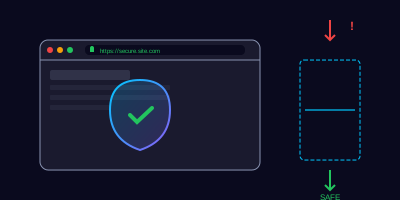
The Web is a Minefield (If You're Not Careful)
Every time you browse the web, you're making trust decisions — often without realizing it. Which links to click, which sites to trust, which downloads to run. Attackers exploit these micro-decisions by creating convincing fake websites, poisoning search results, and disguising malware as legitimate software.
The good news: a few simple habits can protect you from the vast majority of web-based threats.
HTTPS — Necessary But Not Sufficient
You've probably been told to "look for the padlock" in your browser's address bar. That padlock means the connection between your browser and the website is encrypted using HTTPS. But here's the critical nuance most people miss:
If a website has HTTPS (the padlock icon), it means the site is safe and trustworthy.
What HTTPS Actually Tells You
- Your data is encrypted in transit — nobody can eavesdrop on what you send
- The site has a valid SSL/TLS certificate — but free certificates are available to anyone, including attackers
- It does NOT mean the site is legitimate, safe, or malware-free
What to Actually Check
- The full domain name — Is it
amazon.comorarnazon.com? Is itmicrosoft.comormicrosoft-support-login.com? - The URL path — Legitimate login pages don't redirect through unfamiliar domains
- Your browser warnings — If your browser says "This site may be dangerous," trust it. Don't click through the warning.
Recognizing Malicious Websites
Attackers create fake websites for many purposes: stealing credentials, distributing malware, or running scams. Here are the warning signs:
- Lookalike domains —
paypa1.com(with a 1 instead of l),g00gle.com,app1e.com - Too-good-to-be-true offers — "Free iPhone! Just enter your details!"
- Excessive pop-ups — Legitimate sites don't bombard you with pop-up windows
- Pressure tactics — "Your computer is infected! Call this number NOW!"
- No contact information — Real businesses provide clear ways to reach them
- Poor design and grammar — Though some sophisticated phishing sites look perfect
Safe Download Practices
Malware frequently arrives disguised as legitimate software. Follow these rules:
- Download from official sources only — Use the vendor's website or your company's approved software portal. Never trust "free download" sites.
- Verify the publisher — When Windows asks "Do you want to allow this app to make changes?" check the publisher name. Unknown or missing publishers are a red flag.
- Be suspicious of email attachments — Even from people you know. Their account may be compromised.
- Watch for bundled software — Free downloads often bundle toolbars, adware, or worse. Always choose "Custom Install" and uncheck extras.
- Never enable macros in unexpected documents — "Enable Content" on a Word document from an unknown sender is one of the most common malware delivery methods.
You need to install a PDF reader for work. You search for it and the first Google result takes you to 'free-pdf-readers.com' which offers a download button. The second result goes to the official Adobe website.
How would you respond? Choose the best option:
Browser Security Settings
Your browser has built-in protections — make sure they're enabled:
- Keep your browser updated — Updates patch security vulnerabilities. Enable auto-updates.
- Use built-in phishing protection — Chrome's Safe Browsing, Firefox's Phishing Protection, and Edge's SmartScreen all warn about known malicious sites.
- Block pop-ups — Enable the pop-up blocker in your browser settings.
- Be cautious with browser extensions — Only install extensions from official stores, and remove any you don't actively use. Extensions can read everything you browse.
- Clear cookies regularly — Or use your browser's privacy settings to limit cookie tracking.
Key Takeaways
- HTTPS means encrypted, not safe — Always verify the actual domain name, not just the padlock
- Download software from official sources only — Never trust third-party download sites
- Never enable macros in unexpected documents — This is one of the top malware delivery methods
- Trust your browser's warnings — If it says a site is dangerous, go back
- Keep your browser updated — Outdated browsers have known vulnerabilities that attackers exploit