Overview
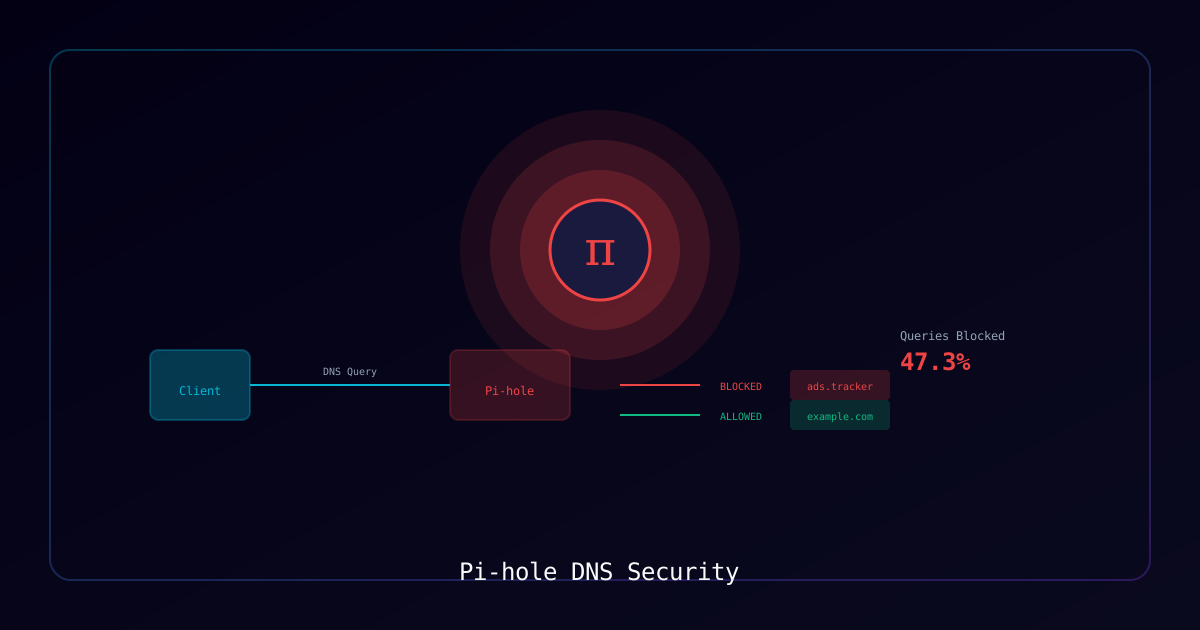
Pi-hole is a network-wide ad blocker that also enhances security by blocking connections to known malicious domains. This guide covers installation, configuration, and security optimization.
Who Should Use This Guide
- Home users wanting network-wide ad blocking
- Security-conscious individuals reducing tracking
- Network administrators adding DNS-layer protection
- Parents implementing content filtering
Why Pi-hole
| Benefit | Description |
|---|---|
| Network-Wide Protection | Blocks ads/trackers for all devices |
| Malware Blocking | Prevents connections to malicious domains |
| Privacy Enhancement | Reduces tracking across your network |
| Performance | Faster browsing without loading ads |
| Visibility | See what your devices are connecting to |
Requirements
System Requirements
| Component | Requirement |
|---|---|
| Hardware | Raspberry Pi, VM, or Linux server |
| OS | Debian/Ubuntu, Fedora, CentOS |
| RAM | 512MB minimum |
| Storage | 4GB+ for logs |
| Network | Static IP recommended |
Network Requirements
| Requirement | Purpose |
|---|---|
| Router access | Configure DHCP DNS settings |
| Static IP | Consistent DNS server address |
| Port 53 | DNS traffic (TCP/UDP) |
| Port 80 | Web interface |
Architecture
┌─────────────────────────────────────────────────────────┐
│                    Your Network                          │
│                                                          │
│  ┌──────────┐  ┌──────────┐  ┌──────────┐              │
│  │  Phone   │  │  Laptop  │  │  Smart   │              │
│  │          │  │          │  │    TV    │              │
│  └────┬─────┘  └────┬─────┘  └────┬─────┘              │
│       │             │             │                     │
│       └─────────────┼─────────────┘                     │
│                     │ DNS Queries                       │
│                     ▼                                   │
│              ┌──────────────┐                           │
│              │   Pi-hole    │                           │
│              │  DNS Server  │                           │
│              └──────┬───────┘                           │
│                     │                                   │
│                     ▼                                   │
│              ┌──────────────┐                           │
│              │   Upstream   │                           │
│              │     DNS      │                           │
│              └──────────────┘                           │
└─────────────────────────────────────────────────────────┘Process
Step 1: Install Pi-hole
Deploy Pi-hole using the automated installer.
Method 1 - Automated Installer (Recommended):
# One-line install
curl -sSL https://install.pi-hole.net | bash

# Or download and inspect first
wget -O basic-install.sh https://install.pi-hole.net
cat basic-install.sh  # Review script
sudo bash basic-install.shMethod 2 - Docker:
# docker-compose.yml
version: '3.8'

services:
  pihole:
    container_name: pihole
    image: pihole/pihole:latest
    ports:
      - "53:53/tcp"
      - "53:53/udp"
      - "80:80/tcp"
    environment:
      TZ: '<your-timezone>'
      WEBPASSWORD: '<secure-password>'
      FTLCONF_LOCAL_IPV4: '<pihole-ip>'
    volumes:
      - './etc-pihole:/etc/pihole'
      - './etc-dnsmasq.d:/etc/dnsmasq.d'
    cap_add:
      - NET_ADMIN
restart: unless-stoppeddocker-compose up -dVerification:
pihole statusExpected Output: Pi-hole services running.
Step 2: Set Admin Password
Configure web interface access.
Set Password:
pihole -a -pAccess Web Interface:
Navigate to: http://<pihole-ip>/admin
Verification: Login successful with new password.
Step 3: Configure Upstream DNS
Choose your upstream DNS provider.
Option 1 - Standard DNS Providers:
In Settings > DNS, select upstream providers:
| Provider | Primary | Secondary | Features |
|---|---|---|---|
| Cloudflare | 1.1.1.1 | 1.0.0.1 | Privacy-focused |
| Quad9 | 9.9.9.9 | 149.112.112.112 | Malware blocking |
| OpenDNS | 208.67.222.222 | 208.67.220.220 | Content filtering |
| 8.8.8.8 | 8.8.4.4 | Fast, reliable |
Option 2 - DNS over HTTPS (Cloudflared):
# Install cloudflared
wget https://github.com/cloudflare/cloudflared/releases/latest/download/cloudflared-linux-amd64.deb
sudo dpkg -i cloudflared-linux-amd64.deb

# Configure
sudo mkdir -p /etc/cloudflared
sudo tee /etc/cloudflared/config.yml << EOF
proxy-dns: true
proxy-dns-port: 5053
proxy-dns-upstream:
  - https://1.1.1.1/dns-query
  - https://1.0.0.1/dns-query
EOF

# Create and start service
sudo cloudflared service install
sudo systemctl enable --now cloudflaredConfigure Pi-hole: Custom DNS → 127.0.0.1#5053
Option 3 - Unbound (Local Recursive):
# Install Unbound
sudo apt install unbound -y

# Download root hints
wget https://www.internic.net/domain/named.root -O /var/lib/unbound/root.hintsCreate /etc/unbound/unbound.conf.d/pi-hole.conf:
server:
    verbosity: 0
    interface: 127.0.0.1
    port: 5335
    do-ip4: yes
    do-ip6: no
    do-udp: yes
    do-tcp: yes

    # Security
    harden-glue: yes
    harden-dnssec-stripped: yes
    use-caps-for-id: no
    prefetch: yes

    # Privacy
    hide-identity: yes
    hide-version: yes
    qname-minimisation: yes

root-hints: "/var/lib/unbound/root.hints"sudo systemctl restart unboundConfigure Pi-hole: Custom DNS → 127.0.0.1#5335
Verification:
dig google.com @127.0.0.1 -p 5335Expected Result: DNS query returns valid response.
Step 4: Add Security Blocklists
Enhance protection with additional blocklists.
Navigate to: Group Management > Adlists
Recommended Security Lists:
| List | URL | Purpose |
|---|---|---|
| StevenBlack | https://raw.githubusercontent.com/StevenBlack/hosts/master/hosts | Unified hosts |
| Phishing Army | https://phishing.army/download/phishing_army_blocklist_extended.txt | Phishing domains |
| Cryptominers | https://zerodot1.gitlab.io/CoinBlockerLists/hosts_browser | Mining scripts |
| Threat Intel | https://osint.digitalside.it/Threat-Intel/lists/latestdomains.txt | Known threats |
Update Gravity:
pihole -gVerification:
pihole -g -lExpected Output: Lists downloaded and processed successfully.
Step 5: Configure Router DNS
Point all network clients to Pi-hole.
Router Configuration:
- Access router admin interface
- Navigate to DHCP settings
- Set primary DNS to Pi-hole IP
- Remove secondary DNS (or set to Pi-hole)
- Save and reboot router
Alternative - Per-Device:
If router configuration isn't possible:
- Configure DNS manually on each device
- Point to Pi-hole IP address
Verification:
# From a client device
nslookup google.comExpected Result: Server shows Pi-hole IP address.
Step 6: Enable DNSSEC
Add cryptographic validation to DNS responses.
Configuration:
- Navigate to Settings > DNS
- Check "Use DNSSEC"
- Save settings
Verification:
dig dnssec-failed.org @<pihole-ip>Expected Result: Query fails (SERVFAIL) for known bad DNSSEC domain.
Step 7: Block DNS Bypass Attempts
Prevent devices from circumventing Pi-hole.
Firewall Rules (on router/firewall):
| Rule | Source | Destination | Port | Action |
|---|---|---|---|---|
| Allow Pi-hole | Pi-hole IP | Any | 53 | ALLOW |
| Block other DNS | Any | Any | 53 | BLOCK |
Alternative - Redirect:
# On router (iptables)
iptables -t nat -A PREROUTING -i eth0 -p udp --dport 53 -j DNAT --to <pihole-ip>:53
iptables -t nat -A PREROUTING -i eth0 -p tcp --dport 53 -j DNAT --to <pihole-ip>:53Step 8: Configure Local DNS Records
Add custom DNS entries for local services.
Edit /etc/pihole/custom.list:
192.168.1.10 pihole.local
192.168.1.20 nas.local
192.168.1.30 printer.local
192.168.1.40 server.localRestart DNS:
pihole restartdnsVerification:
dig nas.local @<pihole-ip>Expected Result: Returns configured IP address.
Monitoring and Maintenance
Command Line Tools
| Command | Purpose |
|---|---|
pihole status | Check service status |
pihole -t | View real-time query log |
pihole -up | Update Pi-hole |
pihole -g | Update gravity (blocklists) |
pihole flush | Clear logs |
Whitelist/Blacklist Management
# Whitelist domain
pihole -w example.com

# Blacklist domain
pihole -b malicious-site.com

# View lists
pihole -w -l
pihole -b -lTroubleshooting
| Symptom | Possible Cause | Solution |
|---|---|---|
| DNS not resolving | Pi-hole service down | Run pihole restartdns |
| Upstream DNS failing | Provider issue | Check upstream connectivity |
| Website broken | False positive | Whitelist the domain |
| High memory usage | Large logs | Run pihole flush |
| Clients not using Pi-hole | DHCP not updated | Renew DHCP leases |
Diagnostic Commands
# Check Pi-hole DNS
dig @localhost example.com

# Check upstream DNS
dig @1.1.1.1 example.com

# View service status
pihole -c

# Restart DNS
pihole restartdnsVerification Checklist
Installation
- Pi-hole installed and running
- Strong admin password set
- Web interface accessible
Configuration
- Upstream DNS configured
- Security blocklists added
- DNSSEC enabled
- Local DNS records added
Network
- Router DNS pointing to Pi-hole
- All clients using Pi-hole
- DNS bypass blocked
Operations
- Update schedule configured
- Logs being reviewed
- Whitelist maintained
High Availability (Optional)
For redundancy, deploy a secondary Pi-hole:
Gravity Sync Setup:
# On secondary Pi-hole
git clone https://github.com/vmstan/gravity-sync.git
cd gravity-sync
./gravity-sync.shThis synchronizes blocklists between primary and secondary instances.
References
Last Updated: January 2026