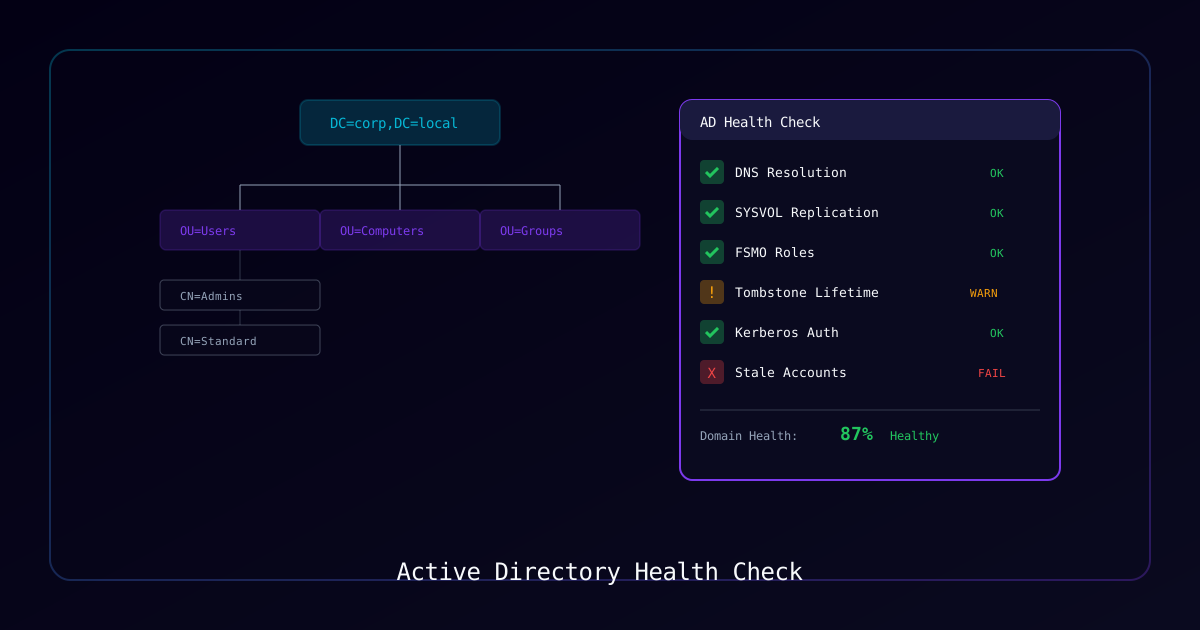
Overview
Active Directory is the backbone of enterprise identity and access management. Regular health checks are essential for maintaining authentication reliability, preventing replication failures, and catching issues before they cause outages.
Who Should Use This Guide:
- Systems administrators managing AD environments
- Security engineers validating domain controller integrity
- IT operations teams performing pre/post-change validation
- MSP technicians running proactive diagnostics
What You Will Learn:
| Area | Checks Performed |
|---|---|
| Domain Controllers | DCDiag comprehensive tests |
| Replication | Partner status, lag detection, sync health |
| DNS | Registration, SRV records, scavenging |
| SYSVOL | Share access, DFS-R state |
| FSMO Roles | Role holder verification, connectivity |
| Services | Critical AD service status |
| Database | NTDS.dit size, log file accumulation |
Requirements
System Requirements
| Component | Minimum |
|---|---|
| PowerShell | 5.1+ |
| RSAT | Active Directory tools installed |
| Access | Domain Admin or equivalent diagnostic permissions |
| Network | Connectivity to all DCs on standard AD ports |
Tools Referenced
dcdiag.exe— Domain Controller Diagnosticsrepadmin.exe— Replication Administrationnltest.exe— Network Logon Test- PowerShell ActiveDirectory module
Part 1: Quick Health Summary
Comprehensive DCDiag Across All Domain Controllers
This script runs full diagnostics on every DC and generates a summary report:
<#
.SYNOPSIS
    Comprehensive AD Health Check — All Domain Controllers
.DESCRIPTION
    Runs DCDiag against every DC, generates a health report, and summarizes pass/fail counts
.NOTES
    Run from a domain-joined workstation with RSAT installed
#>

$ErrorActionPreference = 'Continue'
$ReportPath = "C:\BIN\LOGS-$(Get-Date -Format 'yyyy-MM-dd')-AD-HealthCheck.log"

# Get all Domain Controllers
$DCs = Get-ADDomainController -Filter * | Select-Object -ExpandProperty HostName

Write-Host "=== Active Directory Health Check ===" -ForegroundColor Cyan
Write-Host "Report: $ReportPath"
Write-Host "Domain Controllers: $($DCs.Count)"
Write-Host ""

# Run DCDiag on all DCs
foreach ($DC in $DCs) {
    Write-Host "Checking $DC..." -ForegroundColor Yellow
    dcdiag /s:$DC /v | Out-File -Append $ReportPath
}

# Summary
Write-Host ""
Write-Host "=== Summary ===" -ForegroundColor Green
Get-Content $ReportPath | Select-String "passed test|failed test" |
    Group-Object { $_ -match "passed" } |
    ForEach-Object {
        if ($_.Name -eq "True") { Write-Host "Passed: $($_.Count)" -ForegroundColor Green }
        else { Write-Host "Failed: $($_.Count)" -ForegroundColor Red }
}Quick Single-DC Check
For targeted diagnostics on a specific DC:
# Target specific DC — full verbose output
dcdiag /s:DC01.domain.local /v

# Essential tests only — faster execution
dcdiag /s:DC01.domain.local /test:services /test:replications /test:advertising /test:fsmocheckDCDiag Test Reference
| Test | What It Checks |
|---|---|
Connectivity | Basic DC network connectivity |
Advertising | DC is properly advertising its roles |
FrsEvent | File Replication Service event log errors |
DFSREvent | DFS Replication event log errors |
SysVolCheck | SYSVOL is ready and accessible |
KccEvent | Knowledge Consistency Checker errors |
KnowsOfRoleHolders | FSMO role holder awareness |
MachineAccount | DC machine account health |
NCSecDesc | Naming context security descriptors |
NetLogons | Netlogon service privileges |
Replications | Replication health and status |
RidManager | RID pool availability |
Services | Critical AD service status |
VerifyReferences | Reference integrity |
Part 2: Replication Health
Replication failures are one of the most common and impactful AD issues. Catch them early.
Check Replication Status
# Quick replication summary for all DCs
repadmin /replsummary

# Detailed replication status per DC
repadmin /showrepl

# Find replication failures — this is the critical check
repadmin /showrepl * /csv | ConvertFrom-Csv |
    Where-Object { $_.'Number of Failures' -gt 0 } |
    Format-Table 'Source DSA', 'Destination DSA', 'Number of Failures', 'Last Failure Status'

# Force replication sync across all partitions
repadmin /syncall /AdeP

# Show pending replication queue
repadmin /queueMonitor Replication Partners
# Show all replication partners with last success time
Get-ADReplicationPartnerMetadata -Target * -Scope Domain |
    Select-Object Server, Partner, LastReplicationSuccess, LastReplicationResult |
    Format-Table -AutoSize

# Find partners with replication lag over 2 hours
Get-ADReplicationPartnerMetadata -Target * -Scope Domain |
    Where-Object { $_.LastReplicationSuccess -lt (Get-Date).AddHours(-2) } |
Select-Object Server, Partner, LastReplicationSuccessRepadmin Command Reference
| Command | Purpose |
|---|---|
/replsummary | Quick replication overview across all DCs |
/showrepl | Detailed per-DC replication status |
/syncall /AdeP | Force sync all partitions, all DCs |
/showutdvec | Up-to-dateness vector (version tracking) |
/showobjmeta | Object-level metadata for troubleshooting |
/queue | Pending replication operations |
Part 3: DNS Health
AD depends entirely on DNS. Broken DNS means broken authentication.
Verify DNS Registration
# Get all DCs
$DCs = (Get-ADDomainController -Filter *).HostName
$Domain = (Get-ADDomain).DNSRoot

foreach ($DC in $DCs) {
    Write-Host "DNS Check: $DC" -ForegroundColor Yellow

    # Verify A record resolves
    Resolve-DnsName $DC -Type A -ErrorAction SilentlyContinue

    # Verify critical SRV records exist
    Resolve-DnsName "_ldap._tcp.dc._msdcs.$Domain" -Type SRV
}

# Run DCDiag DNS-specific tests
dcdiag /test:dns /dnsdelegation

# Check DNS forwarders configuration
Get-DnsServerForwarderDNS Scavenging Status
Stale DNS records can cause authentication failures and service outages:
# Check scavenging settings on DNS server
Get-DnsServerScavenging -ComputerName DC01

# Find stale records (older than 14 days)
Get-DnsServerResourceRecord -ZoneName "domain.local" -ComputerName DC01 |
    Where-Object { $_.Timestamp -and $_.Timestamp -lt (Get-Date).AddDays(-14) } |
    Select-Object HostName, RecordType, Timestamp |
Format-Table -AutoSizePart 4: SYSVOL and NETLOGON Health
SYSVOL stores Group Policy objects. If SYSVOL replication breaks, GPOs stop applying consistently.
Verify SYSVOL Share Accessibility
$DCs = (Get-ADDomainController -Filter *).HostName

foreach ($DC in $DCs) {
    $SYSVOLPath = "\\$DC\SYSVOL"
    $NETLOGONPath = "\\$DC\NETLOGON"

    Write-Host "Testing $DC..." -ForegroundColor Yellow

    if (Test-Path $SYSVOLPath) {
        Write-Host "  SYSVOL: OK" -ForegroundColor Green
    } else {
        Write-Host "  SYSVOL: FAILED" -ForegroundColor Red
    }

    if (Test-Path $NETLOGONPath) {
        Write-Host "  NETLOGON: OK" -ForegroundColor Green
    } else {
        Write-Host "  NETLOGON: FAILED" -ForegroundColor Red
    }
}

# Check DFS-R state
dfsrdiag.exe polladPart 5: FSMO Role Verification
Identify and Test FSMO Role Holders
# Method 1: netdom
netdom query fsmo

# Method 2: PowerShell — more detail
$Forest = Get-ADForest
$Domain = Get-ADDomain

Write-Host "=== Forest-Wide Roles ===" -ForegroundColor Cyan
Write-Host "Schema Master: $($Forest.SchemaMaster)"
Write-Host "Domain Naming Master: $($Forest.DomainNamingMaster)"

Write-Host ""
Write-Host "=== Domain-Wide Roles ===" -ForegroundColor Cyan
Write-Host "PDC Emulator: $($Domain.PDCEmulator)"
Write-Host "RID Master: $($Domain.RIDMaster)"
Write-Host "Infrastructure Master: $($Domain.InfrastructureMaster)"

# Test FSMO connectivity
foreach ($FSMO in @($Forest.SchemaMaster, $Domain.PDCEmulator, $Domain.RIDMaster)) {
    $HostName = $FSMO.Split('.')[0]
    if (Test-Connection $HostName -Count 1 -Quiet) {
        Write-Host "$FSMO : Online" -ForegroundColor Green
    } else {
        Write-Host "$FSMO : OFFLINE" -ForegroundColor Red
    }
}Part 6: Critical Service Checks
Verify AD Services on All DCs
$ADServices = @(
    'NTDS',        # Active Directory Domain Services
    'DNS',         # DNS Server
    'Netlogon',    # Net Logon
    'DFSR',        # DFS Replication
    'W32Time',     # Windows Time
    'KDC'          # Kerberos Key Distribution Center
)

$DCs = (Get-ADDomainController -Filter *).HostName

foreach ($DC in $DCs) {
    Write-Host "=== $DC ===" -ForegroundColor Cyan
    foreach ($Service in $ADServices) {
        $Status = Get-Service -Name $Service -ComputerName $DC -ErrorAction SilentlyContinue
        if ($Status.Status -eq 'Running') {
            Write-Host "  $Service : Running" -ForegroundColor Green
        } else {
            Write-Host "  $Service : $($Status.Status)" -ForegroundColor Red
        }
    }
}Check Event Logs for Recent Errors
$StartTime = (Get-Date).AddHours(-24)

foreach ($DC in $DCs) {
    Write-Host "=== $DC - Last 24h Errors ===" -ForegroundColor Yellow

    Get-WinEvent -ComputerName $DC -FilterHashtable @{
        LogName = 'Directory Service', 'DNS Server', 'DFS Replication'
        Level = 2  # Error
        StartTime = $StartTime
    } -MaxEvents 10 -ErrorAction SilentlyContinue |
    Format-Table TimeCreated, Id, Message -Wrap
}Part 7: Database Health
Check NTDS Database Size and Log Files
$DCs = (Get-ADDomainController -Filter *).HostName

foreach ($DC in $DCs) {
    # NTDS.dit database size
    $NTDSPath = "\\$DC\c$\Windows\NTDS\ntds.dit"
    if (Test-Path $NTDSPath) {
        $Size = (Get-Item $NTDSPath).Length / 1GB
        Write-Host "$DC NTDS.dit: $([math]::Round($Size,2)) GB" -ForegroundColor Cyan
    }

    # Log file accumulation (many logs = potential backup issues)
    $LogPath = "\\$DC\c$\Windows\NTDS\*.log"
    $LogCount = (Get-ChildItem $LogPath -ErrorAction SilentlyContinue).Count
    $Color = if ($LogCount -gt 10) { 'Yellow' } else { 'Green' }
    Write-Host "$DC Log Files: $LogCount" -ForegroundColor $Color
}Part 8: Time Sync Verification
Kerberos authentication fails if time drift exceeds 5 minutes between clients and DCs.
# Check time source on PDC Emulator
w32tm /query /source

# Check time offset against a DC
w32tm /stripchart /computer:DC01 /samples:5

# Force resync if needed
w32tm /resync /force

# Verify NTP configuration
w32tm /query /configurationTroubleshooting
Common Issues and Resolutions
| Symptom | Likely Cause | Resolution |
|---|---|---|
| Replication failures | Network/DNS issues | Check DNS, firewall rules, time sync |
| SYSVOL not replicating | DFS-R issues | Run dfsrdiag diagnostics, check DFS-R event log |
| Authentication delays | PDC unavailable | Verify PDC connectivity and services |
| GPO not applying | Replication lag | Force sync with repadmin /syncall /AdeP |
| DC not advertising | NTDS/Netlogon stopped | Restart services, check event logs |
| Kerberos failures | Time skew > 5 min | Fix NTP configuration on PDC Emulator |
| RID pool exhaustion | RID Master offline | Verify RID Master, check RID pool allocation |
Verification Checklist
- DCDiag passes all tests on every DC
- Replication shows no failures and lag under 15 minutes
- DNS SRV records resolve correctly for all DCs
- SYSVOL and NETLOGON shares accessible on all DCs
- All five FSMO role holders online and responsive
- Critical AD services running on all DCs
- NTDS.dit size reasonable, log files not accumulating
- Time sync within 1 second across all DCs
- No critical errors in Directory Service event log (last 24h)