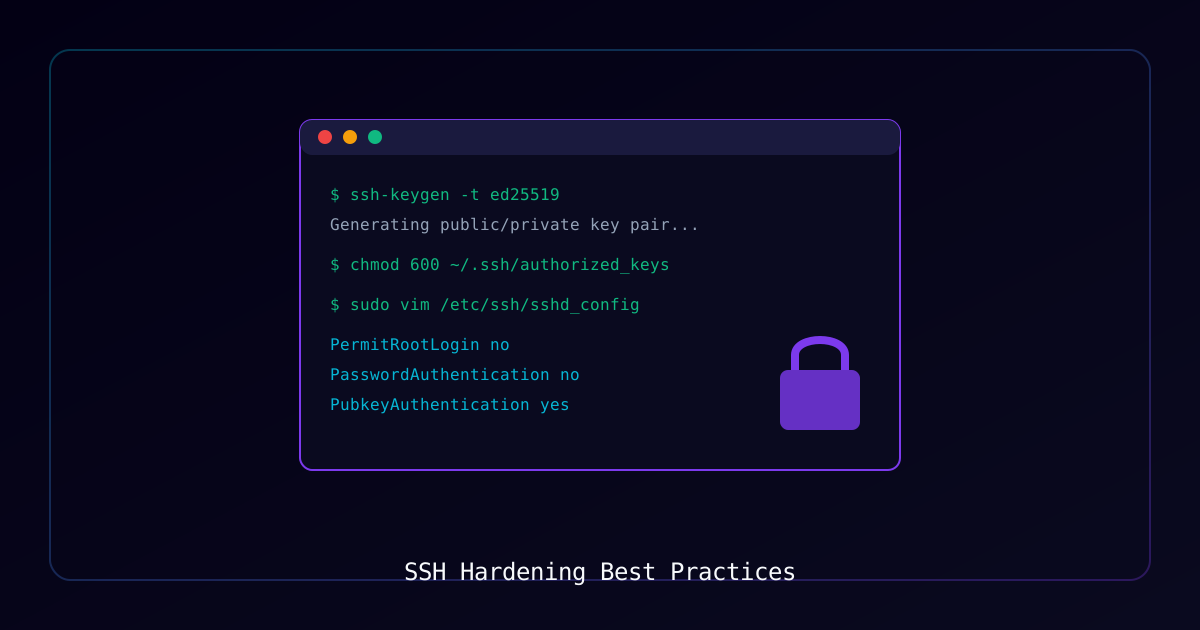
Overview
SSH is the backbone of secure remote administration. A default installation leaves significant security gaps that attackers actively exploit. This guide covers essential hardening steps for production SSH servers.
Who Should Use This Guide
- System administrators managing Linux servers
- Security engineers auditing infrastructure
- DevOps teams securing remote access
Why SSH Hardening Matters
Every internet-facing SSH server is constantly probed by automated bots. Without proper hardening:
- Brute force attacks can eventually succeed
- Default configurations expose unnecessary attack surface
- Weak authentication methods create entry points for attackers
Requirements
System Requirements
| Component | Requirement |
|---|---|
| Operating System | Linux (Debian/Ubuntu, RHEL/Rocky/Alma) |
| SSH Server | OpenSSH 8.0 or later |
| Privileges | Root/sudo access |
Prerequisites
- SSH server installed (
openssh-server) - Network access to server (console access recommended as backup)
- Basic understanding of public key cryptography
Process
Step 1: Generate SSH Key Pair
Create a strong key pair on your local machine (not the server).
Generate Ed25519 Key (Recommended):
ssh-keygen -t ed25519 -C "<identifier>"Alternative - RSA 4096-bit:
ssh-keygen -t rsa -b 4096 -C "<identifier>"Expected Output:
Generating public/private ed25519 key pair.
Enter file in which to save the key (/home/<user>/.ssh/id_ed25519):
Enter passphrase (empty for no passphrase):
Your identification has been saved in /home/<user>/.ssh/id_ed25519
Your public key has been saved in /home/<user>/.ssh/id_ed25519.pub
Important: Use a strong passphrase to protect the private key.
Step 2: Copy Public Key to Server
Transfer your public key to the target server.
Method 1 - Using ssh-copy-id:
ssh-copy-id -i ~/.ssh/id_ed25519.pub <username>@<server-ip>Method 2 - Manual Copy:
cat ~/.ssh/id_ed25519.pub | ssh <username>@<server-ip> "mkdir -p ~/.ssh && cat >> ~/.ssh/authorized_keys"Verification:
# Test key-based login
ssh -i ~/.ssh/id_ed25519 <username>@<server-ip>Expected Result: Login succeeds without password prompt (only passphrase if set).
Step 3: Configure SSH Daemon
Edit the SSH server configuration on the target server.
Open Configuration File:
sudo nano /etc/ssh/sshd_configEssential Security Settings:
# Disable password authentication
PasswordAuthentication no
PubkeyAuthentication yes

# Disable root login
PermitRootLogin no

# Use Protocol 2 only
Protocol 2

# Limit authentication attempts
MaxAuthTries 3

# Set idle timeout (seconds)
ClientAliveInterval 300
ClientAliveCountMax 2

# Disable empty passwords
PermitEmptyPasswords no

# Disable X11 forwarding (if not needed)
X11Forwarding no

# Restrict to specific users
AllowUsers <your-admin-user>

# Use strong ciphers only
Ciphers chacha20-poly1305@openssh.com,aes256-gcm@openssh.com,aes128-gcm@openssh.com
MACs hmac-sha2-512-etm@openssh.com,hmac-sha2-256-etm@openssh.com
KexAlgorithms curve25519-sha256,curve25519-sha256@libssh.orgValidate Configuration:
sudo sshd -tExpected Output: No output indicates valid configuration.
Apply Changes:
sudo systemctl restart sshdWarning: Keep an existing session open while testing to avoid lockout.
Step 4: Change Default Port (Optional)
Reduces automated scan noise. Security through obscurity alone is insufficient.
Edit Configuration:
# In /etc/ssh/sshd_config
Port <custom-port> # Choose unused port above 1024Update Firewall Before Restarting SSH:
# UFW
sudo ufw allow <custom-port>/tcp

# firewalld
sudo firewall-cmd --permanent --add-port=<custom-port>/tcp
sudo firewall-cmd --reloadRestart SSH:
sudo systemctl restart sshdVerification:
ssh -p <custom-port> <username>@<server-ip>Step 5: Install and Configure Fail2Ban
Automatically blocks IPs with excessive failed login attempts.
Installation:
# Debian/Ubuntu
sudo apt install fail2ban -y

# RHEL/Rocky/Alma
sudo dnf install fail2ban -yCreate Local Configuration:
sudo nano /etc/fail2ban/jail.localConfiguration Content:
[DEFAULT]
bantime = 1h
findtime = 10m
maxretry = 5
banaction = iptables-multiport

[sshd]
enabled = true
port = ssh,<custom-port>
filter = sshd
logpath = /var/log/auth.log
maxretry = 3
bantime = 24hEnable and Start:
sudo systemctl enable fail2ban
sudo systemctl start fail2banVerification:
sudo fail2ban-client status sshdExpected Output:
Status for the jail: sshd
|- Filter
|  |- Currently failed: 0
|  |- Total failed: 0
|  `- File list: /var/log/auth.log
`- Actions
   |- Currently banned: 0
   |- Total banned: 0
   `- Banned IP list:
Step 6: Enable Two-Factor Authentication (Optional)
Adds TOTP-based second factor to SSH authentication.
Install Google Authenticator PAM:
sudo apt install libpam-google-authenticator -yConfigure for Your User:
google-authenticatorFollow prompts to configure TOTP. Save backup codes securely.
Update PAM Configuration:
# Add to /etc/pam.d/sshd
auth required pam_google_authenticator.soUpdate SSH Configuration:
# /etc/ssh/sshd_config
ChallengeResponseAuthentication yes
AuthenticationMethods publickey,keyboard-interactiveRestart SSH:
sudo systemctl restart sshdStep 7: Monitor SSH Access
Regular log review detects unauthorized access attempts.
View Recent Successful Logins:
grep "Accepted" /var/log/auth.log | tail -20View Failed Attempts:
grep "Failed password" /var/log/auth.log | tail -20View Invalid User Attempts:
grep "Invalid user" /var/log/auth.log | tail -20Check Currently Banned IPs:
sudo fail2ban-client status sshdTroubleshooting
| Symptom | Possible Cause | Solution |
|---|---|---|
Permission denied (publickey) | Key not copied correctly | Verify ~/.ssh/authorized_keys contains your public key |
| Connection refused after config change | SSH service not running or wrong port | Check systemctl status sshd and firewall rules |
| Locked out of server | Password auth disabled before key setup | Use console access to fix configuration |
| Fail2ban not banning | Wrong log path or filter | Verify logpath matches system auth log location |
| 2FA not prompting | PAM not configured correctly | Check /etc/pam.d/sshd configuration order |
Verification Checklist
Before considering SSH hardened, verify:
- Password authentication disabled
- Root login disabled
- Key-based authentication working
- Fail2ban installed and running
- Strong ciphers configured
- Firewall rules allow SSH port only
- Authentication logs being monitored
- Backup access method available (console)
Common Mistakes to Avoid
| Mistake | Consequence | Prevention |
|---|---|---|
| Disabling password auth before testing keys | Lockout | Always test key login in separate session first |
| Weak key passphrases | Private key compromise | Use strong, unique passphrases |
| Forgetting firewall rules | Lockout after port change | Update firewall before changing SSH port |
| Not backing up keys | Lost access | Secure backup of private keys |
| Ignoring logs | Missed intrusion attempts | Automate log review and alerting |
References
Last Updated: January 2026