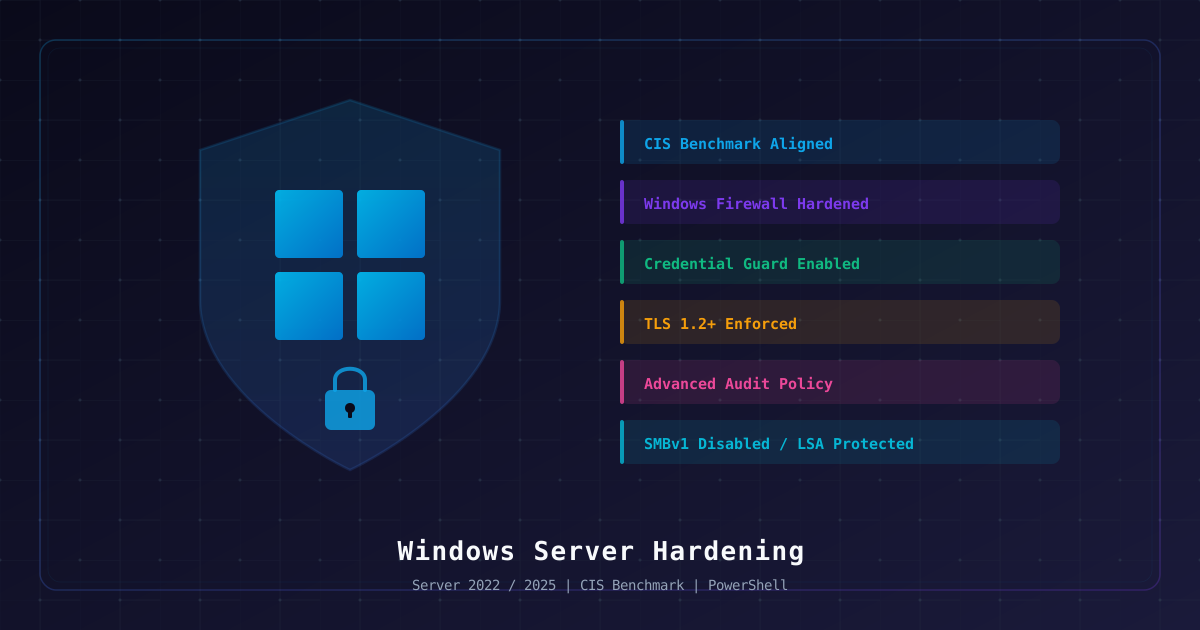
Overview
Windows Server remains the backbone of enterprise IT infrastructure, running everything from Active Directory and file services to SQL Server and IIS. A default installation leaves dozens of attack vectors exposed -- unnecessary services running, legacy protocols enabled, weak audit policies, and overly permissive firewall rules. Every unpatched, unhardened server is an invitation for lateral movement, privilege escalation, and data exfiltration.
This guide walks through a complete hardening process aligned with the CIS Microsoft Windows Server 2022 Benchmark v2.0 and CIS Microsoft Windows Server 2025 Benchmark v1.0. Each step includes specific PowerShell commands, CIS control references, verification procedures, and rollback instructions so you can harden production servers with confidence.
What This Guide Covers
| Area | Description |
|---|---|
| Attack Surface Reduction | Remove unused roles, features, and services |
| Account Security | Password policies, lockout, admin account protection |
| Network Hardening | Windows Firewall, port restrictions, protocol controls |
| Registry Hardening | Disable legacy protocols, enforce LSA protections |
| Audit & Monitoring | Comprehensive logging, event forwarding, SIEM integration |
| Credential Protection | Credential Guard, LSASS protection, WDigest controls |
| Crypto Hardening | TLS 1.2+ enforcement, cipher suite configuration |
| Patch Management | Update policies, compliance verification |
CIS Benchmark Alignment
This guide maps each recommendation to CIS Benchmark section numbers. Where settings differ between Server 2022 and 2025, both are noted. The CIS Benchmarks provide two profiles:
- Level 1 (L1): Settings that can be applied broadly with minimal operational impact
- Level 2 (L2): Deeper hardening for high-security environments that may affect functionality
We cover both levels and clearly mark which is which.
Scenario
When to Apply This Guide
- New server builds -- Harden before deploying to production
- Audit preparation -- Align with CIS, NIST 800-53, or SOC 2 requirements
- Compliance remediation -- Close gaps identified during vulnerability scans
- Post-incident hardening -- Strengthen defenses after a security event
- Infrastructure refresh -- Upgrading from Server 2016/2019 to 2022/2025
Environment Assumptions
| Item | Assumption |
|---|---|
| OS | Windows Server 2022 or 2025 (Standard or Datacenter) |
| Domain | May be standalone or domain-joined |
| Role | General-purpose server (adjust for specific roles) |
| Access | Local Administrator or Domain Admin |
| Remote | RDP or PowerShell Remoting available |
Important: Test all changes in a non-production environment first. Some hardening steps can break applications that depend on legacy protocols or permissive configurations.
Pre-Hardening Assessment
Before making any changes, capture a baseline of the current server state. This gives you a rollback reference and documents the starting security posture.
Baseline Snapshot Script
Save this as Get-ServerBaseline.ps1 and run it from an elevated PowerShell session:
# Get-ServerBaseline.ps1
# Captures a complete baseline of the server state before hardening
# Run as Administrator

$OutputPath = "C:\HardeningBaseline"
New-Item -ItemType Directory -Path $OutputPath -Force | Out-Null
$Timestamp = Get-Date -Format "yyyyMMdd-HHmmss"

# System Information
Get-ComputerInfo | Out-File "$OutputPath\SystemInfo-$Timestamp.txt"

# Installed Roles and Features
Get-WindowsFeature | Where-Object { $_.Installed -eq $true } |
    Export-Csv "$OutputPath\InstalledFeatures-$Timestamp.csv" -NoTypeInformation

# Running Services
Get-Service | Select-Object Name, DisplayName, Status, StartType |
    Export-Csv "$OutputPath\Services-$Timestamp.csv" -NoTypeInformation

# Firewall Rules (all profiles)
Get-NetFirewallRule | Select-Object Name, DisplayName, Direction, Action, Enabled, Profile |
    Export-Csv "$OutputPath\FirewallRules-$Timestamp.csv" -NoTypeInformation

# Local Users and Groups
Get-LocalUser | Export-Csv "$OutputPath\LocalUsers-$Timestamp.csv" -NoTypeInformation
Get-LocalGroup | Export-Csv "$OutputPath\LocalGroups-$Timestamp.csv" -NoTypeInformation

# Network Configuration
Get-NetIPConfiguration | Out-File "$OutputPath\NetworkConfig-$Timestamp.txt"
Get-NetTCPConnection -State Listen |
    Select-Object LocalAddress, LocalPort, OwningProcess |
    Export-Csv "$OutputPath\ListeningPorts-$Timestamp.csv" -NoTypeInformation

# Current Audit Policy
auditpol /get /category:* | Out-File "$OutputPath\AuditPolicy-$Timestamp.txt"

# Security Policy Export
secedit /export /cfg "$OutputPath\SecurityPolicy-$Timestamp.inf"

# Registry Baseline (key security-related keys)
$RegKeys = @(
    "HKLM:\SYSTEM\CurrentControlSet\Services\LanmanServer\Parameters",
    "HKLM:\SYSTEM\CurrentControlSet\Control\Lsa",
    "HKLM:\SOFTWARE\Microsoft\Windows\CurrentVersion\Policies\System",
    "HKLM:\SYSTEM\CurrentControlSet\Control\SecurityProviders\WDigest",
    "HKLM:\SYSTEM\CurrentControlSet\Control\SecurityProviders\SCHANNEL\Protocols"
)

foreach ($Key in $RegKeys) {
    if (Test-Path $Key) {
        $KeyName = $Key -replace '[:\\]', '_'
        Get-ItemProperty -Path $Key |
            Out-File "$OutputPath\Registry-$KeyName-$Timestamp.txt"
    }
}

# Installed Updates
Get-HotFix | Sort-Object InstalledOn -Descending |
    Export-Csv "$OutputPath\InstalledUpdates-$Timestamp.csv" -NoTypeInformation

Write-Host "Baseline captured to $OutputPath" -ForegroundColor Green
Write-Host "Files generated:" -ForegroundColor Cyan
Get-ChildItem $OutputPath -Filter "*$Timestamp*" | ForEach-Object { Write-Host " $_" }Quick Security Posture Check
Run this one-liner to get an immediate sense of the current security state:
# Quick posture assessment
Write-Host "`n=== QUICK SECURITY POSTURE ===" -ForegroundColor Yellow
Write-Host "OS Version: $((Get-CimInstance Win32_OperatingSystem).Caption)"
Write-Host "Last Boot: $((Get-CimInstance Win32_OperatingSystem).LastBootUpTime)"
Write-Host "Pending Updates: $((New-Object -ComObject Microsoft.Update.Session).CreateUpdateSearcher().Search('IsInstalled=0').Updates.Count)"
Write-Host "Firewall Domain: $((Get-NetFirewallProfile -Name Domain).Enabled)"
Write-Host "Firewall Private: $((Get-NetFirewallProfile -Name Private).Enabled)"
Write-Host "Firewall Public: $((Get-NetFirewallProfile -Name Public).Enabled)"
Write-Host "RDP Enabled: $((Get-ItemProperty 'HKLM:\SYSTEM\CurrentControlSet\Control\Terminal Server').fDenyTSConnections -eq 0)"
Write-Host "SMBv1 Enabled: $((Get-SmbServerConfiguration).EnableSMB1Protocol)"
Write-Host "Admin Account Enabled: $((Get-LocalUser -Name 'Administrator').Enabled)"
Write-Host "Guest Account Enabled: $((Get-LocalUser -Name 'Guest').Enabled)"Step 1: Installation and Role Configuration
The first principle of hardening is to minimize the attack surface. Every installed feature and role adds code, services, and potential vulnerabilities.
Server Core vs Desktop Experience
CIS Recommendation: Use Server Core where possible (CIS 18.4.x). Server Core removes the graphical shell, reducing the attack surface by eliminating Explorer, Internet Explorer, and many GUI components.
# Check current installation type
Get-ItemProperty "HKLM:\SOFTWARE\Microsoft\Windows NT\CurrentVersion" |
Select-Object ProductName, InstallationTypeNote: Converting between Server Core and Desktop Experience after installation is not supported on Server 2022/2025. Choose at install time.
Audit Installed Features
# List all installed features
Get-WindowsFeature | Where-Object { $_.Installed -eq $true } |
Format-Table Name, DisplayName, FeatureType -AutoSizeRemove Unnecessary Features
Remove features that are not required for the server's role. Common candidates for removal:
# Features commonly removed during hardening
$FeaturesToRemove = @(
    "PowerShell-V2",              # Legacy PowerShell 2.0 engine (CIS 18.9.101.1)
    "SMB1Protocol",               # SMBv1 - deprecated, major attack vector
    "MicrosoftWindowsPowerShellV2Root",  # PS v2 root feature
    "Printing-Client",            # Print client (if not needed)
    "Internet-Explorer-Optional-amd64",  # IE (Server 2022 Desktop Experience)
    "WorkFolders-Client"          # Work Folders client
)

foreach ($Feature in $FeaturesToRemove) {
    $installed = Get-WindowsOptionalFeature -Online -FeatureName $Feature -ErrorAction SilentlyContinue
    if ($installed -and $installed.State -eq "Enabled") {
        Write-Host "Removing: $Feature" -ForegroundColor Yellow
        Disable-WindowsOptionalFeature -Online -FeatureName $Feature -NoRestart
    }
}

# Remove Windows Features (Server Manager features)
$ServerFeaturesToRemove = @(
    "Windows-Defender-GUI",       # Defender GUI (keep engine, remove GUI on Core)
    "TFTP-Client",                # TFTP client
    "Telnet-Client",              # Telnet client
    "SNMP-Service"                # SNMP (if not used for monitoring)
)

foreach ($Feature in $ServerFeaturesToRemove) {
    $f = Get-WindowsFeature -Name $Feature -ErrorAction SilentlyContinue
    if ($f -and $f.Installed) {
        Write-Host "Removing Server Feature: $Feature" -ForegroundColor Yellow
        Remove-WindowsFeature -Name $Feature
    }
}Verify PowerShell v2 is Disabled
PowerShell v2 can bypass script logging and constrained language mode. This is a critical removal.
# CIS 18.9.101.1 (L1) - Ensure PowerShell 2.0 is disabled
Get-WindowsOptionalFeature -Online -FeatureName MicrosoftWindowsPowerShellV2Root

# Expected: State = DisabledVerification:
# Confirm removal - this should fail
try {
    powershell -Version 2 -Command "Write-Host 'PS v2 is available'"
    Write-Host "WARNING: PowerShell v2 is still available!" -ForegroundColor Red
} catch {
    Write-Host "PASS: PowerShell v2 is disabled" -ForegroundColor Green
}Rollback:
# Re-enable if needed
Enable-WindowsOptionalFeature -Online -FeatureName MicrosoftWindowsPowerShellV2Root -NoRestartStep 2: Account and Password Policies
Weak account policies are among the most exploited attack vectors. This step configures strong authentication controls.
Rename and Disable Default Accounts
CIS 2.3.1.1 (L1) -- Rename the built-in Administrator account. CIS 2.3.1.2 (L1) -- Disable the Guest account. CIS 2.3.1.5 (L1) -- Rename the Guest account.
# Rename the built-in Administrator account
$AdminAccount = Get-LocalUser | Where-Object { $_.SID -like "S-1-5-*-500" }
Rename-LocalUser -Name $AdminAccount.Name -NewName "svc_localadmin"
Write-Host "Administrator account renamed to: svc_localadmin" -ForegroundColor Green

# Disable the Guest account
Disable-LocalUser -Name "Guest"

# Rename the Guest account
$GuestAccount = Get-LocalUser | Where-Object { $_.SID -like "S-1-5-*-501" }
Rename-LocalUser -Name $GuestAccount.Name -NewName "svc_disabled_guest"
Write-Host "Guest account renamed and disabled" -ForegroundColor Green

# Create a decoy Administrator account (honeypot)
$DecoyPassword = ConvertTo-SecureString -String ([System.Guid]::NewGuid().ToString()) -AsPlainText -Force
New-LocalUser -Name "Administrator" -Password $DecoyPassword -Description "Decoy account" -AccountNeverExpires
Disable-LocalUser -Name "Administrator"
Write-Host "Decoy Administrator account created and disabled" -ForegroundColor GreenConfigure Password Policy
Set these via Local Security Policy (secpol.msc) or via PowerShell with secedit and a security template.
# Export current security policy
secedit /export /cfg C:\Windows\Temp\secpol_current.inf

# Create hardened password policy template
$PasswordPolicy = @"
[Unicode]
Unicode=yes
[System Access]
MinimumPasswordAge = 1
MaximumPasswordAge = 365
MinimumPasswordLength = 14
PasswordComplexity = 1
PasswordHistorySize = 24
LockoutBadCount = 5
ResetLockoutCount = 15
LockoutDuration = 15
ClearTextPassword = 0
[Version]
signature="`$CHICAGO`$"
Revision=1
"@

$PasswordPolicy | Out-File -FilePath "C:\Windows\Temp\secpol_hardened.inf" -Encoding Unicode

# Apply the hardened policy
secedit /configure /db C:\Windows\Temp\secpol_hardened.sdb /cfg C:\Windows\Temp\secpol_hardened.inf /areas SECURITYPOLICY

Write-Host "Password policy applied successfully" -ForegroundColor GreenCIS Password Policy Reference
| Setting | CIS Ref | Value | Level |
|---|---|---|---|
| Minimum password age | 1.1.2 | 1 day | L1 |
| Maximum password age | 1.1.1 | 365 days | L1 |
| Minimum password length | 1.1.3 | 14 characters | L1 |
| Password complexity | 1.1.5 | Enabled | L1 |
| Password history | 1.1.4 | 24 passwords | L1 |
| Account lockout threshold | 1.2.1 | 5 attempts | L1 |
| Account lockout duration | 1.2.2 | 15 minutes | L1 |
| Reset lockout counter | 1.2.3 | 15 minutes | L1 |
Configure Account Lockout (Advanced)
# Set account lockout via net accounts
net accounts /lockoutthreshold:5
net accounts /lockoutduration:15
net accounts /lockoutwindow:15
net accounts /minpwlen:14
net accounts /maxpwage:365
net accounts /minpwage:1
net accounts /uniquepw:24Verification:
# Verify password and lockout policies
net accounts

# Expected output should show:
#   Lockout threshold:  5
#   Lockout duration:   15
#   Lockout observation window: 15
# Minimum password length: 14Configure User Rights Assignments
Restrict who can perform sensitive operations. CIS Section 2.2.
# Export current user rights
secedit /export /cfg C:\Windows\Temp\userrights_current.inf

# Key rights to restrict (apply via Group Policy or secedit):
# - Deny log on locally: Guests (CIS 2.2.20)
# - Deny access from network: Guests, Local account (CIS 2.2.17)
# - Access this computer from network: Administrators, Authenticated Users (CIS 2.2.1)
# - Allow log on through Remote Desktop: Administrators only (CIS 2.2.7)

# View current rights assignments
$Rights = secedit /export /cfg C:\Windows\Temp\rights_check.inf 2>&1
Get-Content C:\Windows\Temp\rights_check.inf |
    Select-String -Pattern "Se(Deny|Allow|Remote|Network|Interactive)" |
ForEach-Object { $_.Line.Trim() }Rollback:
# Restore original security policy
secedit /configure /db C:\Windows\Temp\secpol_restore.sdb /cfg C:\Windows\Temp\secpol_current.inf /areas SECURITYPOLICYStep 3: Windows Firewall Hardening
The Windows Firewall with Advanced Security should be enabled on all profiles and configured with explicit allow rules.
Enable Firewall on All Profiles
CIS 9.1.1, 9.2.1, 9.3.1 (L1) -- Windows Firewall must be on for Domain, Private, and Public profiles.
# Enable firewall on all profiles with default block inbound
Set-NetFirewallProfile -Profile Domain,Public,Private `
    -Enabled True `
    -DefaultInboundAction Block `
    -DefaultOutboundAction Allow `
    -NotifyOnListen True `
    -LogAllowed True `
    -LogBlocked True `
    -LogFileName "%SystemRoot%\System32\LogFiles\Firewall\pfirewall.log" `
    -LogMaxSizeKilobytes 16384

Write-Host "Firewall enabled on all profiles with logging" -ForegroundColor GreenConfigure Firewall Logging
CIS 9.1.7-9.1.8, 9.2.7-9.2.8, 9.3.9-9.3.10 (L1) -- Enable firewall logging for allowed and dropped connections.
# Enable logging on all profiles
$Profiles = @("Domain", "Private", "Public")
foreach ($Profile in $Profiles) {
    Set-NetFirewallProfile -Profile $Profile `
        -LogBlocked True `
        -LogAllowed True `
        -LogFileName "%SystemRoot%\System32\LogFiles\Firewall\pfirewall.log" `
        -LogMaxSizeKilobytes 16384

    Write-Host "Logging enabled for $Profile profile" -ForegroundColor Green
}Create Baseline Firewall Rules
Remove unnecessary default rules and create explicit allow rules for required services only:
# Document existing rules before changes
Get-NetFirewallRule | Where-Object { $_.Enabled -eq "True" } |
    Select-Object Name, DisplayName, Direction, Action |
    Export-Csv "C:\HardeningBaseline\FirewallRules-Before.csv" -NoTypeInformation

# Block all inbound by default, then allow only what is needed
# Example: Allow RDP only from management subnet
New-NetFirewallRule -DisplayName "Allow RDP from Management" `
    -Direction Inbound `
    -Protocol TCP `
    -LocalPort 3389 `
    -RemoteAddress "10.0.1.0/24" `
    -Action Allow `
    -Profile Domain `
    -Description "CIS hardened - RDP restricted to management VLAN"

# Allow WinRM for PowerShell remoting from management subnet
New-NetFirewallRule -DisplayName "Allow WinRM from Management" `
    -Direction Inbound `
    -Protocol TCP `
    -LocalPort 5985,5986 `
    -RemoteAddress "10.0.1.0/24" `
    -Action Allow `
    -Profile Domain `
    -Description "CIS hardened - WinRM restricted to management VLAN"

# Allow ICMP for monitoring
New-NetFirewallRule -DisplayName "Allow ICMP from Internal" `
    -Direction Inbound `
    -Protocol ICMPv4 `
    -RemoteAddress "10.0.0.0/8" `
    -Action Allow `
    -Profile Domain `
    -Description "Allow ICMP for network monitoring"

# Block outbound to known bad port ranges (optional, L2)
New-NetFirewallRule -DisplayName "Block Outbound IRC" `
    -Direction Outbound `
    -Protocol TCP `
    -RemotePort 6660-6669 `
    -Action Block `
    -Profile Any `
-Description "Block IRC channels commonly used by botnets"Disable Unnecessary Default Rules
# Disable rules that are commonly unnecessary on hardened servers
$RulesToDisable = @(
    "NETDIS-*",                    # Network Discovery
    "SNMPTRAP-*",                  # SNMP Trap
    "Wininit-*",                   # Windows Initialization
    "MSDTC-*",                     # Distributed Transaction Coordinator
    "RemoteDesktop-UserMode-In-*"  # Default RDP (replaced with restricted rule above)
)

foreach ($Pattern in $RulesToDisable) {
    Get-NetFirewallRule -DisplayName $Pattern -ErrorAction SilentlyContinue |
        Where-Object { $_.Enabled -eq "True" } |
        ForEach-Object {
            Disable-NetFirewallRule -Name $_.Name
            Write-Host "Disabled: $($_.DisplayName)" -ForegroundColor Yellow
        }
}Verification:
# Verify firewall status on all profiles
Get-NetFirewallProfile | Format-Table Name, Enabled, DefaultInboundAction, DefaultOutboundAction, LogFileName

# List active inbound allow rules
Get-NetFirewallRule -Direction Inbound -Action Allow -Enabled True |
    Select-Object DisplayName, Profile |
    Format-Table -AutoSize

# Test firewall log is being written
Get-Content "$env:SystemRoot\System32\LogFiles\Firewall\pfirewall.log" -Tail 10Rollback:
# Reset firewall to defaults
netsh advfirewall resetStep 4: Service Hardening
Every running service is a potential attack vector. Disable services that are not required for the server's role.
Audit Running Services
# List all running services with startup type
Get-Service | Where-Object { $_.Status -eq "Running" } |
    Select-Object Name, DisplayName, StartType |
    Sort-Object DisplayName |
    Format-Table -AutoSize

# Count services by startup type
Get-Service | Group-Object StartType |
    Select-Object Name, Count |
Format-Table -AutoSizeServices to Disable
The following services are commonly disabled during hardening. Adjust based on your server's role.
# Services to disable on most hardened servers
$ServicesToDisable = @{
    "Browser"          = "Computer Browser - NetBIOS browsing"
    "IKEEXT"           = "IKE and AuthIP IPsec Keying Modules (if not using IPsec)"
    "irmon"            = "Infrared Monitor"
    "SharedAccess"     = "Internet Connection Sharing"
    "lltdsvc"          = "Link-Layer Topology Discovery Mapper"
    "rspndr"           = "Link-Layer Topology Discovery Responder"
    "LxssManager"      = "Windows Subsystem for Linux (if not needed)"
    "MapsBroker"       = "Downloaded Maps Manager"
    "lfsvc"            = "Geolocation Service"
    "MSiSCSI"          = "Microsoft iSCSI Initiator (if not using iSCSI)"
    "PNRPsvc"          = "Peer Name Resolution Protocol"
    "p2psvc"           = "Peer Networking Grouping"
    "p2pimsvc"         = "Peer Networking Identity Manager"
    "PNRPAutoReg"      = "PNRP Machine Name Publication"
    "WPDBusEnum"       = "Portable Device Enumerator"
    "RemoteAccess"     = "Routing and Remote Access (if not a VPN/router)"
    "RemoteRegistry"   = "Remote Registry"
    "SSDPSRV"          = "SSDP Discovery"
    "upnphost"         = "UPnP Device Host"
    "WMPNetworkSvc"    = "Windows Media Player Network Sharing"
    "WerSvc"           = "Windows Error Reporting"
    "XblAuthManager"   = "Xbox Live Auth Manager"
    "XblGameSave"      = "Xbox Live Game Save"
    "XboxNetApiSvc"    = "Xbox Live Networking Service"
}

foreach ($Service in $ServicesToDisable.GetEnumerator()) {
    $svc = Get-Service -Name $Service.Key -ErrorAction SilentlyContinue
    if ($svc) {
        if ($svc.Status -eq "Running") {
            Stop-Service -Name $Service.Key -Force -ErrorAction SilentlyContinue
        }
        Set-Service -Name $Service.Key -StartupType Disabled -ErrorAction SilentlyContinue
        Write-Host "Disabled: $($Service.Key) ($($Service.Value))" -ForegroundColor Yellow
    }
}Secure Critical Service Permissions
Restrict who can modify critical services:
# Verify service permissions on critical services
$CriticalServices = @("wuauserv", "WinDefend", "EventLog", "Schedule")

foreach ($ServiceName in $CriticalServices) {
    $sddl = sc.exe sdshow $ServiceName 2>&1
    Write-Host "`n$ServiceName SDDL:" -ForegroundColor Cyan
    Write-Host $sddl
}Configure Windows Defender Service
Ensure Windows Defender stays running and cannot be tampered with:
# Ensure Defender service is set to automatic
Set-Service -Name "WinDefend" -StartupType Automatic
Start-Service -Name "WinDefend" -ErrorAction SilentlyContinue

# Enable tamper protection (requires manual verification in Windows Security)
# This cannot be set via PowerShell alone - it requires Microsoft Defender for Endpoint
# or the Windows Security GUI

# Verify Defender status
Get-MpComputerStatus | Select-Object AntivirusEnabled, RealTimeProtectionEnabled,
BehaviorMonitorEnabled, IoavProtectionEnabled, AntivirusSignatureLastUpdatedVerification:
# Verify no unnecessary services are running
Get-Service | Where-Object {
    $_.Status -eq "Running" -and
    $_.Name -in $ServicesToDisable.Keys
} | Format-Table Name, DisplayName, Status

# Should return empty resultsRollback:
# Re-enable a specific service if needed
Set-Service -Name "RemoteRegistry" -StartupType Manual
# Start-Service -Name "RemoteRegistry" # Start only if immediately neededStep 5: Registry Hardening
Registry modifications enforce security settings at a low level. These changes disable legacy protocols, restrict anonymous access, and enable security features that are off by default.
Disable SMBv1
CIS 18.4.8 (L1) -- SMBv1 is a well-known attack vector (WannaCry, EternalBlue). It must be disabled.
# Disable SMBv1 Server
Set-SmbServerConfiguration -EnableSMB1Protocol $false -Force

# Disable SMBv1 Client
Disable-WindowsOptionalFeature -Online -FeatureName "SMB1Protocol-Client" -NoRestart
Disable-WindowsOptionalFeature -Online -FeatureName "SMB1Protocol-Server" -NoRestart

# Registry confirmation
Set-ItemProperty -Path "HKLM:\SYSTEM\CurrentControlSet\Services\LanmanServer\Parameters" `
    -Name "SMB1" -Type DWORD -Value 0

Write-Host "SMBv1 disabled" -ForegroundColor GreenVerification:
# Verify SMBv1 is disabled
Get-SmbServerConfiguration | Select-Object EnableSMB1Protocol
# Expected: False

Get-WindowsOptionalFeature -Online -FeatureName "SMB1Protocol" |
    Select-Object FeatureName, State
# Expected: State = DisabledRestrict Anonymous Access
CIS 2.3.10.x (L1) -- Prevent anonymous enumeration of SAM accounts and shares.
# Restrict anonymous SAM enumeration (CIS 2.3.10.2)
Set-ItemProperty -Path "HKLM:\SYSTEM\CurrentControlSet\Control\Lsa" `
    -Name "RestrictAnonymousSAM" -Type DWORD -Value 1

# Restrict anonymous enumeration of shares and SAM accounts (CIS 2.3.10.3)
Set-ItemProperty -Path "HKLM:\SYSTEM\CurrentControlSet\Control\Lsa" `
    -Name "RestrictAnonymous" -Type DWORD -Value 1

# Disable anonymous SID/Name translation (CIS 2.3.1.3)
Set-ItemProperty -Path "HKLM:\SYSTEM\CurrentControlSet\Control\Lsa" `
    -Name "TurnOffAnonymousBlock" -Type DWORD -Value 1

# Do not allow anonymous enumeration of SAM accounts (CIS 2.3.10.2)
Set-ItemProperty -Path "HKLM:\SYSTEM\CurrentControlSet\Control\Lsa" `
    -Name "everyoneincludesanonymous" -Type DWORD -Value 0

# Restrict null session pipes (CIS 2.3.10.8)
Set-ItemProperty -Path "HKLM:\SYSTEM\CurrentControlSet\Services\LanmanServer\Parameters" `
    -Name "NullSessionPipes" -Type MultiString -Value @()

# Restrict null session shares (CIS 2.3.10.9)
Set-ItemProperty -Path "HKLM:\SYSTEM\CurrentControlSet\Services\LanmanServer\Parameters" `
    -Name "NullSessionShares" -Type MultiString -Value @()

Write-Host "Anonymous access restrictions applied" -ForegroundColor GreenDisable NetBIOS over TCP/IP
NetBIOS exposes the server to name poisoning and relay attacks:
# Disable NetBIOS on all network adapters
$Adapters = Get-WmiObject -Class Win32_NetworkAdapterConfiguration -Filter "IPEnabled=True"
foreach ($Adapter in $Adapters) {
    # SetTcpipNetbios(2) = Disable NetBIOS over TCP/IP
    $Adapter.SetTcpipNetbios(2) | Out-Null
    Write-Host "NetBIOS disabled on: $($Adapter.Description)" -ForegroundColor Yellow
}

# Verify
Get-WmiObject -Class Win32_NetworkAdapterConfiguration -Filter "IPEnabled=True" |
    Select-Object Description, @{N="NetBIOS";E={
        switch ($_.TcpipNetbiosOptions) {
            0 { "Default" }
            1 { "Enabled" }
            2 { "Disabled" }
        }
}}Configure LSA Protection
CIS 2.3.6.x (L1) -- Harden Local Security Authority.
# Enable LSA Protection / RunAsPPL (CIS 2.3.6.x)
$LsaPath = "HKLM:\SYSTEM\CurrentControlSet\Control\Lsa"

# Run LSASS as Protected Process Light
Set-ItemProperty -Path $LsaPath -Name "RunAsPPL" -Type DWORD -Value 1

# Disable LM hash storage (CIS 2.3.7.3)
Set-ItemProperty -Path $LsaPath -Name "NoLMHash" -Type DWORD -Value 1

# Set LAN Manager authentication level to NTLMv2 only (CIS 2.3.7.4)
Set-ItemProperty -Path $LsaPath -Name "LmCompatibilityLevel" -Type DWORD -Value 5

# Force NTLMv2 and refuse LM and NTLM
# 5 = Send NTLMv2 response only, refuse LM & NTLM

# Restrict NTLM audit (before fully blocking)
Set-ItemProperty -Path $LsaPath -Name "AuditReceivingNTLMTraffic" -Type DWORD -Value 2

Write-Host "LSA protection configured" -ForegroundColor GreenDisable LLMNR and mDNS
CIS 18.6.1 (L1) -- LLMNR is used in MITM and relay attacks:
# Disable LLMNR (CIS 18.6.1)
$LLMNRPath = "HKLM:\SOFTWARE\Policies\Microsoft\Windows NT\DNSClient"
if (-not (Test-Path $LLMNRPath)) {
    New-Item -Path $LLMNRPath -Force | Out-Null
}
Set-ItemProperty -Path $LLMNRPath -Name "EnableMulticast" -Type DWORD -Value 0

Write-Host "LLMNR disabled" -ForegroundColor GreenDisable WPAD (Web Proxy Auto-Discovery)
# Disable WPAD
$WpadPath = "HKLM:\SYSTEM\CurrentControlSet\Services\WinHTTPAutoProxySvc"
Set-Service -Name "WinHTTPAutoProxySvc" -StartupType Disabled -ErrorAction SilentlyContinue
Set-ItemProperty -Path "HKLM:\SOFTWARE\Microsoft\Windows\CurrentVersion\Internet Settings\WinHttp" `
    -Name "DisableWpad" -Type DWORD -Value 1 -ErrorAction SilentlyContinue

Write-Host "WPAD disabled" -ForegroundColor GreenAdditional Registry Hardening
# Disable Windows Script Host (if not needed) (CIS 18.9.x)
Set-ItemProperty -Path "HKLM:\SOFTWARE\Microsoft\Windows Script Host\Settings" `
    -Name "Enabled" -Type DWORD -Value 0 -ErrorAction SilentlyContinue

# Disable Autorun/Autoplay (CIS 18.9.8.1)
Set-ItemProperty -Path "HKLM:\SOFTWARE\Microsoft\Windows\CurrentVersion\Policies\Explorer" `
    -Name "NoDriveTypeAutoRun" -Type DWORD -Value 255
Set-ItemProperty -Path "HKLM:\SOFTWARE\Microsoft\Windows\CurrentVersion\Policies\Explorer" `
    -Name "NoAutorun" -Type DWORD -Value 1

# Prevent storing LAN Manager hash value on next password change (CIS 2.3.7.3)
Set-ItemProperty -Path "HKLM:\SYSTEM\CurrentControlSet\Control\Lsa" `
    -Name "NoLMHash" -Type DWORD -Value 1

# Configure SMB signing (CIS 2.3.9.1-2)
Set-ItemProperty -Path "HKLM:\SYSTEM\CurrentControlSet\Services\LanmanServer\Parameters" `
    -Name "RequireSecuritySignature" -Type DWORD -Value 1
Set-ItemProperty -Path "HKLM:\SYSTEM\CurrentControlSet\Services\LanmanServer\Parameters" `
    -Name "EnableSecuritySignature" -Type DWORD -Value 1
Set-ItemProperty -Path "HKLM:\SYSTEM\CurrentControlSet\Services\LanmanWorkstation\Parameters" `
    -Name "RequireSecuritySignature" -Type DWORD -Value 1
Set-ItemProperty -Path "HKLM:\SYSTEM\CurrentControlSet\Services\LanmanWorkstation\Parameters" `
    -Name "EnableSecuritySignature" -Type DWORD -Value 1

Write-Host "Additional registry hardening applied" -ForegroundColor GreenVerification:
# Verify key registry values
$Checks = @(
    @{ Path = "HKLM:\SYSTEM\CurrentControlSet\Services\LanmanServer\Parameters"; Name = "SMB1"; Expected = 0 },
    @{ Path = "HKLM:\SYSTEM\CurrentControlSet\Control\Lsa"; Name = "RestrictAnonymousSAM"; Expected = 1 },
    @{ Path = "HKLM:\SYSTEM\CurrentControlSet\Control\Lsa"; Name = "RunAsPPL"; Expected = 1 },
    @{ Path = "HKLM:\SYSTEM\CurrentControlSet\Control\Lsa"; Name = "LmCompatibilityLevel"; Expected = 5 },
    @{ Path = "HKLM:\SYSTEM\CurrentControlSet\Control\Lsa"; Name = "NoLMHash"; Expected = 1 },
    @{ Path = "HKLM:\SYSTEM\CurrentControlSet\Services\LanmanServer\Parameters"; Name = "RequireSecuritySignature"; Expected = 1 }
)

foreach ($Check in $Checks) {
    $Value = (Get-ItemProperty -Path $Check.Path -Name $Check.Name -ErrorAction SilentlyContinue).$($Check.Name)
    $Status = if ($Value -eq $Check.Expected) { "PASS" } else { "FAIL (Got: $Value)" }
    $Color = if ($Value -eq $Check.Expected) { "Green" } else { "Red" }
    Write-Host "$Status - $($Check.Name): Expected=$($Check.Expected), Actual=$Value" -ForegroundColor $Color
}Step 6: Audit Policy Configuration
Comprehensive auditing is essential for detecting intrusions, investigating incidents, and meeting compliance requirements.
Configure Advanced Audit Policy
CIS Section 17 (L1) -- Enable granular audit policies using auditpol.
# Clear existing audit policy to start fresh
auditpol /clear /y

# Account Logon (CIS 17.1.x)
auditpol /set /subcategory:"Credential Validation" /success:enable /failure:enable
auditpol /set /subcategory:"Kerberos Authentication Service" /success:enable /failure:enable
auditpol /set /subcategory:"Kerberos Service Ticket Operations" /success:enable /failure:enable

# Account Management (CIS 17.2.x)
auditpol /set /subcategory:"Application Group Management" /success:enable /failure:enable
auditpol /set /subcategory:"Computer Account Management" /success:enable /failure:enable
auditpol /set /subcategory:"Other Account Management Events" /success:enable /failure:enable
auditpol /set /subcategory:"Security Group Management" /success:enable /failure:enable
auditpol /set /subcategory:"User Account Management" /success:enable /failure:enable

# Detailed Tracking (CIS 17.3.x)
auditpol /set /subcategory:"PNP Activity" /success:enable
auditpol /set /subcategory:"Process Creation" /success:enable
auditpol /set /subcategory:"Process Termination" /success:enable

# Logon/Logoff (CIS 17.5.x)
auditpol /set /subcategory:"Account Lockout" /success:enable /failure:enable
auditpol /set /subcategory:"Group Membership" /success:enable
auditpol /set /subcategory:"Logoff" /success:enable
auditpol /set /subcategory:"Logon" /success:enable /failure:enable
auditpol /set /subcategory:"Other Logon/Logoff Events" /success:enable /failure:enable
auditpol /set /subcategory:"Special Logon" /success:enable

# Object Access (CIS 17.6.x)
auditpol /set /subcategory:"Detailed File Share" /failure:enable
auditpol /set /subcategory:"File Share" /success:enable /failure:enable
auditpol /set /subcategory:"Other Object Access Events" /success:enable /failure:enable
auditpol /set /subcategory:"Removable Storage" /success:enable /failure:enable

# Policy Change (CIS 17.7.x)
auditpol /set /subcategory:"Audit Policy Change" /success:enable /failure:enable
auditpol /set /subcategory:"Authentication Policy Change" /success:enable
auditpol /set /subcategory:"Authorization Policy Change" /success:enable
auditpol /set /subcategory:"MPSSVC Rule-Level Policy Change" /success:enable /failure:enable

# Privilege Use (CIS 17.8.x)
auditpol /set /subcategory:"Sensitive Privilege Use" /success:enable /failure:enable

# System (CIS 17.9.x)
auditpol /set /subcategory:"IPsec Driver" /success:enable /failure:enable
auditpol /set /subcategory:"Other System Events" /success:enable /failure:enable
auditpol /set /subcategory:"Security State Change" /success:enable
auditpol /set /subcategory:"Security System Extension" /success:enable /failure:enable
auditpol /set /subcategory:"System Integrity" /success:enable /failure:enable

Write-Host "Advanced audit policy configured" -ForegroundColor GreenEnable Command-Line Process Auditing
CIS 18.9.3.1 (L1) -- Log the full command line for process creation events (Event ID 4688):
# Enable command line in process creation events
$RegPath = "HKLM:\SOFTWARE\Microsoft\Windows\CurrentVersion\Policies\System\Audit"
if (-not (Test-Path $RegPath)) {
    New-Item -Path $RegPath -Force | Out-Null
}
Set-ItemProperty -Path $RegPath -Name "ProcessCreationIncludeCmdLine_Enabled" -Type DWORD -Value 1

Write-Host "Command-line process auditing enabled" -ForegroundColor GreenConfigure Event Log Sizes
CIS 18.9.27.x (L1) -- Set adequate log sizes to prevent log rotation before review:
# Set Security Event Log to 1 GB
wevtutil sl Security /ms:1073741824

# Set Application Event Log to 256 MB
wevtutil sl Application /ms:268435456

# Set System Event Log to 256 MB
wevtutil sl System /ms:268435456

# Set PowerShell Operational log to 256 MB
wevtutil sl "Microsoft-Windows-PowerShell/Operational" /ms:268435456

# Verify log sizes
$Logs = @("Security", "Application", "System", "Microsoft-Windows-PowerShell/Operational")
foreach ($Log in $Logs) {
    $Info = wevtutil gl $Log 2>&1
    $MaxSize = ($Info | Select-String "maxSize").ToString().Trim()
    Write-Host "$Log - $MaxSize" -ForegroundColor Cyan
}Enable PowerShell Logging
CIS 18.9.101.x (L1) -- Essential for detecting malicious PowerShell usage:
# Enable PowerShell Module Logging
$PSLogPath = "HKLM:\SOFTWARE\Policies\Microsoft\Windows\PowerShell\ModuleLogging"
if (-not (Test-Path $PSLogPath)) {
    New-Item -Path $PSLogPath -Force | Out-Null
}
Set-ItemProperty -Path $PSLogPath -Name "EnableModuleLogging" -Type DWORD -Value 1

# Log all modules
$ModulePath = "$PSLogPath\ModuleNames"
if (-not (Test-Path $ModulePath)) {
    New-Item -Path $ModulePath -Force | Out-Null
}
Set-ItemProperty -Path $ModulePath -Name "*" -Type String -Value "*"

# Enable PowerShell Script Block Logging
$SBLogPath = "HKLM:\SOFTWARE\Policies\Microsoft\Windows\PowerShell\ScriptBlockLogging"
if (-not (Test-Path $SBLogPath)) {
    New-Item -Path $SBLogPath -Force | Out-Null
}
Set-ItemProperty -Path $SBLogPath -Name "EnableScriptBlockLogging" -Type DWORD -Value 1

# Enable PowerShell Transcription (L2 - writes to disk)
$TransPath = "HKLM:\SOFTWARE\Policies\Microsoft\Windows\PowerShell\Transcription"
if (-not (Test-Path $TransPath)) {
    New-Item -Path $TransPath -Force | Out-Null
}
Set-ItemProperty -Path $TransPath -Name "EnableTranscripting" -Type DWORD -Value 1
Set-ItemProperty -Path $TransPath -Name "OutputDirectory" -Type String -Value "C:\PSTranscripts"
Set-ItemProperty -Path $TransPath -Name "EnableInvocationHeader" -Type DWORD -Value 1

# Create transcript directory
New-Item -ItemType Directory -Path "C:\PSTranscripts" -Force | Out-Null
# Restrict access to transcript folder
$Acl = Get-Acl "C:\PSTranscripts"
$Acl.SetAccessRuleProtection($true, $false)
$AdminRule = New-Object System.Security.AccessControl.FileSystemAccessRule(
    "BUILTIN\Administrators", "FullControl", "ContainerInherit,ObjectInherit", "None", "Allow")
$SystemRule = New-Object System.Security.AccessControl.FileSystemAccessRule(
    "NT AUTHORITY\SYSTEM", "FullControl", "ContainerInherit,ObjectInherit", "None", "Allow")
$Acl.AddAccessRule($AdminRule)
$Acl.AddAccessRule($SystemRule)
Set-Acl "C:\PSTranscripts" $Acl

Write-Host "PowerShell logging configured" -ForegroundColor GreenVerification:
# Verify audit policy
auditpol /get /category:* | Select-String "(Success|Failure)"

# Verify command-line auditing
(Get-ItemProperty "HKLM:\SOFTWARE\Microsoft\Windows\CurrentVersion\Policies\System\Audit" `
    -Name "ProcessCreationIncludeCmdLine_Enabled" -ErrorAction SilentlyContinue).ProcessCreationIncludeCmdLine_Enabled
# Expected: 1

# Verify PowerShell logging
(Get-ItemProperty "HKLM:\SOFTWARE\Policies\Microsoft\Windows\PowerShell\ScriptBlockLogging" `
    -Name "EnableScriptBlockLogging" -ErrorAction SilentlyContinue).EnableScriptBlockLogging
# Expected: 1Step 7: Credential Protection
Credential theft is the number one method for lateral movement. These controls protect stored and in-memory credentials.
Enable Credential Guard
CIS 18.9.5.x (L1) -- Credential Guard uses virtualization-based security to protect credential hashes.
Requirements: UEFI firmware, TPM 2.0, Hyper-V feature (can run on VMs with nested virtualization or on physical hosts).
# Check Credential Guard prerequisites
$DevGuard = Get-CimInstance -ClassName Win32_DeviceGuard -Namespace root\Microsoft\Windows\DeviceGuard

Write-Host "VBS Available: $($DevGuard.AvailableSecurityProperties -contains 1)" -ForegroundColor Cyan
Write-Host "VBS Running: $($DevGuard.VirtualizationBasedSecurityStatus)" -ForegroundColor Cyan
Write-Host "Credential Guard Status: $($DevGuard.SecurityServicesRunning -contains 1)" -ForegroundColor Cyan

# Enable Credential Guard via registry
$DGPath = "HKLM:\SYSTEM\CurrentControlSet\Control\DeviceGuard"
if (-not (Test-Path $DGPath)) {
    New-Item -Path $DGPath -Force | Out-Null
}

# Enable Virtualization Based Security
Set-ItemProperty -Path $DGPath -Name "EnableVirtualizationBasedSecurity" -Type DWORD -Value 1

# Require Secure Boot and DMA Protection
Set-ItemProperty -Path $DGPath -Name "RequirePlatformSecurityFeatures" -Type DWORD -Value 3

# Enable Credential Guard with UEFI lock
$CredGuardPath = "HKLM:\SYSTEM\CurrentControlSet\Control\Lsa"
Set-ItemProperty -Path $CredGuardPath -Name "LsaCfgFlags" -Type DWORD -Value 1
# 1 = Enabled with UEFI lock
# 2 = Enabled without lock (can be disabled remotely)

Write-Host "Credential Guard configured - reboot required" -ForegroundColor YellowConfigure LSASS Protection
CIS 18.4.5 (L1) -- Protect LSASS from credential dumping tools like Mimikatz:
# Enable LSASS as Protected Process Light (PPL)
Set-ItemProperty -Path "HKLM:\SYSTEM\CurrentControlSet\Control\Lsa" `
    -Name "RunAsPPL" -Type DWORD -Value 1

# Enable LSASS audit mode (log non-protected access attempts)
Set-ItemProperty -Path "HKLM:\SOFTWARE\Microsoft\Windows NT\CurrentVersion\Image File Execution Options\LSASS.exe" `
    -Name "AuditLevel" -Type DWORD -Value 8

Write-Host "LSASS protection configured" -ForegroundColor GreenDisable WDigest Authentication
CIS 18.4.3 (L1) -- WDigest stores plaintext credentials in memory:
# Disable WDigest (CIS 18.4.3)
$WDigestPath = "HKLM:\SYSTEM\CurrentControlSet\Control\SecurityProviders\WDigest"
if (-not (Test-Path $WDigestPath)) {
    New-Item -Path $WDigestPath -Force | Out-Null
}
Set-ItemProperty -Path $WDigestPath -Name "UseLogonCredential" -Type DWORD -Value 0

Write-Host "WDigest disabled - credentials will not be stored in plaintext" -ForegroundColor GreenConfigure Remote Credential Guard
Remote Credential Guard protects credentials during RDP sessions by never sending them to the remote host:
# Enable Remote Credential Guard (restrictive mode)
$TSPath = "HKLM:\SYSTEM\CurrentControlSet\Control\Lsa"
Set-ItemProperty -Path $TSPath -Name "DisableRestrictedAdmin" -Type DWORD -Value 0

# Configure Restricted Admin mode as fallback
$RDPPath = "HKLM:\SOFTWARE\Policies\Microsoft\Windows\CredentialsDelegation"
if (-not (Test-Path $RDPPath)) {
    New-Item -Path $RDPPath -Force | Out-Null
}
Set-ItemProperty -Path $RDPPath -Name "RestrictedRemoteAdministration" -Type DWORD -Value 1
Set-ItemProperty -Path $RDPPath -Name "RestrictedRemoteAdministrationType" -Type DWORD -Value 2
# 1 = Require Restricted Admin
# 2 = Require Remote Credential Guard

Write-Host "Remote Credential Guard configured" -ForegroundColor GreenRestrict Credential Delegation
# Block delegation of credentials to remote servers (CIS 18.8.4.x)
$DelegPath = "HKLM:\SOFTWARE\Policies\Microsoft\Windows\CredentialsDelegation"
if (-not (Test-Path $DelegPath)) {
    New-Item -Path $DelegPath -Force | Out-Null
}

# Restrict delegation of credentials
Set-ItemProperty -Path $DelegPath -Name "AllowDefaultCredentials" -Type DWORD -Value 0
Set-ItemProperty -Path $DelegPath -Name "AllowDefCredentialsWhenNTLMOnly" -Type DWORD -Value 0
Set-ItemProperty -Path $DelegPath -Name "AllowSavedCredentials" -Type DWORD -Value 0
Set-ItemProperty -Path $DelegPath -Name "AllowSavedCredentialsWhenNTLMOnly" -Type DWORD -Value 0

Write-Host "Credential delegation restricted" -ForegroundColor GreenVerification:
# Verify credential protections
Write-Host "`n=== CREDENTIAL PROTECTION STATUS ===" -ForegroundColor Yellow

# WDigest
$WDigest = (Get-ItemProperty "HKLM:\SYSTEM\CurrentControlSet\Control\SecurityProviders\WDigest" `
    -Name "UseLogonCredential" -ErrorAction SilentlyContinue).UseLogonCredential
Write-Host "WDigest Disabled: $($WDigest -eq 0)" -ForegroundColor $(if ($WDigest -eq 0) { "Green" } else { "Red" })

# LSASS PPL
$PPL = (Get-ItemProperty "HKLM:\SYSTEM\CurrentControlSet\Control\Lsa" `
    -Name "RunAsPPL" -ErrorAction SilentlyContinue).RunAsPPL
Write-Host "LSASS PPL Enabled: $($PPL -eq 1)" -ForegroundColor $(if ($PPL -eq 1) { "Green" } else { "Red" })

# Credential Guard
$CG = Get-CimInstance -ClassName Win32_DeviceGuard -Namespace root\Microsoft\Windows\DeviceGuard -ErrorAction SilentlyContinue
if ($CG) {
    Write-Host "VBS Status: $($CG.VirtualizationBasedSecurityStatus)" -ForegroundColor Cyan
    Write-Host "Credential Guard Running: $($CG.SecurityServicesRunning -contains 1)" -ForegroundColor Cyan
}

# LM Compatibility
$LMCompat = (Get-ItemProperty "HKLM:\SYSTEM\CurrentControlSet\Control\Lsa" `
    -Name "LmCompatibilityLevel" -ErrorAction SilentlyContinue).LmCompatibilityLevel
Write-Host "NTLMv2 Only (Level 5): $($LMCompat -eq 5)" -ForegroundColor $(if ($LMCompat -eq 5) { "Green" } else { "Red" })Step 8: Windows Update and Patch Management
Timely patching closes known vulnerabilities. Configure automated update mechanisms appropriate for your environment.
Configure Windows Update for Business
For environments without WSUS, configure Windows Update for Business policies:
# Configure Windows Update registry settings
$WUPath = "HKLM:\SOFTWARE\Policies\Microsoft\Windows\WindowsUpdate"
$AUPath = "$WUPath\AU"

if (-not (Test-Path $WUPath)) { New-Item -Path $WUPath -Force | Out-Null }
if (-not (Test-Path $AUPath)) { New-Item -Path $AUPath -Force | Out-Null }

# Enable automatic updates (CIS 18.9.102.1)
Set-ItemProperty -Path $AUPath -Name "NoAutoUpdate" -Type DWORD -Value 0

# Configure automatic download and schedule install
Set-ItemProperty -Path $AUPath -Name "AUOptions" -Type DWORD -Value 4
# 2 = Notify download
# 3 = Auto download, notify install
# 4 = Auto download and schedule install

# Schedule install during maintenance window (3:00 AM)
Set-ItemProperty -Path $AUPath -Name "ScheduledInstallDay" -Type DWORD -Value 0  # 0 = Every day
Set-ItemProperty -Path $AUPath -Name "ScheduledInstallTime" -Type DWORD -Value 3  # 3 AM

# Defer feature updates by 180 days
Set-ItemProperty -Path $WUPath -Name "DeferFeatureUpdates" -Type DWORD -Value 1
Set-ItemProperty -Path $WUPath -Name "DeferFeatureUpdatesPeriodInDays" -Type DWORD -Value 180

# Defer quality updates by 7 days (allows time for known-issue reports)
Set-ItemProperty -Path $WUPath -Name "DeferQualityUpdates" -Type DWORD -Value 1
Set-ItemProperty -Path $WUPath -Name "DeferQualityUpdatesPeriodInDays" -Type DWORD -Value 7

Write-Host "Windows Update for Business configured" -ForegroundColor GreenConfigure WSUS (If Available)
# Point to WSUS server (adjust URL for your environment)
$WSUSServer = "https://wsus.yourdomain.com:8531"

Set-ItemProperty -Path $WUPath -Name "WUServer" -Type String -Value $WSUSServer
Set-ItemProperty -Path $WUPath -Name "WUStatusServer" -Type String -Value $WSUSServer
Set-ItemProperty -Path $AUPath -Name "UseWUServer" -Type DWORD -Value 1

Write-Host "WSUS configured: $WSUSServer" -ForegroundColor GreenCheck Update Compliance
# Check for pending updates
$UpdateSession = New-Object -ComObject Microsoft.Update.Session
$Searcher = $UpdateSession.CreateUpdateSearcher()

Write-Host "`n=== UPDATE COMPLIANCE ===" -ForegroundColor Yellow

# Search for missing updates
$SearchResult = $Searcher.Search("IsInstalled=0 and Type='Software'")
Write-Host "Missing Updates: $($SearchResult.Updates.Count)" -ForegroundColor $(
    if ($SearchResult.Updates.Count -eq 0) { "Green" } else { "Red" })

if ($SearchResult.Updates.Count -gt 0) {
    Write-Host "`nMissing Updates:" -ForegroundColor Red
    foreach ($Update in $SearchResult.Updates) {
        $Severity = if ($Update.MsrcSeverity) { $Update.MsrcSeverity } else { "N/A" }
        Write-Host "  [$Severity] $($Update.Title)" -ForegroundColor Yellow
    }
}

# Show last installed updates
Write-Host "`nLast 10 Installed Updates:" -ForegroundColor Cyan
Get-HotFix | Sort-Object InstalledOn -Descending |
    Select-Object -First 10 HotFixID, Description, InstalledOn |
    Format-Table -AutoSize

# Check last update check time
$AutoUpdate = New-Object -ComObject Microsoft.Update.AutoUpdate
Write-Host "Last Search Success: $($AutoUpdate.Results.LastSearchSuccessDate)" -ForegroundColor Cyan
Write-Host "Last Install Success: $($AutoUpdate.Results.LastInstallationSuccessDate)" -ForegroundColor CyanVerification:
# Verify update settings
Get-ItemProperty "HKLM:\SOFTWARE\Policies\Microsoft\Windows\WindowsUpdate\AU" -ErrorAction SilentlyContinue |
    Select-Object NoAutoUpdate, AUOptions, ScheduledInstallDay, ScheduledInstallTime

# Check Windows Update service status
Get-Service wuauserv | Select-Object Name, Status, StartTypeRollback:
# Remove Windows Update policy overrides (revert to defaults)
Remove-Item "HKLM:\SOFTWARE\Policies\Microsoft\Windows\WindowsUpdate" -Recurse -Force -ErrorAction SilentlyContinue
Restart-Service wuauservStep 9: TLS/SSL Hardening
Disable legacy cryptographic protocols and enforce modern TLS to prevent downgrade attacks and weak cipher exploitation.
Disable TLS 1.0 and TLS 1.1
CIS 18.4.x (L1) -- Only TLS 1.2 and TLS 1.3 should be enabled:
# Disable SSL 2.0
$SSL2Server = "HKLM:\SYSTEM\CurrentControlSet\Control\SecurityProviders\SCHANNEL\Protocols\SSL 2.0\Server"
$SSL2Client = "HKLM:\SYSTEM\CurrentControlSet\Control\SecurityProviders\SCHANNEL\Protocols\SSL 2.0\Client"
New-Item -Path $SSL2Server -Force | Out-Null
New-Item -Path $SSL2Client -Force | Out-Null
Set-ItemProperty -Path $SSL2Server -Name "Enabled" -Type DWORD -Value 0
Set-ItemProperty -Path $SSL2Server -Name "DisabledByDefault" -Type DWORD -Value 1
Set-ItemProperty -Path $SSL2Client -Name "Enabled" -Type DWORD -Value 0
Set-ItemProperty -Path $SSL2Client -Name "DisabledByDefault" -Type DWORD -Value 1

# Disable SSL 3.0
$SSL3Server = "HKLM:\SYSTEM\CurrentControlSet\Control\SecurityProviders\SCHANNEL\Protocols\SSL 3.0\Server"
$SSL3Client = "HKLM:\SYSTEM\CurrentControlSet\Control\SecurityProviders\SCHANNEL\Protocols\SSL 3.0\Client"
New-Item -Path $SSL3Server -Force | Out-Null
New-Item -Path $SSL3Client -Force | Out-Null
Set-ItemProperty -Path $SSL3Server -Name "Enabled" -Type DWORD -Value 0
Set-ItemProperty -Path $SSL3Server -Name "DisabledByDefault" -Type DWORD -Value 1
Set-ItemProperty -Path $SSL3Client -Name "Enabled" -Type DWORD -Value 0
Set-ItemProperty -Path $SSL3Client -Name "DisabledByDefault" -Type DWORD -Value 1

# Disable TLS 1.0
$TLS10Server = "HKLM:\SYSTEM\CurrentControlSet\Control\SecurityProviders\SCHANNEL\Protocols\TLS 1.0\Server"
$TLS10Client = "HKLM:\SYSTEM\CurrentControlSet\Control\SecurityProviders\SCHANNEL\Protocols\TLS 1.0\Client"
New-Item -Path $TLS10Server -Force | Out-Null
New-Item -Path $TLS10Client -Force | Out-Null
Set-ItemProperty -Path $TLS10Server -Name "Enabled" -Type DWORD -Value 0
Set-ItemProperty -Path $TLS10Server -Name "DisabledByDefault" -Type DWORD -Value 1
Set-ItemProperty -Path $TLS10Client -Name "Enabled" -Type DWORD -Value 0
Set-ItemProperty -Path $TLS10Client -Name "DisabledByDefault" -Type DWORD -Value 1

# Disable TLS 1.1
$TLS11Server = "HKLM:\SYSTEM\CurrentControlSet\Control\SecurityProviders\SCHANNEL\Protocols\TLS 1.1\Server"
$TLS11Client = "HKLM:\SYSTEM\CurrentControlSet\Control\SecurityProviders\SCHANNEL\Protocols\TLS 1.1\Client"
New-Item -Path $TLS11Server -Force | Out-Null
New-Item -Path $TLS11Client -Force | Out-Null
Set-ItemProperty -Path $TLS11Server -Name "Enabled" -Type DWORD -Value 0
Set-ItemProperty -Path $TLS11Server -Name "DisabledByDefault" -Type DWORD -Value 1
Set-ItemProperty -Path $TLS11Client -Name "Enabled" -Type DWORD -Value 0
Set-ItemProperty -Path $TLS11Client -Name "DisabledByDefault" -Type DWORD -Value 1

# Ensure TLS 1.2 is enabled
$TLS12Server = "HKLM:\SYSTEM\CurrentControlSet\Control\SecurityProviders\SCHANNEL\Protocols\TLS 1.2\Server"
$TLS12Client = "HKLM:\SYSTEM\CurrentControlSet\Control\SecurityProviders\SCHANNEL\Protocols\TLS 1.2\Client"
New-Item -Path $TLS12Server -Force | Out-Null
New-Item -Path $TLS12Client -Force | Out-Null
Set-ItemProperty -Path $TLS12Server -Name "Enabled" -Type DWORD -Value 1
Set-ItemProperty -Path $TLS12Server -Name "DisabledByDefault" -Type DWORD -Value 0
Set-ItemProperty -Path $TLS12Client -Name "Enabled" -Type DWORD -Value 1
Set-ItemProperty -Path $TLS12Client -Name "DisabledByDefault" -Type DWORD -Value 0

# Ensure TLS 1.3 is enabled (Server 2022+ supports TLS 1.3)
$TLS13Server = "HKLM:\SYSTEM\CurrentControlSet\Control\SecurityProviders\SCHANNEL\Protocols\TLS 1.3\Server"
$TLS13Client = "HKLM:\SYSTEM\CurrentControlSet\Control\SecurityProviders\SCHANNEL\Protocols\TLS 1.3\Client"
New-Item -Path $TLS13Server -Force | Out-Null
New-Item -Path $TLS13Client -Force | Out-Null
Set-ItemProperty -Path $TLS13Server -Name "Enabled" -Type DWORD -Value 1
Set-ItemProperty -Path $TLS13Server -Name "DisabledByDefault" -Type DWORD -Value 0
Set-ItemProperty -Path $TLS13Client -Name "Enabled" -Type DWORD -Value 1
Set-ItemProperty -Path $TLS13Client -Name "DisabledByDefault" -Type DWORD -Value 0

Write-Host "TLS protocol configuration applied" -ForegroundColor Green
Write-Host "NOTE: Reboot required for changes to take effect" -ForegroundColor YellowDisable Weak Cipher Suites
# Disable weak ciphers
$CiphersPath = "HKLM:\SYSTEM\CurrentControlSet\Control\SecurityProviders\SCHANNEL\Ciphers"

$WeakCiphers = @(
    "DES 56/56",
    "NULL",
    "RC2 40/128",
    "RC2 56/128",
    "RC2 128/128",
    "RC4 40/128",
    "RC4 56/128",
    "RC4 64/128",
    "RC4 128/128",
    "Triple DES 168"
)

foreach ($Cipher in $WeakCiphers) {
    $CipherPath = "$CiphersPath\$Cipher"
    New-Item -Path $CipherPath -Force | Out-Null
    Set-ItemProperty -Path $CipherPath -Name "Enabled" -Type DWORD -Value 0
    Write-Host "Disabled cipher: $Cipher" -ForegroundColor Yellow
}

Write-Host "Weak ciphers disabled" -ForegroundColor GreenConfigure Cipher Suite Order
Set the preferred cipher suite order for TLS connections:
# Define strong cipher suite order (TLS 1.2 and 1.3)
$CipherSuites = @(
    "TLS_AES_256_GCM_SHA384",
    "TLS_AES_128_GCM_SHA256",
    "TLS_CHACHA20_POLY1305_SHA256",
    "TLS_ECDHE_ECDSA_WITH_AES_256_GCM_SHA384",
    "TLS_ECDHE_ECDSA_WITH_AES_128_GCM_SHA256",
    "TLS_ECDHE_RSA_WITH_AES_256_GCM_SHA384",
    "TLS_ECDHE_RSA_WITH_AES_128_GCM_SHA256",
    "TLS_DHE_RSA_WITH_AES_256_GCM_SHA384",
    "TLS_DHE_RSA_WITH_AES_128_GCM_SHA256"
)

$CipherSuiteString = $CipherSuites -join ","

# Apply via Group Policy registry key
$SSLConfigPath = "HKLM:\SOFTWARE\Policies\Microsoft\Cryptography\Configuration\SSL\00010002"
if (-not (Test-Path $SSLConfigPath)) {
    New-Item -Path $SSLConfigPath -Force | Out-Null
}
Set-ItemProperty -Path $SSLConfigPath -Name "Functions" -Type String -Value $CipherSuiteString

Write-Host "Cipher suite order configured" -ForegroundColor GreenEnforce Strong Key Exchange
# Set minimum DH key size to 2048 bits
$KeyExchangePath = "HKLM:\SYSTEM\CurrentControlSet\Control\SecurityProviders\SCHANNEL\KeyExchangeAlgorithms"

# Diffie-Hellman minimum key length
$DHPath = "$KeyExchangePath\Diffie-Hellman"
New-Item -Path $DHPath -Force | Out-Null
Set-ItemProperty -Path $DHPath -Name "ServerMinKeyBitLength" -Type DWORD -Value 2048
Set-ItemProperty -Path $DHPath -Name "ClientMinKeyBitLength" -Type DWORD -Value 2048

Write-Host "Key exchange algorithms hardened" -ForegroundColor GreenVerification:
# Check enabled protocols
$Protocols = @("SSL 2.0", "SSL 3.0", "TLS 1.0", "TLS 1.1", "TLS 1.2", "TLS 1.3")
Write-Host "`n=== TLS/SSL PROTOCOL STATUS ===" -ForegroundColor Yellow

foreach ($Proto in $Protocols) {
    $ServerPath = "HKLM:\SYSTEM\CurrentControlSet\Control\SecurityProviders\SCHANNEL\Protocols\$Proto\Server"
    $Enabled = (Get-ItemProperty -Path $ServerPath -Name "Enabled" -ErrorAction SilentlyContinue).Enabled

    $Status = switch ($Enabled) {
        0 { "DISABLED" }
        1 { "ENABLED" }
        $null { "DEFAULT (check OS)" }
    }

    $Color = switch ($Proto) {
        { $_ -in @("SSL 2.0", "SSL 3.0", "TLS 1.0", "TLS 1.1") } {
            if ($Enabled -eq 0) { "Green" } else { "Red" }
        }
        { $_ -in @("TLS 1.2", "TLS 1.3") } {
            if ($Enabled -eq 1 -or $null -eq $Enabled) { "Green" } else { "Red" }
        }
    }

    Write-Host "$Proto Server: $Status" -ForegroundColor $Color
}

# Test TLS connectivity (requires .NET)
Write-Host "`nTesting TLS to external endpoint..." -ForegroundColor Cyan
try {
    [Net.ServicePointManager]::SecurityProtocol = [Net.SecurityProtocolType]::Tls12
    $Response = Invoke-WebRequest -Uri "https://www.howsmyssl.com/a/check" -UseBasicParsing
    $TLSInfo = $Response.Content | ConvertFrom-Json
    Write-Host "Connected with: $($TLSInfo.tls_version)" -ForegroundColor Green
} catch {
    Write-Host "TLS test failed: $($_.Exception.Message)" -ForegroundColor Red
}Rollback:
# Re-enable TLS 1.0 if legacy applications require it (temporary)
Set-ItemProperty -Path "HKLM:\SYSTEM\CurrentControlSet\Control\SecurityProviders\SCHANNEL\Protocols\TLS 1.0\Server" `
    -Name "Enabled" -Type DWORD -Value 1
Set-ItemProperty -Path "HKLM:\SYSTEM\CurrentControlSet\Control\SecurityProviders\SCHANNEL\Protocols\TLS 1.0\Server" `
    -Name "DisabledByDefault" -Type DWORD -Value 0
# Reboot requiredStep 10: Ongoing Monitoring and Maintenance
Hardening is not a one-time task. Continuous monitoring ensures the security posture does not degrade over time.
Key Event IDs to Monitor
Configure your SIEM or monitoring solution to alert on these critical Event IDs:
| Event ID | Source | Description | Priority |
|---|---|---|---|
| 4625 | Security | Failed logon attempt | High |
| 4648 | Security | Logon using explicit credentials | Medium |
| 4672 | Security | Special privileges assigned to logon | Medium |
| 4688 | Security | New process created (with command line) | Low |
| 4720 | Security | User account created | High |
| 4724 | Security | Password reset attempt | High |
| 4728 | Security | Member added to security-enabled global group | High |
| 4732 | Security | Member added to local security group | High |
| 4740 | Security | Account locked out | High |
| 4756 | Security | Member added to universal security group | High |
| 4768 | Security | Kerberos TGT requested | Low |
| 4769 | Security | Kerberos service ticket requested | Low |
| 4771 | Security | Kerberos pre-authentication failed | Medium |
| 4776 | Security | NTLM credential validation | Medium |
| 1102 | Security | Audit log cleared | Critical |
| 4697 | Security | Service installed on system | High |
| 7045 | System | New service installed | High |
| 4104 | PowerShell | Script block logging | Medium |
| 4103 | PowerShell | Module logging | Low |
Scheduled Compliance Check Script
Create a scheduled task that runs a weekly compliance check:
# Save as C:\Scripts\Check-Compliance.ps1

$Results = @()
$Timestamp = Get-Date -Format "yyyy-MM-dd HH:mm:ss"

# Check 1: Firewall enabled on all profiles
$FWProfiles = Get-NetFirewallProfile
foreach ($Profile in $FWProfiles) {
    $Results += [PSCustomObject]@{
        Check     = "Firewall - $($Profile.Name)"
        Expected  = "True"
        Actual    = $Profile.Enabled.ToString()
        Status    = if ($Profile.Enabled) { "PASS" } else { "FAIL" }
        Timestamp = $Timestamp
    }
}

# Check 2: SMBv1 disabled
$SMBv1 = (Get-SmbServerConfiguration).EnableSMB1Protocol
$Results += [PSCustomObject]@{
    Check     = "SMBv1 Disabled"
    Expected  = "False"
    Actual    = $SMBv1.ToString()
    Status    = if (-not $SMBv1) { "PASS" } else { "FAIL" }
    Timestamp = $Timestamp
}

# Check 3: WDigest disabled
$WDigest = (Get-ItemProperty "HKLM:\SYSTEM\CurrentControlSet\Control\SecurityProviders\WDigest" `
    -Name "UseLogonCredential" -ErrorAction SilentlyContinue).UseLogonCredential
$Results += [PSCustomObject]@{
    Check     = "WDigest Disabled"
    Expected  = "0"
    Actual    = $WDigest.ToString()
    Status    = if ($WDigest -eq 0) { "PASS" } else { "FAIL" }
    Timestamp = $Timestamp
}

# Check 4: LSASS PPL enabled
$PPL = (Get-ItemProperty "HKLM:\SYSTEM\CurrentControlSet\Control\Lsa" `
    -Name "RunAsPPL" -ErrorAction SilentlyContinue).RunAsPPL
$Results += [PSCustomObject]@{
    Check     = "LSASS PPL Enabled"
    Expected  = "1"
    Actual    = $PPL.ToString()
    Status    = if ($PPL -eq 1) { "PASS" } else { "FAIL" }
    Timestamp = $Timestamp
}

# Check 5: Guest account disabled
$Guest = Get-LocalUser | Where-Object { $_.SID -like "S-1-5-*-501" }
$Results += [PSCustomObject]@{
    Check     = "Guest Account Disabled"
    Expected  = "False"
    Actual    = $Guest.Enabled.ToString()
    Status    = if (-not $Guest.Enabled) { "PASS" } else { "FAIL" }
    Timestamp = $Timestamp
}

# Check 6: Pending updates
$UpdateSession = New-Object -ComObject Microsoft.Update.Session
$Missing = $UpdateSession.CreateUpdateSearcher().Search("IsInstalled=0 and Type='Software'").Updates.Count
$Results += [PSCustomObject]@{
    Check     = "No Pending Updates"
    Expected  = "0"
    Actual    = $Missing.ToString()
    Status    = if ($Missing -eq 0) { "PASS" } else { "FAIL" }
    Timestamp = $Timestamp
}

# Check 7: Audit policy - Logon events
$LogonAudit = auditpol /get /subcategory:"Logon" 2>&1
$LogonEnabled = $LogonAudit -match "Success and Failure"
$Results += [PSCustomObject]@{
    Check     = "Logon Auditing Enabled"
    Expected  = "Success and Failure"
    Actual    = if ($LogonEnabled) { "Enabled" } else { "Incomplete" }
    Status    = if ($LogonEnabled) { "PASS" } else { "FAIL" }
    Timestamp = $Timestamp
}

# Output results
$Results | Format-Table Check, Expected, Actual, Status -AutoSize

# Export to CSV
$Results | Export-Csv "C:\HardeningBaseline\ComplianceCheck-$(Get-Date -Format 'yyyyMMdd').csv" -NoTypeInformation

# Summary
$PassCount = ($Results | Where-Object { $_.Status -eq "PASS" }).Count
$FailCount = ($Results | Where-Object { $_.Status -eq "FAIL" }).Count
Write-Host "`nCompliance Score: $PassCount/$($Results.Count) ($([math]::Round(($PassCount / $Results.Count) * 100))%)" `
-ForegroundColor $(if ($FailCount -eq 0) { "Green" } else { "Yellow" })Register the Scheduled Task
# Create scheduled task for weekly compliance check
$Action = New-ScheduledTaskAction `
    -Execute "powershell.exe" `
    -Argument "-ExecutionPolicy Bypass -File C:\Scripts\Check-Compliance.ps1"

$Trigger = New-ScheduledTaskTrigger `
    -Weekly `
    -DaysOfWeek Monday `
    -At "06:00AM"

$Settings = New-ScheduledTaskSettingsSet `
    -StartWhenAvailable `
    -RunOnlyIfNetworkAvailable `
    -DontStopIfGoingOnBatteries

$Principal = New-ScheduledTaskPrincipal `
    -UserId "SYSTEM" `
    -LogonType ServiceAccount `
    -RunLevel Highest

Register-ScheduledTask `
    -TaskName "Weekly Security Compliance Check" `
    -Action $Action `
    -Trigger $Trigger `
    -Settings $Settings `
    -Principal $Principal `
    -Description "Runs weekly hardening compliance check per CIS benchmark"

Write-Host "Scheduled task registered" -ForegroundColor GreenSIEM Integration
Forward security events to your SIEM using Windows Event Forwarding (WEF) or a log agent:
# Enable Windows Event Collector service (on the collector)
wecutil qc /q

# Example: Configure event subscription for critical security events
# This XML creates a subscription for high-priority Event IDs

$SubscriptionXML = @"
<Subscription xmlns="http://schemas.microsoft.com/2006/03/windows/events/subscription">
    <SubscriptionId>SecurityEvents</SubscriptionId>
    <SubscriptionType>SourceInitiated</SubscriptionType>
    <Description>High-priority security events for SIEM</Description>
    <Enabled>true</Enabled>
    <Uri>http://schemas.microsoft.com/wbem/wsman/1/windows/EventLog</Uri>
    <Query>
        <![CDATA[
        <QueryList>
            <Query Id="0" Path="Security">
                <Select Path="Security">
                    *[System[(EventID=1102 or EventID=4625 or EventID=4648 or
                    EventID=4672 or EventID=4688 or EventID=4697 or EventID=4720 or
                    EventID=4724 or EventID=4728 or EventID=4732 or EventID=4740 or
                    EventID=4756 or EventID=4771 or EventID=4776)]]
                </Select>
            </Query>
            <Query Id="1" Path="System">
                <Select Path="System">
                    *[System[(EventID=7045)]]
                </Select>
            </Query>
        </QueryList>
        ]]>
    </Query>
</Subscription>
"@

# Save and apply (adjust for your environment)
$SubscriptionXML | Out-File "C:\Windows\Temp\SecuritySubscription.xml" -Encoding UTF8
# wecutil cs C:\Windows\Temp\SecuritySubscription.xml
Write-Host "Event subscription template created at C:\Windows\Temp\SecuritySubscription.xml" -ForegroundColor Cyan
Write-Host "Review and apply with: wecutil cs C:\Windows\Temp\SecuritySubscription.xml" -ForegroundColor CyanVerification
Run this comprehensive verification script after completing all hardening steps to generate a compliance report.
# Invoke-HardeningVerification.ps1
# Comprehensive post-hardening validation script

$Results = @()
$Timestamp = Get-Date -Format "yyyy-MM-dd HH:mm:ss"
$ServerName = $env:COMPUTERNAME

function Add-Check {
    param($Category, $Check, $Expected, $Actual, $CISRef)
    $Status = if ($Actual -eq $Expected) { "PASS" } else { "FAIL" }
    $Script:Results += [PSCustomObject]@{
        Category = $Category
        Check    = $Check
        CISRef   = $CISRef
        Expected = $Expected
        Actual   = $Actual
        Status   = $Status
    }
}

Write-Host "============================================" -ForegroundColor Cyan
Write-Host "  Windows Server Hardening Verification" -ForegroundColor Cyan
Write-Host "  Server: $ServerName" -ForegroundColor Cyan
Write-Host "  Date: $Timestamp" -ForegroundColor Cyan
Write-Host "============================================" -ForegroundColor Cyan

# --- Account Policies ---
$GuestDisabled = -not (Get-LocalUser | Where-Object { $_.SID -like "S-1-5-*-501" }).Enabled
Add-Check "Accounts" "Guest account disabled" "True" $GuestDisabled.ToString() "2.3.1.2"

$AdminRenamed = -not (Get-LocalUser -Name "Administrator" -ErrorAction SilentlyContinue |
    Where-Object { $_.SID -like "S-1-5-*-500" })
Add-Check "Accounts" "Administrator renamed" "True" $AdminRenamed.ToString() "2.3.1.1"

# --- Firewall ---
$FWDomain = (Get-NetFirewallProfile -Name Domain).Enabled
Add-Check "Firewall" "Domain profile enabled" "True" $FWDomain.ToString() "9.1.1"

$FWPrivate = (Get-NetFirewallProfile -Name Private).Enabled
Add-Check "Firewall" "Private profile enabled" "True" $FWPrivate.ToString() "9.2.1"

$FWPublic = (Get-NetFirewallProfile -Name Public).Enabled
Add-Check "Firewall" "Public profile enabled" "True" $FWPublic.ToString() "9.3.1"

# --- Services ---
$RemoteRegistry = (Get-Service -Name "RemoteRegistry" -ErrorAction SilentlyContinue).StartType
Add-Check "Services" "Remote Registry disabled" "Disabled" $RemoteRegistry "N/A"

# --- Registry / Protocols ---
$SMBv1 = (Get-SmbServerConfiguration).EnableSMB1Protocol
Add-Check "Protocols" "SMBv1 disabled" "False" $SMBv1.ToString() "18.4.8"

$LMCompat = (Get-ItemProperty "HKLM:\SYSTEM\CurrentControlSet\Control\Lsa" -Name "LmCompatibilityLevel" -ErrorAction SilentlyContinue).LmCompatibilityLevel
Add-Check "Protocols" "NTLMv2 only (Level 5)" "5" $LMCompat.ToString() "2.3.7.4"

$NoLMHash = (Get-ItemProperty "HKLM:\SYSTEM\CurrentControlSet\Control\Lsa" -Name "NoLMHash" -ErrorAction SilentlyContinue).NoLMHash
Add-Check "Protocols" "LM hash storage disabled" "1" $NoLMHash.ToString() "2.3.7.3"

$SMBSign = (Get-ItemProperty "HKLM:\SYSTEM\CurrentControlSet\Services\LanmanServer\Parameters" -Name "RequireSecuritySignature" -ErrorAction SilentlyContinue).RequireSecuritySignature
Add-Check "Protocols" "SMB signing required" "1" $SMBSign.ToString() "2.3.9.1"

# --- Credential Protection ---
$WDigest = (Get-ItemProperty "HKLM:\SYSTEM\CurrentControlSet\Control\SecurityProviders\WDigest" -Name "UseLogonCredential" -ErrorAction SilentlyContinue).UseLogonCredential
Add-Check "Credentials" "WDigest disabled" "0" $WDigest.ToString() "18.4.3"

$PPL = (Get-ItemProperty "HKLM:\SYSTEM\CurrentControlSet\Control\Lsa" -Name "RunAsPPL" -ErrorAction SilentlyContinue).RunAsPPL
Add-Check "Credentials" "LSASS PPL enabled" "1" $PPL.ToString() "18.4.5"

# --- TLS ---
$TLS10 = (Get-ItemProperty "HKLM:\SYSTEM\CurrentControlSet\Control\SecurityProviders\SCHANNEL\Protocols\TLS 1.0\Server" -Name "Enabled" -ErrorAction SilentlyContinue).Enabled
Add-Check "TLS" "TLS 1.0 disabled" "0" $(if($null -eq $TLS10){"Not Set"}else{$TLS10.ToString()}) "18.4.x"

$TLS11 = (Get-ItemProperty "HKLM:\SYSTEM\CurrentControlSet\Control\SecurityProviders\SCHANNEL\Protocols\TLS 1.1\Server" -Name "Enabled" -ErrorAction SilentlyContinue).Enabled
Add-Check "TLS" "TLS 1.1 disabled" "0" $(if($null -eq $TLS11){"Not Set"}else{$TLS11.ToString()}) "18.4.x"

$TLS12 = (Get-ItemProperty "HKLM:\SYSTEM\CurrentControlSet\Control\SecurityProviders\SCHANNEL\Protocols\TLS 1.2\Server" -Name "Enabled" -ErrorAction SilentlyContinue).Enabled
Add-Check "TLS" "TLS 1.2 enabled" "1" $(if($null -eq $TLS12){"Not Set (Default)"}else{$TLS12.ToString()}) "18.4.x"

# --- Audit Policy ---
$CmdLineAudit = (Get-ItemProperty "HKLM:\SOFTWARE\Microsoft\Windows\CurrentVersion\Policies\System\Audit" -Name "ProcessCreationIncludeCmdLine_Enabled" -ErrorAction SilentlyContinue).ProcessCreationIncludeCmdLine_Enabled
Add-Check "Auditing" "Command-line process auditing" "1" $(if($null -eq $CmdLineAudit){"Not Set"}else{$CmdLineAudit.ToString()}) "18.9.3.1"

$PSLogging = (Get-ItemProperty "HKLM:\SOFTWARE\Policies\Microsoft\Windows\PowerShell\ScriptBlockLogging" -Name "EnableScriptBlockLogging" -ErrorAction SilentlyContinue).EnableScriptBlockLogging
Add-Check "Auditing" "PowerShell Script Block Logging" "1" $(if($null -eq $PSLogging){"Not Set"}else{$PSLogging.ToString()}) "18.9.101.x"

# --- LLMNR ---
$LLMNR = (Get-ItemProperty "HKLM:\SOFTWARE\Policies\Microsoft\Windows NT\DNSClient" -Name "EnableMulticast" -ErrorAction SilentlyContinue).EnableMulticast
Add-Check "Network" "LLMNR disabled" "0" $(if($null -eq $LLMNR){"Not Set"}else{$LLMNR.ToString()}) "18.6.1"

# --- PowerShell v2 ---
$PSv2 = (Get-WindowsOptionalFeature -Online -FeatureName MicrosoftWindowsPowerShellV2Root -ErrorAction SilentlyContinue).State
Add-Check "Features" "PowerShell v2 disabled" "Disabled" $(if($null -eq $PSv2){"Not Found"}else{$PSv2.ToString()}) "18.9.101.1"

# --- Display Results ---
Write-Host "`n=== RESULTS ===" -ForegroundColor Yellow
$Results | Format-Table Category, Check, CISRef, Expected, Actual, Status -AutoSize

# Summary
$PassCount = ($Results | Where-Object { $_.Status -eq "PASS" }).Count
$FailCount = ($Results | Where-Object { $_.Status -eq "FAIL" }).Count
$Total = $Results.Count
$Score = [math]::Round(($PassCount / $Total) * 100)

Write-Host "`n============================================" -ForegroundColor Cyan
Write-Host "  COMPLIANCE SCORE: $PassCount / $Total ($Score%)" -ForegroundColor $(
    if ($Score -ge 90) { "Green" }
    elseif ($Score -ge 70) { "Yellow" }
    else { "Red" }
)
Write-Host "  Passed: $PassCount | Failed: $FailCount" -ForegroundColor Cyan
Write-Host "============================================" -ForegroundColor Cyan

# Export report
$ReportPath = "C:\HardeningBaseline\VerificationReport-$(Get-Date -Format 'yyyyMMdd-HHmmss').csv"
$Results | Export-Csv $ReportPath -NoTypeInformation
Write-Host "`nReport exported to: $ReportPath" -ForegroundColor Green

# Return results for pipeline use
return $ResultsTroubleshooting
RDP Breaks After Hardening
Symptom: Cannot connect via Remote Desktop after applying firewall or credential changes.
Cause 1: Firewall blocking RDP
# Fix: Re-enable RDP through firewall
Enable-NetFirewallRule -DisplayGroup "Remote Desktop"

# Or create a specific rule
New-NetFirewallRule -DisplayName "Emergency RDP" `
    -Direction Inbound -Protocol TCP -LocalPort 3389 `
-Action Allow -Profile AnyCause 2: Remote Credential Guard incompatibility
# Temporarily disable Remote Credential Guard
Set-ItemProperty -Path "HKLM:\SOFTWARE\Policies\Microsoft\Windows\CredentialsDelegation" `
-Name "RestrictedRemoteAdministration" -Type DWORD -Value 0Cause 3: NLA (Network Level Authentication) issues after NTLMv2 enforcement
# Verify NLA setting
(Get-ItemProperty "HKLM:\SYSTEM\CurrentControlSet\Control\Terminal Server\WinStations\RDP-Tcp").UserAuthentication
# Should be 1 (NLA required)

# Temporarily relax LM compatibility if legacy clients cannot connect
Set-ItemProperty -Path "HKLM:\SYSTEM\CurrentControlSet\Control\Lsa" `
    -Name "LmCompatibilityLevel" -Type DWORD -Value 3
# 3 = Send NTLMv2 only, but accept LM, NTLM, and NTLMv2 responsesService Failures After Disabling Services
Symptom: Applications stop working after disabling services.
# Identify which services are dependencies
Get-Service -Name "ServiceName" -DependentServices

# Re-enable a specific service
Set-Service -Name "ServiceName" -StartupType Automatic
Start-Service -Name "ServiceName"

# Check event log for service failure details
Get-WinEvent -LogName System -MaxEvents 50 |
    Where-Object { $_.Id -in @(7000, 7001, 7009, 7011, 7023, 7034) } |
    Select-Object TimeCreated, Id, Message |
Format-Table -WrapApplication Compatibility After TLS Hardening
Symptom: Applications fail to connect to external services after disabling TLS 1.0/1.1.
# Check .NET Framework TLS settings
# .NET 4.x should use system defaults, but older apps may need explicit configuration

# Enable strong crypto for .NET Framework 4.x (32-bit)
Set-ItemProperty -Path "HKLM:\SOFTWARE\Microsoft\.NETFramework\v4.0.30319" `
    -Name "SchUseStrongCrypto" -Type DWORD -Value 1

# Enable strong crypto for .NET Framework 4.x (64-bit)
Set-ItemProperty -Path "HKLM:\SOFTWARE\Wow6432Node\Microsoft\.NETFramework\v4.0.30319" `
    -Name "SchUseStrongCrypto" -Type DWORD -Value 1

# Enable SystemDefaultTlsVersions
Set-ItemProperty -Path "HKLM:\SOFTWARE\Microsoft\.NETFramework\v4.0.30319" `
    -Name "SystemDefaultTlsVersions" -Type DWORD -Value 1
Set-ItemProperty -Path "HKLM:\SOFTWARE\Wow6432Node\Microsoft\.NETFramework\v4.0.30319" `
    -Name "SystemDefaultTlsVersions" -Type DWORD -Value 1

Write-Host ".NET Framework TLS settings updated - restart application" -ForegroundColor YellowSMB Connectivity Issues After Disabling SMBv1
Symptom: Cannot connect to older NAS devices, printers, or legacy systems.
# Identify which systems are trying to use SMBv1
# Check SMBv1 audit log (if auditing was enabled before disabling)
Get-WinEvent -LogName "Microsoft-Windows-SMBServer/Audit" -MaxEvents 20 -ErrorAction SilentlyContinue |
    Format-Table TimeCreated, Message -Wrap

# Temporary workaround: Re-enable SMBv1 client only (not server)
Enable-WindowsOptionalFeature -Online -FeatureName "SMB1Protocol-Client" -NoRestart

# Long-term fix: Upgrade the legacy device or use a different protocolAccount Lockout Issues
Symptom: Legitimate users are getting locked out frequently.
# Check lockout events
Get-WinEvent -LogName Security -MaxEvents 100 |
    Where-Object { $_.Id -eq 4740 } |
    Select-Object TimeCreated, @{N="User";E={$_.Properties[0].Value}},
        @{N="Source";E={$_.Properties[1].Value}} |
    Format-Table -AutoSize

# Check for service accounts using old passwords
Get-WinEvent -LogName Security -MaxEvents 500 |
    Where-Object { $_.Id -eq 4625 } |
    Select-Object TimeCreated, @{N="User";E={$_.Properties[5].Value}},
        @{N="Source";E={$_.Properties[13].Value}},
        @{N="FailReason";E={$_.Properties[8].Value}} |
    Group-Object User |
    Sort-Object Count -Descending |
    Select-Object Count, Name |
    Format-Table -AutoSize

# Unlock a specific account
Unlock-LocalUser -Name "username"

# Reset lockout counter
# (happens automatically after the lockout observation window expires)Rollback Strategy
If hardening causes severe issues, use the baseline captured at the start:
# Restore the security policy baseline
secedit /configure /db C:\Windows\Temp\restore.sdb `
    /cfg "C:\HardeningBaseline\SecurityPolicy-TIMESTAMP.inf" `
    /areas SECURITYPOLICY

# Reset firewall to defaults
netsh advfirewall reset

# Re-enable disabled services from backup
Import-Csv "C:\HardeningBaseline\Services-TIMESTAMP.csv" |
    Where-Object { $_.StartType -ne "Disabled" -and $_.Status -eq "Running" } |
    ForEach-Object {
        Set-Service -Name $_.Name -StartupType $_.StartType -ErrorAction SilentlyContinue
        Start-Service -Name $_.Name -ErrorAction SilentlyContinue
    }

# Reboot to apply all reverted settings
Restart-Computer -ForceImportant: Replace
TIMESTAMPin file paths above with the actual timestamp from your baseline files.
Summary
This guide covered a complete Windows Server hardening process aligned with CIS benchmarks. Here is a quick reference of everything applied:
| Step | Area | Key Actions |
|---|---|---|
| 1 | Installation | Remove unnecessary features, disable PowerShell v2 |
| 2 | Accounts | Rename/disable defaults, enforce strong passwords, lockout |
| 3 | Firewall | Enable all profiles, restrict inbound, log everything |
| 4 | Services | Disable unnecessary services, protect critical services |
| 5 | Registry | Disable SMBv1, restrict anonymous, enforce SMB signing |
| 6 | Auditing | Full audit policy, command-line logging, PowerShell logging |
| 7 | Credentials | Credential Guard, LSASS PPL, disable WDigest |
| 8 | Patching | Automated updates, compliance checking |
| 9 | TLS/SSL | Disable legacy protocols, enforce strong ciphers |
| 10 | Monitoring | Event forwarding, scheduled compliance checks |
Hardening is an ongoing process. Run the verification script monthly, review audit logs weekly, and re-assess after any infrastructure changes. The compliance report from the verification step provides the documentation needed for audits and management reviews.