Overview
Domain Controllers are the single most critical asset in any Active Directory environment. A compromised DC means total domain compromise -- every account, every credential, every Group Policy, every certificate. Attackers know this, and tools like Mimikatz, Impacket, and BloodHound are specifically designed to target DC weaknesses.
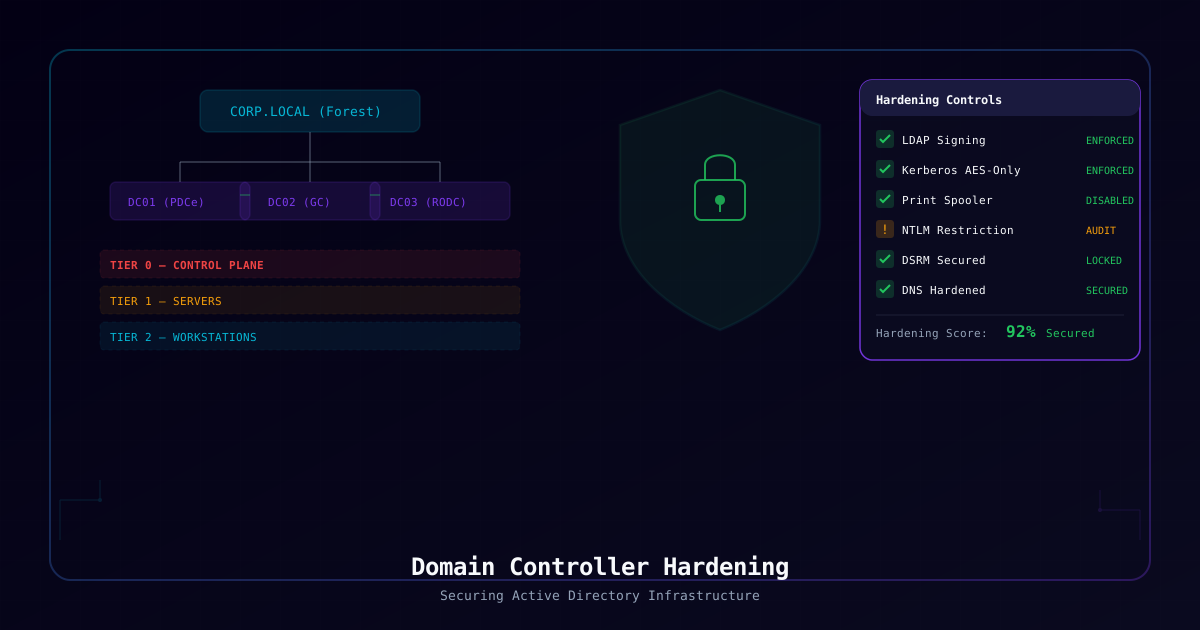
Microsoft's Enhanced Security Admin Environment (ESAE), also known as the Red Forest model, classifies DCs as Tier 0 assets -- the highest privilege tier that controls all other tiers. While Microsoft has deprecated the full ESAE architecture in favor of Privileged Access Strategy, the Tier 0 classification and DC isolation principles remain foundational.
Who Should Use This Guide:
- Active Directory administrators responsible for DC infrastructure
- Security engineers implementing Tier 0 hardening
- Incident responders hardening DCs after a compromise
- Compliance teams mapping controls to CIS, NIST 800-53, or DISA STIGs
What You Will Learn:
| Area | Controls Implemented |
|---|---|
| Network Isolation | DC placement, firewall rules, Tier 0 segmentation |
| Attack Surface | Service minimization, Print Spooler, role removal |
| LDAP Security | Signing enforcement, channel binding |
| Kerberos | AES-only encryption, armoring, ticket policies |
| NTLM | Audit and restriction, phased deprecation |
| AdminSDHolder | Protected group auditing, ACL review |
| DSRM | Password security, network logon control |
| DNS | Zone transfer restrictions, query logging |
| Certificates | Template security, enrollment restrictions |
| Monitoring | Critical event IDs, honey tokens, DCShadow detection |
Warning: DC hardening changes can break authentication, replication, and application connectivity. Always test in a lab or staging domain first. Deploy changes incrementally with audit-mode logging before enforcement.
Scenario
This guide applies to three common scenarios:
1. New DC Deployment -- You are promoting a new Windows Server 2022/2025 server to a Domain Controller and want to harden it from day one before it enters production.
2. Hardening Existing DCs -- Your domain has been running with default or minimal security settings. You need to systematically raise the security posture without breaking existing services.
3. Post-Compromise Remediation -- An incident has occurred. Threat actors accessed domain admin credentials or performed DCSync. You need to rebuild trust in the DC infrastructure.
Regardless of scenario, the approach is the same: assess current state, implement changes in audit mode, validate, then enforce.
Pre-Hardening Assessment
Before changing anything, capture a complete picture of your current DC environment. This baseline helps you understand what exists, what might break, and what to roll back if needed.
Domain Controller Inventory
<#
.SYNOPSIS
    DC Pre-Hardening Assessment Script
.DESCRIPTION
    Captures current DC configuration, services, GPO links, and security settings
    for baseline documentation before hardening changes
.NOTES
    Run from a Tier 0 admin workstation with RSAT installed
#>

$ErrorActionPreference = 'Continue'
$ReportDate = Get-Date -Format 'yyyy-MM-dd_HHmmss'
$ReportPath = "C:\BIN\LOGS\DC-Assessment-$ReportDate.txt"

# Ensure output directory exists
if (!(Test-Path "C:\BIN\LOGS")) { New-Item -ItemType Directory -Path "C:\BIN\LOGS" -Force }

"=== Domain Controller Pre-Hardening Assessment ===" | Out-File $ReportPath
"Generated: $(Get-Date)" | Out-File -Append $ReportPath
"" | Out-File -Append $ReportPath

# 1. Domain Controller inventory
"--- DC Inventory ---" | Out-File -Append $ReportPath
Get-ADDomainController -Filter * | Format-Table Name, IPv4Address, OperatingSystem,
    OperationMasterRoles, IsGlobalCatalog, IsReadOnly -AutoSize |
    Out-String | Out-File -Append $ReportPath

# 2. FSMO Roles
"--- FSMO Role Holders ---" | Out-File -Append $ReportPath
$Forest = Get-ADForest
$Domain = Get-ADDomain
[PSCustomObject]@{
    SchemaMaster        = $Forest.SchemaMaster
    DomainNamingMaster  = $Forest.DomainNamingMaster
    PDCEmulator         = $Domain.PDCEmulator
    RIDMaster           = $Domain.RIDMaster
    InfrastructureMaster = $Domain.InfrastructureMaster
} | Format-List | Out-String | Out-File -Append $ReportPath

# 3. Replication health
"--- Replication Status ---" | Out-File -Append $ReportPath
repadmin /replsummary | Out-File -Append $ReportPath

# 4. Services running on DCs
"--- Services on Each DC ---" | Out-File -Append $ReportPath
$DCs = Get-ADDomainController -Filter * | Select-Object -ExpandProperty HostName
foreach ($DC in $DCs) {
    "DC: $DC" | Out-File -Append $ReportPath
    try {
        Get-Service -ComputerName $DC | Where-Object { $_.Status -eq 'Running' } |
            Format-Table Name, DisplayName, StartType -AutoSize |
            Out-String | Out-File -Append $ReportPath
    } catch {
        "  ERROR: Could not query services on $DC - $_" | Out-File -Append $ReportPath
    }
}

# 5. Installed roles and features
"--- Installed Roles/Features ---" | Out-File -Append $ReportPath
foreach ($DC in $DCs) {
    "DC: $DC" | Out-File -Append $ReportPath
    try {
        Invoke-Command -ComputerName $DC -ScriptBlock {
            Get-WindowsFeature | Where-Object Installed |
                Format-Table Name, DisplayName -AutoSize
        } | Out-String | Out-File -Append $ReportPath
    } catch {
        "  ERROR: Could not query features on $DC - $_" | Out-File -Append $ReportPath
    }
}

# 6. GPO links to Domain Controllers OU
"--- GPOs Linked to Domain Controllers OU ---" | Out-File -Append $ReportPath
$DCsOU = "OU=Domain Controllers," + (Get-ADDomain).DistinguishedName
Get-GPInheritance -Target $DCsOU | Select-Object -ExpandProperty GpoLinks |
    Format-Table DisplayName, Enabled, Enforced, Order -AutoSize |
    Out-String | Out-File -Append $ReportPath

# 7. Service accounts with DC logon rights
"--- Service Accounts in Privileged Groups ---" | Out-File -Append $ReportPath
$PrivGroups = @("Domain Admins", "Enterprise Admins", "Administrators",
                "Schema Admins", "Backup Operators", "Server Operators")
foreach ($Group in $PrivGroups) {
    "Group: $Group" | Out-File -Append $ReportPath
    try {
        Get-ADGroupMember -Identity $Group -Recursive |
            Select-Object Name, objectClass, SamAccountName |
            Format-Table -AutoSize | Out-String | Out-File -Append $ReportPath
    } catch {
        "  Could not enumerate $Group" | Out-File -Append $ReportPath
    }
}

# 8. Current LDAP signing configuration
"--- LDAP Signing Configuration ---" | Out-File -Append $ReportPath
foreach ($DC in $DCs) {
    "DC: $DC" | Out-File -Append $ReportPath
    try {
        $LDAPSigning = Invoke-Command -ComputerName $DC -ScriptBlock {
            Get-ItemProperty -Path "HKLM:\SYSTEM\CurrentControlSet\Services\NTDS\Parameters" `
                -Name "LDAPServerIntegrity" -ErrorAction SilentlyContinue
        }
        if ($LDAPSigning) {
            "  LDAPServerIntegrity: $($LDAPSigning.LDAPServerIntegrity) (0=None, 1=Require signing when supported, 2=Require signing)" |
                Out-File -Append $ReportPath
        } else {
            "  LDAPServerIntegrity: Not set (default)" | Out-File -Append $ReportPath
        }
    } catch {
        "  ERROR: Could not query $DC - $_" | Out-File -Append $ReportPath
    }
}

# 9. Current Kerberos encryption types
"--- Kerberos Supported Encryption Types ---" | Out-File -Append $ReportPath
$KerbEncTypes = Get-ItemProperty -Path "HKLM:\SOFTWARE\Microsoft\Windows\CurrentVersion\Policies\System\Kerberos\Parameters" `
    -Name "SupportedEncryptionTypes" -ErrorAction SilentlyContinue
if ($KerbEncTypes) {
    $Value = $KerbEncTypes.SupportedEncryptionTypes
    "  Value: $Value" | Out-File -Append $ReportPath
    "  DES_CBC_CRC (1): $(($Value -band 1) -ne 0)" | Out-File -Append $ReportPath
    "  DES_CBC_MD5 (2): $(($Value -band 2) -ne 0)" | Out-File -Append $ReportPath
    "  RC4_HMAC_MD5 (4): $(($Value -band 4) -ne 0)" | Out-File -Append $ReportPath
    "  AES128_HMAC (8): $(($Value -band 8) -ne 0)" | Out-File -Append $ReportPath
    "  AES256_HMAC (16): $(($Value -band 16) -ne 0)" | Out-File -Append $ReportPath
} else {
    "  Not configured (all types supported by default)" | Out-File -Append $ReportPath
}

Write-Host "Assessment complete. Report saved to: $ReportPath" -ForegroundColor GreenQuick Replication Health Check
# Verify replication is healthy BEFORE making changes
repadmin /replsummary
repadmin /showrepl /errorsonly
dcdiag /e /test:replications /test:services /test:dnsImportant: If replication is broken, fix it FIRST. Hardening changes applied to one DC that cannot replicate will cause split-brain security configurations.
Step 1: Physical & Network Isolation
Why It Matters
DCs should only be accessible from Tier 0 management systems. Any workstation or server that can reach a DC on management ports is a potential pivot point for attackers.
DC Network Placement Best Practices
- Place DCs on a dedicated VLAN or subnet
- DCs should never share a subnet with general-purpose servers or workstations
- Use host-based firewall rules in addition to network firewalls
- No internet access from DCs -- block outbound except for time sync (NTP) and Windows Update (if not using WSUS/SCCM)
Required Ports for DC Communication
| Port | Protocol | Service | Direction |
|---|---|---|---|
| 53 | TCP/UDP | DNS | Inbound/Outbound |
| 88 | TCP/UDP | Kerberos | Inbound |
| 123 | UDP | NTP (W32Time) | Outbound |
| 135 | TCP | RPC Endpoint Mapper | Inbound |
| 389 | TCP/UDP | LDAP | Inbound |
| 445 | TCP | SMB (SYSVOL/NETLOGON) | Inbound |
| 464 | TCP/UDP | Kerberos Password Change | Inbound |
| 636 | TCP | LDAPS | Inbound |
| 3268 | TCP | Global Catalog | Inbound |
| 3269 | TCP | Global Catalog SSL | Inbound |
| 5722 | TCP | DFS-R (SYSVOL replication) | DC-to-DC |
| 9389 | TCP | AD Web Services | Inbound |
| 49152-65535 | TCP | RPC Dynamic | DC-to-DC and Tier 0 admin |
Firewall Configuration via GPO
# Create a GPO specifically for DC firewall rules
New-GPO -Name "Security - DC Firewall Rules - Domain Controllers" |
New-GPLink -Target "OU=Domain Controllers,DC=corp,DC=local"GPO Path: Computer Configuration > Policies > Windows Settings > Security Settings > Windows Defender Firewall with Advanced Security
Block RDP Except from Tier 0 PAWs
# On each DC, restrict RDP to Tier 0 PAW subnet only
New-NetFirewallRule -DisplayName "Allow RDP - Tier 0 PAWs Only" `
    -Direction Inbound -Protocol TCP -LocalPort 3389 `
    -RemoteAddress "10.0.0.0/24" ` # Replace with your Tier 0 PAW subnet
    -Action Allow -Profile Domain

# Block RDP from all other sources
New-NetFirewallRule -DisplayName "Block RDP - All Others" `
    -Direction Inbound -Protocol TCP -LocalPort 3389 `
-Action Block -Profile Domain, Private, PublicBlock Internet Access from DCs
# Block outbound internet (allow only internal and specific exceptions)
New-NetFirewallRule -DisplayName "Block DC Internet - Outbound" `
    -Direction Outbound -Action Block `
    -RemoteAddress "0.0.0.0/0" `
    -Profile Domain, Private, Public

# Allow internal RFC1918 ranges
New-NetFirewallRule -DisplayName "Allow DC Internal - Outbound" `
    -Direction Outbound -Action Allow `
    -RemoteAddress "10.0.0.0/8", "172.16.0.0/12", "192.168.0.0/16" `
    -Profile Domain

# Allow NTP to known time servers if needed
New-NetFirewallRule -DisplayName "Allow NTP Outbound" `
    -Direction Outbound -Protocol UDP -RemotePort 123 `
-Action Allow -Profile DomainVerify Network Isolation
# Confirm firewall rules are active
Get-NetFirewallProfile | Format-Table Name, Enabled, DefaultInboundAction, DefaultOutboundAction

# List active inbound rules on DC
Get-NetFirewallRule -Direction Inbound -Enabled True |
    Select-Object DisplayName, Action, Profile |
Sort-Object DisplayName | Format-Table -AutoSizeImpact Assessment: Restricting DC network access will break connectivity from non-Tier-0 management tools. Ensure jump servers / PAWs are in the allowed subnets before enforcing.
Step 2: Minimize DC Attack Surface
Why It Matters
Every additional role, feature, or service on a DC is an additional attack surface. The PrintNightmare vulnerabilities (CVE-2021-34527) demonstrated that even the Print Spooler service can provide SYSTEM-level code execution on a DC.
Remove Unnecessary Roles and Features
# Audit installed features on all DCs
$DCs = Get-ADDomainController -Filter * | Select-Object -ExpandProperty HostName
foreach ($DC in $DCs) {
    Write-Host "--- $DC ---" -ForegroundColor Cyan
    Invoke-Command -ComputerName $DC -ScriptBlock {
        Get-WindowsFeature | Where-Object {
            $_.Installed -and $_.Name -notin @(
                'AD-Domain-Services', 'DNS', 'GPMC',
                'RSAT-AD-Tools', 'RSAT-DNS-Server', 'RSAT-ADDS'
            )
        } | Select-Object Name, DisplayName
    }
}Disable Print Spooler (PrintNightmare Mitigation)
# Disable Print Spooler on ALL Domain Controllers
$DCs = Get-ADDomainController -Filter * | Select-Object -ExpandProperty HostName
foreach ($DC in $DCs) {
    Invoke-Command -ComputerName $DC -ScriptBlock {
        Stop-Service -Name Spooler -Force
        Set-Service -Name Spooler -StartupType Disabled
        Write-Host "Print Spooler disabled on $env:COMPUTERNAME" -ForegroundColor Green
    }
}GPO Path (preferred): Computer Configuration > Policies > Windows Settings > Security Settings > System Services > Print Spooler -- Set to Disabled.
Disable Unnecessary Services on DCs
# Services that should be disabled on Domain Controllers
$DisableServices = @(
    'Spooler',           # Print Spooler (PrintNightmare)
    'RemoteRegistry',    # Remote Registry
    'WinRM',             # Only if not using PS Remoting for management
    'SNMPTRAP',          # SNMP Trap
    'IISADMIN',          # IIS (should never be on a DC)
    'W3SVC',             # World Wide Web Service
    'WinHttpAutoProxySvc', # WinHTTP Auto-Proxy
    'XblAuthManager',    # Xbox Live Auth Manager
    'XblGameSave',       # Xbox Live Game Save
    'XboxNetApiSvc'      # Xbox Live Networking
)

foreach ($DC in $DCs) {
    Invoke-Command -ComputerName $DC -ScriptBlock {
        param($Services)
        foreach ($Svc in $Services) {
            $Service = Get-Service -Name $Svc -ErrorAction SilentlyContinue
            if ($Service -and $Service.Status -eq 'Running') {
                Stop-Service -Name $Svc -Force -ErrorAction SilentlyContinue
                Set-Service -Name $Svc -StartupType Disabled -ErrorAction SilentlyContinue
                Write-Host "  Disabled: $Svc on $env:COMPUTERNAME" -ForegroundColor Yellow
            }
        }
    } -ArgumentList (,$DisableServices)
}Block Web Browsing from DCs
GPO Path: Computer Configuration > Policies > Administrative Templates > Windows Components > Internet Explorer > Disable Internet Explorer
Additionally, use AppLocker or Software Restriction Policies to block browser executables:
# Create AppLocker rule via GPO to deny browsers on DCs
# GPO Path: Computer Configuration > Policies > Windows Settings >
#           Security Settings > Application Control Policies > AppLocker

# Block common browser paths
$BrowserPaths = @(
    "%PROGRAMFILES%\Google\Chrome\Application\chrome.exe",
    "%PROGRAMFILES%\Mozilla Firefox\firefox.exe",
    "%PROGRAMFILES(X86)%\Microsoft\Edge\Application\msedge.exe",
    "%LOCALAPPDATA%\Google\Chrome\Application\chrome.exe"
)

Write-Host "Configure these paths as DENY rules in AppLocker:" -ForegroundColor Cyan
$BrowserPaths | ForEach-Object { Write-Host " $_" }Verify Attack Surface Reduction
# Verify Print Spooler is disabled across all DCs
foreach ($DC in $DCs) {
    $SpoolerStatus = Invoke-Command -ComputerName $DC -ScriptBlock {
        Get-Service -Name Spooler | Select-Object Status, StartType
    }
    Write-Host "$DC - Spooler: $($SpoolerStatus.Status), StartType: $($SpoolerStatus.StartType)" -ForegroundColor $(
        if ($SpoolerStatus.StartType -eq 'Disabled') { 'Green' } else { 'Red' }
    )
}Impact Assessment: Disabling Print Spooler will prevent printing from DCs (which should never happen anyway). Disabling Remote Registry may affect legacy monitoring tools that rely on remote registry queries.
Step 3: LDAP Signing & Channel Binding
Why It Matters
Unsigned LDAP connections allow man-in-the-middle attacks where an attacker can intercept and modify LDAP queries. LDAP relay attacks (used in tools like ntlmrelayx) exploit unsigned LDAP to escalate privileges. Microsoft has been enforcing LDAP signing by default since March 2020, but many environments still have unsigned clients.
Check Current LDAP Signing State
# Check LDAP signing registry on all DCs
foreach ($DC in $DCs) {
    $LDAPConfig = Invoke-Command -ComputerName $DC -ScriptBlock {
        $Signing = Get-ItemProperty -Path "HKLM:\SYSTEM\CurrentControlSet\Services\NTDS\Parameters" `
            -Name "LDAPServerIntegrity" -ErrorAction SilentlyContinue
        $ChannelBinding = Get-ItemProperty -Path "HKLM:\SYSTEM\CurrentControlSet\Services\NTDS\Parameters" `
            -Name "LdapEnforceChannelBinding" -ErrorAction SilentlyContinue

        [PSCustomObject]@{
            DC             = $env:COMPUTERNAME
            LDAPSigning    = if ($Signing) { $Signing.LDAPServerIntegrity } else { "Not Set (default)" }
            ChannelBinding = if ($ChannelBinding) { $ChannelBinding.LdapEnforceChannelBinding } else { "Not Set (default)" }
        }
    }
    $LDAPConfig | Format-Table -AutoSize
}Enable LDAP Signing Audit Mode First
Before enforcing, enable audit logging to identify clients making unsigned LDAP binds:
# Enable LDAP signing audit events (Event ID 2889)
# This logs which clients are making unsigned simple binds

# GPO Path: Computer Configuration > Policies > Windows Settings >
#           Security Settings > Local Policies > Security Options
# Policy: "Network security: LDAP client signing requirements" = "Negotiate signing"

# Registry (direct application):
foreach ($DC in $DCs) {
    Invoke-Command -ComputerName $DC -ScriptBlock {
        # Enable diagnostic logging for LDAP (Level 2 = verbose)
        Set-ItemProperty -Path "HKLM:\SYSTEM\CurrentControlSet\Services\NTDS\Diagnostics" `
            -Name "16 LDAP Interface Events" -Value 2 -Type DWord
        Write-Host "LDAP diagnostic logging enabled on $env:COMPUTERNAME" -ForegroundColor Yellow
    }
}Review LDAP Audit Events
# Check for unsigned LDAP bind attempts (Event ID 2889)
foreach ($DC in $DCs) {
    Write-Host "--- Unsigned LDAP binds on $DC ---" -ForegroundColor Cyan
    Invoke-Command -ComputerName $DC -ScriptBlock {
        Get-WinEvent -FilterHashtable @{
            LogName   = 'Directory Service'
            Id        = 2889
            StartTime = (Get-Date).AddDays(-7)
        } -MaxEvents 50 -ErrorAction SilentlyContinue |
        ForEach-Object {
            $_.Message | Select-String -Pattern "IP address|Client" | Out-String
        }
    }
}Enforce LDAP Signing
Once audit logs confirm no critical applications are making unsigned binds:
# Enforce LDAP signing via GPO (recommended)
# GPO Path: Computer Configuration > Policies > Windows Settings >
#           Security Settings > Local Policies > Security Options
# Policy: "Domain controller: LDAP server signing requirements" = "Require signing"

# Registry (direct enforcement):
foreach ($DC in $DCs) {
    Invoke-Command -ComputerName $DC -ScriptBlock {
        Set-ItemProperty -Path "HKLM:\SYSTEM\CurrentControlSet\Services\NTDS\Parameters" `
            -Name "LDAPServerIntegrity" -Value 2 -Type DWord
        Write-Host "LDAP signing ENFORCED on $env:COMPUTERNAME" -ForegroundColor Green
    }
}Enable LDAP Channel Binding
# Channel binding prevents LDAP relay attacks via TLS
# Values: 0 = Never, 1 = When supported, 2 = Always

foreach ($DC in $DCs) {
    Invoke-Command -ComputerName $DC -ScriptBlock {
        # Start with "When supported" (1), then move to "Always" (2)
        Set-ItemProperty -Path "HKLM:\SYSTEM\CurrentControlSet\Services\NTDS\Parameters" `
            -Name "LdapEnforceChannelBinding" -Value 1 -Type DWord
        Write-Host "LDAP channel binding set to 'When supported' on $env:COMPUTERNAME" -ForegroundColor Yellow
    }
}Verify LDAP Configuration
# Verify LDAP signing and channel binding on all DCs
foreach ($DC in $DCs) {
    $Result = Invoke-Command -ComputerName $DC -ScriptBlock {
        $Signing = (Get-ItemProperty "HKLM:\SYSTEM\CurrentControlSet\Services\NTDS\Parameters" `
            -Name "LDAPServerIntegrity" -ErrorAction SilentlyContinue).LDAPServerIntegrity
        $Binding = (Get-ItemProperty "HKLM:\SYSTEM\CurrentControlSet\Services\NTDS\Parameters" `
            -Name "LdapEnforceChannelBinding" -ErrorAction SilentlyContinue).LdapEnforceChannelBinding
        [PSCustomObject]@{
            DC             = $env:COMPUTERNAME
            SigningLevel   = switch ($Signing) { 0 {"None"} 1 {"Negotiate"} 2 {"REQUIRED"} default {"Not Set"} }
            ChannelBinding = switch ($Binding) { 0 {"Never"} 1 {"When Supported"} 2 {"Always"} default {"Not Set"} }
        }
    }
    $Result | Format-Table -AutoSize
}Impact Assessment: Enforcing LDAP signing will break any application that uses unsigned simple LDAP binds. Common offenders include legacy printers, Linux LDAP clients configured without signing, older Java applications, and some VPN appliances. Always run in audit mode for at least 2-4 weeks.
Step 4: Kerberos Hardening
Why It Matters
Kerberos is the primary authentication protocol in AD. Weak Kerberos configurations enable attacks like Kerberoasting (cracking service ticket RC4 hashes), Golden Ticket forgery, and Silver Ticket abuse. Hardening encryption types and ticket policies significantly raises the bar for attackers.
Check Current Kerberos Encryption Types
# Check what encryption types are currently allowed
$KerbReg = Get-ItemProperty -Path "HKLM:\SOFTWARE\Microsoft\Windows\CurrentVersion\Policies\System\Kerberos\Parameters" `
    -Name "SupportedEncryptionTypes" -ErrorAction SilentlyContinue

if ($KerbReg) {
    $Value = $KerbReg.SupportedEncryptionTypes
    Write-Host "Current Kerberos Supported Encryption Types: $Value" -ForegroundColor Cyan
    Write-Host "  DES_CBC_CRC  (0x1):  $(if ($Value -band 0x1) {'ENABLED'} else {'disabled'})"
    Write-Host "  DES_CBC_MD5  (0x2):  $(if ($Value -band 0x2) {'ENABLED'} else {'disabled'})"
    Write-Host "  RC4_HMAC     (0x4):  $(if ($Value -band 0x4) {'ENABLED'} else {'disabled'})"
    Write-Host "  AES128_HMAC  (0x8):  $(if ($Value -band 0x8) {'ENABLED'} else {'disabled'})"
    Write-Host "  AES256_HMAC  (0x10): $(if ($Value -band 0x10) {'ENABLED'} else {'disabled'})"
} else {
    Write-Host "Not configured - all encryption types are supported by default" -ForegroundColor Yellow
}Configure AES-Only Encryption (Disable RC4)
# GPO Path: Computer Configuration > Policies > Windows Settings >
#           Security Settings > Local Policies > Security Options
# Policy: "Network security: Configure encryption types allowed for Kerberos"
# Enable: AES128_HMAC_SHA1, AES256_HMAC_SHA1
# Disable: DES_CBC_CRC, DES_CBC_MD5, RC4_HMAC_MD5

# Registry: value 0x18 = AES128 (0x8) + AES256 (0x10) = 24
# If you also need future encryption types: 0x1C = AES128 + AES256 + Future = 28

# Check for accounts still using RC4 BEFORE disabling it
Write-Host "=== Accounts configured for RC4/DES encryption ===" -ForegroundColor Cyan

# Accounts with DES-only flag
Get-ADUser -Filter { UseDESKeyOnly -eq $true } -Properties UseDESKeyOnly |
    Select-Object SamAccountName, Enabled, UseDESKeyOnly

# Service accounts - check msDS-SupportedEncryptionTypes
Get-ADUser -Filter { ServicePrincipalName -like "*" } -Properties msDS-SupportedEncryptionTypes, ServicePrincipalName |
    Select-Object SamAccountName, @{N='EncTypes';E={$_.'msDS-SupportedEncryptionTypes'}}, ServicePrincipalName

# Computer accounts that may only support RC4
Get-ADComputer -Filter { OperatingSystem -like "*2003*" -or OperatingSystem -like "*2008*" } -Properties OperatingSystem |
Select-Object Name, OperatingSystemSet AES-Only on DCs via GPO
GPO Path: Computer Configuration > Policies > Windows Settings > Security Settings > Local Policies > Security Options > Network security: Configure encryption types allowed for Kerberos
Enable only:
- AES128_HMAC_SHA1
- AES256_HMAC_SHA1
# After confirming no legacy dependencies, set AES-only
# Apply to the Default Domain Controllers Policy or a dedicated DC hardening GPO
# Value 24 = AES128 + AES256

foreach ($DC in $DCs) {
    Invoke-Command -ComputerName $DC -ScriptBlock {
        $RegPath = "HKLM:\SOFTWARE\Microsoft\Windows\CurrentVersion\Policies\System\Kerberos\Parameters"
        if (!(Test-Path $RegPath)) { New-Item -Path $RegPath -Force | Out-Null }
        Set-ItemProperty -Path $RegPath -Name "SupportedEncryptionTypes" -Value 24 -Type DWord
        Write-Host "AES-only Kerberos encryption configured on $env:COMPUTERNAME" -ForegroundColor Green
    }
}Enable Kerberos Armoring (FAST)
Kerberos Flexible Authentication Secure Tunneling (FAST) protects AS-REQ pre-authentication exchanges, mitigating AS-REP roasting.
# GPO Path: Computer Configuration > Policies > Administrative Templates >
#           System > KDC
# Policy: "KDC support for claims, compound authentication and Kerberos armoring"
# Set to: "Supported" first, then "Always provide claims" after testing

# GPO Path (client side): Computer Configuration > Policies > Administrative Templates >
#           System > Kerberos
# Policy: "Kerberos client support for claims, compound authentication and Kerberos armoring"
# Set to: "Enabled"Kerberos Ticket Lifetime Policies
GPO Path: Computer Configuration > Policies > Windows Settings > Security Settings > Account Policies > Kerberos Policy
| Setting | Recommended Value | Default |
|---|---|---|
| Maximum lifetime for user ticket | 4 hours | 10 hours |
| Maximum lifetime for service ticket | 600 minutes | 600 minutes |
| Maximum lifetime for user ticket renewal | 7 days | 7 days |
| Maximum tolerance for clock synchronization | 5 minutes | 5 minutes |
# View current Kerberos policy
Get-ADDefaultDomainPasswordPolicy | Select-Object `
    MaxTicketAge, MaxServiceAge, MaxRenewAge, MaxClockSkew |
Format-ListReview Constrained and Unconstrained Delegation
Unconstrained delegation is extremely dangerous -- any service with unconstrained delegation can impersonate any user to any service.
# Find accounts with unconstrained delegation (CRITICAL RISK)
Write-Host "=== UNCONSTRAINED Delegation (HIGH RISK) ===" -ForegroundColor Red
Get-ADComputer -Filter { TrustedForDelegation -eq $true } -Properties TrustedForDelegation |
    Where-Object { $_.Name -ne (Get-ADDomainController -Filter * |
        Select-Object -ExpandProperty Name) } |
    Select-Object Name, DNSHostName

Get-ADUser -Filter { TrustedForDelegation -eq $true } -Properties TrustedForDelegation |
    Select-Object SamAccountName, Enabled

# Find accounts with constrained delegation
Write-Host "`n=== Constrained Delegation ===" -ForegroundColor Yellow
Get-ADComputer -Filter { msDS-AllowedToDelegateTo -like "*" } `
    -Properties msDS-AllowedToDelegateTo |
    Select-Object Name, @{N='DelegatedTo';E={$_.'msDS-AllowedToDelegateTo' -join '; '}}

Get-ADUser -Filter { msDS-AllowedToDelegateTo -like "*" } `
    -Properties msDS-AllowedToDelegateTo |
    Select-Object SamAccountName, @{N='DelegatedTo';E={$_.'msDS-AllowedToDelegateTo' -join '; '}}

# Find resource-based constrained delegation
Write-Host "`n=== Resource-Based Constrained Delegation ===" -ForegroundColor Yellow
Get-ADComputer -Filter { PrincipalsAllowedToDelegateToAccount -like "*" } `
    -Properties PrincipalsAllowedToDelegateToAccount |
Select-Object Name, PrincipalsAllowedToDelegateToAccountImpact Assessment: Disabling RC4 encryption will break authentication for Windows Server 2003 and older systems, some legacy applications, and any service account that has not been re-keyed with AES encryption. Identify these accounts first, update their SPNs, and reset their passwords to generate AES keys.
Step 5: NTLM Restriction
Why It Matters
NTLM is the legacy authentication protocol that enables pass-the-hash, NTLM relay, and credential forwarding attacks. Every Tier 0 hardening guide recommends restricting or eliminating NTLM. However, completely blocking NTLM will break many environments, so a phased approach is essential.
Phase 1: Enable NTLM Audit Logging
# GPO Path: Computer Configuration > Policies > Windows Settings >
#           Security Settings > Local Policies > Security Options

# 1. Audit incoming NTLM traffic on DCs
# Policy: "Network security: Restrict NTLM: Audit Incoming NTLM Traffic"
# Set to: "Enable auditing for all accounts"

# 2. Audit NTLM authentication in this domain
# Policy: "Network security: Restrict NTLM: Audit NTLM authentication in this domain"
# Set to: "Enable all"

# Direct registry configuration:
foreach ($DC in $DCs) {
    Invoke-Command -ComputerName $DC -ScriptBlock {
        $LsaPath = "HKLM:\SYSTEM\CurrentControlSet\Control\Lsa\MSV1_0"

        # Audit incoming NTLM traffic (value 2 = audit all)
        Set-ItemProperty -Path $LsaPath -Name "AuditReceivingNTLMTraffic" -Value 2 -Type DWord

        # Audit NTLM in domain (value 7 = enable all for all accounts)
        Set-ItemProperty -Path "HKLM:\SYSTEM\CurrentControlSet\Services\Netlogon\Parameters" `
            -Name "AuditNTLMInDomain" -Value 7 -Type DWord

        Write-Host "NTLM audit logging enabled on $env:COMPUTERNAME" -ForegroundColor Yellow
    }
}Phase 2: Review NTLM Audit Events
# Check NTLM audit events (Event IDs 4624 with logon type, 8001-8004)
# Wait at least 2-4 weeks before reviewing

foreach ($DC in $DCs) {
    Write-Host "--- NTLM Authentication Events on $DC ---" -ForegroundColor Cyan

    Invoke-Command -ComputerName $DC -ScriptBlock {
        # Event 8001: NTLM authentication in this domain (outgoing)
        # Event 8002: NTLM authentication in this domain (incoming)
        # Event 8003: NTLM blocked audit
        # Event 8004: NTLM authentication to DC

        $Events = Get-WinEvent -FilterHashtable @{
            LogName   = 'Microsoft-Windows-NTLM/Operational'
            StartTime = (Get-Date).AddDays(-7)
        } -MaxEvents 100 -ErrorAction SilentlyContinue

        $Events | Group-Object Id | ForEach-Object {
            Write-Host "  Event $($_.Name): $($_.Count) occurrences" -ForegroundColor Yellow
        }

        # Show unique source workstations using NTLM
        $Events | ForEach-Object {
            if ($_.Message -match 'Workstation:\s+(\S+)') { $Matches[1] }
        } | Sort-Object -Unique | ForEach-Object {
            Write-Host "  NTLM Source: $_" -ForegroundColor Gray
        }
    }
}Phase 3: Add NTLM Exceptions, Then Restrict
# GPO Path: Computer Configuration > Policies > Windows Settings >
#           Security Settings > Local Policies > Security Options

# 1. Add exceptions for servers that MUST use NTLM
# Policy: "Network security: Restrict NTLM: Add server exceptions in this domain"
# Add FQDNs of servers that require NTLM (one per line)

# 2. Restrict NTLM authentication
# Policy: "Network security: Restrict NTLM: NTLM authentication in this domain"
# Values:
#   1 = Deny for domain accounts to domain servers
#   3 = Deny for domain accounts (stricter)
#   5 = Deny for domain servers
#   7 = Deny all

# Start with value 1 (deny domain accounts to domain servers):
foreach ($DC in $DCs) {
    Invoke-Command -ComputerName $DC -ScriptBlock {
        Set-ItemProperty -Path "HKLM:\SYSTEM\CurrentControlSet\Services\Netlogon\Parameters" `
            -Name "RestrictNTLMInDomain" -Value 1 -Type DWord
        Write-Host "NTLM restriction (level 1) enabled on $env:COMPUTERNAME" -ForegroundColor Green
    }
}Phase 4: Block Incoming NTLM on DCs
# GPO Path: "Network security: Restrict NTLM: Incoming NTLM traffic"
# Set to: "Deny all accounts" (only after thorough auditing)

# Registry (final enforcement):
foreach ($DC in $DCs) {
    Invoke-Command -ComputerName $DC -ScriptBlock {
        Set-ItemProperty -Path "HKLM:\SYSTEM\CurrentControlSet\Control\Lsa\MSV1_0" `
            -Name "RestrictReceivingNTLMTraffic" -Value 2 -Type DWord
        Write-Host "Incoming NTLM BLOCKED on $env:COMPUTERNAME" -ForegroundColor Red
    }
}Verify NTLM Configuration
foreach ($DC in $DCs) {
    $NTLMConfig = Invoke-Command -ComputerName $DC -ScriptBlock {
        $Lsa = "HKLM:\SYSTEM\CurrentControlSet\Control\Lsa\MSV1_0"
        $Netlogon = "HKLM:\SYSTEM\CurrentControlSet\Services\Netlogon\Parameters"
        [PSCustomObject]@{
            DC                  = $env:COMPUTERNAME
            AuditIncoming       = (Get-ItemProperty $Lsa -Name "AuditReceivingNTLMTraffic" -EA SilentlyContinue).AuditReceivingNTLMTraffic
            RestrictIncoming    = (Get-ItemProperty $Lsa -Name "RestrictReceivingNTLMTraffic" -EA SilentlyContinue).RestrictReceivingNTLMTraffic
            RestrictInDomain    = (Get-ItemProperty $Netlogon -Name "RestrictNTLMInDomain" -EA SilentlyContinue).RestrictNTLMInDomain
            AuditInDomain       = (Get-ItemProperty $Netlogon -Name "AuditNTLMInDomain" -EA SilentlyContinue).AuditNTLMInDomain
        }
    }
    $NTLMConfig | Format-Table -AutoSize
}Impact Assessment: NTLM restriction is the change most likely to break applications. Legacy applications, non-domain-joined devices, some VPN clients, multi-forest trusts without selective authentication, and NAS devices commonly require NTLM. Budget 4-8 weeks of audit data collection before any enforcement.
Step 6: AdminSDHolder & Protected Groups
Why It Matters
AdminSDHolder is a special AD container that controls the ACLs on all "protected" accounts and groups. Every 60 minutes (by default), the Security Descriptor Propagator (SDProp) process overwrites permissions on protected objects with the AdminSDHolder template ACL. Attackers who modify AdminSDHolder gain persistent backdoor access to every privileged account in the domain.
Understand Protected Groups
The following groups are protected by AdminSDHolder by default:
| Group | Risk Level |
|---|---|
| Domain Admins | Critical |
| Enterprise Admins | Critical |
| Schema Admins | Critical |
| Administrators | Critical |
| Account Operators | High |
| Backup Operators | High |
| Server Operators | High |
| Print Operators | Medium |
| Replicator | Medium |
Audit Protected Group Membership
<#
.SYNOPSIS
    Audit all protected groups and their members
.DESCRIPTION
    Enumerates every protected group, lists direct and nested members,
    identifies service accounts, and flags stale/unused accounts
#>

$ProtectedGroups = @(
    "Domain Admins",
    "Enterprise Admins",
    "Schema Admins",
    "Administrators",
    "Account Operators",
    "Backup Operators",
    "Server Operators",
    "Print Operators",
    "Replicator"
)

$Results = @()

foreach ($Group in $ProtectedGroups) {
    Write-Host "=== $Group ===" -ForegroundColor Cyan
    try {
        $Members = Get-ADGroupMember -Identity $Group -Recursive -ErrorAction Stop
        foreach ($Member in $Members) {
            $UserDetails = Get-ADObject -Identity $Member.distinguishedName -Properties `
                LastLogonDate, PasswordLastSet, Enabled, Description, WhenCreated

            $Results += [PSCustomObject]@{
                Group           = $Group
                Name            = $Member.Name
                SamAccountName  = $Member.SamAccountName
                ObjectClass     = $Member.objectClass
                Enabled         = $UserDetails.Enabled
                LastLogon       = $UserDetails.LastLogonDate
                PasswordLastSet = $UserDetails.PasswordLastSet
                WhenCreated     = $UserDetails.WhenCreated
                Description     = $UserDetails.Description
            }
        }
        Write-Host "  Members: $($Members.Count)" -ForegroundColor $(if ($Members.Count -gt 5) {'Yellow'} else {'Green'})
    } catch {
        Write-Host "  Error enumerating: $_" -ForegroundColor Red
    }
}

# Display results
$Results | Format-Table Group, SamAccountName, ObjectClass, Enabled, LastLogon -AutoSize

# Flag accounts that haven't logged in for 90+ days
$StaleAccounts = $Results | Where-Object {
    $_.LastLogon -and $_.LastLogon -lt (Get-Date).AddDays(-90)
}
if ($StaleAccounts) {
    Write-Host "`n=== STALE PRIVILEGED ACCOUNTS (90+ days inactive) ===" -ForegroundColor Red
    $StaleAccounts | Format-Table Group, SamAccountName, LastLogon -AutoSize
}

# Export full report
$Results | Export-Csv "C:\BIN\LOGS\ProtectedGroups-Audit.csv" -NoTypeInformationReview AdminSDHolder ACL
# Get the current AdminSDHolder ACL
$AdminSDHolder = Get-ADObject -SearchBase "CN=AdminSDHolder,CN=System,$((Get-ADDomain).DistinguishedName)" `
    -Filter * -Properties nTSecurityDescriptor

$ACL = $AdminSDHolder.nTSecurityDescriptor
Write-Host "=== AdminSDHolder ACL Entries ===" -ForegroundColor Cyan
$ACL.Access | Format-Table IdentityReference, ActiveDirectoryRights, AccessControlType, IsInherited -AutoSize

# Flag non-default ACE entries (potential backdoors)
$DefaultIdentities = @(
    "NT AUTHORITY\SYSTEM",
    "NT AUTHORITY\SELF",
    "BUILTIN\Administrators",
    "S-1-5-32-544"  # Administrators SID
)

$SuspiciousACEs = $ACL.Access | Where-Object {
    $_.IdentityReference.Value -notin $DefaultIdentities -and
    $_.IdentityReference.Value -notmatch "^(CORP\\Domain Admins|CORP\\Enterprise Admins)"
}

if ($SuspiciousACEs) {
    Write-Host "`n=== SUSPICIOUS AdminSDHolder ACEs ===" -ForegroundColor Red
    $SuspiciousACEs | Format-Table IdentityReference, ActiveDirectoryRights, AccessControlType -AutoSize
}Configure SDProp Interval
The default SDProp interval is 60 minutes. For higher security, you can reduce it:
# Check current SDProp interval
$SDPropInterval = Get-ItemProperty -Path "HKLM:\SYSTEM\CurrentControlSet\Services\NTDS\Parameters" `
    -Name "AdminSDProtectFrequency" -ErrorAction SilentlyContinue

if ($SDPropInterval) {
    Write-Host "SDProp interval: $($SDPropInterval.AdminSDProtectFrequency) seconds"
} else {
    Write-Host "SDProp interval: 3600 seconds (default / 60 minutes)"
}

# Reduce to 600 seconds (10 minutes) for faster ACL repair after compromise
# WARNING: This increases DC CPU load slightly
Set-ItemProperty -Path "HKLM:\SYSTEM\CurrentControlSet\Services\NTDS\Parameters" `
-Name "AdminSDProtectFrequency" -Value 600 -Type DWordRemove Unnecessary Protected Group Members
# List accounts that should probably not be in Domain Admins
# Principle: No day-to-day user account should be in DA
Get-ADGroupMember -Identity "Domain Admins" | ForEach-Object {
    $User = Get-ADUser -Identity $_.SamAccountName -Properties LastLogonDate, Description -ErrorAction SilentlyContinue
    if ($User) {
        [PSCustomObject]@{
            Name        = $User.Name
            Account     = $User.SamAccountName
            LastLogon   = $User.LastLogonDate
            Description = $User.Description
        }
    }
} | Format-Table -AutoSize

Write-Host "`nReview: Every member should be a dedicated admin account (e.g., adm-dylan, not dylan)" -ForegroundColor YellowImpact Assessment: Modifying AdminSDHolder ACLs or SDProp frequency has minimal operational impact. However, removing accounts from protected groups will immediately revoke their elevated privileges. Coordinate with all administrators before making membership changes.
Step 7: DSRM Security
Why It Matters
Directory Services Restore Mode (DSRM) is used to boot a DC when AD DS is offline. The DSRM password is a local administrator password that is set during DC promotion and is rarely changed afterward. Attackers who obtain the DSRM password can use it for network logon if DsrmAdminLogonBehavior is misconfigured, effectively giving them a persistent local admin backdoor.
Check DSRM Network Logon Behavior
# Check current DSRM logon behavior on all DCs
foreach ($DC in $DCs) {
    $DSRMConfig = Invoke-Command -ComputerName $DC -ScriptBlock {
        $Behavior = Get-ItemProperty -Path "HKLM:\SYSTEM\CurrentControlSet\Control\Lsa" `
            -Name "DsrmAdminLogonBehavior" -ErrorAction SilentlyContinue
        [PSCustomObject]@{
            DC       = $env:COMPUTERNAME
            Behavior = if ($Behavior) {
                switch ($Behavior.DsrmAdminLogonBehavior) {
                    0 { "0 - DSRM only in DSRM boot (SECURE)" }
                    1 { "1 - DSRM when AD DS is stopped (RISK)" }
                    2 { "2 - DSRM always via network (CRITICAL RISK)" }
                    default { "Unknown: $($Behavior.DsrmAdminLogonBehavior)" }
                }
            } else { "Not Set (defaults to 0 - DSRM boot only)" }
        }
    }
    $DSRMConfig | Format-Table -AutoSize
}Secure DSRM Network Logon Behavior
# Ensure DSRM is only usable in DSRM boot mode (value 0)
# NEVER set to 2 in production

foreach ($DC in $DCs) {
    Invoke-Command -ComputerName $DC -ScriptBlock {
        Set-ItemProperty -Path "HKLM:\SYSTEM\CurrentControlSet\Control\Lsa" `
            -Name "DsrmAdminLogonBehavior" -Value 0 -Type DWord
        Write-Host "DSRM logon restricted to DSRM boot only on $env:COMPUTERNAME" -ForegroundColor Green
    }
}GPO Path: Computer Configuration > Policies > Windows Settings > Security Settings > Local Policies > Security Options > "Domain controller: Allow server operators to schedule tasks" (related hardening).
The DSRM logon behavior setting is applied via registry; there is no built-in GPO preference, so deploy it via a GPO registry preference:
GPO Path: Computer Configuration > Preferences > Windows Settings > Registry
- Hive: HKEY_LOCAL_MACHINE
- Path:
SYSTEM\CurrentControlSet\Control\Lsa - Value name:
DsrmAdminLogonBehavior - Value type: REG_DWORD
- Value data:
0
Rotate DSRM Password
DSRM passwords should be rotated regularly (every 90-180 days):
# Rotate DSRM password on a DC (must be run locally or via remote session)
# This will prompt for the new password interactively
ntdsutil "set dsrm password" "reset password on server null" quit quit

# Scripted rotation (for automation):
foreach ($DC in $DCs) {
    Write-Host "Rotating DSRM password on $DC..." -ForegroundColor Yellow
    Invoke-Command -ComputerName $DC -ScriptBlock {
        # Generate a secure random password
        $NewPassword = -join ((65..90) + (97..122) + (48..57) + (33..38) |
            Get-Random -Count 32 | ForEach-Object { [char]$_ })

        # Use ntdsutil to set the password
        # Note: This requires interactive input, use a scheduled task for full automation
        Write-Host "DSRM password rotation initiated on $env:COMPUTERNAME" -ForegroundColor Yellow
        Write-Host "Run ntdsutil manually or use a PAM solution for DSRM rotation" -ForegroundColor Yellow
    }
}Verify DSRM Configuration
foreach ($DC in $DCs) {
    $Result = Invoke-Command -ComputerName $DC -ScriptBlock {
        $Behavior = (Get-ItemProperty "HKLM:\SYSTEM\CurrentControlSet\Control\Lsa" `
            -Name "DsrmAdminLogonBehavior" -EA SilentlyContinue).DsrmAdminLogonBehavior

        [PSCustomObject]@{
            DC               = $env:COMPUTERNAME
            LogonBehavior    = if ($Behavior -eq 0 -or $null -eq $Behavior) { "SECURE (0)" } else { "RISK ($Behavior)" }
            Status           = if ($Behavior -eq 0 -or $null -eq $Behavior) { "PASS" } else { "FAIL" }
        }
    }
    $Color = if ($Result.Status -eq 'PASS') { 'Green' } else { 'Red' }
    Write-Host "$($Result.DC): DSRM=$($Result.LogonBehavior) [$($Result.Status)]" -ForegroundColor $Color
}Impact Assessment: Setting DSRM logon behavior to 0 has no operational impact during normal operations. It only affects the ability to use the DSRM administrator account for network logon while Active Directory is running, which should never be needed.
Step 8: Secure DNS on DCs
Why It Matters
Most DCs also run the DNS Server role. DNS is critical infrastructure, and a compromised DNS server can redirect authentication traffic, poison DNS caches, or exfiltrate data via DNS tunneling. AD-integrated DNS zones are stored in the directory, making them a target for DCSync-style attacks.
Restrict Zone Transfers
# Check current zone transfer settings
$Zones = Get-DnsServerZone | Where-Object { $_.ZoneType -eq 'Primary' -and !$_.IsAutoCreated }

foreach ($Zone in $Zones) {
    $Transfer = Get-DnsServerZone -Name $Zone.ZoneName
    Write-Host "Zone: $($Zone.ZoneName)" -ForegroundColor Cyan
    Write-Host "  SecureSecondaries: $($Transfer.SecureSecondaries)"
    Write-Host "  Secondaries: $($Transfer.SecondaryServers -join ', ')"

    # Restrict zone transfers to only authorized name servers
    # 0 = Transfer to any server
    # 1 = Transfer only to servers listed in NS records
    # 2 = Transfer only to specified servers
    # 3 = No zone transfers
}

# Set zone transfers to NS records only (or disable entirely)
foreach ($Zone in $Zones) {
    Set-DnsServerPrimaryZone -Name $Zone.ZoneName -SecureSecondaries TransferToZoneNameServer
    Write-Host "Zone transfer restricted to NS records for: $($Zone.ZoneName)" -ForegroundColor Green
}Enable DNS Query Logging
# Enable DNS analytical logging for threat detection
# This captures all DNS queries for SIEM ingestion

# Method 1: DNS Debug Logging (legacy, high disk I/O)
Set-DnsServerDiagnostics -All $true

# Method 2: DNS Analytical Log (ETW-based, recommended)
# Enable the DNS Server Analytical log
$LogName = 'Microsoft-Windows-DNSServer/Analytical'
wevtutil sl $LogName /e:true /rt:true /ms:268435456

Write-Host "DNS analytical logging enabled" -ForegroundColor Green

# Method 3: DNS Policy for logging specific queries (Windows Server 2016+)
# Log queries for sensitive zones
Add-DnsServerQueryResolutionPolicy -Name "LogSensitiveQueries" `
    -Action ALLOW `
    -FQDN "eq,*.corp.local,*.admin.corp.local" `
-PassThruDisable Recursion If Not Needed
If the DC/DNS server only serves AD-integrated zones and does not need to resolve external names:
# Check if recursion is enabled
$ServerConfig = Get-DnsServerRecursion
Write-Host "Recursion enabled: $($ServerConfig.Enable)"

# Disable recursion (only if DCs don't resolve external DNS for clients)
Set-DnsServerRecursion -Enable $false
Write-Host "DNS recursion DISABLED" -ForegroundColor Yellow

# If recursion must stay enabled, restrict forwarders
Set-DnsServerForwarder -IPAddress "8.8.8.8", "1.1.1.1" -UseRootHint $falseNote: If workstations use DCs as their DNS servers and need external resolution, do NOT disable recursion. Instead, consider deploying dedicated recursive resolvers separate from DC DNS.
Configure DNS Socket Pool Size
Increasing the socket pool size helps mitigate DNS cache poisoning attacks:
# Check current socket pool size (default is 2500)
$SocketPool = Get-DnsServerSetting -All | Select-Object SocketPoolSize
Write-Host "Current DNS socket pool size: $($SocketPool.SocketPoolSize)"

# Increase to maximum for better entropy (10000)
dnscmd /config /socketpoolsize 10000
Write-Host "DNS socket pool size set to 10000" -ForegroundColor GreenVerify DNS Security
# Verify DNS configuration on all DCs
foreach ($DC in $DCs) {
    Write-Host "--- DNS Config on $DC ---" -ForegroundColor Cyan
    Invoke-Command -ComputerName $DC -ScriptBlock {
        $Recursion = (Get-DnsServerRecursion).Enable
        $SocketPool = (Get-DnsServerSetting -All).SocketPoolSize
        $Zones = Get-DnsServerZone | Where-Object { $_.ZoneType -eq 'Primary' -and !$_.IsAutoCreated }

        Write-Host "  Recursion: $Recursion"
        Write-Host "  Socket Pool Size: $SocketPool"

        foreach ($Zone in $Zones) {
            $Transfer = Get-DnsServerZone -Name $Zone.ZoneName
            Write-Host "  Zone: $($Zone.ZoneName) - Transfers: $($Transfer.SecureSecondaries)"
        }
    }
}Impact Assessment: Disabling recursion will break name resolution for any client using the DC as a DNS resolver for external domains. Restricting zone transfers may break secondary DNS servers that rely on transfers from the DC. Enabling query logging increases disk I/O and storage requirements.
Step 9: DC Certificate & PKI Security
Why It Matters
If your environment runs Active Directory Certificate Services (AD CS), the certificate templates and enrollment permissions are a prime target. The ESC1-ESC8 attack techniques documented by SpecterOps allow attackers to escalate privileges to Domain Admin by abusing misconfigured certificate templates. DCs themselves are enrolled with certificates for Kerberos authentication, LDAPS, and smart card logon.
Audit Certificate Templates
<#
.SYNOPSIS
    Audit AD CS certificate templates for dangerous configurations
.DESCRIPTION
    Checks for ESC1-ESC4 misconfigurations in certificate templates
#>

# Get all published certificate templates
$ConfigNC = (Get-ADRootDSE).configurationNamingContext
$Templates = Get-ADObject -SearchBase "CN=Certificate Templates,CN=Public Key Services,CN=Services,$ConfigNC" `
    -Filter * -Properties * |
    Where-Object { $_.objectClass -eq 'pKICertificateTemplate' }

Write-Host "=== Certificate Template Audit ===" -ForegroundColor Cyan
Write-Host "Total templates: $($Templates.Count)`n"

foreach ($Template in $Templates) {
    $Flags = $Template.'msPKI-Certificate-Name-Flag'
    $EKU = $Template.'pKIExtendedKeyUsage'
    $EnrollACL = (Get-Acl "AD:$($Template.DistinguishedName)").Access |
        Where-Object { $_.ActiveDirectoryRights -match 'ExtendedRight' -and $_.ObjectType -eq '0e10c968-78fb-11d2-90d4-00c04f79dc55' }

    # ESC1: ENROLLEE_SUPPLIES_SUBJECT + Client Auth + Low-priv enrollment
    $SuppliesSubject = ($Flags -band 1) -ne 0
    $HasClientAuth = $EKU -contains '1.3.6.1.5.5.7.3.2'
    $LowPrivEnroll = $EnrollACL | Where-Object {
        $_.IdentityReference -match 'Domain Users|Authenticated Users|Everyone'
    }

    if ($SuppliesSubject -and $HasClientAuth -and $LowPrivEnroll) {
        Write-Host "[ESC1 VULNERABLE] $($Template.Name)" -ForegroundColor Red
        Write-Host "  - Enrollee supplies subject name"
        Write-Host "  - Has Client Authentication EKU"
        Write-Host "  - Low-privileged users can enroll"
    }

    # ESC2: Any Purpose EKU or no EKU
    $AnyPurpose = $EKU -contains '2.5.29.37.0' -or $null -eq $EKU
    if ($AnyPurpose -and $LowPrivEnroll) {
        Write-Host "[ESC2 VULNERABLE] $($Template.Name)" -ForegroundColor Red
        Write-Host "  - Any Purpose or No EKU restriction"
    }

    # ESC4: Template ACL allows low-priv write
    $WriteACL = (Get-Acl "AD:$($Template.DistinguishedName)").Access |
        Where-Object {
            ($_.ActiveDirectoryRights -match 'WriteProperty|WriteDacl|WriteOwner') -and
            ($_.IdentityReference -match 'Domain Users|Authenticated Users|Everyone')
        }
    if ($WriteACL) {
        Write-Host "[ESC4 VULNERABLE] $($Template.Name)" -ForegroundColor Red
        Write-Host "  - Low-privileged users can modify template"
    }
}Restrict DC Certificate Enrollment
# Check who can request the "Domain Controller" and "Domain Controller Authentication" templates
$DCTemplates = @("DomainController", "DomainControllerAuthentication", "KerberosAuthentication")

foreach ($TemplateName in $DCTemplates) {
    Write-Host "--- Template: $TemplateName ---" -ForegroundColor Cyan
    try {
        $Template = Get-ADObject -SearchBase "CN=Certificate Templates,CN=Public Key Services,CN=Services,$ConfigNC" `
            -Filter { Name -eq $TemplateName } -Properties *

        $ACL = Get-Acl "AD:$($Template.DistinguishedName)"
        $ACL.Access | Where-Object { $_.ActiveDirectoryRights -match 'ExtendedRight' } |
            Format-Table IdentityReference, ActiveDirectoryRights, AccessControlType -AutoSize
    } catch {
        Write-Host "  Template not found: $TemplateName" -ForegroundColor Yellow
    }
}Secure Auto-Enrollment
# GPO Path: Computer Configuration > Policies > Windows Settings >
#           Security Settings > Public Key Policies > Certificate Services Client - Auto-Enrollment
# Set to: Enabled (but review which templates have auto-enrollment enabled)

# Check which templates have auto-enrollment flag
$AutoEnrollTemplates = Get-ADObject -SearchBase "CN=Certificate Templates,CN=Public Key Services,CN=Services,$ConfigNC" `
    -Filter * -Properties msPKI-Enrollment-Flag, Name |
    Where-Object { ($_.'msPKI-Enrollment-Flag' -band 32) -ne 0 }

Write-Host "=== Templates with Auto-Enrollment ===" -ForegroundColor Cyan
$AutoEnrollTemplates | Select-Object Name | Format-Table -AutoSize

Write-Host "`nReview: Only Domain Controller templates should auto-enroll on DCs" -ForegroundColor YellowVerify Certificate Configuration
# Check DC certificates currently installed
foreach ($DC in $DCs) {
    Write-Host "--- Certificates on $DC ---" -ForegroundColor Cyan
    Invoke-Command -ComputerName $DC -ScriptBlock {
        Get-ChildItem Cert:\LocalMachine\My |
            Select-Object Subject, Issuer, NotAfter, Thumbprint,
                @{N='Template';E={$_.Extensions | Where-Object {
                    $_.Oid.Value -eq '1.3.6.1.4.1.311.21.7'
                } | ForEach-Object { $_.Format($false) }}} |
            Format-Table -AutoSize
    }
}Impact Assessment: Modifying certificate template permissions or disabling enrollment will prevent affected users/computers from obtaining new certificates. Ensure DCs can still auto-enroll for their authentication certificates. Test in a lab CA before making changes to production PKI.
Step 10: Monitoring & Detection
Why It Matters
All the hardening in the world means nothing without monitoring. Attackers will probe for weaknesses, and detection of DCSync attempts, privileged group changes, replication anomalies, and authentication anomalies is your last line of defense.
Critical DC Event IDs
Configure your SIEM to alert on these high-priority events:
| Event ID | Source | Description | Severity |
|---|---|---|---|
| 4662 | Security | Directory service access (DCSync detection) | Critical |
| 4624 + Type 10 | Security | Remote interactive logon to DC | High |
| 4728/4729 | Security | Member added/removed from security group | High |
| 4756/4757 | Security | Member added/removed from universal group | High |
| 4732/4733 | Security | Member added/removed from local group | High |
| 4672 | Security | Special privileges assigned to logon | Medium |
| 4768 | Security | Kerberos TGT request (AS-REQ) | Low |
| 4769 | Security | Kerberos service ticket request (TGS-REQ) | Low |
| 4771 | Security | Kerberos pre-auth failed | Medium |
| 5136 | Security | Directory object modified | Medium |
| 5137 | Security | Directory object created | Medium |
| 1102 | Security | Audit log cleared | Critical |
| 4794 | Security | DSRM password set attempt | Critical |
Enable Advanced Audit Policies
# GPO Path: Computer Configuration > Policies > Windows Settings >
#           Security Settings > Advanced Audit Policy Configuration

# Enable critical audit categories for DCs:
# Account Logon:
#   - Audit Kerberos Authentication Service: Success, Failure
#   - Audit Kerberos Service Ticket Operations: Success, Failure
#   - Audit Credential Validation: Success, Failure

# Account Management:
#   - Audit Security Group Management: Success, Failure
#   - Audit User Account Management: Success, Failure
#   - Audit Computer Account Management: Success

# DS Access:
#   - Audit Directory Service Access: Success, Failure
#   - Audit Directory Service Changes: Success

# Logon/Logoff:
#   - Audit Logon: Success, Failure
#   - Audit Special Logon: Success
#   - Audit Other Logon/Logoff Events: Success, Failure

# Verify audit policies on DCs
foreach ($DC in $DCs) {
    Write-Host "--- Audit Policy on $DC ---" -ForegroundColor Cyan
    Invoke-Command -ComputerName $DC -ScriptBlock {
        auditpol /get /category:* | Select-String "Success|Failure|No Auditing"
    }
}Detect DCSync Attempts
DCSync attacks use the GetNCChanges replication RPC to extract password hashes. Legitimate replication only occurs between DCs.
# Monitor Event ID 4662 with specific GUIDs for DCSync
# GUIDs to monitor:
# DS-Replication-Get-Changes:        1131f6aa-9c07-11d1-f79f-00c04fc2dcd2
# DS-Replication-Get-Changes-All:    1131f6ad-9c07-11d1-f79f-00c04fc2dcd2
# DS-Replication-Get-Changes-In-Filtered-Set: 89e95b76-444d-4c62-991a-0facbeda640c

# Query for DCSync-related events
foreach ($DC in $DCs) {
    Write-Host "--- DCSync Detection on $DC ---" -ForegroundColor Cyan
    Invoke-Command -ComputerName $DC -ScriptBlock {
        $DCNames = (Get-ADDomainController -Filter *).Name

        Get-WinEvent -FilterHashtable @{
            LogName = 'Security'
            Id      = 4662
        } -MaxEvents 500 -ErrorAction SilentlyContinue |
        Where-Object {
            $_.Message -match '1131f6aa-9c07-11d1-f79f-00c04fc2dcd2|1131f6ad-9c07-11d1-f79f-00c04fc2dcd2'
        } | ForEach-Object {
            $SubjectAccount = ($_.Message | Select-String 'Account Name:\s+(\S+)').Matches.Groups[1].Value
            if ($SubjectAccount -notin $DCNames -and $SubjectAccount -ne 'SYSTEM') {
                Write-Host "[ALERT] Potential DCSync from non-DC account: $SubjectAccount" -ForegroundColor Red
                Write-Host "  Time: $($_.TimeCreated)"
                Write-Host "  DC: $env:COMPUTERNAME"
            }
        }
    }
}Deploy Honey Tokens
Create fake privileged accounts that should never be used. Any authentication attempt triggers an alert:
# Create a honey token account that looks like a service account
$HoneyPassword = ConvertTo-SecureString -String (
    -join ((65..90) + (97..122) + (48..57) + (33..38) |
        Get-Random -Count 64 | ForEach-Object { [char]$_ })
) -AsPlainText -Force

New-ADUser -Name "svc_backup_admin" `
    -SamAccountName "svc_backup_admin" `
    -Description "Backup service account - DO NOT DELETE" `
    -AccountPassword $HoneyPassword `
    -Enabled $true `
    -PasswordNeverExpires $true `
    -CannotChangePassword $true `
    -Path "OU=Service Accounts,DC=corp,DC=local"

# Add to a tempting group (but monitor for ANY use)
# Do NOT add to actual admin groups - just make it look attractive

# Set SPN to make it targetable for Kerberoasting detection
Set-ADUser -Identity "svc_backup_admin" -ServicePrincipalNames @{Add="MSSQLSvc/honey.corp.local:1433"}

Write-Host "Honey token 'svc_backup_admin' created" -ForegroundColor Green
Write-Host "Monitor Event ID 4624/4625 for this account - ANY logon is suspicious" -ForegroundColor Yellow

# Create alert rule: Event 4625 (failed logon) OR 4624 (success) where TargetUserName = svc_backup_adminDetect DCShadow Attacks
DCShadow registers a rogue DC in the domain and pushes malicious changes through replication. Monitor for unexpected DC registrations:
# Monitor for new nTDSDSA objects (new DC registrations)
# Legitimate DC promotions are planned events

$SitesConfig = "CN=Sites,CN=Configuration,$((Get-ADForest).RootDomain | ForEach-Object { "DC=$($_ -replace '\.',',DC=')" })"

# List all registered NTDS settings (legitimate DCs)
$NTDSObjects = Get-ADObject -SearchBase $SitesConfig -Filter { objectClass -eq 'nTDSDSA' } -Properties whenCreated, whenChanged

Write-Host "=== Registered Domain Controllers (NTDS objects) ===" -ForegroundColor Cyan
$NTDSObjects | ForEach-Object {
    $ParentServer = ($_.DistinguishedName -split ',')[1] -replace 'CN=',''
    [PSCustomObject]@{
        Server      = $ParentServer
        Created     = $_.whenCreated
        Modified    = $_.whenChanged
    }
} | Format-Table -AutoSize

# Flag any nTDSDSA created in the last 24 hours (potential DCShadow)
$RecentDCs = $NTDSObjects | Where-Object { $_.whenCreated -gt (Get-Date).AddHours(-24) }
if ($RecentDCs) {
    Write-Host "[ALERT] New DC registered in the last 24 hours!" -ForegroundColor Red
    $RecentDCs | Format-Table DistinguishedName, whenCreated -AutoSize
}Impact Assessment: Enabling detailed audit logging increases Security event log volume significantly. Ensure Security log maximum size is at least 4 GB on DCs, and that your SIEM can handle the ingestion rate. Honey tokens have zero operational impact.
Verification
Run this comprehensive validation script after completing all hardening steps:
<#
.SYNOPSIS
    Domain Controller Hardening Verification Script
.DESCRIPTION
    Validates all DC hardening settings across the domain and generates
    a pass/fail report for each control
.NOTES
    Run from a Tier 0 admin workstation after hardening is complete
#>

$ErrorActionPreference = 'Continue'
$DCs = Get-ADDomainController -Filter * | Select-Object -ExpandProperty HostName
$Results = @()

Write-Host "===============================================" -ForegroundColor Cyan
Write-Host "  Domain Controller Hardening Verification" -ForegroundColor Cyan
Write-Host "  Date: $(Get-Date -Format 'yyyy-MM-dd HH:mm')" -ForegroundColor Cyan
Write-Host "  DCs Found: $($DCs.Count)" -ForegroundColor Cyan
Write-Host "===============================================`n" -ForegroundColor Cyan

foreach ($DC in $DCs) {
    Write-Host "=== Checking $DC ===" -ForegroundColor Yellow

    $DCResult = Invoke-Command -ComputerName $DC -ScriptBlock {
        $Checks = @()

        # 1. Print Spooler
        $Spooler = Get-Service -Name Spooler -ErrorAction SilentlyContinue
        $Checks += [PSCustomObject]@{
            Control = "Print Spooler Disabled"
            Status  = if ($Spooler.StartType -eq 'Disabled') { "PASS" } else { "FAIL" }
            Value   = "$($Spooler.Status) / $($Spooler.StartType)"
        }

        # 2. LDAP Signing
        $LDAPSign = (Get-ItemProperty "HKLM:\SYSTEM\CurrentControlSet\Services\NTDS\Parameters" `
            -Name "LDAPServerIntegrity" -EA SilentlyContinue).LDAPServerIntegrity
        $Checks += [PSCustomObject]@{
            Control = "LDAP Signing Required"
            Status  = if ($LDAPSign -eq 2) { "PASS" } else { "FAIL" }
            Value   = "LDAPServerIntegrity=$LDAPSign"
        }

        # 3. LDAP Channel Binding
        $ChanBind = (Get-ItemProperty "HKLM:\SYSTEM\CurrentControlSet\Services\NTDS\Parameters" `
            -Name "LdapEnforceChannelBinding" -EA SilentlyContinue).LdapEnforceChannelBinding
        $Checks += [PSCustomObject]@{
            Control = "LDAP Channel Binding"
            Status  = if ($ChanBind -ge 1) { "PASS" } else { "FAIL" }
            Value   = "LdapEnforceChannelBinding=$ChanBind"
        }

        # 4. Kerberos Encryption Types (AES only = 24)
        $KerbEnc = (Get-ItemProperty "HKLM:\SOFTWARE\Microsoft\Windows\CurrentVersion\Policies\System\Kerberos\Parameters" `
            -Name "SupportedEncryptionTypes" -EA SilentlyContinue).SupportedEncryptionTypes
        $Checks += [PSCustomObject]@{
            Control = "Kerberos AES-Only"
            Status  = if ($KerbEnc -eq 24 -or $KerbEnc -eq 28) { "PASS" } else { "FAIL" }
            Value   = "SupportedEncryptionTypes=$KerbEnc"
        }

        # 5. DSRM Logon Behavior
        $DSRM = (Get-ItemProperty "HKLM:\SYSTEM\CurrentControlSet\Control\Lsa" `
            -Name "DsrmAdminLogonBehavior" -EA SilentlyContinue).DsrmAdminLogonBehavior
        $Checks += [PSCustomObject]@{
            Control = "DSRM Network Logon Blocked"
            Status  = if ($DSRM -eq 0 -or $null -eq $DSRM) { "PASS" } else { "FAIL" }
            Value   = "DsrmAdminLogonBehavior=$DSRM"
        }

        # 6. NTLM Audit Logging
        $NTLMAudit = (Get-ItemProperty "HKLM:\SYSTEM\CurrentControlSet\Control\Lsa\MSV1_0" `
            -Name "AuditReceivingNTLMTraffic" -EA SilentlyContinue).AuditReceivingNTLMTraffic
        $Checks += [PSCustomObject]@{
            Control = "NTLM Audit Logging"
            Status  = if ($NTLMAudit -ge 1) { "PASS" } else { "FAIL" }
            Value   = "AuditReceivingNTLMTraffic=$NTLMAudit"
        }

        # 7. Windows Firewall Enabled
        $FWProfiles = Get-NetFirewallProfile
        $AllEnabled = ($FWProfiles | Where-Object { $_.Enabled -eq $false }).Count -eq 0
        $Checks += [PSCustomObject]@{
            Control = "Windows Firewall Enabled"
            Status  = if ($AllEnabled) { "PASS" } else { "FAIL" }
            Value   = ($FWProfiles | ForEach-Object { "$($_.Name)=$($_.Enabled)" }) -join ', '
        }

        # 8. Remote Desktop restricted
        $RDPRules = Get-NetFirewallRule -DisplayGroup "Remote Desktop" -ErrorAction SilentlyContinue |
            Where-Object { $_.Enabled -eq 'True' -and $_.Action -eq 'Allow' }
        $Checks += [PSCustomObject]@{
            Control = "RDP Firewall Rules Restricted"
            Status  = if ($RDPRules.Count -le 2) { "PASS" } else { "REVIEW" }
            Value   = "Active RDP allow rules: $($RDPRules.Count)"
        }

        # 9. DNS Zone Transfer Restricted
        try {
            $Zones = Get-DnsServerZone -ErrorAction Stop |
                Where-Object { $_.ZoneType -eq 'Primary' -and !$_.IsAutoCreated }
            $OpenTransfer = $Zones | Where-Object { $_.SecureSecondaries -eq 'TransferAnyServer' }
            $Checks += [PSCustomObject]@{
                Control = "DNS Zone Transfers Restricted"
                Status  = if ($OpenTransfer.Count -eq 0) { "PASS" } else { "FAIL" }
                Value   = "Open zones: $($OpenTransfer.Count)/$($Zones.Count)"
            }
        } catch {
            $Checks += [PSCustomObject]@{
                Control = "DNS Zone Transfers Restricted"
                Status  = "SKIP"
                Value   = "DNS not installed or not accessible"
            }
        }

        # 10. Security Event Log Size
        $SecLog = Get-WinEvent -ListLog Security
        $LogSizeGB = [math]::Round($SecLog.MaximumSizeInBytes / 1GB, 2)
        $Checks += [PSCustomObject]@{
            Control = "Security Log >= 4 GB"
            Status  = if ($LogSizeGB -ge 4) { "PASS" } else { "FAIL" }
            Value   = "Max size: $LogSizeGB GB"
        }

        $Checks
    }

    $Results += $DCResult | ForEach-Object {
        $_ | Add-Member -NotePropertyName 'DC' -NotePropertyValue $DC -PassThru
    }

    # Display per-DC results
    $DCResult | ForEach-Object {
        $Color = switch ($_.Status) { 'PASS' {'Green'} 'FAIL' {'Red'} 'REVIEW' {'Yellow'} default {'Gray'} }
        Write-Host "  [$($_.Status)] $($_.Control): $($_.Value)" -ForegroundColor $Color
    }
    Write-Host ""
}

# Summary
Write-Host "===============================================" -ForegroundColor Cyan
Write-Host "  SUMMARY" -ForegroundColor Cyan
Write-Host "===============================================" -ForegroundColor Cyan

$TotalChecks = $Results.Count
$Passed = ($Results | Where-Object { $_.Status -eq 'PASS' }).Count
$Failed = ($Results | Where-Object { $_.Status -eq 'FAIL' }).Count
$Review = ($Results | Where-Object { $_.Status -eq 'REVIEW' }).Count

Write-Host "Total Checks: $TotalChecks" -ForegroundColor White
Write-Host "Passed: $Passed" -ForegroundColor Green
Write-Host "Failed: $Failed" -ForegroundColor Red
Write-Host "Review: $Review" -ForegroundColor Yellow
Write-Host "Score: $([math]::Round(($Passed / $TotalChecks) * 100, 1))%" -ForegroundColor $(
    if (($Passed / $TotalChecks) -ge 0.9) { 'Green' }
    elseif (($Passed / $TotalChecks) -ge 0.7) { 'Yellow' }
    else { 'Red' }
)

# Export results
$Results | Export-Csv "C:\BIN\LOGS\DC-Hardening-Verification-$(Get-Date -Format 'yyyy-MM-dd').csv" -NoTypeInformation
Write-Host "`nReport exported to C:\BIN\LOGS\" -ForegroundColor GrayTroubleshooting
Replication Breaks After NTLM Restriction
Symptom: repadmin /replsummary shows failures, Event ID 1865/1311 in Directory Service log.
Cause: Inter-DC communication sometimes falls back to NTLM when Kerberos fails (SPN issues, time skew, DNS problems).
Resolution:
# 1. Verify replication health
repadmin /replsummary
repadmin /showrepl /errorsonly

# 2. Check for Kerberos errors
Get-WinEvent -FilterHashtable @{
    LogName = 'System'
    Id      = 14, 4
    ProviderName = 'Microsoft-Windows-Kerberos-Key-Distribution-Center'
} -MaxEvents 20 -ErrorAction SilentlyContinue

# 3. Verify SPNs are correct on all DCs
foreach ($DC in $DCs) {
    $DCComputer = Get-ADComputer $DC.Split('.')[0] -Properties ServicePrincipalName
    $MissingSPNs = @()
    if ($DCComputer.ServicePrincipalName -notcontains "ldap/$DC") { $MissingSPNs += "ldap/$DC" }
    if ($DCComputer.ServicePrincipalName -notcontains "HOST/$DC") { $MissingSPNs += "HOST/$DC" }
    if ($MissingSPNs) {
        Write-Host "MISSING SPNs on $DC : $($MissingSPNs -join ', ')" -ForegroundColor Red
    }
}

# 4. Temporarily add DCs to NTLM exception list while investigating
# GPO: "Network security: Restrict NTLM: Add server exceptions in this domain"
# Add DC FQDNs, then re-investigate the root causeKerberos Authentication Failures After AES-Only
Symptom: Users or services cannot authenticate, Event ID 4771 with failure code 0x18, or applications reporting "unsupported etype."
Cause: Legacy accounts or computer objects have not been re-keyed with AES encryption types.
Resolution:
# 1. Find accounts with missing AES keys
Get-ADUser -Filter * -Properties msDS-SupportedEncryptionTypes |
    Where-Object {
        $_.'msDS-SupportedEncryptionTypes' -and
        ($_.'msDS-SupportedEncryptionTypes' -band 24) -eq 0
    } | Select-Object SamAccountName, 'msDS-SupportedEncryptionTypes'

# 2. Force AES key generation by resetting the password
# For service accounts:
Set-ADAccountPassword -Identity "svc_problematic" -Reset `
    -NewPassword (Read-Host "New password" -AsSecureString)

# 3. For computer accounts, unjoin and rejoin the domain
# or reset the computer account password:
Reset-ComputerMachinePassword -Server "dc01.corp.local" -Credential (Get-Credential)

# 4. Temporarily re-enable RC4 while fixing affected accounts
# Set SupportedEncryptionTypes to 28 (AES128 + AES256 + RC4) as a stopgapLDAP Application Breakage After Signing Enforcement
Symptom: Applications lose LDAP connectivity, "LDAP bind failed" errors, printers cannot look up users.
Cause: The application uses unsigned simple LDAP binds and does not support signing.
Resolution:
# 1. Check Event ID 2889 to confirm which clients are affected
Get-WinEvent -FilterHashtable @{
    LogName = 'Directory Service'
    Id      = 2889
} -MaxEvents 50 | ForEach-Object {
    $_.Message
} | Select-String -Pattern "IP address" -AllMatches

# 2. For the affected application, options are:
#    a) Configure the application to use LDAPS (port 636) instead of unsigned LDAP
#    b) Configure the application to use LDAP signing
#    c) If neither is possible, use an LDAP proxy that adds signing
#    d) As a LAST RESORT, add the client to an exception (not recommended)

# 3. For Linux/SSSD clients, ensure ldap_sasl_mech = GSSAPI in sssd.conf
# 4. For Java applications, add: -Dcom.sun.jndi.ldap.connect.pool.authentication=simple
# and configure StartTLS or LDAPSDSRM Password Unknown or Expired
Symptom: Cannot perform directory restore because the DSRM password was never recorded or has been lost.
Resolution:
# Reset DSRM password while AD DS is running (requires Domain Admin)
# Must be run locally on the DC or via PS Remoting

# Option 1: Sync DSRM password with a domain account
ntdsutil "set dsrm password" "sync from domain account AdminUser" quit quit

# Option 2: Reset to a new password
# Run on the DC:
ntdsutil "set dsrm password" "reset password on server null" quit quit
# You will be prompted for the new password

# Verify the change
Write-Host "DSRM password was reset. Document the new password in your PAM vault." -ForegroundColor YellowDNS Query Logging Filling Disk
Symptom: DC disk space running low after enabling DNS analytical logging.
Resolution:
# Check current DNS log size
$LogPath = (Get-DnsServerDiagnostics).LogFilePath
if ($LogPath -and (Test-Path $LogPath)) {
    $Size = (Get-Item $LogPath).Length / 1MB
    Write-Host "DNS debug log size: $([math]::Round($Size, 2)) MB"
}

# Set maximum DNS debug log size (50 MB)
Set-DnsServerDiagnostics -LogFilePath "C:\BIN\LOGS\dns.log" -MaxMBFileSize 50

# Better approach: Forward DNS logs to SIEM and disable local debug logging
Set-DnsServerDiagnostics -All $false

# Use ETW-based analytical log with size limit instead
wevtutil sl Microsoft-Windows-DNSServer/Analytical /ms:268435456 # 256 MB maxProtected Group Members Getting Permissions Reset
Symptom: Custom permissions on admin accounts keep reverting every hour.
Cause: SDProp is resetting the ACLs from the AdminSDHolder template (this is expected behavior).
Resolution:
# This is BY DESIGN. AdminSDHolder protects privileged accounts.
# If you need custom permissions on admin accounts, modify AdminSDHolder instead.

# View current AdminSDHolder ACL
$AdminSDHolder = "CN=AdminSDHolder,CN=System,$((Get-ADDomain).DistinguishedName)"
(Get-Acl "AD:$AdminSDHolder").Access | Format-Table IdentityReference, ActiveDirectoryRights -AutoSize

# To add a custom permission that persists:
# Modify the AdminSDHolder ACL directly (this propagates to all protected objects)
# WARNING: This affects ALL protected accounts and groups in the domainReferences
- Microsoft: Securing Domain Controllers Against Attack
- Microsoft: Privileged Access Strategy
- CIS Benchmark: Windows Server 2022
- SpecterOps: Certified Pre-Owned (AD CS Attacks)
- Microsoft: LDAP Signing Requirements
- MITRE ATT&CK: DCSync (T1003.006)
- MITRE ATT&CK: DCShadow (T1207)