Overview
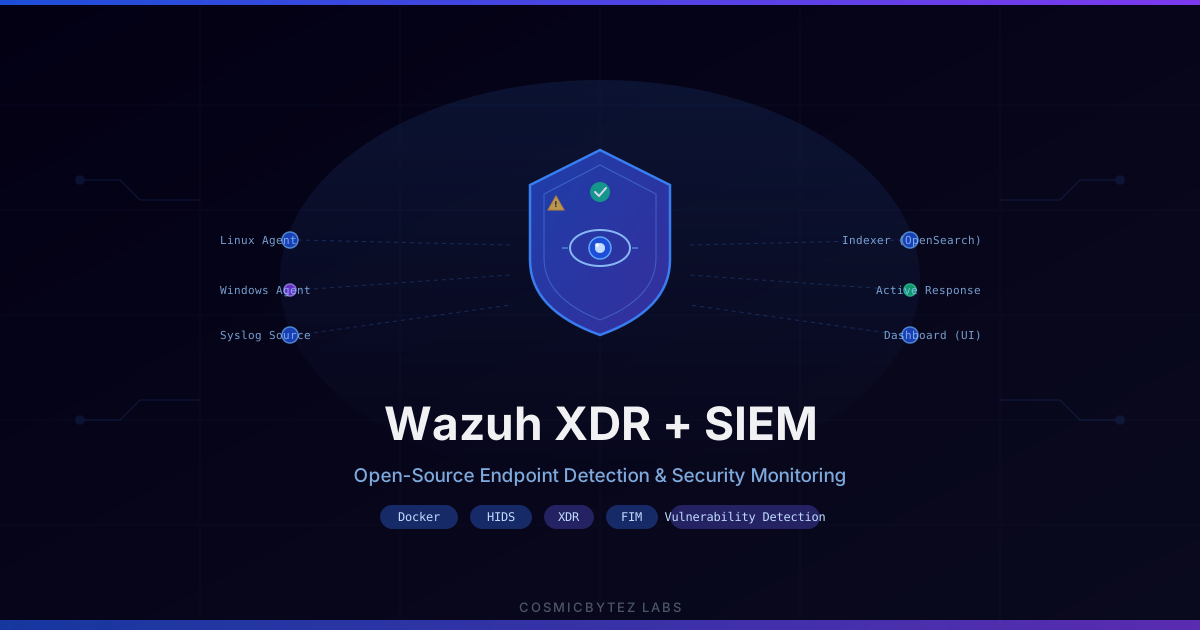
Wazuh is a free, open-source security platform that unifies Extended Detection and Response (XDR) and Security Information and Event Management (SIEM) capabilities into a single self-hostable stack. It monitors endpoints at the OS level — watching file changes, process execution, network connections, and log events — then correlates those signals against thousands of built-in rules to surface threats and compliance findings. Unlike pure log aggregators, Wazuh can also act: blocking brute-force IPs, quarantining processes, and running custom scripts when a rule fires.
For homelab operators, Wazuh fills the gap between "I have logs somewhere" and "I know what is actually happening on my infrastructure." Deploying an agent on each server gives you a real-time feed of file integrity violations, CVE exposure for every installed package, failed login storms, and suspicious process chains — all searchable in a polished OpenSearch Dashboards UI without any licence fees.
In this project you will:
- Deploy Wazuh Manager, Indexer, and Dashboard using the official single-node Docker Compose stack
- Install and enroll agents on both Linux and Windows hosts
- Configure File Integrity Monitoring (FIM) with real-time and
whodataattribution - Enable the Vulnerability Detection scanner across your endpoint fleet
- Wire up Active Response to automatically block SSH brute-force attempts
- Explore the security dashboard and tune alert noise for homelab use
Prerequisites:
- A Linux host with Docker and Docker Compose v2 installed
- At minimum 8 GB RAM free for the Wazuh stack (Indexer is memory-hungry)
- At least one additional Linux host or VM to install an agent (Windows optional)
- Basic comfort with Docker Compose and XML config files
Architecture
The Wazuh single-node stack runs three containerised services that communicate over an internal Docker network:
┌─────────────────────────────────────────────────────────────┐
│                     Docker Host (Wazuh Server)              │
│                                                             │
│  ┌──────────────────┐  9200  ┌──────────────────────────┐  │
│  │  wazuh.manager   │───────▶│    wazuh.indexer         │  │
│  │                  │        │  (OpenSearch data store)  │  │
│  │  Rule engine     │◀───────│                          │  │
│  │  Alert processor │        └──────────────────────────┘  │
│  │  API :55000      │              ▲                        │
│  └────────┬─────────┘              │                        │
│           │                 ┌──────┴───────────────────┐    │
│      1514/1515              │   wazuh.dashboard        │    │
│      (agent comms)          │  (OpenSearch Dashboards) │    │
│                             │   Web UI :443            │    │
│                             └──────────────────────────┘    │
└─────────────────────────────────────────────────────────────┘
         ▲                ▲                  ▲
         │                │                  │
  Linux Agent       Linux Agent       Windows Agent
  (wazuh-agent)    (wazuh-agent)     (wazuh-agent.msi)
  Port 1514 TCP    Port 1514 TCP     Port 1514 TCP
Data flow: Agents collect syscall events, log lines, package inventories, and file hashes, then ship them to the Manager on port 1514. The Manager processes events through a rule tree, generates alerts, and forwards indexed documents to the Indexer via Filebeat over port 9200. The Dashboard queries the Indexer to render all visualisations and lets operators drill into raw events, manage agents, and review compliance reports.
Step 1: Prepare the Host
The Wazuh Indexer is built on OpenSearch, which requires a large number of memory-mapped areas. Set this kernel parameter before starting the stack — skipping it is the single most common reason the indexer container fails to start.
# Apply immediately
sudo sysctl -w vm.max_map_count=262144

# Persist across reboots
echo "vm.max_map_count=262144" | sudo tee -a /etc/sysctl.conf
sudo sysctl -pVerify Docker and Compose are available:
docker --version
docker compose versionYou need Docker Compose v2 (the docker compose subcommand, not the legacy docker-compose binary). If you only have the legacy binary, update Docker Engine.
Step 2: Deploy the Wazuh Stack
Clone the official Wazuh Docker repository. Always pin to a release tag — the main branch sometimes references unreleased image versions that do not yet exist on Docker Hub.
git clone https://github.com/wazuh/wazuh-docker.git -b v4.9.2
cd wazuh-docker/single-nodeGenerate TLS certificates
All three Wazuh services communicate over mutual TLS. The official certificate generator container handles the full PKI chain automatically:
docker compose -f generate-indexer-certs.yml run --rm generatorWhen this completes, verify that config/wazuh_indexer_ssl_certs/ contains all nine expected certificate and key files:
ls config/wazuh_indexer_ssl_certs/
# Expected output:
# admin-key.pem      admin.pem
# root-ca.pem        root-ca-manager.pem
# wazuh.dashboard-key.pem  wazuh.dashboard.pem
# wazuh.indexer-key.pem    wazuh.indexer.pem
# wazuh.manager-key.pem wazuh.manager.pemIf any files are missing, re-run the generator — it sometimes exits silently on permission errors.
Start the stack
docker compose up -dThe first run downloads ~3 GB of images. After they start, the dashboard will log Failed to connect to Wazuh indexer port 9200 repeatedly — this is normal polling behaviour. Wait 60–90 seconds, then check service health:
docker compose psAll three services should show Up (healthy). If the indexer shows Up (unhealthy), the most likely cause is the vm.max_map_count kernel parameter not being set. Verify with sysctl vm.max_map_count and re-apply if needed.
Access the dashboard
Open https://<your-host-ip> in a browser. Accept the self-signed certificate warning and log in with the default credentials:
| Field | Default |
|---|---|
| Username | admin |
| Password | SecretPassword |
Change default passwords
The defaults must be changed before exposing any Wazuh ports beyond your local network. The process involves updating both docker-compose.yml and the indexer's internal user database.
1. Generate a bcrypt hash for your new password:
docker exec -it single-node-wazuh.indexer-1 \
  /usr/share/wazuh-indexer/plugins/opensearch-security/tools/hash.sh
# Enter your new password when prompted; copy the resulting hash2. Update config/wazuh_indexer/internal_users.yml — replace the hash: value under the admin entry with your new hash.
3. Update docker-compose.yml — change the INDEXER_PASSWORD and API_PASSWORD environment variables to match.
4. Restart the stack:
docker compose down && docker compose up -dNote: If your password contains a
$character, escape it as$$insidedocker-compose.ymlto prevent shell interpolation.
Step 3: Install and Enroll Agents
Agents handle all data collection on monitored endpoints. They communicate with the Manager over port 1514/TCP (log shipping) and port 1515/TCP (initial enrollment). Open these ports through any firewall sitting between your agents and the Wazuh host.
Linux agent (Ubuntu/Debian)
The environment variables set during package installation handle enrollment automatically:
# Import GPG key
curl -s https://packages.wazuh.com/key/GPG-KEY-WAZUH | \
  gpg --dearmor | sudo tee /etc/apt/trusted.gpg.d/wazuh.gpg > /dev/null

# Add repository
echo "deb https://packages.wazuh.com/4.x/apt/ stable main" | \
  sudo tee /etc/apt/sources.list.d/wazuh.list

# Install with manager address and agent name
sudo WAZUH_MANAGER="<WAZUH-HOST-IP>" \
     WAZUH_AGENT_NAME="$(hostname)" \
     apt-get update -q && \
     sudo WAZUH_MANAGER="<WAZUH-HOST-IP>" \
          WAZUH_AGENT_NAME="$(hostname)" \
          apt-get install -y wazuh-agent

# Enable and start
sudo systemctl daemon-reload
sudo systemctl enable --now wazuh-agentReplace <WAZUH-HOST-IP> with the IP or hostname of your Docker host. Verify the agent is running:
sudo systemctl status wazuh-agent
# Should show: Active: active (running)Linux agent (RHEL/CentOS/Fedora)
sudo rpm --import https://packages.wazuh.com/key/GPG-KEY-WAZUH

cat | sudo tee /etc/yum.repos.d/wazuh.repo << 'EOF'
[wazuh]
gpgcheck=1
gpgkey=https://packages.wazuh.com/key/GPG-KEY-WAZUH
enabled=1
name=EL-$releasever - Wazuh
baseurl=https://packages.wazuh.com/4.x/yum/
protect=1
EOF

sudo WAZUH_MANAGER="<WAZUH-HOST-IP>" \
     WAZUH_AGENT_NAME="$(hostname)" \
     yum install -y wazuh-agent

sudo systemctl daemon-reload
sudo systemctl enable --now wazuh-agentWindows agent (PowerShell)
Run the following in an elevated PowerShell session on the Windows host:
$WazuhManager = "<WAZUH-HOST-IP>"
$AgentName = $env:COMPUTERNAME

Invoke-WebRequest `
  -Uri "https://packages.wazuh.com/4.x/windows/wazuh-agent-4.9.2-1.msi" `
  -OutFile "$env:TEMP\wazuh-agent.msi"

msiexec /i "$env:TEMP\wazuh-agent.msi" /q `
  WAZUH_MANAGER="$WazuhManager" `
  WAZUH_AGENT_NAME="$AgentName" `
  WAZUH_REGISTRATION_SERVER="$WazuhManager"

Start-Service -Name WazuhSvc
Set-Service -Name WazuhSvc -StartupType AutomaticVerify agent enrollment
In the Wazuh Dashboard, navigate to Agents from the left sidebar. Enrolled agents appear within a minute of the service starting. Each agent card shows its OS, version, last keepalive timestamp, and current status (Active / Disconnected / Never Connected).
You can also query agent status directly from the Manager API:
curl -k -u wazuh-wui:MyS3cr3tP4ssw0rd! \
  "https://localhost:55000/agents?pretty=true&status=active" | \
python3 -m json.tool | grep -E '"name"|"status"'Organise agents into groups
Groups let you push a shared agent.conf to multiple endpoints, applying role-specific monitoring configuration without touching each host:
# Create groups
docker exec single-node-wazuh.manager-1 \
  /var/ossec/bin/agent_groups -a -g linux-servers -q

docker exec single-node-wazuh.manager-1 \
  /var/ossec/bin/agent_groups -a -g windows-hosts -q

# Assign agent ID 001 to linux-servers
docker exec single-node-wazuh.manager-1 \
/var/ossec/bin/agent_groups -a -i 001 -g linux-servers -qGroup-specific configuration lives at /var/ossec/etc/shared/<group>/agent.conf inside the Manager container.
Step 4: Configure File Integrity Monitoring
FIM tracks changes to files and directories, recording what changed, when, and — with whodata mode — which user and process made the modification. Edit the agent's ossec.conf directly on the endpoint or push a shared config via agent groups.
On Linux the config file is /var/ossec/etc/ossec.conf. A practical FIM block:
<syscheck>
  <disabled>no</disabled>
  <!-- Full scan interval: 12 hours -->
  <frequency>43200</frequency>
  <scan_on_start>yes</scan_on_start>

  <!-- /etc: real-time alerts + diff reporting -->
  <directories check_all="yes"
               report_changes="yes"
               realtime="yes">/etc</directories>

  <!-- Web root: who-did-what attribution (requires auditd) -->
  <directories check_all="yes"
               report_changes="yes"
               whodata="yes">/var/www/html</directories>

  <!-- Root home: real-time, no diff (large binary risk) -->
  <directories check_all="yes" realtime="yes">/root</directories>

  <!-- Ignore high-churn files that generate false positives -->
  <ignore>/etc/mtab</ignore>
  <ignore>/etc/resolv.conf</ignore>
  <ignore>/etc/mnttab</ignore>
  <ignore type="sregex">.log$|.tmp$|.swp$</ignore>
</syscheck>On Windows agents, use backslash paths:
<syscheck>
  <disabled>no</disabled>
  <frequency>43200</frequency>
  <scan_on_start>yes</scan_on_start>

  <directories check_all="yes" realtime="yes">
    C:\Users\Administrator\Documents
  </directories>
  <directories check_all="yes" realtime="yes">
    C:\Windows\System32\drivers\etc
  </directories>

  <ignore type="sregex">.log$|.tmp$</ignore>
</syscheck>FIM monitoring modes explained:
| Mode | Trigger | What it captures |
|---|---|---|
| Scheduled | Every frequency seconds | Hash + metadata diff |
realtime="yes" | inotify / ReadDirectoryChangesW | Immediate change alert |
whodata="yes" | Linux Audit daemon / Windows SACL | Change + user + PID |
To enable whodata on Linux, ensure auditd is running:
sudo systemctl enable --now auditdAfter updating agent config, restart the agent to pick up changes:
sudo systemctl restart wazuh-agentFIM alerts appear in the dashboard under Modules → Integrity monitoring. Each alert shows the previous and current file hash, permissions, owner, and — when whodata is on — the process name and user that triggered the change.
Step 5: Enable Vulnerability Detection
Wazuh's Vulnerability Detection module cross-references the package inventory collected by each agent's Syscollector wodle against NVD, Red Hat, Debian, Ubuntu, and Windows CVE feeds. It runs entirely server-side; agents just ship their installed package lists.
Verify the module is active in the Manager's ossec.conf (accessible inside the container):
docker exec single-node-wazuh.manager-1 \
grep -A 5 "vulnerability-detection" /var/ossec/etc/ossec.confThe default configuration should already include:
<vulnerability-detection>
  <enabled>yes</enabled>
  <index-status>yes</index-status>
  <feed-update-interval>60m</feed-update-interval>
</vulnerability-detection>Version note: Wazuh 4.8+ uses the
<vulnerability-detection>tag. Earlier versions used<vulnerability-detector>. If you are running 4.7 or below, update the tag name accordingly.
Confirm Syscollector is active on agents (it is on by default):
<wodle name="syscollector">
  <disabled>no</disabled>
  <interval>1h</interval>
  <scan_on_start>yes</scan_on_start>
  <packages>yes</packages>
  <os>yes</os>
  <processes>yes</processes>
  <ports all="no">yes</ports>
</wodle>After an initial scan (allow up to 60 minutes for the first CVE feed sync), navigate to Modules → Vulnerability detection in the dashboard. You will see a breakdown of vulnerable packages per agent, sorted by CVSS severity. Click any CVE to view the NVD description, affected versions, and remediation guidance.
Use the vulnerability view to prioritise patch cycles — filter to Critical and High findings, then sort by the number of affected agents to find the most impactful updates across your fleet.
Step 6: Configure Active Response
Active Response lets the Manager push automated remediation commands to agents when a rule fires. The built-in firewall-drop command uses iptables to temporarily block the offending IP. This is most useful against SSH brute-force attempts, which trigger rule ID 5763.
Edit the Manager's ossec.conf inside the container (or copy it out, edit, then copy back):
# Copy config out for editing
docker cp single-node-wazuh.manager-1:/var/ossec/etc/ossec.conf ./ossec.confAdd the following <active-response> blocks inside the <ossec_config> root element:
<!-- Block the source IP for 3 minutes on SSH brute-force (rule 5763) -->
<active-response>
  <disabled>no</disabled>
  <command>firewall-drop</command>
  <location>local</location>
  <rules_id>5763</rules_id>
  <timeout>180</timeout>
</active-response>

<!-- Escalating blocks for repeat offenders:
     1st repeat → 30 min, 2nd → 60 min, 3rd → 2 hours -->
<active-response>
  <disabled>no</disabled>
  <command>firewall-drop</command>
  <location>local</location>
  <rules_group>authentication_failed,authentication_failures</rules_group>
  <timeout>600</timeout>
  <repeated_offenders>30,60,120</repeated_offenders>
</active-response>
Copy the updated config back and restart the Manager service:
docker cp ./ossec.conf single-node-wazuh.manager-1:/var/ossec/etc/ossec.conf
docker compose restart wazuh.managerActive response events are logged at /var/ossec/logs/active-responses.log on each agent. You can tail this remotely via the Manager's log forwarding, or check it directly on Linux agents:
sudo tail -f /var/ossec/logs/active-responses.logA successful block looks like:
Thu Jun 3 14:22:11 UTC 2026 /var/ossec/active-response/bin/firewall-drop add - 203.0.113.47 1748959331.14823 5763
Step 7: Testing the Stack
Trigger a FIM alert
Create, modify, and delete a file in a monitored directory to verify FIM is working end-to-end:
# On the monitored agent
echo "test" | sudo tee /etc/wazuh-fim-test.txt
echo "modified" | sudo tee /etc/wazuh-fim-test.txt
sudo rm /etc/wazuh-fim-test.txtIn the Dashboard, navigate to Modules → Integrity monitoring → Events. You should see three alerts: added, modified, and deleted events for wazuh-fim-test.txt within 30 seconds if realtime mode is active.
Simulate a brute-force attempt
From a test machine, run a rapid series of failed SSH logins against an agent host:
# Deliberately use wrong passwords — adjust count to trigger rule 5763 (default: 8 failures)
for i in $(seq 1 12); do
  sshpass -p wrongpassword ssh -o StrictHostKeyChecking=no testuser@<AGENT-IP> 2>/dev/null
doneCheck the Dashboard under Modules → Security events, filtering for rule.id: 5763. If Active Response is configured, also verify the IP was blocked:
# On the agent host
sudo iptables -L INPUT -n | grep 203.0.113.47Check vulnerability scan results
After the first full Syscollector scan (may take up to an hour), query the Wazuh API directly:
curl -sk -u wazuh-wui:MyS3cr3tP4ssw0rd! \
  "https://localhost:55000/vulnerability/001?pretty=true&severity=critical&limit=5" | \
python3 -m json.toolReplace 001 with the numeric agent ID shown in the Dashboard. Critical CVEs with a CVSS score of 9.0 or above appear at the top of the results.
Tuning Alert Noise
A freshly deployed Wazuh stack will generate more alerts than you want to act on. The most effective homelab tuning steps:
1. Create a custom rules file at /var/ossec/etc/rules/local_rules.xml inside the Manager to suppress noisy rule IDs without modifying upstream rules:
<group name="local,syslog,">

  <!-- Suppress low-level package manager noise -->
  <rule id="100001" level="0">
    <if_sid>5402</if_sid>
    <description>Ignore cron sudo privilege escalation</description>
  </rule>

  <!-- Increase threshold for sshd auth failures before alerting -->
  <rule id="100002" level="10" frequency="20" timeframe="120">
    <if_matched_sid>5716</if_matched_sid>
    <same_source_ip/>
    <description>Multiple SSH auth failures (tuned threshold)</description>
  </rule>

</group>2. Whitelist trusted FIM paths that churn legitimately (certificates that auto-renew, runtime socket files, lock files):
<syscheck>
  <ignore>/etc/letsencrypt/renewal</ignore>
  <ignore type="sregex">\.sock$|\.pid$|\.lock$</ignore>
</syscheck>3. Review the rule level distribution in the Dashboard under Management → Statistics. Anything generating more than ~50 alerts per day at level 5 or below is worth investigating for suppression or frequency tuning.
Deployment Considerations
Persistent data: The docker-compose.yml defines named volumes for all Wazuh data. These survive docker compose down but are removed by docker compose down -v. Schedule regular volume backups for the indexer data volume — a full snapshot of wazuh-indexer-data is sufficient.
Resource allocation: The Indexer uses 1 GB JVM heap by default. On a host with limited RAM, edit the environment variable in docker-compose.yml:
wazuh.indexer:
  environment:
- "OPENSEARCH_JAVA_OPTS=-Xms512m -Xmx512m"Stay at or below half of available RAM to leave headroom for the OS and other containers.
Certificate rotation: The self-signed certificates generated during setup expire after a default validity period. Re-run generate-indexer-certs.yml annually and replace the files in config/wazuh_indexer_ssl_certs/, then restart the stack.
Reverse proxy with Traefik: If you are running Traefik (as in Traefik Reverse Proxy + Docker TLS), you can front the Wazuh Dashboard with a proper domain and Let's Encrypt certificate. Add the standard Traefik labels to the wazuh.dashboard service and remove the port 443 host binding from the compose file.
Extensions and Next Steps
Once the core stack is running and agents are enrolled, several extensions add significant depth:
Integrate with TheHive: TheHive is an incident response platform that pairs naturally with Wazuh. Configure a Wazuh integration script to automatically open a TheHive case whenever a Wazuh alert reaches level 10 or above. The custom-w2thehive.py integration is available in the Wazuh documentation.
Add a MISP connector: Feed Wazuh IP indicators from a MISP threat intelligence instance so that any agent connection to a known malicious IP triggers an immediate high-severity alert.
Enable CIS Benchmark compliance scanning: Wazuh ships with CIS benchmark policy files for Ubuntu, RHEL, Windows Server, and macOS. Enable them under Modules → Configuration Assessment per agent group and generate monthly compliance reports.
Ship Windows event logs: On Windows agents, expand log collection beyond the defaults to capture Security, Application, and PowerShell/Operational event channels:
<localfile>
  <location>Security</location>
  <log_format>eventchannel</log_format>
</localfile>
<localfile>
  <location>Microsoft-Windows-PowerShell/Operational</location>
  <log_format>eventchannel</log_format>
</localfile>Add YARA scanning to FIM: Wazuh's FIM module can trigger YARA scans on newly created or modified files, adding malware signature detection on top of hash-based integrity monitoring. Pair this with a regularly updated YARA rule set from open-source sources.
Forward alerts to Grafana: Wazuh writes structured JSON alerts to /var/ossec/logs/alerts/alerts.json. Promtail can tail this file and ship it to Loki for visualisation alongside your Prometheus metrics in Grafana, creating a unified observability and security dashboard.
Related Reading
- Runtime Security Monitoring with Falco — Kernel-level syscall monitoring that complements Wazuh's log-based detection
- CrowdSec Community IPS — Network-layer IP reputation blocking to pair with Wazuh Active Response
- Prometheus + Grafana Monitoring Stack — Infrastructure metrics layer to integrate with Wazuh security events
- Traefik Reverse Proxy + Docker TLS — Front the Wazuh Dashboard with a proper domain and trusted certificate