Introduction
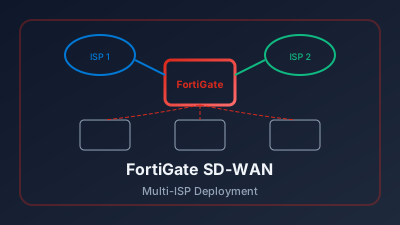
Software-Defined Wide Area Networking (SD-WAN) transforms how enterprises connect distributed sites by intelligently routing traffic across multiple WAN links based on application requirements and real-time performance metrics. This project implements a production-grade FortiGate SD-WAN solution featuring dual ISP redundancy, performance-based SLAs, application-aware routing, and Zero Trust Network Access (ZTNA).
What You'll Build
- Multi-WAN Architecture: Dual ISP with automatic failover and load balancing
- Performance SLAs: Health checks with latency, jitter, and packet loss thresholds
- Application Steering: Route applications based on business criticality
- ADVPN Overlay: Dynamic mesh VPN between SD-WAN sites
- Zero Trust Integration: ZTNA tags for granular access control
- Centralized Management: FortiManager orchestration for multi-site deployment
Who This Is For
- Network engineers implementing enterprise SD-WAN
- Security architects designing Zero Trust networks
- MSPs deploying managed SD-WAN services
- IT professionals modernizing branch connectivity
Prerequisites
Knowledge Requirements
- FortiGate firewall administration experience
- Understanding of routing protocols (BGP, OSPF)
- IPsec VPN configuration fundamentals
- Network addressing and subnetting
Infrastructure Requirements
- FortiGate appliance (60F or higher recommended)
- FortiOS 7.4 or later
- Two ISP connections (different providers recommended)
- FortiManager (optional, for multi-site management)
- FortiAnalyzer (optional, for analytics)
Network Planning
- Public IP addresses for both ISP connections
- Internal network addressing scheme
- VPN addressing for overlay networks
- Application identification requirements
Architecture Overview
┌─────────────────────────────────────────────────────────────────────────────┐
│                           ENTERPRISE SD-WAN ARCHITECTURE                     │
├─────────────────────────────────────────────────────────────────────────────┤
│                                                                              │
│   ┌─────────────────────────────────────────────────────────────────────┐   │
│   │                         INTERNET/MPLS                                │   │
│   │   ┌─────────────┐    ┌─────────────┐    ┌─────────────────────┐    │   │
│   │   │   ISP 1     │    │   ISP 2     │    │   MPLS Provider     │    │   │
│   │   │ (Primary)   │    │ (Secondary) │    │   (Optional)        │    │   │
│   │   └──────┬──────┘    └──────┬──────┘    └──────────┬──────────┘    │   │
│   └──────────┼──────────────────┼──────────────────────┼────────────────┘   │
│              │                  │                      │                     │
│              │    ADVPN Overlay (Hub-Spoke + Dynamic Mesh)                  │
│              │                  │                      │                     │
│   ┌──────────▼──────────────────▼──────────────────────▼────────────────┐   │
│   │                      FORTIGATE SD-WAN HUB                            │   │
│   │   ┌────────────────────────────────────────────────────────────┐    │   │
│   │   │  SD-WAN Zones    │  Performance SLAs  │  Application Rules  │    │   │
│   │   ├────────────────────────────────────────────────────────────┤    │   │
│   │   │  wan1 (ISP1)     │  Latency < 50ms    │  Voice → ISP1      │    │   │
│   │   │  wan2 (ISP2)     │  Jitter < 10ms     │  Video → Best SLA  │    │   │
│   │   │  overlay         │  Loss < 1%         │  Bulk → Load Bal   │    │   │
│   │   └────────────────────────────────────────────────────────────┘    │   │
│   └─────────────────────────────────┬───────────────────────────────────┘   │
│                                     │                                        │
│            ┌────────────────────────┼────────────────────────┐              │
│            │                        │                        │              │
│   ┌────────▼────────┐    ┌─────────▼─────────┐    ┌────────▼────────┐      │
│   │   Branch 1      │    │    Branch 2       │    │   Branch 3      │      │
│   │   FortiGate     │◄──►│    FortiGate      │◄──►│   FortiGate     │      │
│   │   60F           │    │    100F           │    │   60F           │      │
│   │   ┌──────────┐  │    │   ┌───────────┐   │    │  ┌──────────┐   │      │
│   │   │ ISP1│ISP2│  │    │   │ ISP1│ISP2 │   │    │  │ ISP1│ISP2│   │      │
│   │   └──────────┘  │    │   └───────────┘   │    │  └──────────┘   │      │
│   │   Users: 50     │    │   Users: 200      │    │  Users: 75      │      │
│   └─────────────────┘    └───────────────────┘    └─────────────────┘      │
│                                                                              │
│   ┌─────────────────────────────────────────────────────────────────────┐   │
│   │                        SD-WAN COMPONENTS                             │   │
│   │   ┌─────────────┐  ┌─────────────┐  ┌─────────────┐  ┌───────────┐  │   │
│   │   │ Health      │  │ Application │  │ Traffic     │  │ ZTNA      │  │   │
│   │   │ Checks      │  │ Steering    │  │ Shaping     │  │ Integration│  │   │
│   │   │ (SLA)       │  │ Rules       │  │ Policies    │  │           │  │   │
│   │   └─────────────┘  └─────────────┘  └─────────────┘  └───────────┘  │   │
│   └─────────────────────────────────────────────────────────────────────┘   │
└─────────────────────────────────────────────────────────────────────────────┘
Part 1: Initial FortiGate Configuration
1.1 Basic System Setup
Configure hostname, timezone, and administrative access:
config system global
    set hostname "FG-SDWAN-HUB"
    set timezone "America/New_York"
    set admin-https-ssl-versions tlsv1-2 tlsv1-3
    set admin-server-cert "Fortinet_Factory"
    set admintimeout 30
end

config system admin
    edit "admin"
        set accprofile "super_admin"
        set two-factor fortitoken
        set email-to "admin@yourdomain.com"
    next
end
1.2 Configure WAN Interfaces
Set up dual ISP connections with proper addressing:
# Primary ISP Interface (wan1)
config system interface
    edit "wan1"
        set vdom "root"
        set mode static
        set ip 203.0.113.2 255.255.255.252
        set allowaccess ping https ssh fgfm
        set type physical
        set alias "ISP1-Primary"
        set role wan
        set estimated-upstream-bandwidth 100000
        set estimated-downstream-bandwidth 100000
        set monitor-bandwidth enable
    next
end

# Secondary ISP Interface (wan2)
config system interface
    edit "wan2"
        set vdom "root"
        set mode static
        set ip 198.51.100.2 255.255.255.252
        set allowaccess ping https ssh
        set type physical
        set alias "ISP2-Secondary"
        set role wan
        set estimated-upstream-bandwidth 50000
        set estimated-downstream-bandwidth 50000
        set monitor-bandwidth enable
    next
end

# LAN Interface
config system interface
    edit "lan"
        set vdom "root"
        set ip 10.1.0.1 255.255.255.0
        set allowaccess ping https ssh
        set type physical
        set alias "Internal-LAN"
        set role lan
        set device-identification enable
    next
end
1.3 Configure Default Routes
Set up static routes for both ISPs with different distances:
config router static
    edit 1
        set gateway 203.0.113.1
        set device "wan1"
        set comment "Primary ISP Default Route"
        set sdwan-zone "virtual-wan-link"
    next
    edit 2
        set gateway 198.51.100.1
        set device "wan2"
        set comment "Secondary ISP Default Route"
        set sdwan-zone "virtual-wan-link"
    next
end
Part 2: SD-WAN Zone Configuration
2.1 Create SD-WAN Zones
Define logical zones for SD-WAN member grouping:
config system sdwan
    set status enable
    config zone
        edit "virtual-wan-link"
            set service-sla-tie-break cfg-order
        next
        edit "overlay"
            set service-sla-tie-break fib-best-match
        next
        edit "underlay"
        next
    end
end
2.2 Add SD-WAN Members
Configure WAN interfaces as SD-WAN members with costs and priorities:
config system sdwan
    config members
        edit 1
            set interface "wan1"
            set zone "virtual-wan-link"
            set gateway 203.0.113.1
            set cost 0
            set priority 1
            set source 203.0.113.2
            set status enable
            set comment "Primary ISP - Low Latency"
        next
        edit 2
            set interface "wan2"
            set zone "virtual-wan-link"
            set gateway 198.51.100.1
            set cost 10
            set priority 10
            set source 198.51.100.2
            set status enable
            set comment "Secondary ISP - Backup"
        next
    end
end
Part 3: Performance SLA Configuration
3.1 Health Check Servers
Configure health check targets for SLA monitoring:
config system sdwan
    config health-check
        edit "Google-DNS"
            set server "8.8.8.8" "8.8.4.4"
            set protocol ping
            set interval 500
            set failtime 5
            set recoverytime 5
            set probe-timeout 1000
            set probe-count 3
            config sla
                edit 1
                    set latency-threshold 50
                    set jitter-threshold 10
                    set packetloss-threshold 1
                    set priority-in-sla 1
                    set priority-out-sla 5
                next
            end
            set members 1 2
        next
        edit "Microsoft-365"
            set server "outlook.office365.com"
            set protocol https
            set port 443
            set interval 1000
            set failtime 3
            set recoverytime 3
            config sla
                edit 1
                    set latency-threshold 100
                    set jitter-threshold 30
                    set packetloss-threshold 2
                next
            end
            set members 1 2
        next
        edit "Voice-SLA"
            set server "sip.provider.com"
            set protocol ping
            set interval 200
            set failtime 3
            set recoverytime 3
            config sla
                edit 1
                    set latency-threshold 30
                    set jitter-threshold 5
                    set packetloss-threshold 0
                next
            end
            set members 1 2
        next
        edit "Datacenter-Check"
            set server "10.100.0.1"
            set protocol ping
            set interval 500
            set failtime 3
            set recoverytime 3
            config sla
                edit 1
                    set latency-threshold 20
                    set jitter-threshold 5
                    set packetloss-threshold 0
                next
            end
            set members 1 2
        next
    end
end
3.2 SLA Target Definitions
Define SLA criteria for different application types:
| SLA Profile | Latency | Jitter | Packet Loss | Use Case |
|---|---|---|---|---|
| Voice-SLA | < 30ms | < 5ms | 0% | VoIP, Video |
| Business-Critical | < 50ms | < 10ms | < 1% | ERP, CRM |
| Standard | < 100ms | < 30ms | < 2% | Web, Email |
| Bulk-Transfer | < 200ms | < 50ms | < 5% | Backup, FTP |
Part 4: Application Steering Rules
4.1 Application Categories
Configure ISDB application categories for steering:
config system sdwan
    config service
        # Voice/Video Applications - Require Low Latency
        edit 1
            set name "Voice-Video-Priority"
            set mode sla
            set dst-negate disable
            set src-negate disable
            set users ""
            set groups ""
            set internet-service enable
            set internet-service-app-ctrl-group "VoIP" "Video/Audio"
            config sla
                edit "Voice-SLA"
                next
            end
            set priority-members 1
            set status enable
        next

        # Microsoft 365 Applications
        edit 2
            set name "Microsoft-365"
            set mode sla
            set internet-service enable
            set internet-service-name "Microsoft-Office365"
            config sla
                edit "Microsoft-365"
                next
            end
            set priority-members 1 2
            set status enable
        next

        # Business Critical Applications
        edit 3
            set name "Business-Critical"
            set mode sla
            set internet-service enable
            set internet-service-app-ctrl 16354 16355 16356
            config sla
                edit "Google-DNS"
                next
            end
            set priority-members 1
            set status enable
        next

        # Bulk Transfer - Load Balance
        edit 4
            set name "Bulk-Data"
            set mode load-balance
            set internet-service enable
            set internet-service-app-ctrl-group "File Sharing" "Storage Backup"
            set status enable
        next

        # Default Rule - Best Quality
        edit 100
            set name "Default-Best-Quality"
            set mode sla
            set dst "all"
            config sla
                edit "Google-DNS"
                next
            end
            set priority-members 1 2
            set status enable
        next
    end
end
4.2 Custom Application Definitions
Create custom application definitions for internal services:
config application custom
    edit "Internal-ERP"
        set protocol tcp
        set comment "SAP/Oracle ERP Application"
        set category 25
        set technology client-server
        set behavior "business-critical"
        set vendor "Custom"
        config entries
            edit 1
                set target-ips "10.100.10.0/24"
                set port-ranges 3200-3299 8000-8099
            next
        end
    next
    edit "Internal-VoIP"
        set protocol udp
        set comment "Internal SIP/RTP"
        set category 5
        set technology voip
        set behavior voice
        set vendor "Custom"
        config entries
            edit 1
                set target-ips "10.100.20.0/24"
                set port-ranges 5060-5061 10000-20000
            next
        end
    next
end
Part 5: ADVPN Overlay Configuration
5.1 Hub IPsec Configuration
Configure the hub for ADVPN with shortcut paths:
# IPsec Phase 1 for ADVPN Hub
config vpn ipsec phase1-interface
    edit "ADVPN-Hub"
        set type dynamic
        set interface "wan1"
        set ike-version 2
        set peertype any
        set net-device enable
        set mode-cfg enable
        set proposal aes256-sha256 aes256gcm-prfsha384
        set add-route disable
        set dpd on-idle
        set auto-discovery-sender enable
        set auto-discovery-receiver enable
        set auto-discovery-forwarder enable
        set network-overlay enable
        set network-id 1
        set psksecret ENC[your-encrypted-psk]
        set ipv4-start-ip 10.255.1.2
        set ipv4-end-ip 10.255.1.254
        set ipv4-netmask 255.255.255.0
        set dns-mode auto
        set save-password enable
    next
end

# IPsec Phase 2
config vpn ipsec phase2-interface
    edit "ADVPN-Hub-P2"
        set phase1name "ADVPN-Hub"
        set proposal aes256-sha256 aes256gcm
        set pfs enable
        set dhgrp 14
        set auto-negotiate enable
        set keylifeseconds 28800
    next
end
5.2 Branch/Spoke Configuration
Configure spoke FortiGate for ADVPN:
# IPsec Phase 1 for ADVPN Spoke
config vpn ipsec phase1-interface
    edit "ADVPN-to-Hub"
        set interface "wan1"
        set ike-version 2
        set peertype any
        set net-device enable
        set mode-cfg enable
        set mode-cfg-allow-client-selector enable
        set proposal aes256-sha256 aes256gcm-prfsha384
        set add-route disable
        set dpd on-idle
        set auto-discovery-sender enable
        set auto-discovery-receiver enable
        set auto-discovery-shortcuts dependent
        set network-overlay enable
        set network-id 1
        set remote-gw 203.0.113.2
        set psksecret ENC[your-encrypted-psk]
    next
end

# Phase 2
config vpn ipsec phase2-interface
    edit "ADVPN-to-Hub-P2"
        set phase1name "ADVPN-to-Hub"
        set proposal aes256-sha256 aes256gcm
        set pfs enable
        set dhgrp 14
        set auto-negotiate enable
    next
end
5.3 Add Overlay to SD-WAN
Include VPN overlay as SD-WAN member:
config system sdwan
    config members
        edit 3
            set interface "ADVPN-Hub"
            set zone "overlay"
            set priority 5
            set source 0.0.0.0
            set status enable
            set comment "ADVPN Overlay Network"
        next
    end
end
Part 6: BGP Over SD-WAN
6.1 Configure BGP for Hub
Set up BGP with dynamic neighbors for spokes:
config router bgp
    set as 65001
    set router-id 10.255.1.1
    set ebgp-multipath enable
    set ibgp-multipath enable
    set graceful-restart enable
    set additional-path enable
    set additional-path-select 4

    config neighbor-group
        edit "ADVPN-Spokes"
            set soft-reconfiguration enable
            set capability-graceful-restart enable
            set advertisement-interval 1
            set link-down-failover enable
            set remote-as 65001
            set route-reflector-client enable
        next
    end

    config neighbor-range
        edit 1
            set prefix 10.255.1.0 255.255.255.0
            set neighbor-group "ADVPN-Spokes"
        next
    end

    config network
        edit 1
            set prefix 10.1.0.0 255.255.255.0
        next
        edit 2
            set prefix 10.100.0.0 255.255.0.0
        next
    end

    config redistribute "connected"
        set status enable
    end
end
6.2 Configure BGP for Spoke
config router bgp
    set as 65001
    set router-id 10.255.1.10
    set ibgp-multipath enable
    set graceful-restart enable

    config neighbor
        edit "10.255.1.1"
            set soft-reconfiguration enable
            set capability-graceful-restart enable
            set remote-as 65001
            set connect-timer 10
        next
    end

    config network
        edit 1
            set prefix 10.2.0.0 255.255.255.0
        next
    end
end
Part 7: Zero Trust Integration
7.1 Configure ZTNA Tags
Create ZTNA tags for device posture:
config user device-group
    edit "Corporate-Devices"
        set member "Windows-Domain" "MacOS-Managed" "iOS-MDM"
    next
    edit "BYOD-Devices"
        set member "Personal-Windows" "Personal-Mac" "Android-Personal"
    next
end

config endpoint-control fctems
    edit "FortiClient-EMS"
        set server "ems.yourdomain.com"
        set https-port 443
        set serial-number "FCTEMS1234567890"
        set certificate "Fortinet_Factory"
        set source-ip 10.1.0.1
        set pull-sysinfo enable
        set pull-vulnerabilities enable
        set pull-avatars enable
        set pull-tags enable
        set pull-malware-hash enable
    next
end

config firewall address
    edit "ZTNA-Compliant-Devices"
        set type dynamic
        set sub-type ems-tag
        set sdn "FortiClient-EMS"
        set filter "EMS-TAG.ZTNA_COMPLIANCE_LOW_RISK"
    next
    edit "ZTNA-High-Risk-Devices"
        set type dynamic
        set sub-type ems-tag
        set sdn "FortiClient-EMS"
        set filter "EMS-TAG.ZTNA_COMPLIANCE_HIGH_RISK"
    next
end
7.2 ZTNA Access Proxy
Configure ZTNA access proxy for zero trust access:
config firewall access-proxy
    edit "ZTNA-Proxy"
        set vip "ZTNA-VIP"
        set client-cert enable
        config api-gateway
            edit 1
                set url-map "/erp"
                set service "HTTP"
                config realservers
                    edit 1
                        set address "Internal-ERP-Server"
                        set port 8080
                        set health-check enable
                        set health-check-proto http
                    next
                end
                set ssl-dh-bits 2048
                set ssl-min-version tls-1.2
            next
            edit 2
                set url-map "/intranet"
                set service "HTTPS"
                config realservers
                    edit 1
                        set address "Intranet-Server"
                        set port 443
                    next
                end
            next
        end
    next
end
7.3 ZTNA Firewall Policies
config firewall policy
    edit 100
        set name "ZTNA-Compliant-to-ERP"
        set srcintf "ZTNA-Proxy"
        set dstintf "lan"
        set action accept
        set srcaddr "ZTNA-Compliant-Devices"
        set dstaddr "Internal-ERP-Server"
        set schedule "always"
        set service "HTTP" "HTTPS"
        set utm-status enable
        set ssl-ssh-profile "certificate-inspection"
        set application-list "default"
        set logtraffic all
    next
    edit 101
        set name "ZTNA-HighRisk-Block"
        set srcintf "ZTNA-Proxy"
        set dstintf "lan"
        set action deny
        set srcaddr "ZTNA-High-Risk-Devices"
        set dstaddr "all"
        set schedule "always"
        set service "ALL"
        set logtraffic all
    next
end
Part 8: Traffic Shaping
8.1 Configure Traffic Shapers
Create traffic shapers for QoS:
config firewall shaper traffic-shaper
    edit "Voice-Priority"
        set guaranteed-bandwidth 10000
        set maximum-bandwidth 20000
        set bandwidth-unit kbps
        set priority high
        set per-policy enable
    next
    edit "Video-Conference"
        set guaranteed-bandwidth 25000
        set maximum-bandwidth 50000
        set bandwidth-unit kbps
        set priority medium
        set per-policy enable
    next
    edit "Business-Apps"
        set guaranteed-bandwidth 20000
        set maximum-bandwidth 80000
        set bandwidth-unit kbps
        set priority medium
        set per-policy enable
    next
    edit "Best-Effort"
        set maximum-bandwidth 50000
        set bandwidth-unit kbps
        set priority low
        set per-policy enable
    next
end
8.2 Apply Shaping Policies
config firewall shaping-policy
    edit 1
        set name "Shape-Voice"
        set service "SIP" "H323"
        set dstintf "virtual-wan-link"
        set traffic-shaper "Voice-Priority"
        set traffic-shaper-reverse "Voice-Priority"
        set srcaddr "all"
        set dstaddr "all"
        set internet-service enable
        set internet-service-src enable
    next
    edit 2
        set name "Shape-Video"
        set service "ALL"
        set application 16384 16385 16386
        set dstintf "virtual-wan-link"
        set traffic-shaper "Video-Conference"
        set traffic-shaper-reverse "Video-Conference"
        set srcaddr "all"
        set dstaddr "all"
    next
    edit 3
        set name "Shape-Default"
        set service "ALL"
        set dstintf "virtual-wan-link"
        set traffic-shaper "Best-Effort"
        set srcaddr "all"
        set dstaddr "all"
    next
end
Part 9: FortiManager Integration
9.1 Register FortiGate with FortiManager
config system central-management
    set type fortimanager
    set fmg "fmg.yourdomain.com"
    set fmg-source-ip 10.1.0.1
    config server-list
        edit 1
            set server-type update rating
            set server-address "fmg.yourdomain.com"
        next
    end
    set include-default-servers enable
    set mode normal
    set schedule-config-restore enable
    set schedule-script-restore enable
end

execute central-mgmt register-device FMGSERIAL admin Admin123!
9.2 SD-WAN Template (FortiManager)
Create SD-WAN templates in FortiManager for multi-site deployment:
{
  "name": "SDWAN-Branch-Template",
  "type": "sdwan",
  "scope member": ["Branch-FGT-*"],
  "settings": {
    "zone": {
      "virtual-wan-link": {
        "service-sla-tie-break": "cfg-order"
      }
    },
    "members": {
      "1": {
        "interface": "$(wan1_interface)",
        "gateway": "$(wan1_gateway)",
        "priority": 1
      },
      "2": {
        "interface": "$(wan2_interface)",
        "gateway": "$(wan2_gateway)",
        "priority": 10
      }
    },
    "health-check": "template-health-checks",
    "service": "template-sdwan-rules"
  }
}Part 10: Monitoring and Troubleshooting
10.1 SD-WAN Status Commands
# View SD-WAN member status
diagnose sys sdwan member

# View health check status
diagnose sys sdwan health-check

# View SD-WAN service status
diagnose sys sdwan service

# View SD-WAN usage statistics
diagnose sys sdwan intf-sla-log <member-id>

# Real-time SLA monitoring
diagnose sys sdwan meter10.2 Performance Metrics Dashboard
Create custom dashboard widgets:
config system admin
    edit "admin"
        config dashboard-tabs
            edit 1
                set name "SD-WAN Overview"
                config dashboard
                    edit 1
                        set widget-type sdwan-performance
                        set x-pos 0
                        set y-pos 0
                        set width 6
                        set height 4
                    next
                    edit 2
                        set widget-type sdwan-member
                        set x-pos 6
                        set y-pos 0
                        set width 6
                        set height 4
                    next
                    edit 3
                        set widget-type sdwan-health-check
                        set x-pos 0
                        set y-pos 4
                        set width 12
                        set height 4
                    next
                end
            next
        end
    next
end
10.3 Alerting Configuration
Configure SNMP and email alerts:
config system snmp sysinfo
    set status enable
    set description "FortiGate SD-WAN Hub"
    set contact-info "noc@yourdomain.com"
    set location "Primary Datacenter"
end

config system snmp community
    edit 1
        set name "sdwan-monitor"
        config hosts
            edit 1
                set ip 10.100.50.10 255.255.255.255
            next
        end
        set query-v2c-status enable
        set trap-v2c-status enable
    next
end

config alertemail setting
    set username "alerts@yourdomain.com"
    set mailto1 "noc@yourdomain.com"
    set filter-mode category
    set sdwan-status enable
    set vpn-alert enable
end
Part 11: Verification and Testing
11.1 SD-WAN Functionality Tests
# Test 1: Verify member status
FG-SDWAN-HUB # diagnose sys sdwan member
Member(1): interface: wan1, gateway: 203.0.113.1, priority: 1, weight: 0
    Status: alive, uptime: 1d 5h 32m
    Probed: 123456, Success: 123450, Loss: 0.00%
Member(2): interface: wan2, gateway: 198.51.100.1, priority: 10, weight: 0
    Status: alive, uptime: 1d 5h 32m
    Probed: 123456, Success: 123400, Loss: 0.05%

# Test 2: Verify health checks
FG-SDWAN-HUB # diagnose sys sdwan health-check
Health Check(Google-DNS):
    Seq(1): state(alive), ...latency(8.234ms), jitter(0.532ms), loss(0.00%)
    Seq(2): state(alive), ...latency(12.456ms), jitter(0.845ms), loss(0.00%)

# Test 3: Verify service rules
FG-SDWAN-HUB # diagnose sys sdwan service
Service(1): name: Voice-Video-Priority
    Members: 1
Hit count: 4582311.2 Failover Testing
# Simulate WAN1 failure
diagnose sys sdwan member 1 action down

# Verify traffic shifts to WAN2
diagnose sys sdwan service
diagnose netlink interface list

# Restore WAN1
diagnose sys sdwan member 1 action up

# Verify traffic returns based on SLA11.3 Application Steering Verification
# Check application routing decision
diagnose sys sdwan internet-service-match <ip> <port> <protocol>

# View real-time traffic distribution
diagnose sys session filter dport 443
diagnose sys session listTroubleshooting
Common Issues and Solutions
| Issue | Symptoms | Resolution |
|---|---|---|
| Health check failing | SLA not met, traffic not steering | Verify network path, adjust thresholds |
| Asymmetric routing | Session drops, TCP resets | Enable preserve-session-route |
| VPN tunnel flapping | Intermittent connectivity | Check DPD settings, NAT-T |
| Application misidentification | Wrong steering decisions | Update ISDB, create custom apps |
| BGP not converging | Routes not propagating | Check neighbor config, timers |
Debug Commands
# SD-WAN debug
diagnose debug application sdwan -1
diagnose debug enable

# IPsec debug
diagnose vpn ike log-filter dst-addr4 <peer-ip>
diagnose debug app ike -1
diagnose debug enable

# BGP debug
diagnose ip router bgp level info
diagnose ip router bgp all enableSecurity Considerations
Best Practices
- Encryption: Use AES-256-GCM for all VPN tunnels
- Authentication: Implement certificate-based authentication for ADVPN
- Segmentation: Use VDOMs to separate management and data planes
- Logging: Enable comprehensive logging to FortiAnalyzer
- Access Control: Implement least-privilege for administrative access
- Updates: Keep FortiOS and ISDB signatures current
Compliance Alignment
- PCI-DSS: Encrypt cardholder data in transit
- HIPAA: Protect PHI with strong encryption
- SOC 2: Implement comprehensive logging and monitoring
Next Steps
After completing this SD-WAN deployment:
- FortiAnalyzer Integration: Deploy comprehensive logging and analytics
- SASE Extension: Add FortiSASE for remote user security
- Advanced Threat Protection: Enable FortiGuard ATP services
- Automation: Implement SD-WAN orchestration with FortiManager