Overview
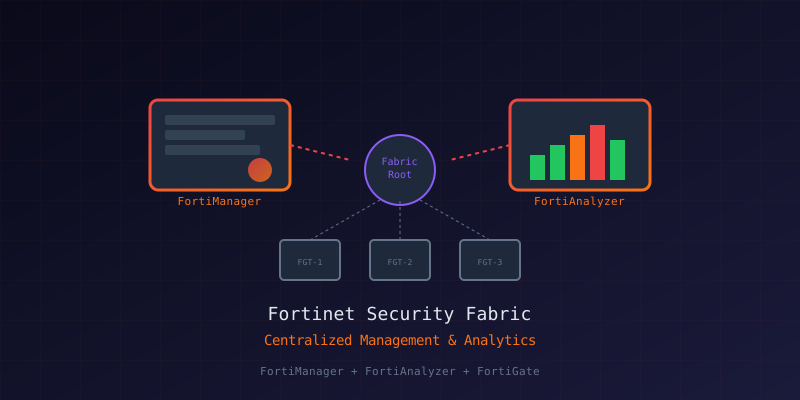
Managing multiple FortiGate firewalls individually doesn't scale. This project deploys FortiManager for centralized configuration management and FortiAnalyzer for logging, analytics, and compliance reporting - following Fortinet's best practices for enterprise deployments.
What You'll Build
- FortiManager VM for centralized policy management
- FortiAnalyzer VM for log aggregation and SIEM integration
- Security Fabric connectivity between all devices
- Automated baseline tracking and compliance reporting
- Configuration backup and revision control
Architecture
┌───────────────────────────────────────────────────────────────────┐
│                    Fortinet Security Fabric                       │
├───────────────────────────────────────────────────────────────────┤
│                                                                   │
│  ┌──────────────┐       ┌──────────────┐       ┌──────────────┐  │
│  │ FortiManager │◄─────►│ Fabric Root  │◄─────►│FortiAnalyzer │  │
│  │   (Config)   │       │  (FortiGate) │       │   (Logs)     │  │
│  └──────────────┘       └──────────────┘       └──────────────┘  │
│         │                      │                      │          │
│         ▼                      ▼                      ▼          │
│  ┌───────────────────────────────────────────────────────────┐   │
│  │              Managed FortiGate Devices                    │   │
│  │   [Branch-1]    [Branch-2]    [DC-FW]    [Remote-1]       │   │
│  └───────────────────────────────────────────────────────────┘   │
│                                                                   │
└───────────────────────────────────────────────────────────────────┘Prerequisites
Hardware Requirements
| Component | Minimum | Recommended |
|---|---|---|
| FortiManager VM | 4 vCPU, 8GB RAM, 500GB | 8 vCPU, 16GB RAM, 1TB |
| FortiAnalyzer VM | 4 vCPU, 16GB RAM, 2TB | 8 vCPU, 32GB RAM, 4TB+ |
| Network | 1 Gbps | 10 Gbps |
Licensing
- FortiManager: Per-device licensing (10/100/1000 devices)
- FortiAnalyzer: Per-GB/day log ingestion or device count
- FortiCare support contract for updates
Part 1: FortiManager VM Deployment
Step 1: Download and Deploy OVA
- Download FortiManager VM from Fortinet Support
- Deploy OVA to your hypervisor (VMware/Hyper-V/KVM)
# VMware CLI deployment
ovftool --name="FortiManager" \
        --network="Management" \
        --datastore="SSD-Datastore" \
        --diskMode=thin \
        FMG_VM64_KVM-v7.4.3-build2573-FORTINET.out.kvm.zip \
vi://vcenter.local/DC/host/clusterStep 2: Initial Configuration
Connect via console and configure basic settings:
# Set admin password
config system admin
    edit admin
        set password <strong-password>
    next
end

# Configure management interface
config system interface
    edit port1
        set ip 10.0.1.10/24
        set allowaccess ping https ssh
    next
end

# Set default gateway
config system route
    edit 1
        set dst 0.0.0.0/0
        set gateway 10.0.1.1
        set device port1
    next
end

# Set hostname and DNS
config system global
    set hostname "FMG-PRIMARY"
end

config system dns
    set primary 10.0.1.2
    set secondary 8.8.8.8
end
Step 3: Configure ADOMs (Administrative Domains)
ADOMs provide multi-tenancy and logical separation:
config system global
    set adom-status enable
    set adom-mode advanced
end

# Create ADOMs for different environments
config system adom
    edit "Production"
        set desc "Production FortiGates"
        set mode normal
    next
    edit "Development"
        set desc "Dev/Test FortiGates"
        set mode normal
    next
end
Step 4: Add FortiGate Devices
Option A: From FortiManager GUI
- Device Manager > Add Device
- Enter FortiGate IP and credentials
- Select ADOM assignment
Option B: From FortiGate CLI
# On each FortiGate
config system central-management
    set type fortimanager
    set fmg 10.0.1.10
    set serial-number <FMG-Serial>
end

execute central-mgmt register-device <FMG-Serial> <admin-password>
Part 2: FortiAnalyzer VM Deployment
Step 1: Deploy FortiAnalyzer VM
# Similar OVA deployment
ovftool --name="FortiAnalyzer" \
        --network="Management" \
        --datastore="HDD-Datastore" \
        --diskMode=thin \
        FAZ_VM64_KVM-v7.4.3-build2573-FORTINET.out.kvm.zip \
vi://vcenter.local/DC/host/clusterStep 2: Initial Configuration
# Basic network configuration
config system interface
    edit port1
        set ip 10.0.1.11/24
        set allowaccess ping https ssh
    next
end

config system route
    edit 1
        set dst 0.0.0.0/0
        set gateway 10.0.1.1
        set device port1
    next
end

config system global
    set hostname "FAZ-PRIMARY"
    set timezone "America/New_York"
end
Step 3: Configure Log Storage
# Configure disk allocation
config system fortiview setting
    set resolve-ip enable
    set resolve-hostname enable
end

# Configure log settings
config system log settings
    set fac-custom-field1 enable
    set log-checksum enable
    set rolling-regular-time 00:00
    set rolling-regular-days sunday
end

# Set retention policy
config system sql
    set status enable
    set max-db-size 500
    set compress-table-min-age 7
end
Step 4: Register FortiGates for Logging
From FortiGate:
config log fortianalyzer setting
    set status enable
    set server 10.0.1.11
    set upload-option realtime
    set reliable enable
    set enc-algorithm high
end

# Test connectivity
execute log fortianalyzer test-connectivity
Part 3: Security Fabric Integration
Enable Security Fabric on Root FortiGate
config system csf
    set status enable
    set group-name "Corporate-Fabric"
    set group-password <fabric-password>
    set configuration-sync default
    set fabric-object-unification default
    set fortianalyzer-access enable
end
Add Downstream FortiGates
# On downstream FortiGate
config system csf
    set status enable
    set upstream-ip 10.0.1.1
    set upstream-port 8013
end
Verify Fabric Status
# On root FortiGate
diagnose sys csf upstream
diagnose sys csf downstream

# Expected output
Upstream: none (this is root)
Downstream:
  Serial: FGT-BRANCH1, IP: 10.0.2.1, Status: Authorized
  Serial: FGT-BRANCH2, IP: 10.0.3.1, Status: Authorized
Part 4: Baseline Configuration & Compliance
Create Configuration Baselines in FortiManager
- Policy Packages: Create standard policy templates
- Object Templates: Define reusable address/service objects
- SD-WAN Templates: Standardize SD-WAN configurations
- Security Profiles: Create baseline AV/IPS/Web Filter profiles
Baseline Policy Package Example
# In FortiManager, create a baseline package
config firewall policy
    edit 1
        set name "Default-Deny-Logging"
        set srcintf "any"
        set dstintf "any"
        set srcaddr "all"
        set dstaddr "all"
        set action deny
        set schedule "always"
        set logtraffic all
        set comments "Baseline: Deny all with logging"
    next
end
Revision Control
FortiManager automatically tracks all configuration changes:
# View revision history
config revision
    show full
end

# Compare revisions
diagnose dvm device compare <device-name> <rev1> <rev2>

# Rollback to previous revision
execute revision revert <device-name> <revision-id>
Part 5: Reporting & Automation
FortiAnalyzer Report Templates
Built-in Reports:
- Security Events Summary
- Top Threats by Device
- Bandwidth Utilization
- VPN Usage Statistics
- Compliance Status
Custom Report Creation:
- Reports > Report Definitions > Create New
- Select data sources (logs, events)
- Add charts and tables
- Schedule automated generation
Automated Compliance Checks
# FortiManager automation script
config system auto-script
    edit "compliance-check"
        set script "
            # Check for required security profiles
            config firewall policy
                get | grep av-profile
                get | grep webfilter-profile
                get | grep ips-sensor
            end
        "
        set schedule daily
        set output-size 10240
    next
end
Log Forwarding to SIEM
# Forward to external SIEM (Splunk/ELK)
config system log-forward
    edit 1
        set mode forward
        set fwd-server-type syslog
        set server-name "SIEM-Server"
        set server-addr 10.0.1.50
        set server-port 514
        set fwd-facility local7
        set log-field-exclusion disable
    next
end
Part 6: Best Practices
FortiManager Best Practices
| Practice | Configuration |
|---|---|
| Enable ADOM mode | Multi-tenancy isolation |
| Use policy packages | Consistent deployments |
| Enable workflow approval | Change control |
| Schedule backups | Daily config backups |
| Use scripts | Automation of repetitive tasks |
| Limit admin access | Role-based access control |
FortiAnalyzer Best Practices
| Practice | Configuration |
|---|---|
| Size storage properly | 90 days minimum retention |
| Enable log integrity | Hash verification |
| Configure alerts | Threshold-based notifications |
| Use log forwarding | SIEM integration |
| Schedule reports | Weekly/monthly compliance |
| Archive old logs | Compress after 30 days |
Security Fabric Best Practices
| Practice | Reason |
|---|---|
| Use dedicated management VLAN | Isolate management traffic |
| Enable fabric encryption | Secure inter-device communication |
| Synchronize time (NTP) | Accurate log correlation |
| Regular firmware updates | Security patches |
| Monitor fabric health | Proactive issue detection |
Maintenance Tasks
Daily
- Review FortiAnalyzer alerts dashboard
- Check fabric connectivity status
- Verify log ingestion rates
Weekly
- Review compliance reports
- Check storage utilization
- Audit admin access logs
Monthly
- Apply firmware updates (test first)
- Review and update policy baselines
- Archive old logs to cold storage
- Test disaster recovery procedures
Troubleshooting
FortiManager Not Receiving Configs
# On FortiGate
diagnose debug application fgfmd -1
diagnose debug enable

# Check FGFM tunnel status
get system central-management
diagnose sys fgfm status
FortiAnalyzer Not Receiving Logs
# On FortiGate
diagnose log fortianalyzer connection-status

# On FortiAnalyzer
diagnose dvm device list
diagnose log device state
Fabric Connectivity Issues
# Check CSF status
diagnose sys csf status

# Verify ports are open (TCP 8013, 8014)
diagnose sniffer packet any "port 8013 or port 8014" 4
Related Guides
- FortiGate Firewall Policy Management
- FortiGate SSL VPN Setup
- SentinelOne Threat Hunting
- Building a Secure Homelab