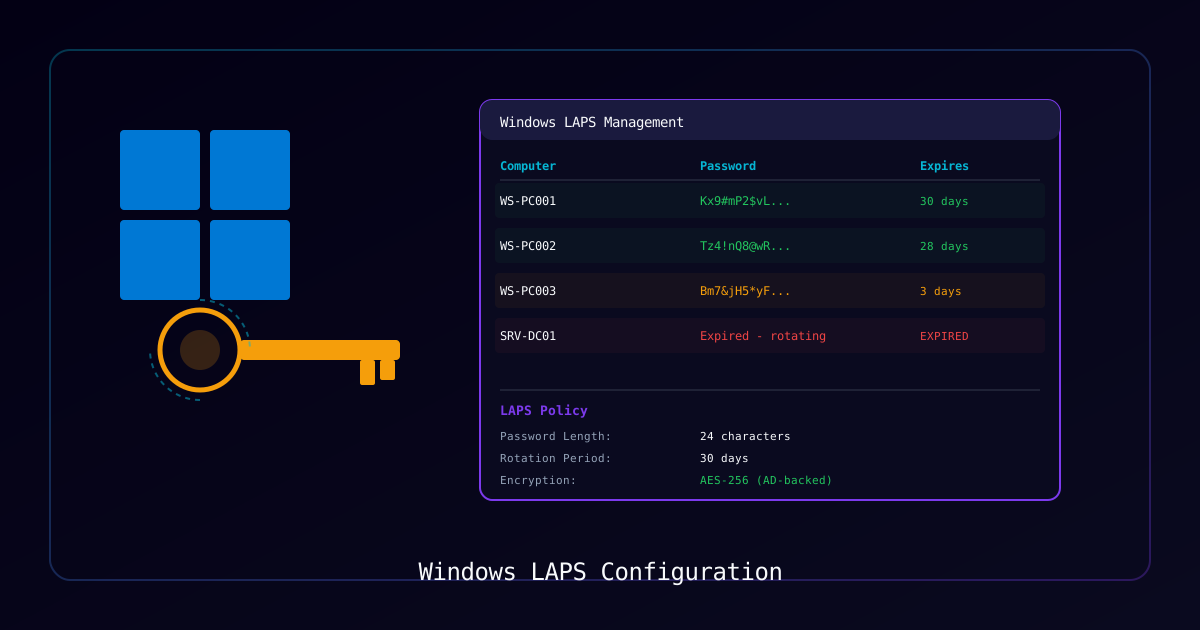
Overview
Local Administrator Password Solution (LAPS) automatically manages and rotates local administrator passwords on domain-joined computers. Without LAPS, organizations typically use a single shared local admin password across all machines — a massive security risk that enables lateral movement after a single endpoint compromise.
Who Should Use This Guide:
- Systems administrators deploying password management
- Security engineers implementing CIS benchmark controls
- MSP technicians hardening client environments
- IT teams preparing for compliance audits (PCI DSS, HIPAA, SOC 2)
What You Will Learn:
| Section | Coverage |
|---|---|
| Windows LAPS | Built-in solution for Server 2019+ |
| Legacy LAPS | Traditional MSI-based solution |
| Schema Extension | Preparing AD for LAPS attributes |
| Delegation | Controlling who can read/reset passwords |
| GPO Configuration | Policy settings and recommendations |
| Azure AD Backup | Hybrid environment support |
| Reporting | Compliance and coverage monitoring |
Requirements
| Component | Windows LAPS | Legacy LAPS |
|---|---|---|
| Server OS | Windows Server 2019+ | Windows Server 2012 R2+ |
| Client OS | Windows 10 21H2+ | Windows 7+ |
| AD Level | 2016 functional level (recommended) | 2003+ |
| Schema Rights | Schema Admin | Schema Admin |
| Installation | Built-in (no installer needed) | MSI deployment required |
Part 1: Windows LAPS (Recommended)
Windows LAPS is built into modern Windows versions — no separate client installation needed.
Extend AD Schema
# Import the LAPS module (Windows Server 2019+)
Import-Module LAPS

# Check current schema version
Get-LapsADSchema

# Extend the schema (requires Schema Admin credentials)
Update-LapsADSchema -Verbose

# Verify schema extension succeeded
Get-ADObject -SearchBase ((Get-ADRootDSE).SchemaNamingContext) `
    -Filter "Name -like 'ms-LAPS*'" |
Select-Object NameExpected output: You should see attributes like ms-LAPS-Password, ms-LAPS-PasswordExpirationTime, and ms-LAPS-EncryptedPassword.
Configure OU Permissions
Grant computers the right to update their own passwords:
# Grant SELF permission on target OUs
Set-LapsADComputerSelfPermission -Identity "OU=Workstations,DC=domain,DC=local"
Set-LapsADComputerSelfPermission -Identity "OU=Servers,DC=domain,DC=local"

# Verify permissions were applied
Find-LapsADExtendedRights -Identity "OU=Workstations,DC=domain,DC=local"Delegate Password Access
Control who can read and reset LAPS passwords:
# Grant IT Admins group permission to read passwords
Set-LapsADReadPasswordPermission -Identity "OU=Workstations,DC=domain,DC=local" `
    -AllowedPrincipals "IT-Admins"

# Grant permission to force password rotation
Set-LapsADResetPasswordPermission -Identity "OU=Workstations,DC=domain,DC=local" `
    -AllowedPrincipals "IT-Admins"

# Verify all delegations
Find-LapsADExtendedRights -Identity "OU=Workstations,DC=domain,DC=local" |
Format-Table Identity, ExtendedRightHoldersCreate LAPS Group Policy
# Create the GPO
$GPO = New-GPO -Name "Security - Windows LAPS Configuration"

# Link to target OUs
New-GPLink -Guid $GPO.Id -Target "OU=Workstations,DC=domain,DC=local"
New-GPLink -Guid $GPO.Id -Target "OU=Servers,DC=domain,DC=local"Configure settings in Group Policy Editor:
Navigate to: Computer Configuration > Administrative Templates > System > LAPS
| Setting | Recommended Value |
|---|---|
| Configure password backup directory | Active Directory |
| Password Settings — Complexity | Large + Small + Numbers + Specials |
| Password Settings — Length | 20 characters |
| Password Settings — Age | 30 days |
| Name of administrator account to manage | Administrator (or custom name) |
| Do not allow password expiration time longer than required | Enabled |
| Enable password encryption | Enabled |
| Configure authorized password decryptors | Domain Admins, IT-Admins |
Retrieve Passwords
# Get password for a single computer
Get-LapsADPassword -Identity "WORKSTATION01" -AsPlainText

# Get password with full details
Get-LapsADPassword -Identity "WORKSTATION01" -AsPlainText |
    Select-Object ComputerName, Account, Password, PasswordExpirationTime

# Bulk retrieval for all workstations
Get-ADComputer -Filter "Name -like 'WKS*'" |
    ForEach-Object {
        Get-LapsADPassword -Identity $_.Name -AsPlainText
    } | Format-Table ComputerName, Account, Password

# Force immediate password rotation
Reset-LapsPassword -Identity "WORKSTATION01"Part 2: Legacy LAPS (Windows Server 2012 R2 and Older)
For environments that cannot use Windows LAPS.
Install LAPS Components
# Download from Microsoft:
# https://www.microsoft.com/en-us/download/details.aspx?id=46899

# Silent install on management workstation (all components)
msiexec /i "LAPS.x64.msi" /qn ADDLOCAL=ALL

# Silent install on DC (management tools only)
msiexec /i "LAPS.x64.msi" /qn ADDLOCAL=Management.UI,Management.PS,Management.ADMXExtend Schema (Legacy)
Import-Module AdmPwd.PS

# Extend schema
Update-AdmPwdADSchema

# Verify new attributes exist
Get-ADObject -SearchBase ((Get-ADRootDSE).SchemaNamingContext) `
-Filter "Name -eq 'ms-Mcs-AdmPwd' -or Name -eq 'ms-Mcs-AdmPwdExpirationTime'"Configure Permissions (Legacy)
# Grant computers permission to update their own password
Set-AdmPwdComputerSelfPermission -Identity "OU=Workstations,DC=domain,DC=local"

# Delegate read permission to IT Admins
Set-AdmPwdReadPasswordPermission -Identity "OU=Workstations,DC=domain,DC=local" `
    -AllowedPrincipals "IT-Admins"

# Delegate reset permission
Set-AdmPwdResetPasswordPermission -Identity "OU=Workstations,DC=domain,DC=local" `
    -AllowedPrincipals "IT-Admins"

# Audit who has read access
Find-AdmPwdExtendedRights -Identity "OU=Workstations,DC=domain,DC=local"Deploy LAPS Client
# Deploy via GPO startup script or SCCM
$LAPSInstaller = "\\domain.local\NETLOGON\LAPS\LAPS.x64.msi"
Start-Process msiexec.exe -ArgumentList "/i `"$LAPSInstaller`" /qn" -Wait

# Verify installation
Test-Path "C:\Program Files\LAPS\CSE\AdmPwd.dll"Retrieve Passwords (Legacy)
# PowerShell method
Get-AdmPwdPassword -ComputerName "WORKSTATION01"

# Direct AD attribute query
Get-ADComputer "WORKSTATION01" -Properties ms-Mcs-AdmPwd, ms-Mcs-AdmPwdExpirationTime |
    Select-Object Name,
        @{N='Password';E={$_.'ms-Mcs-AdmPwd'}},
@{N='Expiration';E={[datetime]::FromFileTime($_.'ms-Mcs-AdmPwdExpirationTime')}}Part 3: LAPS Reporting and Compliance
Generate Coverage Report
$OUs = @(
    "OU=Workstations,DC=domain,DC=local",
    "OU=Servers,DC=domain,DC=local"
)

$Report = foreach ($OU in $OUs) {
    Get-ADComputer -SearchBase $OU -Filter * -Properties ms-Mcs-AdmPwd, ms-Mcs-AdmPwdExpirationTime |
        Select-Object Name,
            DistinguishedName,
            @{N='HasLAPSPassword';E={$null -ne $_.'ms-Mcs-AdmPwd'}},
            @{N='PasswordExpiration';E={
                if ($_.'ms-Mcs-AdmPwdExpirationTime') {
                    [datetime]::FromFileTime($_.'ms-Mcs-AdmPwdExpirationTime')
                }
            }}
}

# Summary statistics
$Report | Group-Object HasLAPSPassword | Select-Object Name, Count

# Export full report
$Report | Export-Csv "C:\Reports\LAPS-Status-$(Get-Date -Format 'yyyy-MM-dd').csv" -NoTypeInformationFind Computers Missing LAPS
# Computers without a LAPS password
Get-ADComputer -Filter "ms-Mcs-AdmPwd -notlike '*'" `
    -SearchBase "OU=Workstations,DC=domain,DC=local" |
Select-Object Name, DistinguishedNamePart 4: Azure AD LAPS Backup (Hybrid)
For hybrid-joined devices, Windows LAPS can back up passwords to both AD and Azure AD.
Configure Hybrid Backup
In Group Policy, set "Configure password backup directory" to:
- Active Directory and Azure Active Directory — Dual backup (recommended for hybrid)
# Verify device is Azure AD joined or hybrid joined
dsregcmd /status

# Check LAPS policy on client
Get-ItemProperty "HKLM:\SOFTWARE\Microsoft\Windows\CurrentVersion\LAPS\Config"Retrieve from Azure AD
# Using Microsoft Graph PowerShell
Connect-MgGraph -Scopes "DeviceLocalCredential.Read.All"

# Get LAPS password from Azure AD
Get-MgDeviceLocalCredential -DeviceId "<device-object-id>"LAPS Cmdlet Reference
Windows LAPS Cmdlets
| Cmdlet | Purpose |
|---|---|
Update-LapsADSchema | Extend AD schema for LAPS |
Set-LapsADComputerSelfPermission | Allow computers to update their password |
Set-LapsADReadPasswordPermission | Delegate password read access |
Set-LapsADResetPasswordPermission | Delegate password reset access |
Get-LapsADPassword | Retrieve a computer's LAPS password |
Reset-LapsPassword | Force immediate password rotation |
Find-LapsADExtendedRights | Show current LAPS permissions |
Recommended Password Settings
| Environment | Length | Complexity | Max Age |
|---|---|---|---|
| Standard workstations | 14 | Letters + Numbers | 30 days |
| High-security endpoints | 20 | All character types | 14 days |
| Servers | 24 | All character types | 30 days |
Troubleshooting
| Issue | Cause | Resolution |
|---|---|---|
| Password not updating | GPO not applied | Run gpupdate /force, verify GPO scope |
| Access denied on read | Missing delegation | Run Set-LapsADReadPasswordPermission |
| Schema extension fails | Not Schema Admin | Use Schema Admin account |
| CSE not processing (legacy) | LAPS client not installed | Deploy LAPS MSI |
| Password blank in AD | Computer not in scope | Check OU membership and GPO link |
| Encryption errors | Missing decryptor config | Verify authorized decryptors GPO setting |
Verify LAPS Client Status
# Check Windows LAPS events
Get-WinEvent -LogName "Microsoft-Windows-LAPS/Operational" -MaxEvents 20

# Check legacy LAPS events
Get-WinEvent -LogName "Application" -MaxEvents 50 |
    Where-Object { $_.ProviderName -eq "AdmPwd" }

# Verify LAPS registry configuration
Get-ItemProperty "HKLM:\SOFTWARE\Microsoft\Windows\CurrentVersion\LAPS\Config" -ErrorAction SilentlyContinueVerification Checklist
- AD schema extended for LAPS attributes
- Computer self-permission set on all target OUs
- Read/reset permissions delegated to appropriate security groups
- GPO created, configured, and linked to correct OUs
- Password encryption enabled (Windows LAPS)
- Test retrieval working for at least one computer
- Coverage report shows >95% of computers managed
- Azure AD backup configured (if hybrid environment)
- LAPS event logs showing successful rotations