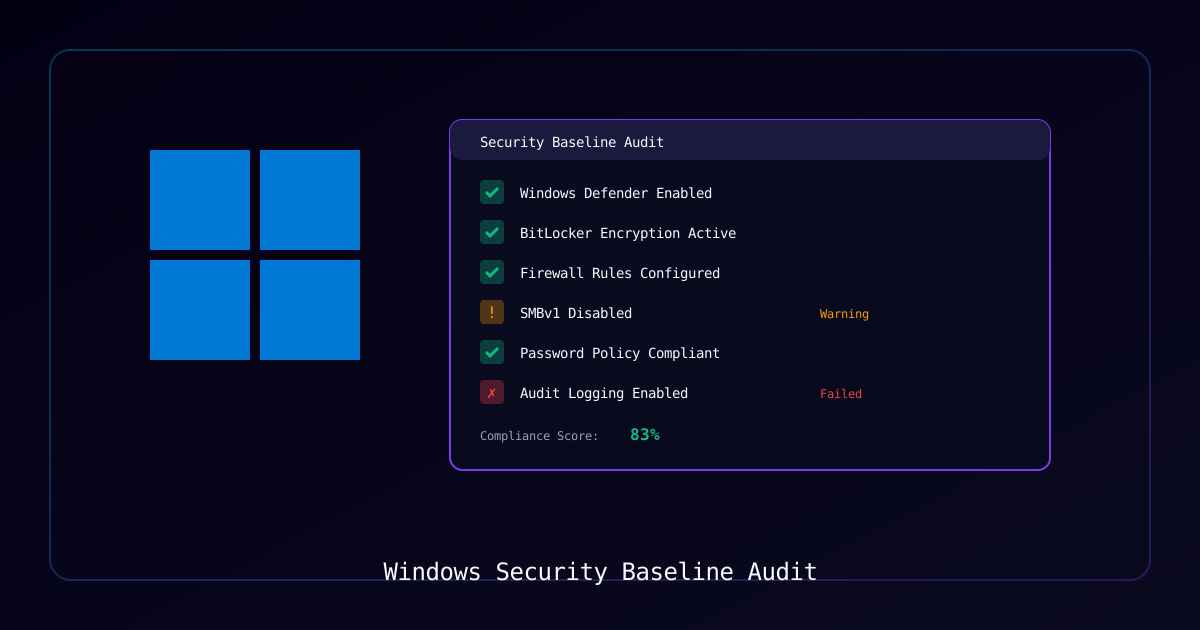
Overview
Validating Windows systems against security baselines like CIS Benchmarks ensures consistent security posture across your environment. This guide shows how to automate compliance checks using PowerShell.
Who Should Use This Guide
- System administrators managing Windows infrastructure
- Security engineers auditing compliance
- IT teams implementing security baselines
- Compliance officers validating configurations
Why Security Baselines
| Benefit | Description |
|---|---|
| Compliance | Meet regulatory requirements (PCI-DSS, HIPAA, SOC 2) |
| Consistency | Ensure all systems meet minimum security standards |
| Risk Reduction | Identify misconfigurations before attackers do |
| Audit Trail | Document security posture for stakeholders |
Requirements
System Requirements
| Component | Requirement |
|---|---|
| Operating System | Windows 10/11 or Windows Server 2016+ |
| PowerShell | Version 5.1 or later |
| Privileges | Administrator/elevated access |
CIS Benchmark Categories
| Category | Examples |
|---|---|
| Account Policies | Password length, complexity, lockout |
| Local Policies | Audit settings, user rights assignments |
| Security Options | UAC, network security, interactive logon |
| Windows Firewall | Profile settings, rules |
| Advanced Audit | Detailed audit policy configuration |
Process
Step 1: Check Password Policy
Validate password requirements against CIS benchmarks.
PowerShell Script:
function Test-PasswordPolicy {
    Write-Host "`n=== Password Policy Compliance ===" -ForegroundColor Cyan

    $secpol = secedit /export /cfg "$env:TEMP\secpol.cfg" /quiet
    $content = Get-Content "$env:TEMP\secpol.cfg"

    $results = @()

    # Minimum password length (CIS: 14+ characters)
    $minLength = ($content | Select-String "MinimumPasswordLength").ToString().Split('=')[1].Trim()
    $results += [PSCustomObject]@{
        Check = "Minimum Password Length"
        Current = $minLength
        Required = "14"
        Status = if ([int]$minLength -ge 14) { "PASS" } else { "FAIL" }
    }

    # Password complexity
    $complexity = ($content | Select-String "PasswordComplexity").ToString().Split('=')[1].Trim()
    $results += [PSCustomObject]@{
        Check = "Password Complexity"
        Current = if ($complexity -eq "1") { "Enabled" } else { "Disabled" }
        Required = "Enabled"
        Status = if ($complexity -eq "1") { "PASS" } else { "FAIL" }
    }

    # Maximum password age (CIS: 365 days or less)
    $maxAge = ($content | Select-String "MaximumPasswordAge").ToString().Split('=')[1].Trim()
    $results += [PSCustomObject]@{
        Check = "Maximum Password Age"
        Current = "$maxAge days"
        Required = "365 days or less"
        Status = if ([int]$maxAge -le 365 -and [int]$maxAge -gt 0) { "PASS" } else { "FAIL" }
    }

    # Password history (CIS: 24 passwords)
    $history = ($content | Select-String "PasswordHistorySize").ToString().Split('=')[1].Trim()
    $results += [PSCustomObject]@{
        Check = "Password History"
        Current = "$history passwords"
        Required = "24 passwords"
        Status = if ([int]$history -ge 24) { "PASS" } else { "FAIL" }
    }

    Remove-Item "$env:TEMP\secpol.cfg" -Force

    $results | Format-Table -AutoSize
    return $results
}Verification:
Test-PasswordPolicyExpected Output: Table showing each check with PASS/FAIL status.
Step 2: Check Account Lockout Policy
Validate lockout settings prevent brute force attacks.
PowerShell Script:
function Test-LockoutPolicy {
    Write-Host "`n=== Account Lockout Policy ===" -ForegroundColor Cyan

    $lockoutInfo = net accounts
    $results = @()

    # Lockout threshold (CIS: 5 or fewer)
    $threshold = ($lockoutInfo | Select-String "Lockout threshold").ToString().Split(':')[1].Trim()
    $results += [PSCustomObject]@{
        Check = "Account Lockout Threshold"
        Current = $threshold
        Required = "5 or fewer attempts"
        Status = if ($threshold -ne "Never" -and [int]$threshold -le 5) { "PASS" } else { "FAIL" }
    }

    # Lockout duration (CIS: 15+ minutes)
    $duration = ($lockoutInfo | Select-String "Lockout duration").ToString().Split(':')[1].Trim()
    $results += [PSCustomObject]@{
        Check = "Lockout Duration"
        Current = $duration
        Required = "15+ minutes"
        Status = if ($duration -ne "Never" -and [int]($duration -replace '\D','') -ge 15) { "PASS" } else { "FAIL" }
    }

    $results | Format-Table -AutoSize
    return $results
}Step 3: Check Audit Policy
Verify security auditing is properly configured.
PowerShell Script:
function Test-AuditPolicy {
    Write-Host "`n=== Audit Policy Compliance ===" -ForegroundColor Cyan

    $auditPolicy = auditpol /get /category:* | Out-String
    $results = @()

    # Required audit settings
    $requiredAudits = @{
        "Credential Validation" = "Success and Failure"
        "Security Group Management" = "Success"
        "User Account Management" = "Success and Failure"
        "Logon" = "Success and Failure"
        "Special Logon" = "Success"
        "Audit Policy Change" = "Success"
        "Sensitive Privilege Use" = "Success and Failure"
    }

    foreach ($audit in $requiredAudits.GetEnumerator()) {
        $pattern = "$($audit.Key)\s+(\S+.*)"
        if ($auditPolicy -match $pattern) {
            $currentSetting = $Matches[1].Trim()
            $required = $audit.Value

            $status = "FAIL"
            if ($required -eq "Success and Failure" -and $currentSetting -match "Success and Failure") {
                $status = "PASS"
            } elseif ($required -eq "Success" -and $currentSetting -match "Success") {
                $status = "PASS"
            }

            $results += [PSCustomObject]@{
                Check = $audit.Key
                Current = $currentSetting
                Required = $required
                Status = $status
            }
        }
    }

    $results | Format-Table -AutoSize
    return $results
}Step 4: Check Security Options
Validate critical security settings in the registry.
PowerShell Script:
function Test-SecurityOptions {
    Write-Host "`n=== Security Options ===" -ForegroundColor Cyan

    $results = @()

    # UAC: Admin Approval Mode
    $uacAdmin = (Get-ItemProperty -Path "HKLM:\SOFTWARE\Microsoft\Windows\CurrentVersion\Policies\System" -Name "EnableLUA" -ErrorAction SilentlyContinue).EnableLUA
    $results += [PSCustomObject]@{
        Check = "UAC: Admin Approval Mode"
        Current = if ($uacAdmin -eq 1) { "Enabled" } else { "Disabled" }
        Required = "Enabled"
        Status = if ($uacAdmin -eq 1) { "PASS" } else { "FAIL" }
    }

    # LAN Manager authentication level
    $lmLevel = (Get-ItemProperty -Path "HKLM:\SYSTEM\CurrentControlSet\Control\Lsa" -Name "LmCompatibilityLevel" -ErrorAction SilentlyContinue).LmCompatibilityLevel
    $results += [PSCustomObject]@{
        Check = "LAN Manager Auth Level"
        Current = switch ($lmLevel) {
            0 {"LM & NTLM"} 1 {"LM & NTLM + NTLMv2"} 2 {"NTLM only"}
            3 {"NTLMv2 only"} 4 {"NTLMv2, refuse LM"} 5 {"NTLMv2, refuse LM & NTLM"}
            default {"Unknown"}
        }
        Required = "NTLMv2 only (5)"
        Status = if ($lmLevel -ge 5) { "PASS" } else { "FAIL" }
    }

    # SMB signing
    $smbSigning = (Get-ItemProperty -Path "HKLM:\SYSTEM\CurrentControlSet\Services\LanmanServer\Parameters" -Name "RequireSecuritySignature" -ErrorAction SilentlyContinue).RequireSecuritySignature
    $results += [PSCustomObject]@{
        Check = "SMB Server Signing Required"
        Current = if ($smbSigning -eq 1) { "Required" } else { "Not Required" }
        Required = "Required"
        Status = if ($smbSigning -eq 1) { "PASS" } else { "FAIL" }
    }

    $results | Format-Table -AutoSize
    return $results
}Step 5: Check Windows Firewall
Verify firewall is enabled with proper defaults.
PowerShell Script:
function Test-FirewallStatus {
    Write-Host "`n=== Windows Firewall Status ===" -ForegroundColor Cyan

    $results = @()
    $profiles = @("Domain", "Private", "Public")

    foreach ($profile in $profiles) {
        $fw = Get-NetFirewallProfile -Name $profile

        $results += [PSCustomObject]@{
            Profile = $profile
            Enabled = $fw.Enabled
            InboundDefault = $fw.DefaultInboundAction
            OutboundDefault = $fw.DefaultOutboundAction
            Status = if ($fw.Enabled -and $fw.DefaultInboundAction -eq "Block") { "PASS" } else { "FAIL" }
        }
    }

    $results | Format-Table -AutoSize
    return $results
}Step 6: Check Windows Defender
Verify antivirus protection is active.
PowerShell Script:
function Test-DefenderStatus {
    Write-Host "`n=== Windows Defender Status ===" -ForegroundColor Cyan

    $results = @()

    try {
        $defender = Get-MpComputerStatus

        $results += [PSCustomObject]@{
            Check = "Real-Time Protection"
            Current = if ($defender.RealTimeProtectionEnabled) { "Enabled" } else { "Disabled" }
            Required = "Enabled"
            Status = if ($defender.RealTimeProtectionEnabled) { "PASS" } else { "FAIL" }
        }

        $results += [PSCustomObject]@{
            Check = "Tamper Protection"
            Current = if ($defender.IsTamperProtected) { "Enabled" } else { "Disabled" }
            Required = "Enabled"
            Status = if ($defender.IsTamperProtected) { "PASS" } else { "FAIL" }
        }

        # Signature age
        $sigAge = (Get-Date) - $defender.AntivirusSignatureLastUpdated
        $results += [PSCustomObject]@{
            Check = "Signature Age"
            Current = "$([math]::Round($sigAge.TotalDays, 1)) days"
            Required = "7 days or less"
            Status = if ($sigAge.TotalDays -le 7) { "PASS" } else { "FAIL" }
        }
    }
    catch {
        $results += [PSCustomObject]@{
            Check = "Windows Defender"
            Current = "Not Available"
            Required = "Installed and Running"
            Status = "FAIL"
        }
    }

    $results | Format-Table -AutoSize
    return $results
}Step 7: Run Complete Audit
Execute all checks and generate summary report.
Complete Audit Script:
function Invoke-SecurityBaselineAudit {
    Write-Host "========================================" -ForegroundColor Cyan
    Write-Host "  Windows Security Baseline Audit" -ForegroundColor Cyan
    Write-Host "  Computer: $env:COMPUTERNAME" -ForegroundColor Cyan
    Write-Host "  Date: $(Get-Date)" -ForegroundColor Cyan
    Write-Host "========================================" -ForegroundColor Cyan

    $allResults = @()

    # Run all checks
    $allResults += Test-PasswordPolicy
    $allResults += Test-LockoutPolicy
    $allResults += Test-AuditPolicy
    $allResults += Test-SecurityOptions
    $allResults += Test-FirewallStatus
    $allResults += Test-DefenderStatus

    # Summary
    Write-Host "`n========================================" -ForegroundColor Cyan
    Write-Host "  AUDIT SUMMARY" -ForegroundColor Cyan
    Write-Host "========================================" -ForegroundColor Cyan

    $passed = ($allResults | Where-Object { $_.Status -eq "PASS" }).Count
    $failed = ($allResults | Where-Object { $_.Status -eq "FAIL" }).Count
    $total = $allResults.Count

    Write-Host "Total Checks: $total"
    Write-Host "Passed: $passed" -ForegroundColor Green
    Write-Host "Failed: $failed" -ForegroundColor Red

    $compliance = [math]::Round(($passed / $total) * 100, 1)
    Write-Host "`nCompliance Score: $compliance%" -ForegroundColor $(
        if ($compliance -ge 90) { 'Green' }
        elseif ($compliance -ge 70) { 'Yellow' }
        else { 'Red' }
    )

    return $allResults
}

# Run the audit
$results = Invoke-SecurityBaselineAuditRemediation Commands
Fix common failures with these commands:
Password Policy:
# Set minimum password length to 14
net accounts /minpwlen:14

# Set account lockout threshold
net accounts /lockoutthreshold:5

# Set lockout duration
net accounts /lockoutduration:30Audit Policy:
# Enable required audit policies
auditpol /set /category:"Account Logon" /success:enable /failure:enable
auditpol /set /category:"Logon/Logoff" /success:enable /failure:enable
auditpol /set /category:"Account Management" /success:enable /failure:enableSecurity Options:
# Enable SMB signing
Set-ItemProperty -Path "HKLM:\SYSTEM\CurrentControlSet\Services\LanmanServer\Parameters" -Name "RequireSecuritySignature" -Value 1

# Set LAN Manager authentication level to NTLMv2 only
Set-ItemProperty -Path "HKLM:\SYSTEM\CurrentControlSet\Control\Lsa" -Name "LmCompatibilityLevel" -Value 5Troubleshooting
| Symptom | Possible Cause | Solution |
|---|---|---|
| Access denied | Not running as admin | Run PowerShell elevated |
| secedit fails | Policy corruption | Run secedit /configure /cfg defltbase.inf /db defltbase.sdb /verbose |
| Audit policy unchanged | Group Policy override | Check GPO settings |
| Registry key not found | Different Windows version | Verify path for your OS version |
Verification Checklist
Account Policies
- Password minimum length ≥ 14
- Password complexity enabled
- Account lockout configured
Audit Policies
- Logon events audited
- Account management audited
- Privilege use audited
Security Options
- UAC enabled
- NTLMv2 authentication only
- SMB signing required
Protection
- Windows Firewall enabled
- Defender real-time protection active
- Signatures up to date
Scheduling Regular Audits
Automate weekly compliance checks:
$action = New-ScheduledTaskAction -Execute "PowerShell.exe" -Argument "-ExecutionPolicy Bypass -File C:\Scripts\Security-Baseline-Audit.ps1"
$trigger = New-ScheduledTaskTrigger -Weekly -DaysOfWeek Monday -At 6am
$principal = New-ScheduledTaskPrincipal -UserId "SYSTEM" -LogonType ServiceAccount -RunLevel Highest

Register-ScheduledTask -TaskName "Weekly Security Audit" -Action $action -Trigger $trigger -Principal $principalReferences
Last Updated: January 2026