Overview
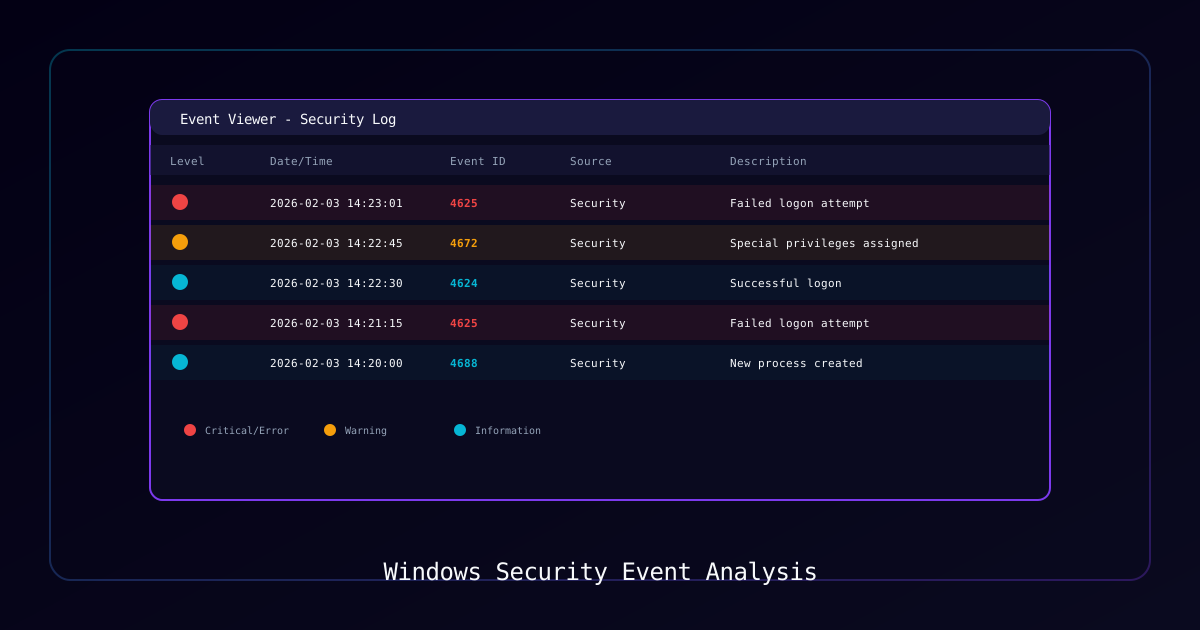
Windows Event Logs are a goldmine for security analysis. This guide teaches you to query and analyze security events to detect threats, investigate incidents, and monitor for suspicious activity.
Who Should Use This Guide
- Security analysts investigating incidents
- System administrators monitoring infrastructure
- SOC teams building detection capabilities
- Incident responders performing forensics
Why Analyze Event Logs
| Benefit | Description |
|---|---|
| Incident Response | Understand what happened during a breach |
| Threat Hunting | Proactively search for indicators of compromise |
| Compliance | Generate audit reports for security frameworks |
| Forensics | Build incident timelines |
Requirements
System Requirements
| Component | Requirement |
|---|---|
| Operating System | Windows 10/11 or Windows Server 2016+ |
| PowerShell | Version 5.1 or later |
| Privileges | Administrator access |
| Disk Space | Adequate for log retention |
Prerequisites
| Prerequisite | Purpose |
|---|---|
| Security audit policies enabled | Generate security events |
| PowerShell script block logging | Detect malicious scripts |
| Adequate log retention | Historical analysis |
Critical Security Event IDs
Authentication Events
| Event ID | Description | Threat Indicator |
|---|---|---|
| 4624 | Successful logon | Track access patterns |
| 4625 | Failed logon attempt | Brute force, credential stuffing |
| 4648 | Explicit credential logon | Pass-the-hash, lateral movement |
| 4740 | Account locked out | Password spray attack |
Privilege and Access Events
| Event ID | Description | Threat Indicator |
|---|---|---|
| 4672 | Special privileges assigned | Privilege escalation |
| 4673 | Privileged service called | Suspicious privilege use |
| 4688 | Process creation | Malware execution |
| 4697 | Service installed | Persistence mechanism |
System Events
| Event ID | Description | Threat Indicator |
|---|---|---|
| 7045 | New service installed | Malware, persistence |
| 1102 | Audit log cleared | Evidence tampering |
| 4104 | PowerShell script block | Fileless malware |
Process
Step 1: Query Basic Security Events
Learn fundamental event log queries with PowerShell.
Basic Event Query:
# Query last 24 hours of failed logons
$startTime = (Get-Date).AddHours(-24)
Get-WinEvent -FilterHashtable @{
    LogName = 'Security'
    ID = 4625
    StartTime = $startTime
} | Select-Object TimeCreated, MessageXPath Filtering (More Efficient):
# Failed logons with XPath filter
$startTime = (Get-Date).AddHours(-24).ToUniversalTime().ToString('yyyy-MM-ddTHH:mm:ss.fffZ')
$xpathFilter = "*[System[(EventID=4625) and TimeCreated[@SystemTime>='$startTime']]]"

Get-WinEvent -LogName Security -FilterXPath $xpathFilter | ForEach-Object {
    $xml = [xml]$_.ToXml()
    [PSCustomObject]@{
        TimeCreated = $_.TimeCreated
        SourceIP = ($xml.Event.EventData.Data | Where-Object { $_.Name -eq 'IpAddress' }).'#text'
        TargetUser = ($xml.Event.EventData.Data | Where-Object { $_.Name -eq 'TargetUserName' }).'#text'
        LogonType = ($xml.Event.EventData.Data | Where-Object { $_.Name -eq 'LogonType' }).'#text'
    }
}Verification: Events returned with parsed fields.
Step 2: Detect Brute Force Attacks
Identify multiple failed logons from the same source.
Detection Script:
# Group failed logons by source IP
$failedLogons = Get-WinEvent -FilterHashtable @{
    LogName = 'Security'
    ID = 4625
    StartTime = (Get-Date).AddHours(-24)
}

$bruteForceAttempts = $failedLogons | ForEach-Object {
    $xml = [xml]$_.ToXml()
    [PSCustomObject]@{
        SourceIP = ($xml.Event.EventData.Data | Where-Object { $_.Name -eq 'IpAddress' }).'#text'
        TargetUser = ($xml.Event.EventData.Data | Where-Object { $_.Name -eq 'TargetUserName' }).'#text'
        TimeCreated = $_.TimeCreated
    }
} | Where-Object { $_.SourceIP -and $_.SourceIP -ne '-' }

# Find IPs with more than 10 attempts
$bruteForceAttempts | Group-Object SourceIP |
    Where-Object { $_.Count -ge 10 } |
    Sort-Object Count -Descending |
    Select-Object Name, Count, @{
        N='FirstAttempt'
        E={($_.Group | Sort-Object TimeCreated | Select-Object -First 1).TimeCreated}
}Expected Output: Table of IPs with failed attempt counts.
Alert Threshold: > 10 failed logons from single IP in 24 hours.
Step 3: Detect Lateral Movement
Identify failed logons across multiple workstations.
Detection Script:
# Find users with failed logons from multiple sources
$lateralMovement = $failedLogons | ForEach-Object {
    $xml = [xml]$_.ToXml()
    [PSCustomObject]@{
        TargetUser = ($xml.Event.EventData.Data | Where-Object { $_.Name -eq 'TargetUserName' }).'#text'
        WorkstationName = ($xml.Event.EventData.Data | Where-Object { $_.Name -eq 'WorkstationName' }).'#text'
        SourceIP = ($xml.Event.EventData.Data | Where-Object { $_.Name -eq 'IpAddress' }).'#text'
    }
} | Where-Object { $_.TargetUser -and $_.WorkstationName }

# Users with 5+ failed logons from 3+ different workstations
$lateralMovement | Group-Object TargetUser | Where-Object {
    $_.Count -ge 5 -and ($_.Group.WorkstationName | Select-Object -Unique).Count -ge 3
} | ForEach-Object {
    [PSCustomObject]@{
        User = $_.Name
        TotalAttempts = $_.Count
        UniqueWorkstations = ($_.Group.WorkstationName | Select-Object -Unique).Count
    }
}Alert Threshold: > 5 failed logons from > 3 workstations.
Step 4: Detect Privilege Escalation
Monitor for unusual privilege assignments.
Detection Script:
# Query privilege escalation events
Get-WinEvent -FilterHashtable @{
    LogName = 'Security'
    ID = 4672
    StartTime = (Get-Date).AddDays(-7)
} | ForEach-Object {
    $xml = [xml]$_.ToXml()
    [PSCustomObject]@{
        TimeCreated = $_.TimeCreated
        SubjectUser = ($xml.Event.EventData.Data | Where-Object { $_.Name -eq 'SubjectUserName' }).'#text'
        Privileges = ($xml.Event.EventData.Data | Where-Object { $_.Name -eq 'PrivilegeList' }).'#text'
    }
} | Where-Object {
    # Filter for suspicious privileges (exclude system accounts)
    $_.SubjectUser -notmatch '^(SYSTEM|LOCAL SERVICE|NETWORK SERVICE)$' -and
    $_.Privileges -match 'SeDebugPrivilege|SeBackupPrivilege|SeTakeOwnershipPrivilege'
}Suspicious Privileges:
| Privilege | Risk |
|---|---|
| SeDebugPrivilege | Process injection, credential theft |
| SeBackupPrivilege | Read any file bypass |
| SeTakeOwnershipPrivilege | Object permission takeover |
Step 5: Analyze New Services
Detect potentially malicious service installations.
Detection Script:
# Query new service installations
Get-WinEvent -FilterHashtable @{
    LogName = 'System'
    ID = 7045
    StartTime = (Get-Date).AddDays(-7)
} | ForEach-Object {
    $xml = [xml]$_.ToXml()
    [PSCustomObject]@{
        TimeCreated = $_.TimeCreated
        ServiceName = ($xml.Event.EventData.Data | Where-Object { $_.Name -eq 'ServiceName' }).'#text'
        ImagePath = ($xml.Event.EventData.Data | Where-Object { $_.Name -eq 'ImagePath' }).'#text'
    }
} | Where-Object {
    # Flag suspicious paths
    $_.ImagePath -match '\\Temp\\|\\AppData\\|\\ProgramData\\|powershell|cmd\.exe'
}Suspicious Indicators:
| Pattern | Risk |
|---|---|
| Temp directories | Malware staging location |
| AppData paths | User-writable persistence |
| PowerShell in path | Living-off-the-land |
| Base64 encoded | Obfuscated commands |
Step 6: Monitor PowerShell Activity
Detect suspicious script execution.
Detection Script:
# Query PowerShell script block logs
Get-WinEvent -FilterHashtable @{
    LogName = 'Microsoft-Windows-PowerShell/Operational'
    ID = 4104
    StartTime = (Get-Date).AddDays(-1)
} | ForEach-Object {
    $xml = [xml]$_.ToXml()
    $scriptBlock = ($xml.Event.EventData.Data | Where-Object { $_.Name -eq 'ScriptBlockText' }).'#text'

    # Check for suspicious patterns
    $suspiciousPatterns = @(
        'Invoke-Expression', 'IEX', 'DownloadString', 'WebClient',
        'FromBase64String', 'EncodedCommand', '-w hidden'
    )

    $matches = $suspiciousPatterns | Where-Object { $scriptBlock -match [regex]::Escape($_) }

    if ($matches) {
        [PSCustomObject]@{
            TimeCreated = $_.TimeCreated
            SuspiciousPatterns = $matches -join ', '
            ScriptPreview = if ($scriptBlock.Length -gt 200) {
                $scriptBlock.Substring(0, 200) + '...'
            } else {
                $scriptBlock
            }
        }
    }
}Step 7: Build Security Dashboard
Create a summary report of security events.
Summary Script:
function Get-SecuritySummary {
    param(
        [int]$HoursBack = 24
    )

    $startTime = (Get-Date).AddHours(-$HoursBack)

    Write-Host "`n=== SECURITY EVENT SUMMARY ===" -ForegroundColor Cyan
    Write-Host "Period: Last $HoursBack hours"
    Write-Host "Computer: $env:COMPUTERNAME`n"

    # Failed logons
    $failedLogons = (Get-WinEvent -FilterHashtable @{
        LogName = 'Security'; ID = 4625; StartTime = $startTime
    } -ErrorAction SilentlyContinue).Count

    Write-Host "Failed Logon Attempts: " -NoNewline
    Write-Host $failedLogons -ForegroundColor $(if ($failedLogons -gt 50) {'Red'} else {'Green'})

    # Account lockouts
    $lockouts = (Get-WinEvent -FilterHashtable @{
        LogName = 'Security'; ID = 4740; StartTime = $startTime
    } -ErrorAction SilentlyContinue).Count

    Write-Host "Account Lockouts: " -NoNewline
    Write-Host $lockouts -ForegroundColor $(if ($lockouts -gt 0) {'Red'} else {'Green'})

    # New services
    $newServices = (Get-WinEvent -FilterHashtable @{
        LogName = 'System'; ID = 7045; StartTime = $startTime
    } -ErrorAction SilentlyContinue).Count

    Write-Host "New Services Installed: " -NoNewline
    Write-Host $newServices -ForegroundColor $(if ($newServices -gt 5) {'Yellow'} else {'Green'})

    # Defender threats
    $threats = (Get-WinEvent -FilterHashtable @{
        LogName = 'Microsoft-Windows-Windows Defender/Operational'
        ID = 1116, 1117
        StartTime = $startTime
    } -ErrorAction SilentlyContinue).Count

    Write-Host "Defender Threats: " -NoNewline
    Write-Host $threats -ForegroundColor $(if ($threats -gt 0) {'Red'} else {'Green'})

    Write-Host "`n===============================" -ForegroundColor Cyan
}

# Run the summary
Get-SecuritySummary -HoursBack 24SIEM Integration
Export events in JSON format for SIEM ingestion:
$events = Get-WinEvent -FilterHashtable @{
    LogName = 'Security'
    ID = 4625
    StartTime = (Get-Date).AddHours(-24)
} | ForEach-Object {
    $xml = [xml]$_.ToXml()
    [PSCustomObject]@{
        Timestamp = $_.TimeCreated.ToString('o')
        EventID = $_.Id
        Computer = $_.MachineName
        SourceIP = ($xml.Event.EventData.Data | Where-Object { $_.Name -eq 'IpAddress' }).'#text'
        TargetUser = ($xml.Event.EventData.Data | Where-Object { $_.Name -eq 'TargetUserName' }).'#text'
    }
}

$events | ConvertTo-Json -Depth 10 | Out-File "SecurityEvents-$(Get-Date -Format 'yyyyMMdd').json"Enable Required Auditing
Ensure critical events are being captured:
# Enable required audit policies
auditpol /set /category:"Account Logon" /success:enable /failure:enable
auditpol /set /category:"Logon/Logoff" /success:enable /failure:enable
auditpol /set /category:"Account Management" /success:enable /failure:enable
auditpol /set /category:"Privilege Use" /success:enable /failure:enableEnable PowerShell Logging:
Via Group Policy or Registry:
- Computer Configuration > Administrative Templates > Windows PowerShell
- Enable "Turn on Module Logging"
- Enable "Turn on PowerShell Script Block Logging"
Troubleshooting
| Symptom | Possible Cause | Solution |
|---|---|---|
| No events returned | Auditing not enabled | Enable audit policies |
| Access denied | Not running elevated | Run PowerShell as admin |
| Missing PowerShell logs | Logging not enabled | Enable script block logging |
| Old events missing | Log retention too short | Increase log size |
Verification Checklist
Audit Configuration
- Account logon auditing enabled
- Logon/logoff auditing enabled
- Account management auditing enabled
- Privilege use auditing enabled
PowerShell Logging
- Module logging enabled
- Script block logging enabled
- Transcription enabled (optional)
Operations
- Log retention configured (90+ days)
- Centralized collection configured
- Alert rules defined
- Regular review scheduled
Alert Thresholds Summary
| Detection | Threshold | Severity |
|---|---|---|
| Brute Force | > 10 failed from single IP | High |
| Lateral Movement | > 5 failed from > 3 workstations | Critical |
| Account Lockout | Any lockout | Medium |
| Suspicious Service | Temp/AppData/PowerShell path | High |
| Log Cleared | Event ID 1102 | Critical |
References
Last Updated: January 2026